Finding your way around
Enclessa is one window with one sidebar. Everything that takes you somewhere lives in that sidebar or in the search palette (⌘K / Ctrl+K). This page explains both, and how the settings and administration of every module are reached.
The window
From top to bottom, the sidebar holds:
- The organisation — its name; select it to switch to another organisation you belong to or, where offered, create a new one. Beside it: the connection status dot, the search button (⌘K) and the hide sidebar button (⌘B).
- The app switcher — the apps you pinned, in your order, followed by All apps (the grid icon).
- The open app's own list — rooms in Chat, folders in Mail, pages in Finance, and so on. Each module's settings and administration pages sit at the bottom of this list.
- Your account — at the very bottom: your account settings, switching accounts, the theme, and signing out.
The content area to the right shows the page you opened. The sparkle button in the bottom corner opens the Companion over any page, when your organisation runs it. Every module page starts with the same header bar: title, one line of context, and the page's actions on the right.
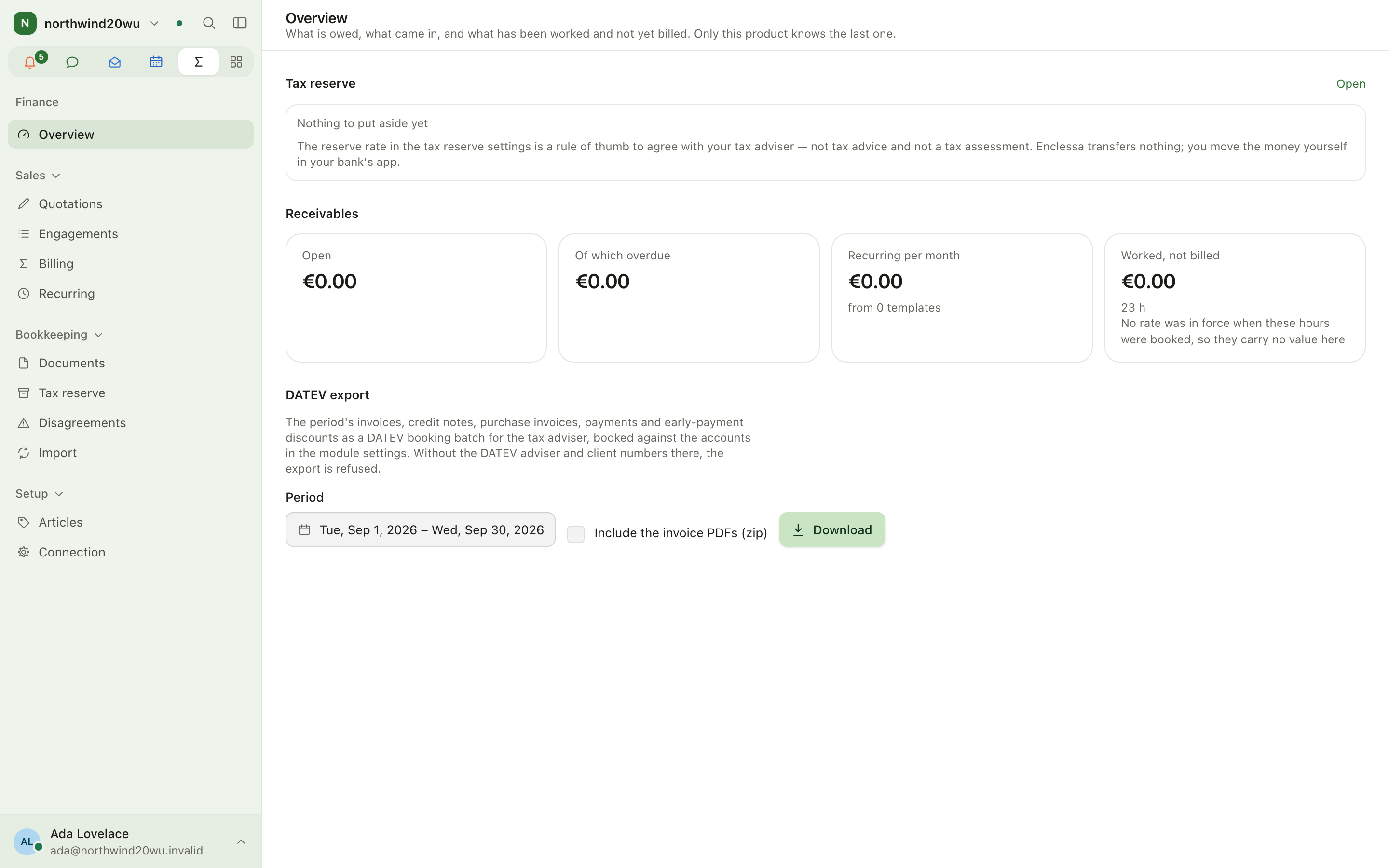
On a narrow screen the sidebar becomes a sheet that slides over the content. Open it with the panel button in the top-left corner; it closes by itself after you pick something.
Apps
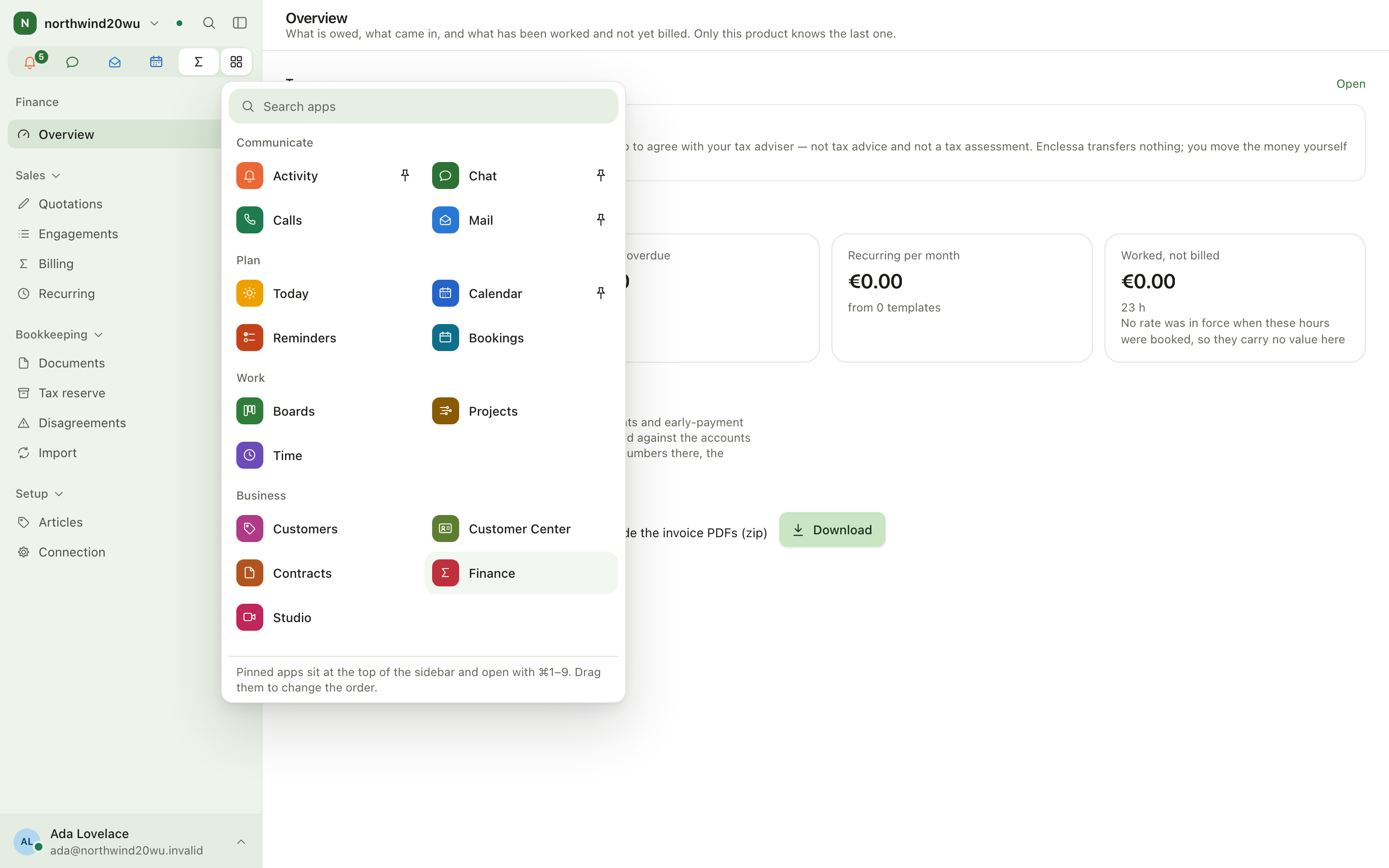
All apps lists every app you may open, grouped:
| Group | Apps |
|---|---|
| Communicate | Activity, Chat, Calls, Mail |
| Plan | Today, Calendar, Reminders, Bookings |
| Work | Boards, Projects, Spaces, Time |
| Business | Customers, Customer Center, Contracts, Finance, Studio |
| Organisation | People, Cards, Incidents, System console |
You only see the apps your organisation has installed and that somebody gave you access to. A guest sees Chat and Calls only.
Pin, unpin and reorder apps
- Open All apps (grid icon at the end of the app row).
- Use the pin icon beside an app to pin or unpin it. Pinned apps sit in the app row.
- Drag an app in the row to change the order. Dropping it among the unpinned apps unpins it.
- Right-click an app in the row for Hide from the sidebar and Customise sidebar….
Your pinned apps follow you to every device in this organisation. The order and the number of rows (one to three, under Your account → Sidebar) are kept per device.
⌘1 … ⌘9 (Ctrl on Windows and Linux) open your first nine pinned apps. In the desktop app on a Mac, ⌘1 – ⌘5 follow its Go menu instead (see The desktop and phone apps).
Search and jump: the command palette
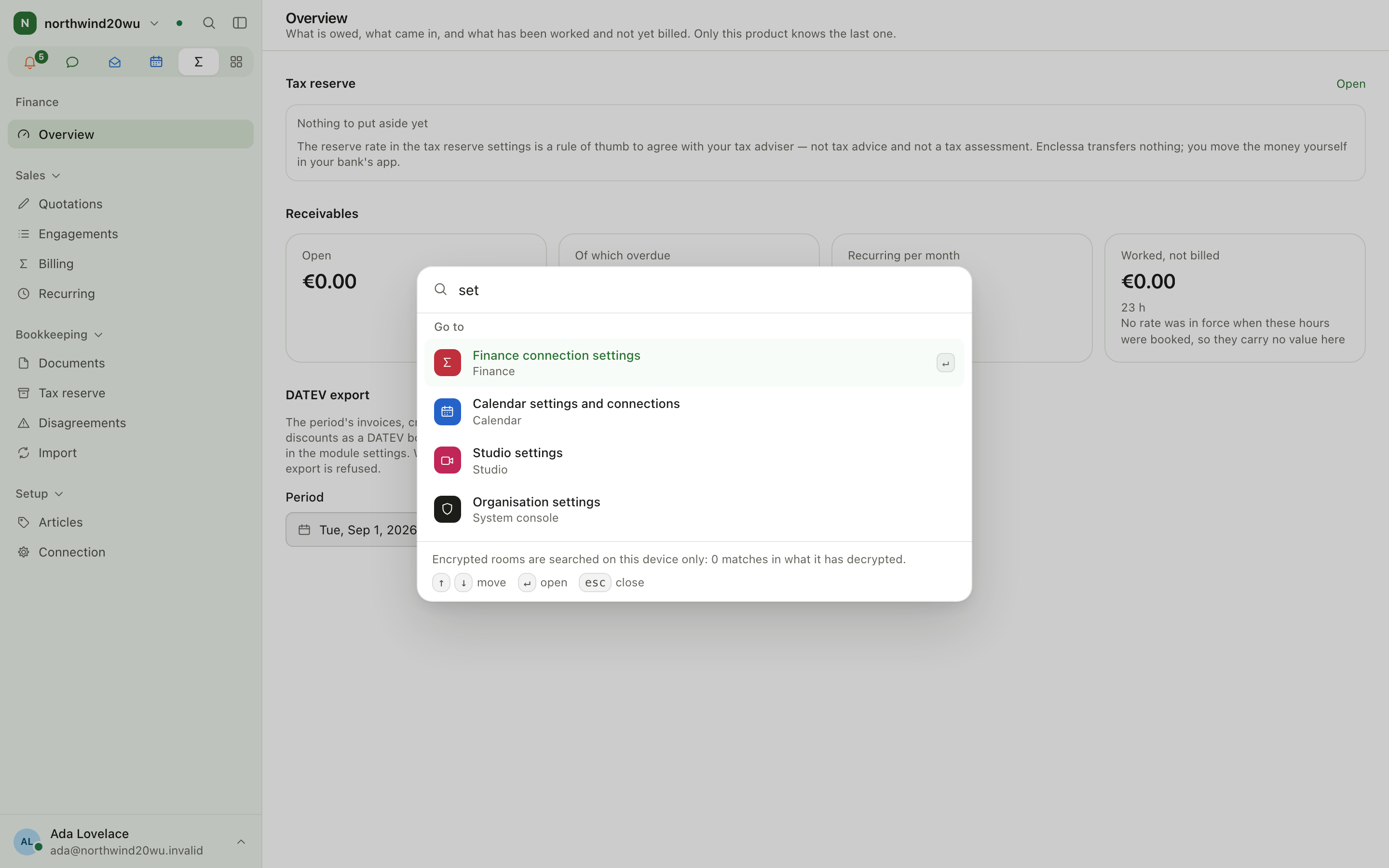
Press ⌘K (Ctrl+K) anywhere, or the magnifier in the sidebar header.
- Nothing typed yet: your pinned apps are listed, so ⌘K then ↵ opens your first app.
- Type a name: the Go to section finds apps, pages inside apps, console pages and your
account settings. Every word you type has to match, in any order:
fin setfinds Finance's connection settings,rolesfinds the console's Roles page,notifopens your notification settings, andpasswordor2faopens Security in your account. - Type two or more characters to also search records (projects, customers, cards, colleagues), channels, messages, knowledge-base pages and files.
- Messages in end-to-end encrypted rooms are searched on this device only, under their own heading.
Use ↑ and ↓ to move, ↵ to open, Esc to close.
The palette only offers pages you can open. A module page that needs a permission, such as Time's Approvals or Contracts' Waiting for my approval, is offered to whoever holds that permission; the System console's pages are offered to organisation administrators.
Where settings and administration live
| What | Where |
|---|---|
| Your profile, security, devices, notifications, sidebar | Your account (bottom of the sidebar) |
| A channel's name, members, permissions | The gear in the channel header, or the channel's row menu in the sidebar |
| A team's channels, commands, members | Team menu in the Chat sidebar → Team settings |
| A module's own settings (e.g. Finance connection, Bookings "What can be booked", Studio settings, Incident settings, Calendar connections) | Bottom of that module's sidebar; organisation administrators also find every one under System console → Settings → Features |
| A module's administration (roles, field policies, mailboxes) | Bottom of that module's sidebar, labelled Administration |
| Who may use which module, roles, teams | System console → Access |
| Installing and removing modules | System console → Marketplace |
| Organisation branding, legal texts, sign-in rules | System console → Settings |
The System console appears among your apps if you are the organisation's administrator or hold a delegated administrator role (for example a read-only or people administrator). Inside it you see only the pages your role lets you open.
Tips
- ⌘B hides and shows the sidebar.
- Lost? ⌘K and type the name of what you want.
- A module page your role does not cover says so ("no role gives you access to it — ask whoever administers it") instead of showing an empty list.
- A list your search or filters have emptied says that nothing matches and offers Clear filters. A list that is really empty says so and, when your role lets you, offers the button that creates the first entry.
- Dates are written in your language (for example Mon, 17 Aug 2026), never as
2026-08-17.