Welcome to the Enclessa documentation
How to use Enclessa — chat, calls and the modules your organisation installs
Enclessa is where a team talks and works: chat with channels, threads and direct messages, rooms that can be end-to-end encrypted, audio and video calls, and the modules your organisation installs — from boards and time tracking to customers, contracts and finance. Everything sits in one window with one sidebar, on the web, on the desktop and on your phone.
Start here
Getting started
Sign in, set up your account and send your first message
Finding your way around
The sidebar, All apps, the search palette and where settings live
Guides by role
What members, team leads, administrators and customers do, step by step
Module guides
Every module, one page each — start with Chat
FAQ
Short answers to the questions people ask most
What Enclessa does
Chat. Channels for topics, direct messages between people, threads for side conversations, drafts, saved and scheduled messages, and an Activity feed of everything waiting for you. Each room is either managed — the server can search, retain and export it — or end-to-end encrypted, where only the members' devices can read it. See Chat.
Calls. Audio and video calls with screen sharing, a waiting room and guests without an account. A call keeps running while you move around the app. See Calls.
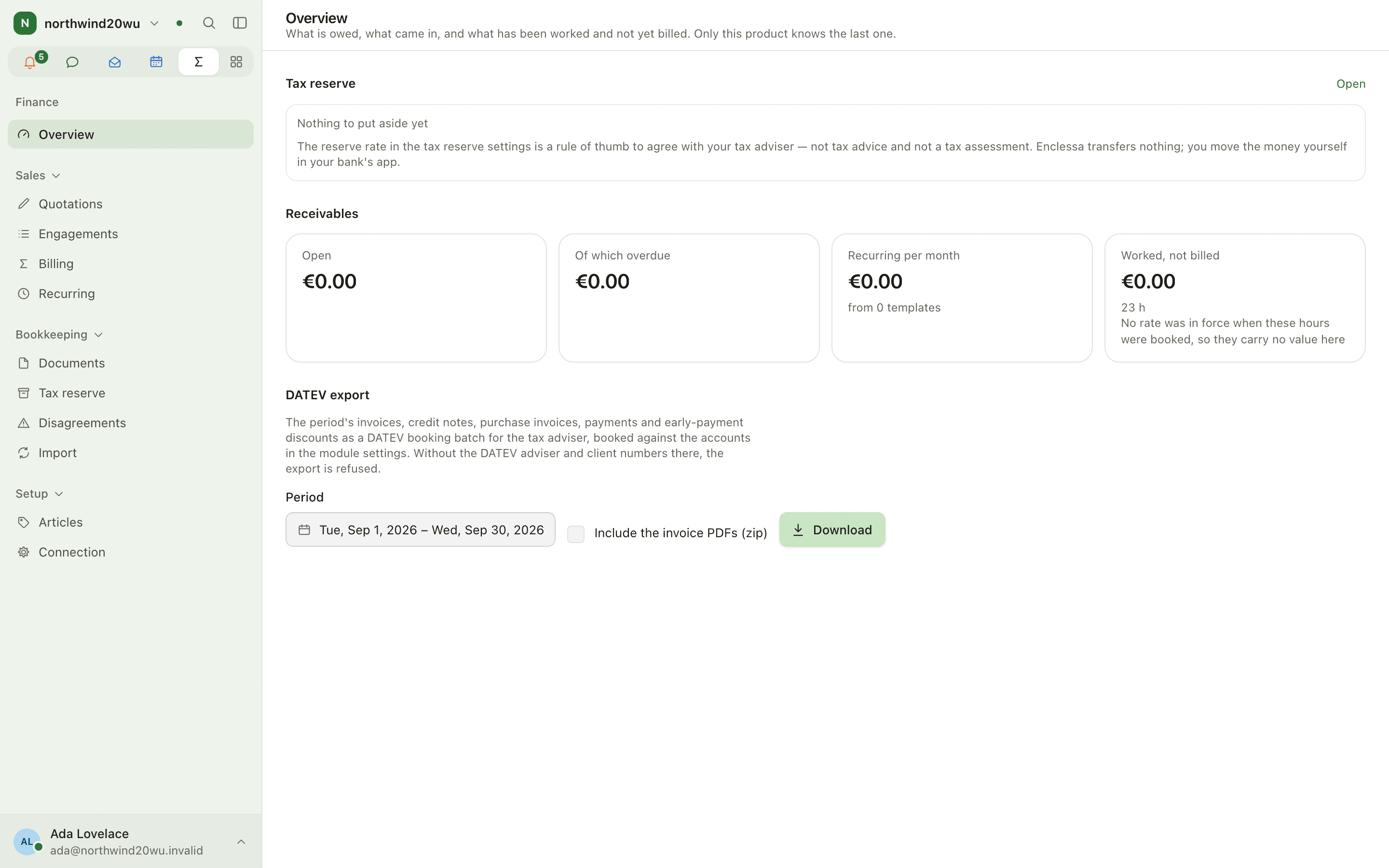
Modules. Your organisation turns on what it needs in the Marketplace — Boards, Projects, Time, Calendar, Bookings, Customers, Contracts, Mail, Finance, People and more — and decides who gets each one. An app appears in your sidebar once it is installed and somebody gave you a role in it. See Marketplace.
Today. Your day on one page: appointments, booked hours, what is due on a board, reminders, absences, follow-ups and money due, drawn from whichever modules your organisation runs. Nothing is stored in Today itself. See Today.
Where do I…?
The quickest way to anything is ⌘K (Ctrl+K) and a few letters. The everyday tasks:
| I want to… | Where | Guide |
|---|---|---|
| Find a page, setting, record or message | ⌘K, then type | Finding your way around |
| Pin or reorder my apps | All apps (grid icon) → pin icon; drag in the app row | Finding your way around |
| Change my password | Your account → Security → Password | Your account |
| Turn on a passkey or second factor | Your account → Security | Your account |
| Choose what notifies me | Your account → Notifications | Your account |
| Download my data | Your account → Your data → Download my data | Your account |
| See what is waiting for me | Activity in the app row | Chat |
| Join or create a channel | Chat sidebar | Chat |
| Book time on a project | Time | Time |
| Ask for time off or report sickness | Time | Time |
| Approve my team's time and absence | Time → Approvals | Time |
| Answer a ticket in a shared mailbox | Mail, the shared mailbox | |
| Write and send a quotation | Finance › Quotations → New quotation, or the customer's Finance tab | Finance |
| Send a PDF for signature | Contracts → Signatures → New envelope | Signing |
| Invite a colleague | System console → Members → Invite somebody | Administration |
| Install an app for the organisation | System console → Marketplace | Marketplace |
| Find a module's settings | The bottom of that module's sidebar | Finding your way around |
A list that is filtered or searched down to nothing always offers Clear filters, so you are never stuck on an empty page.
Where to go next
- New here? Start with Getting started.
- Want the steps for your job? Pick your guide by role.
- Work that spans several modules? Follow the journeys.
- Not sure what a word means? See the glossary.
- Stuck? Check the FAQ.