Your account and settings
Everything that belongs to you rather than to a room or a module: profile, sign-in security, devices, notifications, availability, your sidebar, access tokens and your data.
Where: the account row at the bottom of the sidebar → Your account. Or press ⌘K and type
what you are looking for: a section's name (security, notifications) or what it holds
(password, 2fa, do not disturb, export).
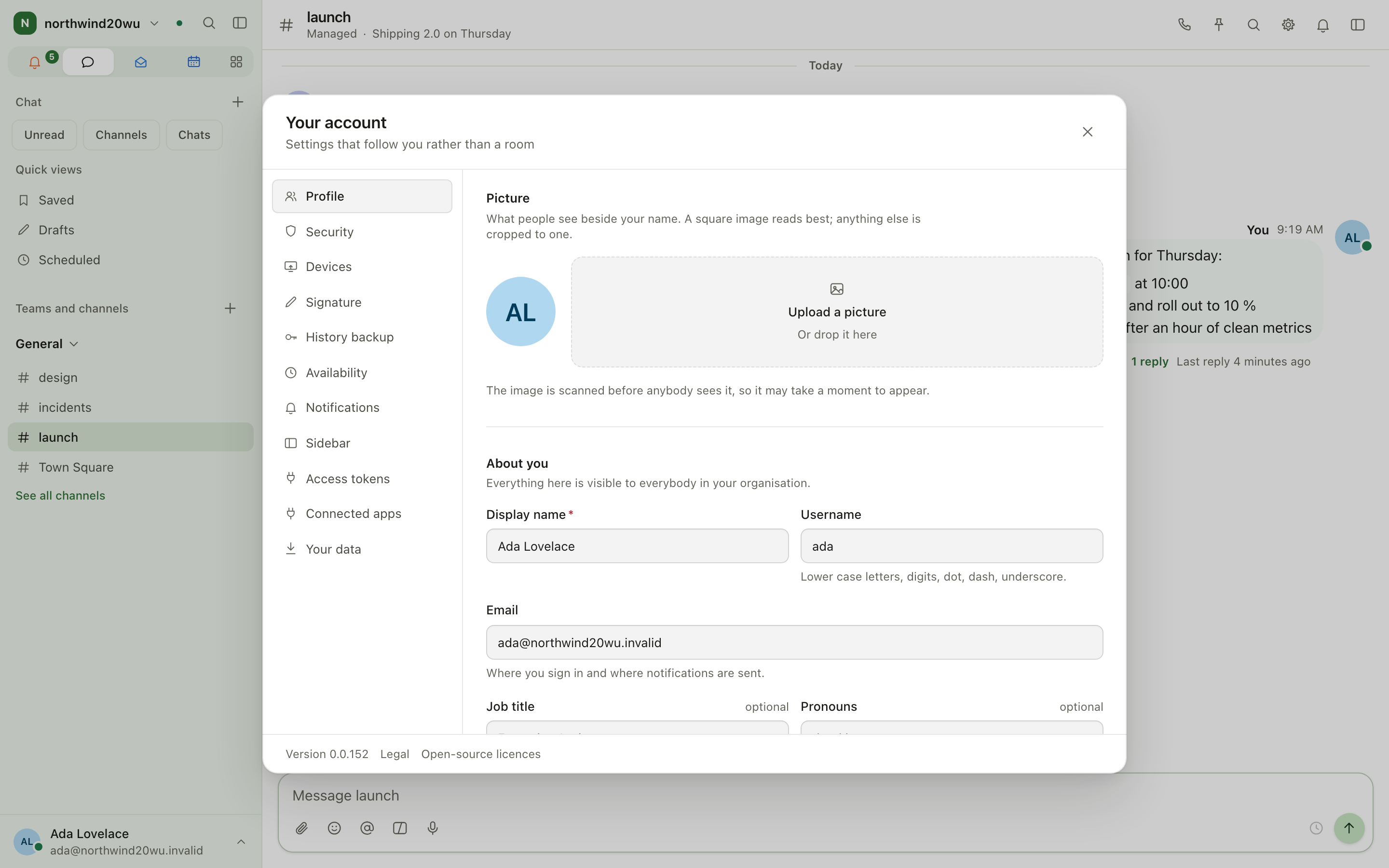
Sections
| Section | What you do there |
|---|---|
| Profile | Photo, display name, title, pronouns, contact details others see. |
| Your card | Your digital business card. Shown once Cards is installed and a card was issued to you. |
| Security | Change your password, passkeys, second factor, and linking your organisation's single sign-on. |
| Devices | Every device signed in to your account; Remove one to sign it out and take it out of your encrypted rooms. |
| Signature | Your handwritten signature for Contracts and Sign. |
| History backup | Back up the keys that let a new device read your encrypted history. |
| Availability | Status, do not disturb, quiet hours, and Compact messages for this browser. |
| Notifications | What channels notify you of by default, and what also reaches you by push or email. Also at /settings/notifications, which notification emails link to. |
| Sidebar | Which apps are pinned, and how many rows of apps the sidebar shows. |
| Access tokens | Personal tokens for scripts and integrations. |
| Connected apps | Apps you authorised to act for you; revoke them here. |
| Your data | Download my data, Read receipts for direct messages, and Delete account (an owner closes the organisation first). |
Main workflows
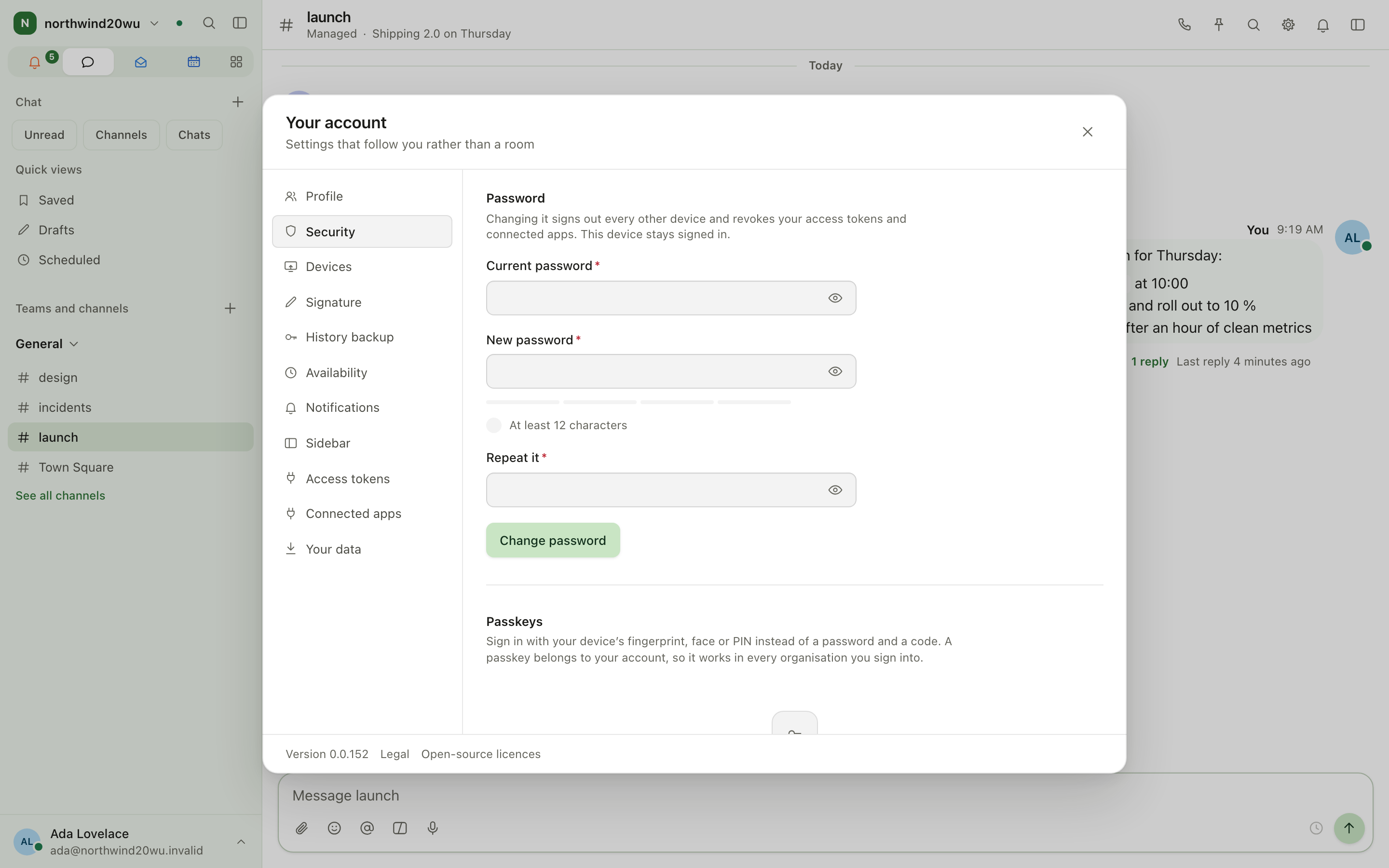
Change your password
- Your account → Security (or ⌘K,
password). - Under Password, enter your Current password, then the New password twice. The rules your organisation sets are ticked off as you type.
- Change password. Every other device is signed out, and your access tokens and connected apps stop working. The device you are on stays signed in.
Forgot it? Sign out and use Forgotten your password? on the sign-in page; see Getting started.
Turn on a passkey and a second factor
- Your account → Security.
- Add a passkey, enter your current password and follow your device's prompt. In the desktop app, add passkeys in your web browser instead.
- Under Second factor, enter your password, scan the QR code with an authenticator app, enter the code, and keep the recovery codes somewhere safe.
Choose your notifications
- Your account → Notifications (or
/settings/notificationsfrom an email). - Pick what you are told about, and whether by push, by email or only in the app.
- Set quiet hours under Availability.
Customise the sidebar
- Your account → Sidebar.
- Switch apps on or off to pin or unpin them, or choose Show all.
- Choose one to three rows of apps.
You can also pin from All apps in the sidebar; see Finding your way around.
Switch organisation or account
- Organisation: select the organisation name at the top of the sidebar and pick another. The same menu offers Create a new organisation where your installation allows it.
- Account: in the desktop app, account row → Switch account… (or Other accounts on this device… in the organisation menu). In a browser, sign out and sign in with the other account.
Theme and sign out
Account row → theme (system, light, dark, high contrast) or Sign out.
Organisation settings
Settings that apply to the whole organisation — branding, legal texts, sign-in rules, modules, roles — are in the System console, which appears among your apps when you hold an administrator role. See the table in Finding your way around.
Tips
- Account settings follow you to every device; the sidebar's row count and app order are per device.
- Lost a device? Devices signs it out and removes its keys. Think somebody else is in your account? Change your password: that signs out every other device at once.
Calls
Audio and video calls with screen sharing, a waiting room, and guests without an account. A call keeps running while you move around the app; minimise it and keep working.
Reminders
Reminders are your own to-do lists — call the tax adviser, bring the badge back, renew the domain. They work like Apple Reminders: lists, smart lists, due dates, flags, tags, subtasks, photos and repeats. A list is private until you share it.