Customer Center
The Customer Center gives the people at your customers a place to sign in: they work through an onboarding, read and sign the documents you hand them, book appointments and see their invoices. Your colleagues use the staff side to give someone access, send document packets, build journeys and track where every customer has got to. In the commerce journey (customer → quotation → contract → signature → invoice), the Customer Center is the customer's side of it. They acknowledge or accept a quotation there, sign the documents you send them, and see the invoices Finance issued. The module needs Customers installed. Contracts, Bookings and Finance each add a part when installed.
Where to find it
- Staff side: the Customer Center entry in the sidebar's app row or All apps, at
/portal. It appears only when the module is installed and you hold a Customer Center role. If the module is installed and you have no role, the page says "You have not been given access to the Customer Center." - The Customer Center sidebar holds four entries: Progress, Document packets, Journeys and Invitations.
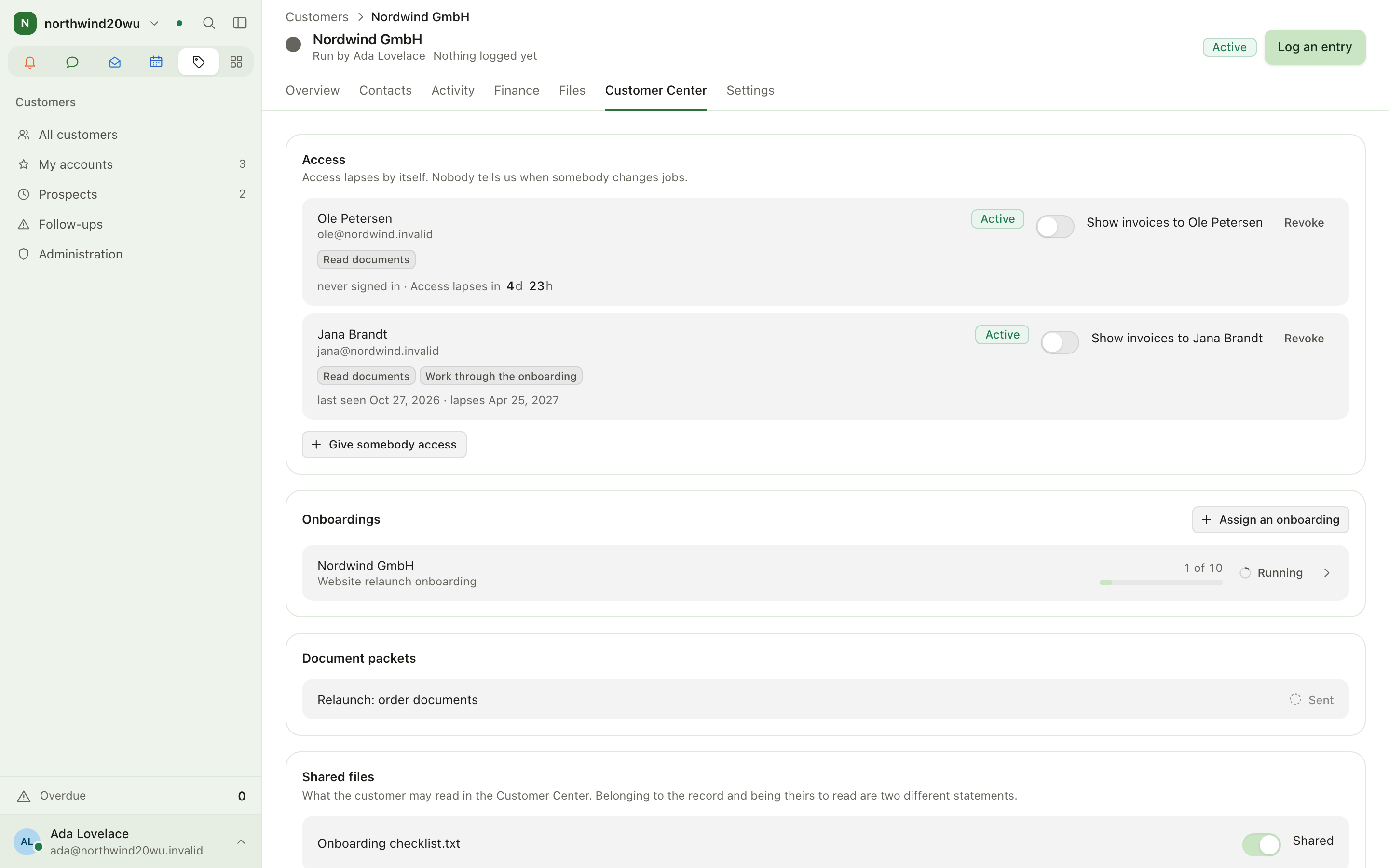
- On a customer record: the Customer Center tab (Customers › a customer). It shows that customer's Access, Onboardings, Document packets and Shared files.
- Breadcrumbs: a packet shows "Customer Center › Document packets › <title>", and a journey template shows "Customer Center › Journeys › <name>". A running onboarding is opened from Progress and shows "Customer Center › <title>".
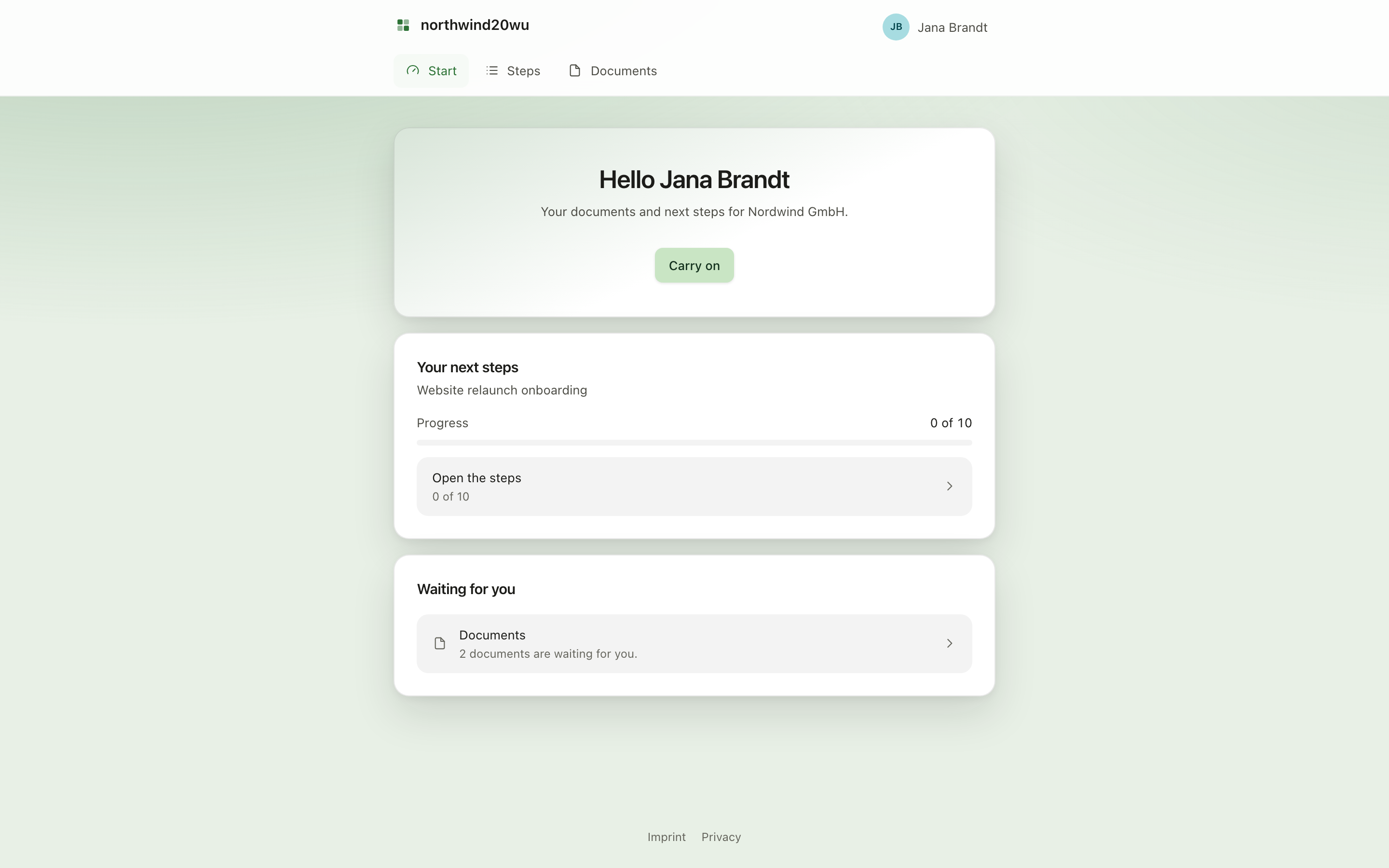
- Customer side: customers never see the product's own screens. They open the sign-in link from their email and land
on
/p, which shows your organisation's mark. Its navigation is Start, Steps, Documents, then Appointments and Invoices if their access includes those.
Main workflows
Give someone at a customer access
- Open Invitations and use Find a customer to pick the company. You can also open the customer's Customer Center tab.
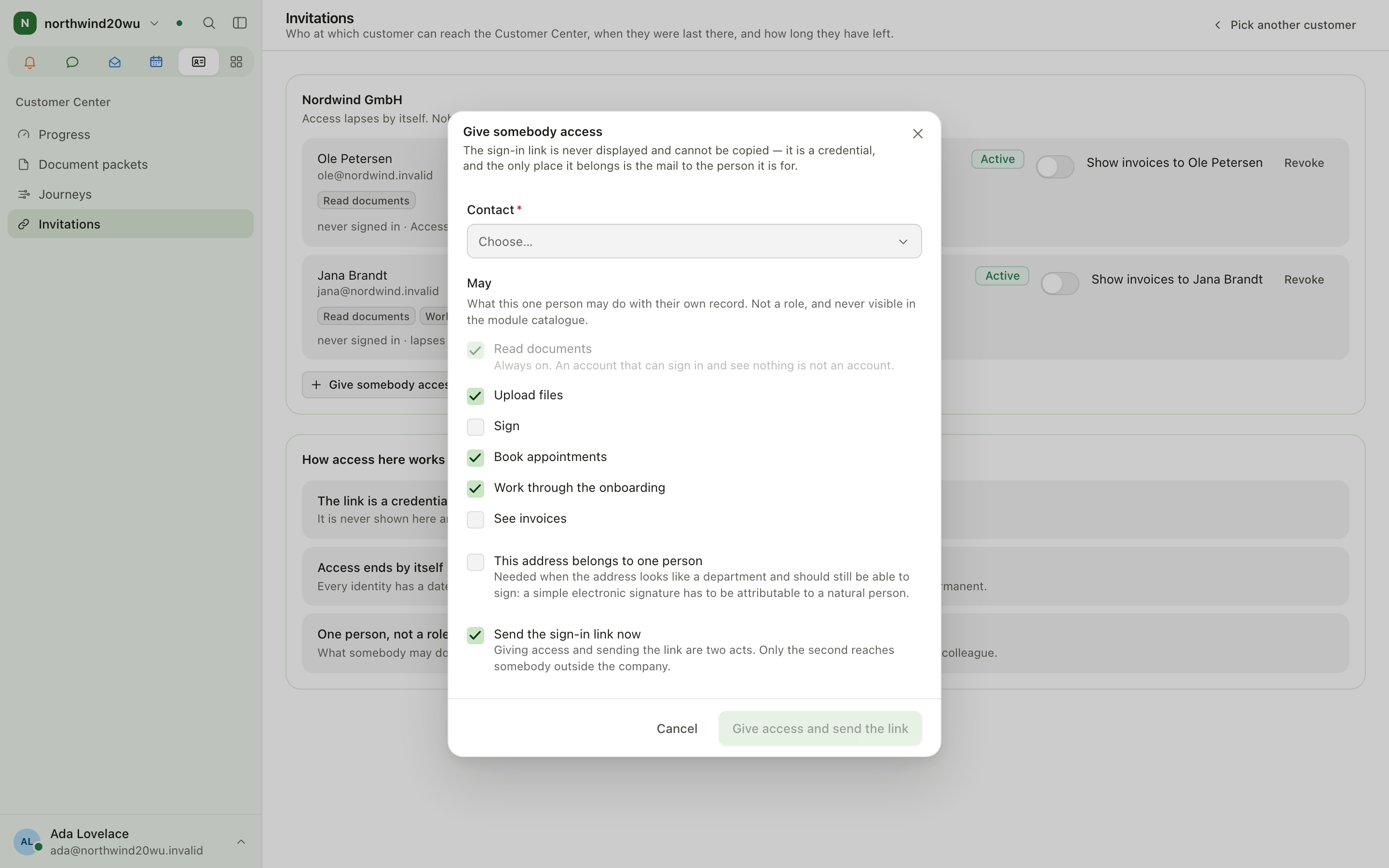
- Click Give somebody access and choose the Contact. The person must already be a contact on the customer record.
- Under May, tick what this person may do: Read documents (always on), Upload files, Sign,
Book appointments, Work through the onboarding, and See invoices (offered only if you hold
finance.read). Every option except Sign and See invoices starts ticked. - Tick This address belongs to one person if the address looks like a department but its owner should still be able to sign.
- Leave Send the sign-in link now ticked and click Give access and send the link. If you untick it, the button reads Give somebody access and no mail goes out.
- The confirmation shows only the address the invitation went to. The link itself is never shown and can't be copied.
- Each row shows the person's state (Active, Lapsed, Revoked, Contact archived), when they were last seen, and when their access lapses. Use Revoke to stop their access immediately. On a live row, the Show invoices to <name> switch turns invoice access on or off.
Send a document packet
- Open Document packets and click Draft a packet. Pick the Customer, enter a Title and, if you want, a Covering note. The packet opens as a draft.
- Under Documents, choose a File from the customer record or click Upload a file. Uploads are filed on the customer record too. Set what it Asks for: Reading, Acknowledgement or A signature. For a signature, set Form required by law. Only Free of form or text form — can be signed here can be signed in the Customer Center.
- If you can read Finance, you can add an open Quotation for this customer and ask for Acknowledgement or Acceptance. To accept it, the customer must be A business, because a consumer can't accept a quotation here.
- Under Recipients, add contacts as Signs or Reads along. Use Edit to set the Order (Any order / In order) and a Due date. Reminders depend on the due date. With several signers, Who signs can be Any one of them, All of them or All of them, in turn.
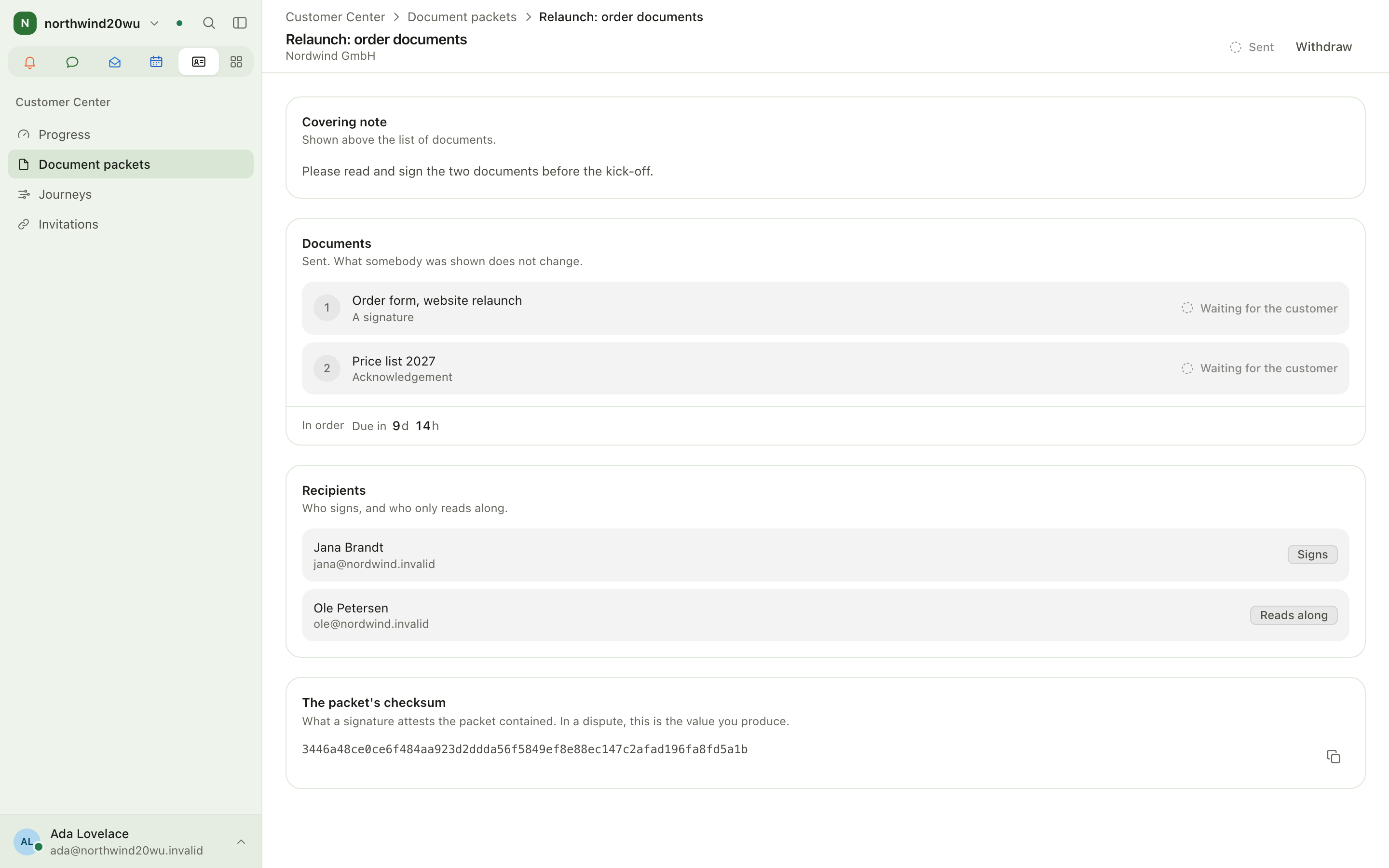
- Click Send and confirm. The customer is emailed straight away and the documents are frozen from that moment.
- Follow the state: Sent, Partly signed, Finished, Declined. Withdraw stops the customer from opening the packet, but anything already signed stays signed. Discard the draft deletes a packet that was never sent.
- After sending, The packet's checksum is shown. In a dispute, that is the value you produce.
Build a journey (template)
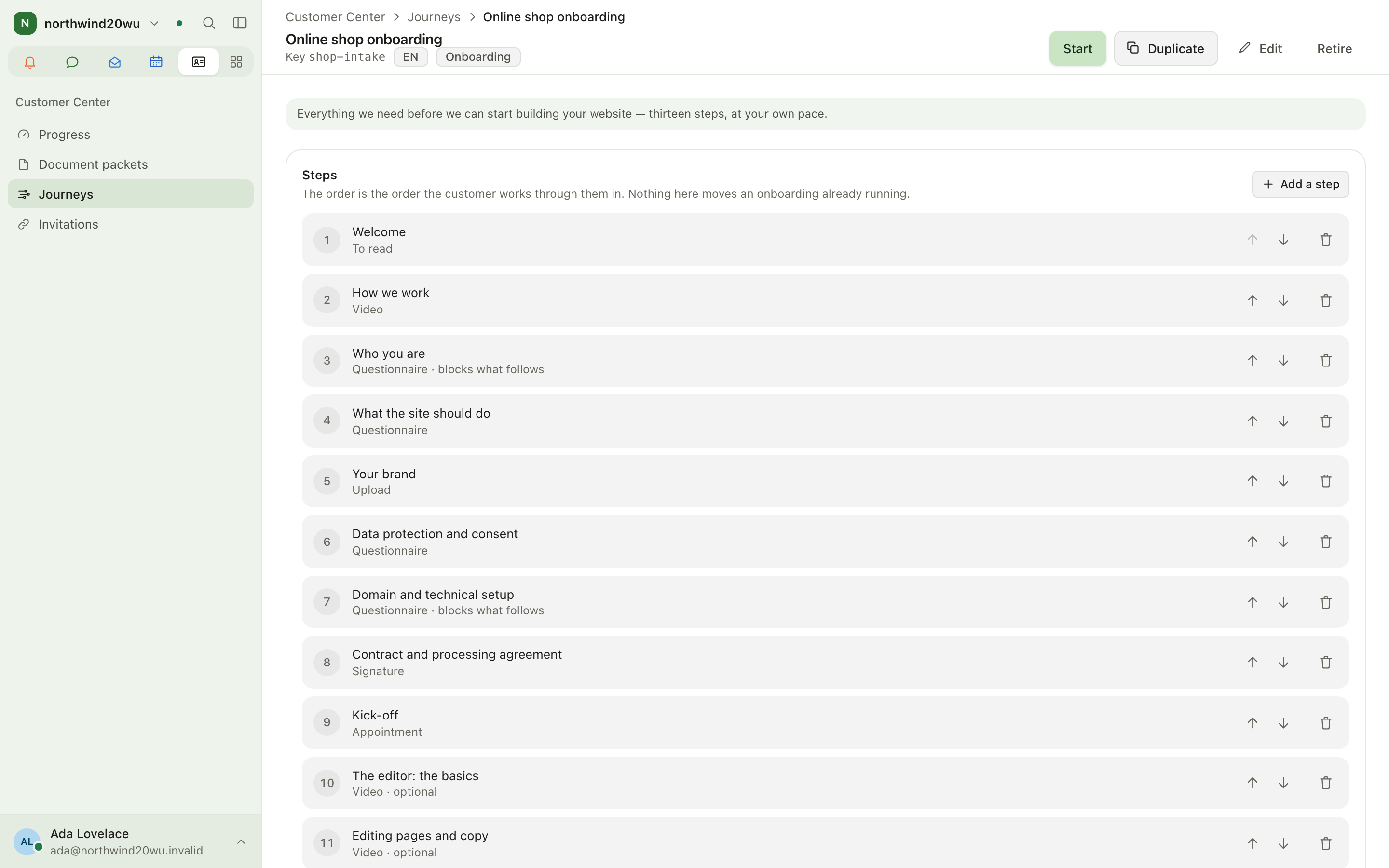
- Open Journeys. Under Shipped with the product, use Take a copy to start from a shipped journey, or click New journey. Give it a Name, a Key (permanent), a Kind (Onboarding, Intake, Launch, Offboarding, Other) and a Description. The customer never sees the description.
- On the journey, click Add a step. Set the Heading and the Step kind: To read, Video, Questionnaire, Upload, Signature, Appointment or Confirmation.
- Set Owed by (The customer or Us). The customer doesn't see steps you owe. You can also set Required, Blocks what follows and Due after, in days.
- Fill in what the kind needs: a Body in Markdown, a self-hosted Video with captions, a Questionnaire, slots under What is to be sent, or an Appointment type. Preview shows what the customer will read.
- Use Duplicate to fork a journey, and Retire to stop new onboardings from starting with it. Changing or retiring a template never changes onboardings that are already running.
Start and follow an onboarding
- Click Assign an onboarding: from Progress, from a customer's Customer Center tab, or with Start on a journey. Pick the customer and Template. This creates a Draft, and the customer sees nothing yet.
- Open the onboarding and click Activate. From then on the customer sees it. You can cancel it later, but the notification can't be taken back.
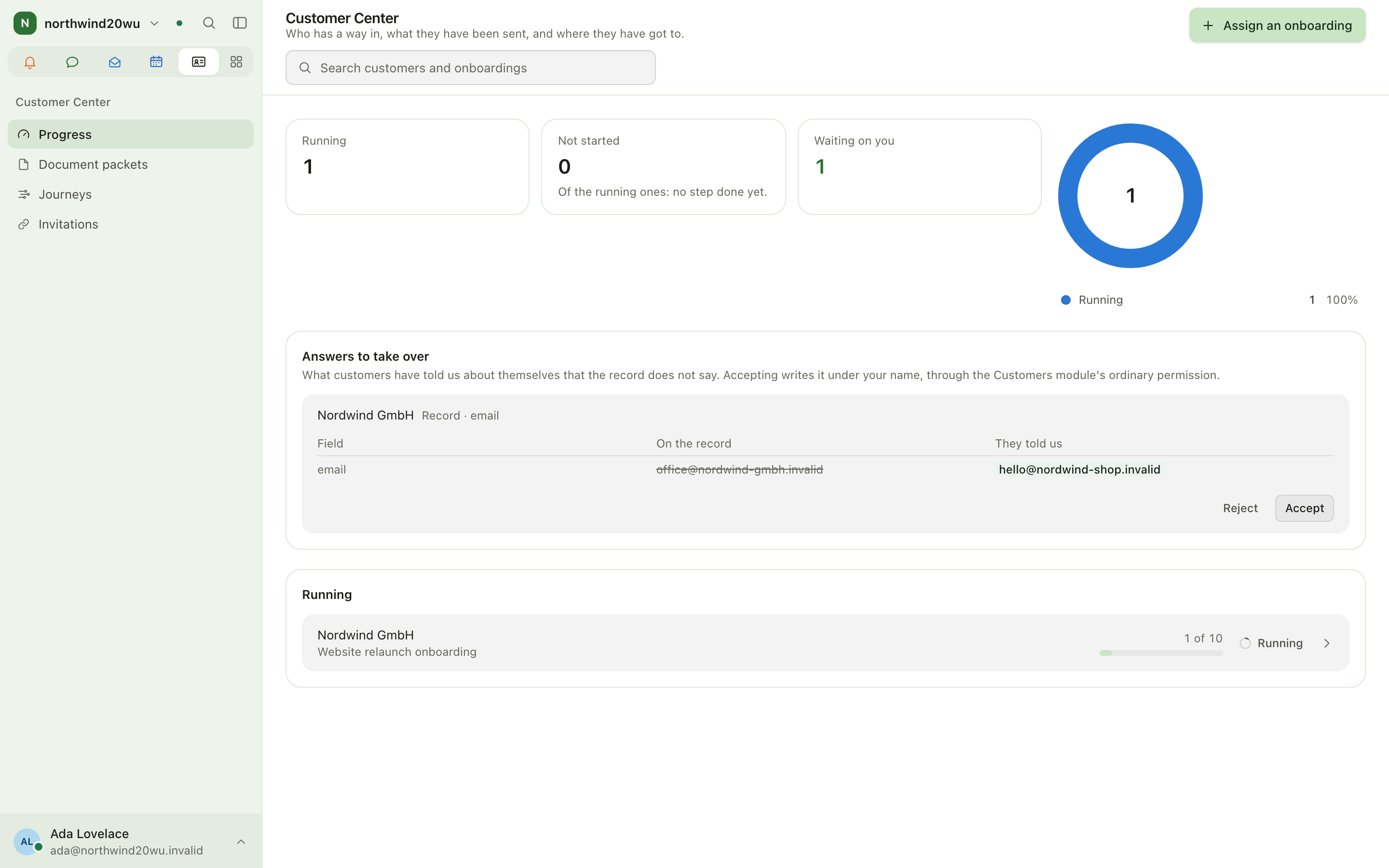
- Progress shows Running, Not started and Waiting on you at the top, with a chart by state, followed by Running and Drafts and finished.
- On an onboarding, click Mark done to tick a step you owe. Use Set the state to Mark as finished, Skip or Open it again on any step. Cancel and Reopen change the whole onboarding.
- What we were told (Show) lists the questionnaire answers. Impressum (Generate, Copy) assembles a German imprint from them.
- Answers that differ from the customer record appear in Answers to take over. Click Accept to write them to the record, or Reject.
Share files from the customer record
- Open the customer's Customer Center tab and find Shared files.
- Turn Shared on for each file the customer may read (needs
portal.send). There is no bulk switch. Shared files appear on the customer's Documents page under Other files.
What the customer sees (/p)
- Signing in: the emailed link opens "Signing you in". A link works once and stops working after 15 minutes. An old link leads to "This link is no longer valid", where the customer enters Your email address and clicks Send me a link.
- Start: "Hello <name>", the onboarding's progress (Open the steps) and Waiting for you.
- Steps: "Your next steps", in order, with Done, Open, Later (locked by an earlier step) and With us. A step the customer's access doesn't allow says so and names who can turn it on.
- Documents: each packet with its documents (To read, To confirm, To sign, To accept), plus Other files. To sign, the customer opens the document, signs (Draw or Type), ticks the declaration and uses Slide to sign. They can also Decline. A quotation is accepted with Slide to accept.
- Appointments: Your appointments and Book an appointment: pick a kind, a day and one of the Available times, then Confirm the appointment (or Request the appointment if it needs approval).
- Invoices: Still open totals, then Open, Paid and other documents and Voided, each with a PDF download.
- Account: Language, Appearance and Sign out.
Roles and permissions
Staff permissions (granted through roles). The preset roles are viewer, member, manager and administrator.
| Permission | Unlocks | Preset roles |
|---|---|---|
portal.read | The module: Progress, packets, journeys, the access lists | all |
portal.manage | Draft and edit packets, assign onboardings, tick and correct steps, accept or reject answers | member, manager, administrator |
portal.answers.read | Questionnaire answers, the Impressum, the Answers to take over queue | member, manager, administrator |
portal.send | Send and Withdraw a packet, Activate an onboarding, add a quotation to a packet, share a file | manager, administrator |
portal.template.manage | Create, copy, edit, duplicate and retire journeys | manager, administrator |
portal.identity.manage | Invite, send sign-in links, revoke, change a person's options | administrator |
portal.evidence.read | Signature evidence (signer address and device) and a contact's data export | administrator |
portal.admin | The module's settings and its roles | administrator |
- Anything that targets one customer also requires that you can see that customer in Customers.
- Buttons you may not use are not shown. Without
portal.managethere is no Draft a packet. Withoutportal.send, Send, Withdraw and Activate are not shown, and the Shared switches on a customer's files are read-only. Withoutportal.template.managethere is no New journey or Take a copy, and a journey opens read-only: Duplicate, Edit, Retire and Add a step are not shown. Withoutportal.identity.managethe access lists are read-only: no Give somebody access, Revoke or invoice switch. portal.identity.manage,portal.answers.readandportal.evidence.readare sensitive: you can only grant them if you hold them yourself.- Customer-side options (Read documents, Upload files, Sign, Book appointments,
Work through the onboarding, See invoices) belong to one person and their own customer record. They are not
roles and can never be given to a colleague. See invoices also requires
finance.readfrom whoever grants it.
Administration and settings
- Install the module from the marketplace. Its settings entry opens Invitations.
- Assign Customer Center roles under System console → Access → Roles (the Modules tier).
- Access lapses by itself after 180 days by default. Nothing here is permanent.
- Appointments needs Bookings installed, with appointment types published to customers. Otherwise the customer is told to write instead.
- Invoices needs Finance with a working connection and a ledger contact for the customer.
Tips
- Giving access and sending the link are two separate acts. Only sending reaches anyone outside the company.
- Sign is the one option not ticked by default. Decide on it for each person.
- A packet is frozen once sent. Check documents, recipients and the due date before clicking Send.
- A journey with no required steps never completes. Steps you owe stay invisible to the customer but keep their place.
- If a module behind a step is missing, the step is marked Module missing, and you can tick it so the onboarding can still finish.
- ⌘K opens Document packets, Journeys and Invitations by name; type a customer's name to open their record, then its Customer Center tab.
Related
Signing
Signing sends PDFs for electronic signature in an envelope: you add documents, name who should sign, place the fields each person fills in, and send. Colleagues sign inside the app; customers and anybody else sign through a link sent by email, confirmed with a code. When everybody has signed, the result is sealed and can be downloaded with its evidence. Signing is part of Contracts: in the commerce journey it is the step after a contract is issued, and a completed envelope for a contract is filed as that contract's countersignature. The signatures produced are simple electronic signatures with evidence; they satisfy text form, not written form.
Mail is where your organisation reads and answers its email: your own work mailbox, shared addresses such as info@ or support@, and the tickets worked from those shared inboxes. Mail is read from your existing mail hoster over IMAP and sent through the organisation's relay. A conversation can be filed in a customer's history, and an appointment or an issued contract can go out with a message. That makes Mail the channel for the customer → quotation → contract → signature → invoice journey described in the Finance and Customer Center guides.