Bookings
Bookings lets people outside the organisation ask for an appointment — a first consultation, a
viewing, a call — and lets somebody inside answer. Visitors book through your own website (the
public booking API) or through a booking link the product hosts at
<your-org>.enclessa.app/booking/<code>.
Bookings is for appointments with outsiders. Meetings between colleagues and room bookings belong in the Calendar, which also shows every confirmed appointment as an overlay.
Where to find it
Open Bookings from the sidebar's app row or All apps (/bookings). Its sidebar:
| Entry | Route | What it shows |
|---|---|---|
| Requests | /bookings | Appointment requests (badge: waiting for an answer) |
| Types and hours | /bookings/settings | Appointment types, opening hours, booking links, who is notified |
Public pages (no sign-in): /booking/<code> to book, /booking/manage for a visitor to move or
cancel their appointment from the confirmation email.
Roles and permissions
Roles: Viewer and Administrator, granted at System console → Access → Roles. A viewer reaches Bookings and works with it — answering requests and editing types, hours and links. An administrator also hands out the module's roles.
Main workflows
Answer a request
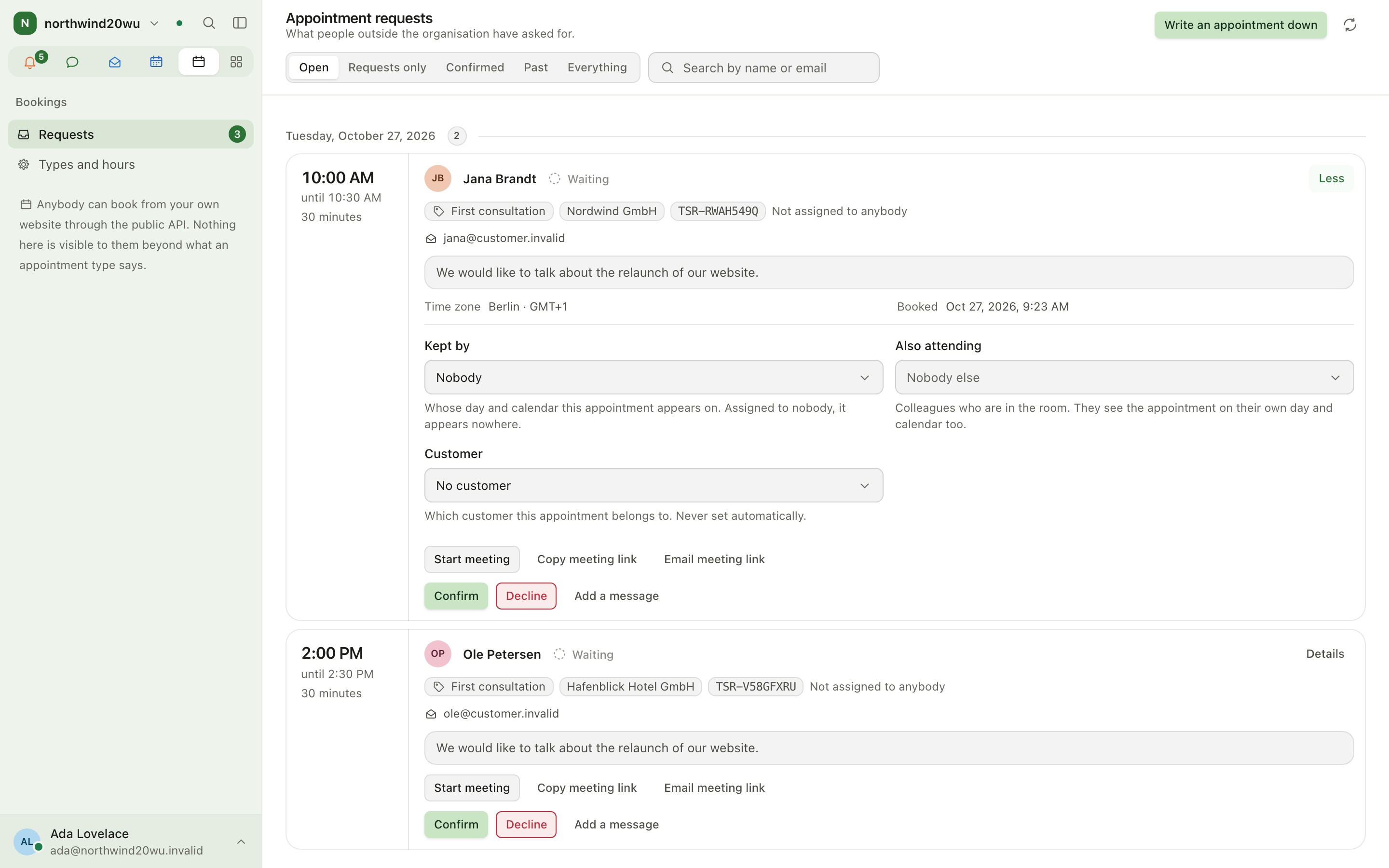
- Open Requests. Which appointments switches between Open, Requests only, Confirmed, Past and Everything.
- Search by name or email if the list is long. Clear search brings the whole list back when nobody matches.
- Open a request's Details, then confirm or decline — Add a message to say something to the visitor, or answer Without a message.
- Declining or cancelling tells the visitor and cannot be undone.
Record an appointment by hand
Press Write an appointment down on the Requests page for an appointment arranged by phone or in person. An empty list offers the same button.
After the appointment
On a confirmed appointment, mark it Kept or Not there. For online meetings use Start meeting, Copy meeting link, Email meeting link or Resend confirmation.
Set up what can be booked
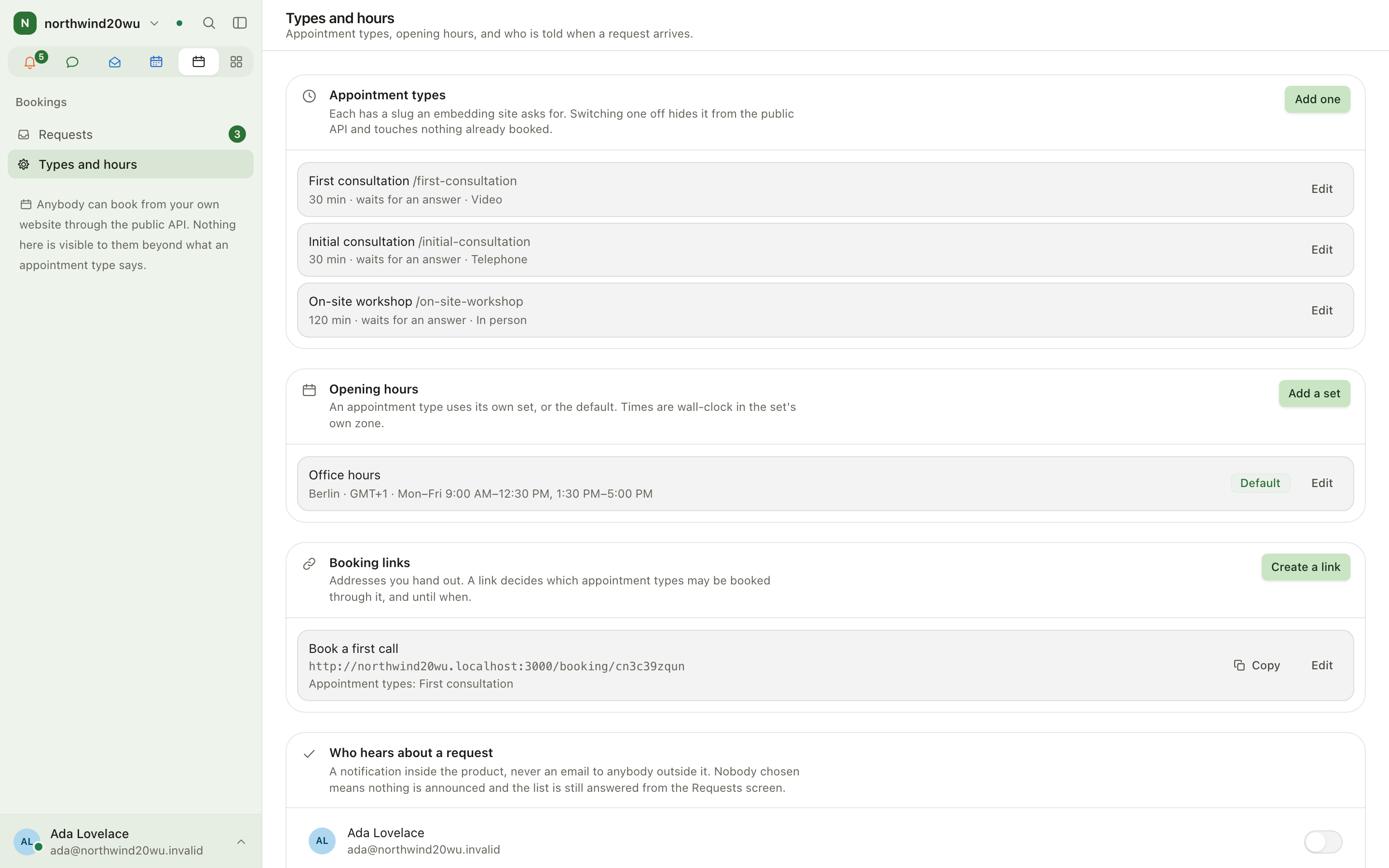
- Open Types and hours. Installing Bookings starts it off with opening hours of 09:00–17:00 on weekdays and one appointment type, Initial consultation (30 minutes, by phone, waits for an answer); change them to fit or add your own.
- Appointment types → Add one: duration, spacing, buffers, notice, horizon, daily cap, whether it confirms itself or waits for an answer, and which fields the visitor fills in. The sentence at the top of the form says what the numbers add up to.
- Opening hours: one row per day; a day can hold more than one period; copy a day's hours to the others. Add dated exceptions for holidays.
- Who hears about a request: pick colleagues to be notified inside the product.
Hand out a booking link
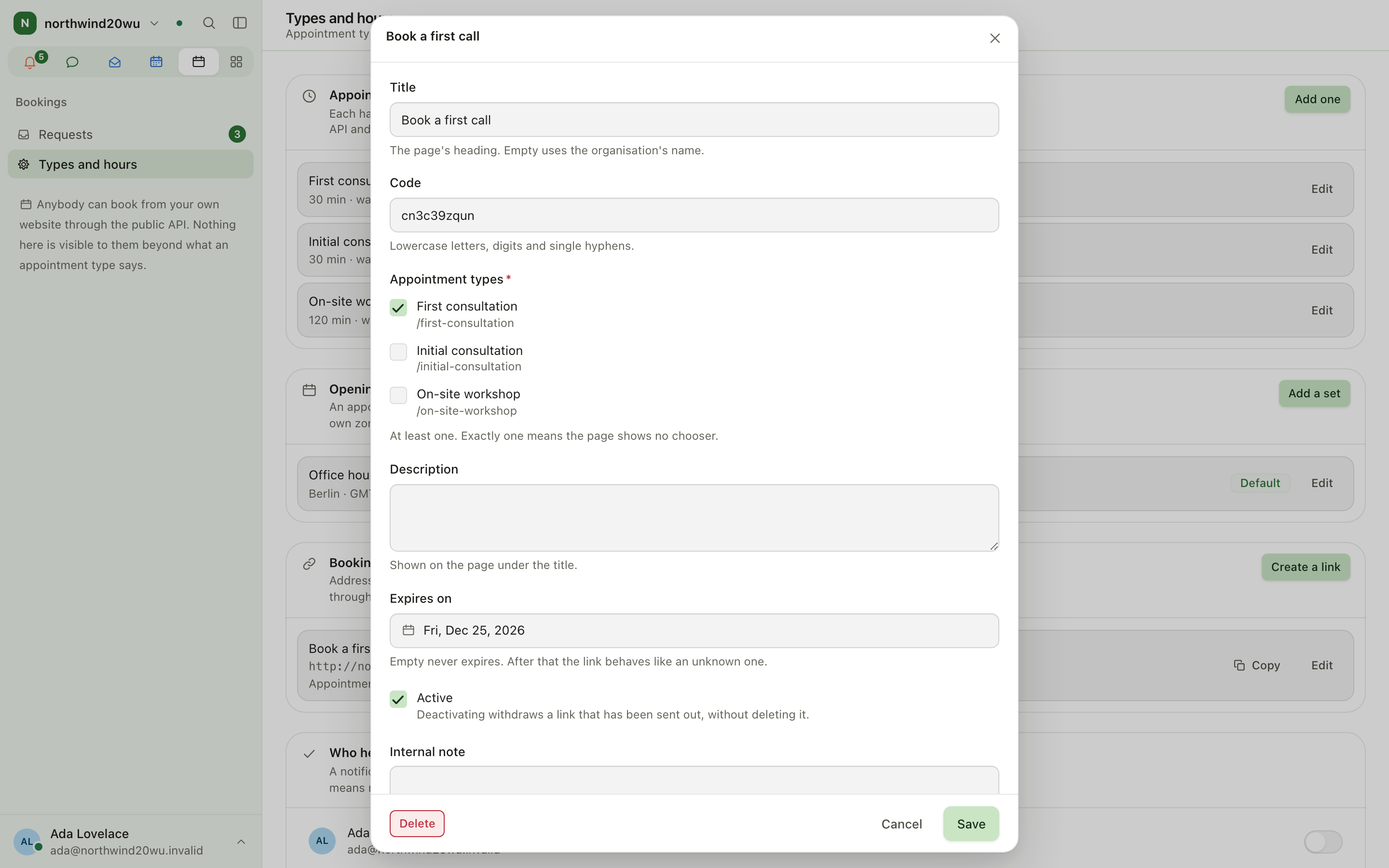
- Types and hours → Booking links → Create a link.
- Choose which appointment types it offers and until when it works.
- Send the link. It never offers more than the types allow on their own.
What the visitor sees
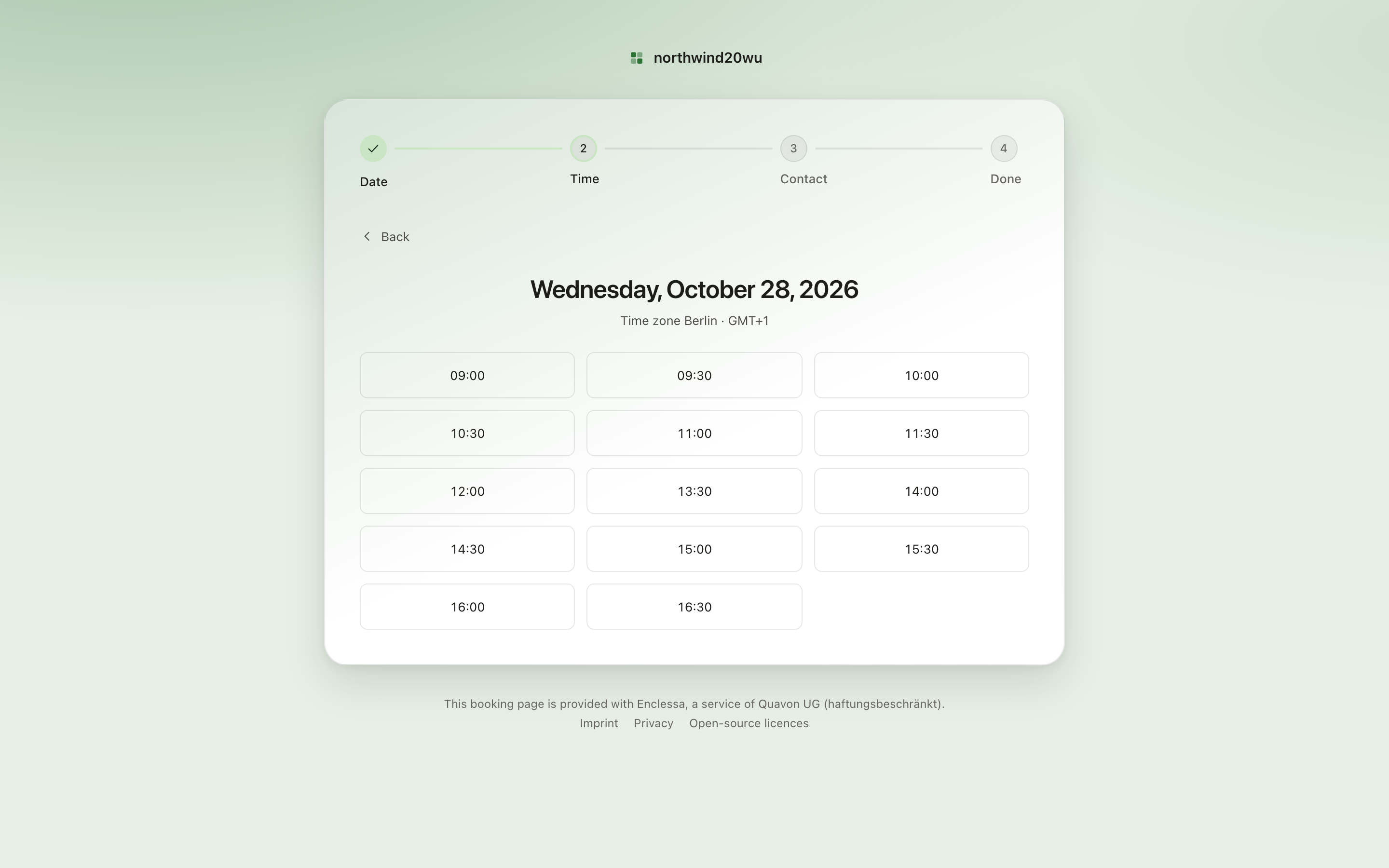
The public page walks through date, time, contact and done. The confirmation carries a reference
and a link to /booking/manage, where the visitor can Move to another time or
Cancel this appointment.
Settings and admin
- Types and hours (
/bookings/settings) — everything bookable. - Time zone, the manage page address and notification switches: System console → Marketplace → Bookings.
- Roles: System console → Access → Roles.
Tips
-
The number beside Requests in the sidebar counts requests still waiting for an answer. Pick Requests only under Which appointments to see just those.
-
Use a type that confirms itself for simple slots and one that waits for an answer when somebody has to check first.
-
One link per customer or campaign makes it easy to stop one without touching the others.
Calendar
The Calendar holds your meetings and events, books rooms and equipment, and shows everything else that has a date — approved absences from Time, appointments from Bookings, due dates from Boards, project dates from Projects and reminders from Reminders — as read-only overlays. It is the one place to see your whole week; each overlay is still managed in the module that owns it.
Studio
Studio plans social content and the shoots that produce it. A post (picture, carousel, video, reel, story or text) for Instagram, Facebook, LinkedIn, YouTube or TikTok moves from idea through planned, in production, in review, approved and scheduled to published. Shoots plan the day, the shots, the people, the kit and the call sheet. Campaigns group posts and shoots over a date range.