Mail is where your organisation reads and answers its email: your own work mailbox, shared addresses such as info@ or support@, and the tickets worked from those shared inboxes. Mail is read from your existing mail hoster over IMAP and sent through the organisation's relay. A conversation can be filed in a customer's history, and an appointment or an issued contract can go out with a message. That makes Mail the channel for the customer → quotation → contract → signature → invoice journey described in the Finance and Customer Center guides.
Where to find it
- Mail in the sidebar's app row (group Communicate in All apps), or ⌘K and
mail. It shows for every organisation member (not guests) once the Mail module is installed. Unlike other modules it does not depend on a role: you see the mailboxes that were granted to you, and only those. - Opening Mail takes you to the first mailbox you hold. If you hold none yet and may add mailboxes, it takes you to Mailboxes under Administration instead. Anybody else sees No mailbox yet and asks a Mail administrator for one.
- The Mail sidebar, from top to bottom:
- Mailbox switcher: the current mailbox's name and address.
- New email.
- The folders of the current mailbox.
- Tickets: only shown when you hold at least one shared mailbox.
- Administration: a foldable group. It contains only the entries you are allowed to use (see Roles and permissions), and it is hidden completely when that leaves nothing.
Main workflows
Switch mailbox and read mail
- Click the mailbox name at the top of the sidebar to open Switch mailbox.
- The list shows each mailbox you hold with its kind (Personal or Shared), its address and its unread count. A check mark marks the mailbox that is open.
- Pick a folder: Inbox, Sent, Drafts, Archive, Bin, Spam, and any folders of your own. Use Show subfolders / Hide subfolders to expand a folder.
- Use Search, or filter the list by All, Unread, Starred or With attachment. Clear filters resets the list.
- Open a conversation. The toolbar offers Archive, Move to bin, Mark as unread, Move to…, Star, More actions and Fullscreen.
- Images from remote servers are blocked by default. Press Show images only when you are happy to tell the sender that you opened the message. Show original shows the message exactly as the sender sent it.
- Right-click a conversation in the list, or use More actions, to get the same menu: reply, mark read or unread, archive, bin, Move to…, Copy sender's address and File in customer history.
Write a new email
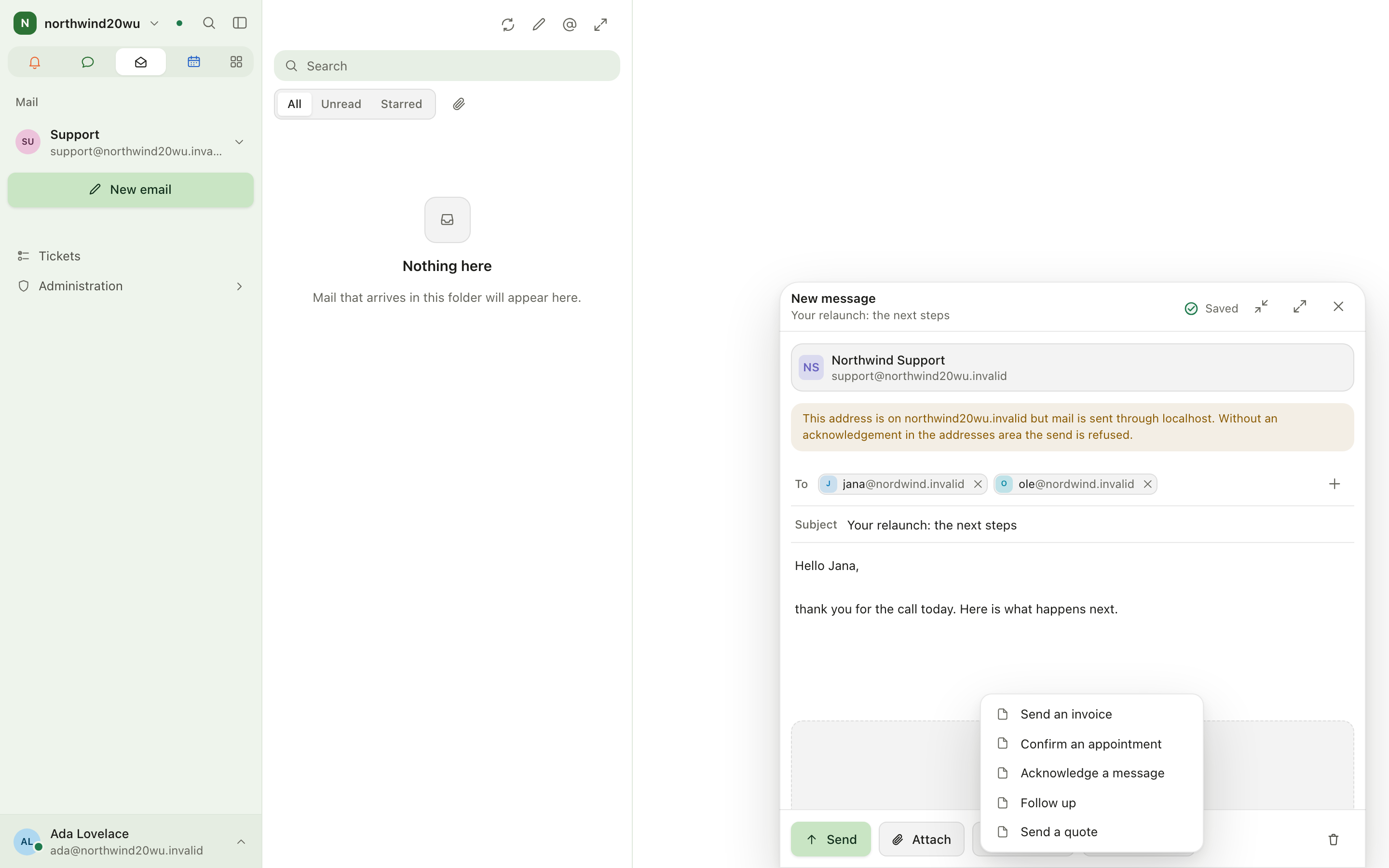
- Press New email in the sidebar. The composer opens as New message.
- From shows your default sender address. Use Change to send under another identity you have been granted. If you have none, the composer shows No sender address. Ask an administrator to grant you one under Identities.
- Fill in To. Use Add copy and blind copy for Copy and Blind copy.
- Enter a Subject and write the Message.
- Optionally press Template → Insert a template …. If you have already written text, you are asked before it is replaced. An empty subject is filled from the template.
- Attach adds files. You can also drop files onto the composer.
- Enclosures adds an Appointment (a time and/or a Booking link) or a Contract. Only issued contracts can be chosen. The contract counts as sent only once the message has left.
- Press Send, or ⌘/Ctrl + Enter. The draft saves itself while you write (Saving … / Saved) and appears under Drafts until it is sent. Discard throws it away after asking.
- Need to look something up first? Minimise (or Esc) shrinks the composer to its title bar without losing anything; Full size gives a long message the whole window.
Your signature and the organisation's legal details are added automatically when the message is sent, so do not type them yourself.
Reply and forward
- In an open conversation, choose Reply, Reply to all or Forward. Shortcut:
r. - A reply opens inline under the conversation. Press Send when you are done.
Work tickets in a shared mailbox
- Open a conversation in a shared mailbox and press Make it a ticket. A ticket tracks its status, who has it and the response targets. Managers can also set a shared mailbox to open a ticket for every new conversation.
- The Ticket panel next to the conversation sets Status (Open, Pending, Solved), Priority (Low, Normal, High, Urgent), Assignee and Customer. It also shows the First response and Resolution targets. Hide ticket and Show ticket in the conversation's toolbar fold the panel away and back.
- Add Internal notes. Everyone who can read the mailbox sees them, and they are never sent.
- Answer from the conversation itself, here or in your own mail client. Either counts as the first response.
- Open Tickets in the sidebar for all tickets across your shared mailboxes. The sidebar badge counts open tickets and shows "9+" beyond nine.
- On the Tickets page, filter by mailbox, Status (open by default), Priority and Assignee (Me, Nobody). You can also Search subject or address and Sort by priority, newest, oldest or latest activity. The Breached, Unassigned and Urgent figures count the loaded tickets. Filters and sort stay in the page address, so going back from a ticket keeps them and a copied link opens the same list. When nothing fits the search or the filters, Clear filters empties both and brings back the open tickets.
- Click a ticket to open its conversation.
Answer with a reply proposal
A shared mailbox can have a model draft a reply to incoming mail. A manager switches this on per mailbox (see Administration and settings). Nothing is ever sent by the model: a person takes the proposal into their own draft, edits it and sends it.
- Open a conversation in that shared mailbox. The Model proposal box above the messages says whether the model is still writing, and then shows the proposed reply.
- Read it with its notes: Check before sending lists statements the model flagged or that appear nowhere in your organisation's own mail or notes. The box also says how many messages and customer notes it used, and warns when the sender is not verified, when a newer message arrived (may no longer fit) or when the incoming mail tries to steer the model.
- Choose:
- Accept & edit — the proposal becomes your reply draft in the composer. Change what you like and press Send.
- Request a change — write an Instruction for the model ("shorter", "offer Tuesday") and Send instruction. A new revision replaces the proposal.
- Discard — throw it away.
- Whoever handles it first wins; the others see that it was already handled.
Everyone who can read the mailbox sees proposals. Accepting, revising and discarding need Read and answer. A proposal built on a customer's history you may not see can only be discarded.
File a conversation with a customer
- In an open conversation, choose More actions → File in customer history. On a ticket you can also use the link at the bottom of the Ticket panel.
- Write what should appear in the customer's history. Summarise can prefill the note as a suggestion only.
- Choose the customer. If the sender is not a customer yet, Add customer opens the customer form prefilled from the latest incoming message. You need permission to create customers for this.
- Press File it. Nothing reaches the customer's history before you do.
- To keep an attachment, press File it on the attachment chip and choose Which customer. The file appears on the customer's Files tab without making a second copy. If the ledger connection sends files, you can also tick Send it to the ledger too.
Set up a mailbox (administrators)
- Go to Administration → Mailboxes → Add mailbox.
- Choose the kind: Shared (a team address), Personal (one person's work address) or Collector (a mailbox other addresses forward into, which nobody can open).
- For shared and personal mailboxes, choose how mail arrives: Its own login, or An alias into a collector. Create the mailbox or alias at your mail hoster first. This product cannot do that for you.
- Enter Name, Address, IMAP server, Port, Sign-in name and Password, then Test the connection. Nothing is stored until the sign-in works.
- For a personal mailbox, choose Who is this for?.
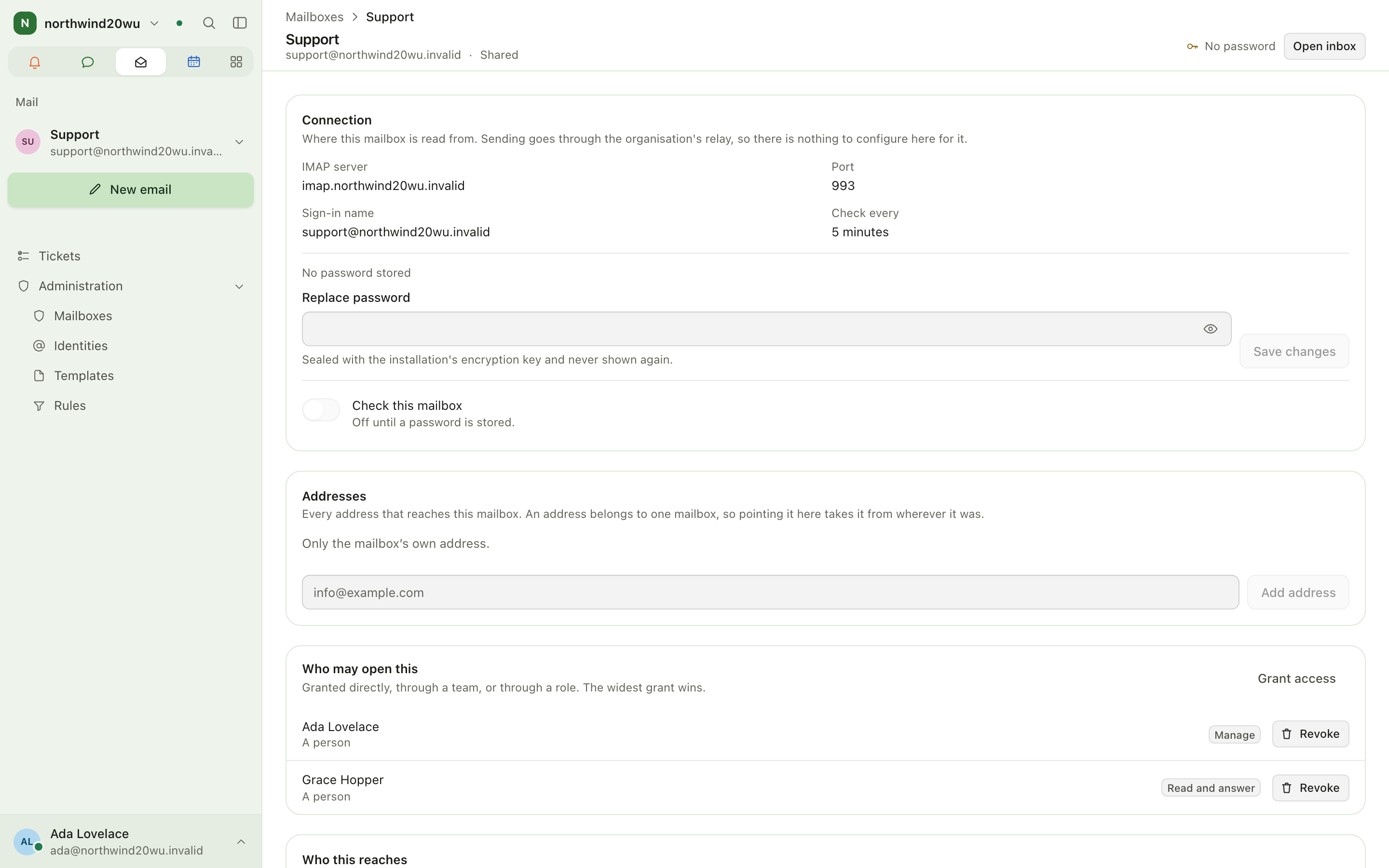
- Open the mailbox from the list. The breadcrumb reads Mailboxes › <name>. If you hold the mailbox yourself, Open inbox takes you to it.
- Under Who may open this, press Grant access to grant A person, A team, Everybody with a role or Everybody (shared mailboxes only). Choose the level: Read, Read and answer or Manage. Who this reaches shows the result.
Roles and permissions
Mail has two kinds of permission. Nobody can read a mailbox without a grant on that mailbox. Administrators are no exception.
Per mailbox, from the access level granted on that mailbox:
| Level | Permission keys | What it unlocks |
|---|---|---|
| Read | mail.read, mail.search, mail.attachment.read, mail.remote.load | Open, search, download attachments, load remote images |
| Read and answer | the above plus mail.flag, mail.draft.manage, mail.send, mail.link.manage, mail.assist.use | Mark, star and move mail; draft and send; make and triage tickets; file conversations with customers |
| Manage | the above plus mail.delete, mail.mailbox.manage, mail.rule.manage | Replace the password, switch checking on or off, edit ticket targets and write rules |
The ticket Customer field also needs the Customers module.
Organisation-wide (Mail module roles):
| Key | Unlocks | Included in role |
|---|---|---|
mail.template.read | Templates entry | viewer, member, manager, administrator |
mail.template.manage | Create, edit and archive templates | manager, administrator |
mail.mailbox.create | Mailboxes entry and Add mailbox | manager, administrator |
mail.identity.manage | Identities: add, grant, signature, withdraw | manager, administrator |
mail.admin | Full Mailboxes list, granting access, editing addresses, Remove mailbox | administrator |
The Rules entry appears for anyone who holds Manage on at least one mailbox.
Administration and settings
- Mailboxes shows each mailbox to Mail administrators. A Mail manager sees Add mailbox but not the list. The list shows each mailbox with its kind, address, Granted to and status (Checking, Off, No password, Not signing in, Through a collector). The mailbox detail page holds Connection, Addresses (aliases), Who may open this, Who this reaches, Ticket targets (shared mailboxes) and the Danger zone with Remove mailbox. Removing a mailbox leaves the mail on the mail server untouched. A collector shows Unclaimed mail: mail that arrived for an address nothing forwards on.
- Identities are the addresses mail may leave under. Each one has Grants (who may send as it), a Signature (HTML plus an optional plain-text version, with a preview) and Withdraw. An identity marked Will fail DMARC needs its DNS records published, or an explicit I understand, allow sending anyway.
- Templates are built from blocks: Text, Heading, Button, Image, Quote,
Columns, Divider, Spacer, Signature and Legal details. The Preview is
produced by the same renderer that sends the mail. Without
mail.template.managethe list is read-only: New template, Edit and Archive are not shown. - Rules sort incoming mail per mailbox, from the top down. Conditions use Sender, To, Copy, Subject, Body, Mailing list, Has attachment or Header. Actions are Mark as read, Star, Move to, Link to customer or Notify. Rules cannot delete mail on purpose. Move it to the bin instead.
- Ticket targets (shared mailbox detail) set First response, in hours and Resolution, in hours, plus Open a ticket for every new conversation.
- Reply proposals (shared mailbox detail, Manage on the mailbox) switch on Propose replies to incoming mail and pick the reviewers who are notified. While it is on, the text of incoming mail goes to the organisation's model provider. Only people who can read the mailbox can be reviewers.
- The legal details printed under every message are not a Mail setting. They are edited once under Admin › Settings › Legal, together with what contracts and invoices print.
Tips
- Press
?for the keyboard list.j/kmove, Enter opens,cwrites,rreplies,earchives,#moves to the bin,.opens the actions menu andftoggles fullscreen. - Deleting means Move to bin, so you can undo it. Most actions also offer Undo briefly.
- Not seeing a mailbox? Mailboxes are granted one at a time. Ask a Mail administrator to grant it to you.
- Keep shared addresses as Shared mailboxes so tickets, internal notes and the Tickets page are available for them.
Related
- Customers: the history that filed conversations land in.
- Contracts: issue a contract before sending it as an enclosure.
- Signing
- Customer Center
- Finance: quotations, invoices and the ledger that filed attachments can go to.
Customer Center
The Customer Center gives the people at your customers a place to sign in: they work through an onboarding, read and sign the documents you hand them, book appointments and see their invoices. Your colleagues use the staff side to give someone access, send document packets, build journeys and track where every customer has got to. In the commerce journey (customer → quotation → contract → signature → invoice), the Customer Center is the customer's side of it. They acknowledge or accept a quotation there, sign the documents you send them, and see the invoices Finance issued. The module needs Customers installed. Contracts, Bookings and Finance each add a part when installed.
Finance
Finance connects Enclessa to your Lexware Office account. It is where you write quotations, run an engagement from the first question to the archive, turn booked hours into invoice drafts, and see what is owed, paid and overdue. Lexware remains the ledger. It assigns every number, renders every PDF and e-invoice, and keeps the archive. Enclessa prepares drafts and mirrors back what Lexware holds. Finance never finalises or sends a document by itself. A person always does that in Lexware.