Platform operators (control plane)
The control plane at /platform is where the people who run an Enclessa installation look after
every organisation on it: organisations and their state, plans, partner apps, account recovery,
final deletion and the operators themselves. It is not the same as an organisation's system
console at /admin (see administration.md).
An operator is a separate identity. Operators have their own sign-in, their own table and their own cookie, and the control plane shares no navigation or session with the product. The control plane shows counts, dates and states. It cannot read any message, document or file. Every action, and every time an operator looks at an organisation, is written to the platform audit log. A banner at the top of every screen says so.
Where to find it
- Sign in at
/platform/loginwith an operator email, password and second-factor code. - The top bar holds the sections Overview, Organisations, Accounts, Plans, Partner apps, Audit, Deletion, Operators and Settings. The signed-in operator's email and role are shown on the right.
Main workflows
See what the installation is carrying
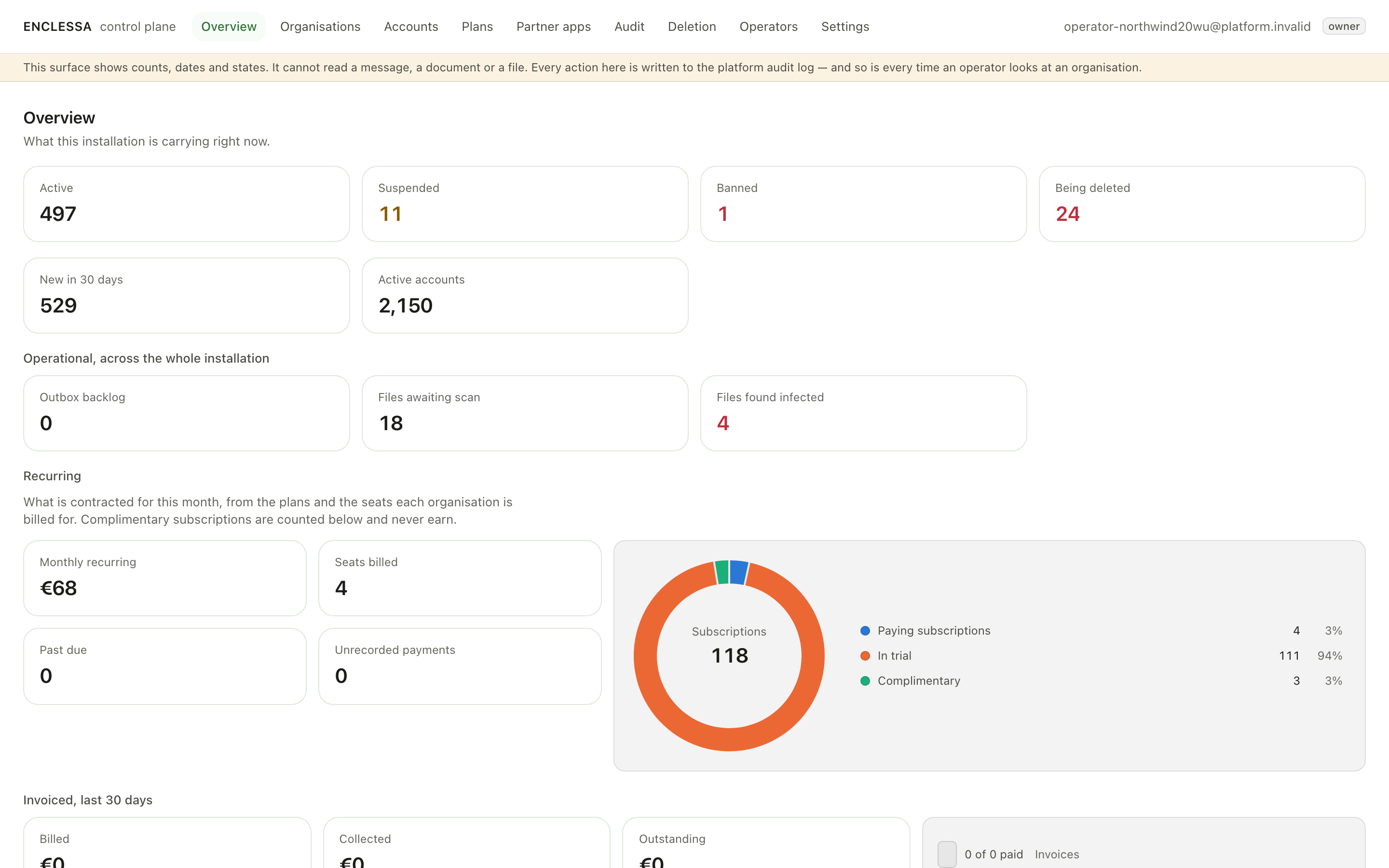
Overview (/platform) shows what the installation is carrying right now: organisations by
state, and revenue. Each state counter opens the organisation list filtered to that state.
Find an organisation and act on it
- Open Organisations (
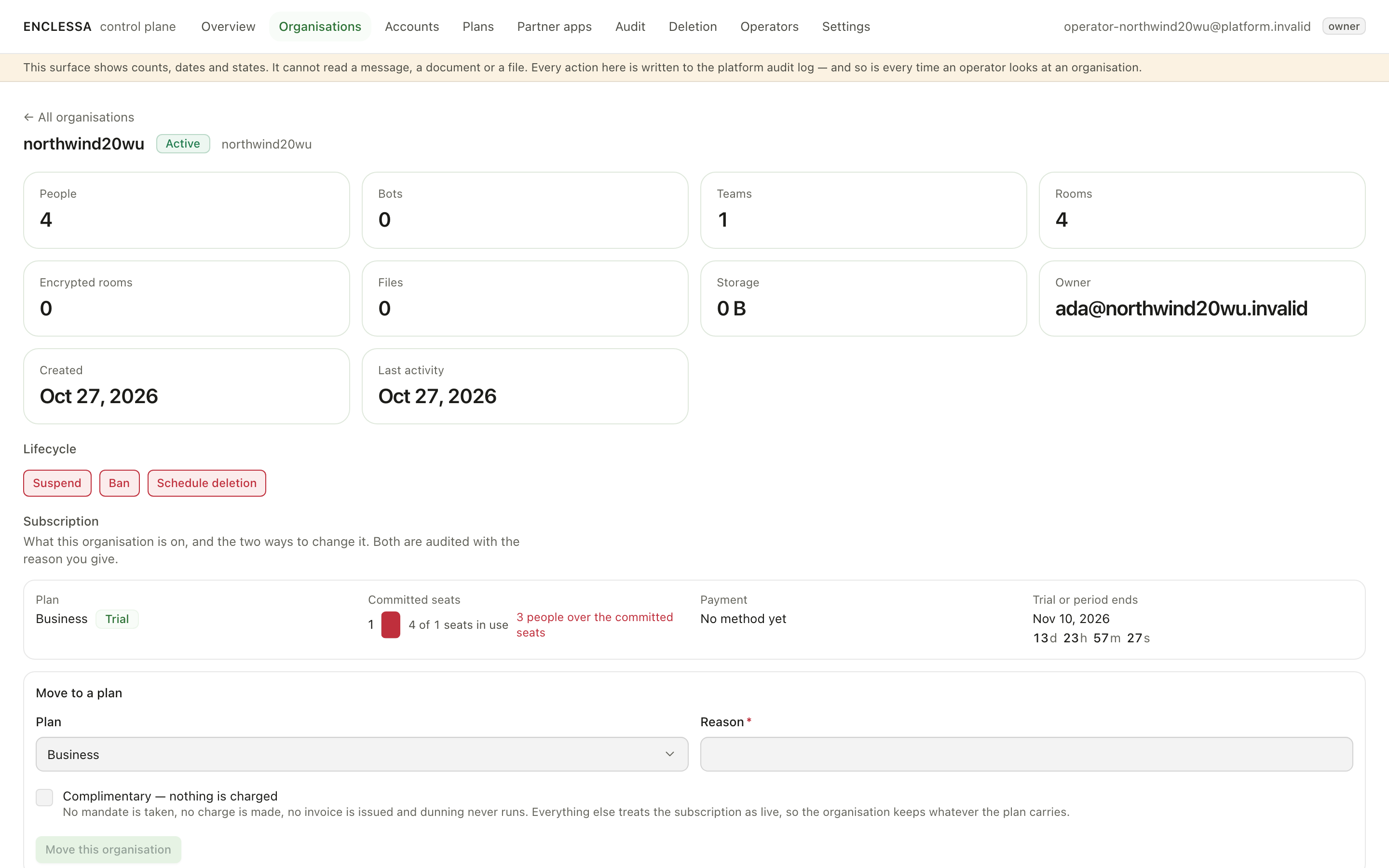
/platform/organizations). Search, or filter by state: Onboarding, Active, Suspended, Banned, Being deleted or Deleted. If nothing matches, Clear filters brings back the whole list. - Open an organisation to see its subscription, its retention and its usage. Usage is rolled up once a night.
- Choose an action and give a reason. The reason is shown to the organisation's own members, in
your words.
- Suspend: members can still read but cannot write, and they see your reason on every screen. Lift the suspension reverses it.
- Ban: nobody can sign in at all. This is harder than a suspension and meant for abuse. Lift the ban reverses it.
- Schedule deletion: the organisation is read-only for seven days, then every row and every file is destroyed. You can cancel until then, but not afterwards.
- Subscription: put the organisation on a plan or change its plan.
- Retention: set how long the organisation keeps what it holds. Zero means keep forever, which is the default.
Help a person who cannot sign in
Accounts (/platform/accounts) resets the second factor of an account. Enter the email and a
reason, and confirm. An organisation's own administrator can reset an account that belongs only
to their organisation; every other account is reset here. Support operators can see this page but
cannot act on it.
Manage plans
Plans (/platform/plans) lists what the installation sells. These plans are what the product
checks features against, what the price list publishes and what invoices are drawn from. A new
plan sells nothing until it is on sale and something points at it.
Review partner apps
Partner apps (/platform/apps) is where you register an app for its publisher, submit its
versions, review each version, and delist an app that must stop everywhere. An approved version
cannot be changed. A version that asks for more access waits in each organisation until an
administrator there consents.
Read the operator audit log
Audit (/platform/audit) shows the last thirty days of operator actions, filtered by time.
Delete an organisation for good
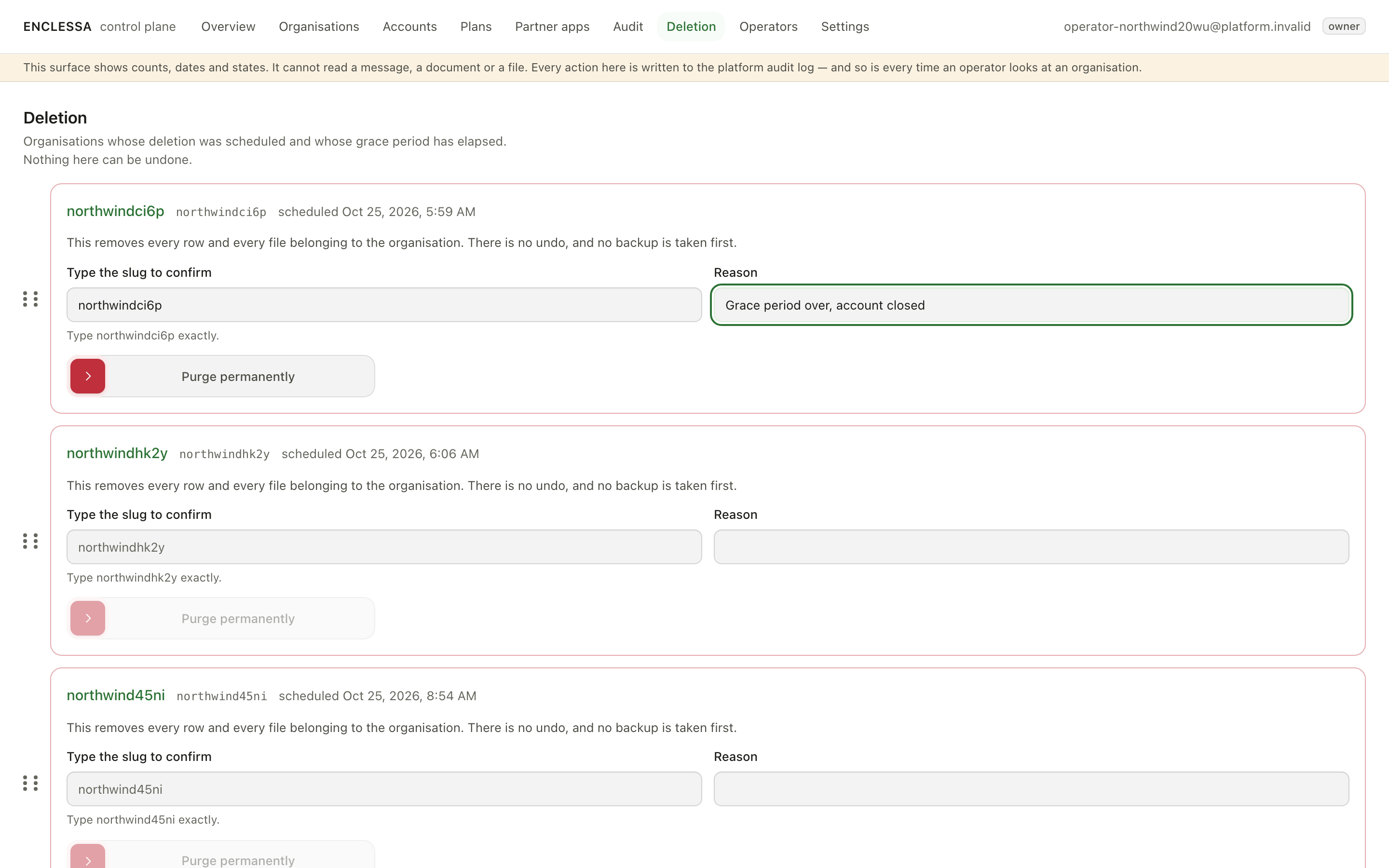
Deletion (/platform/purge) lists organisations whose deletion was scheduled and whose grace
period has passed. To purge one, type its slug exactly. This removes every row and every file
belonging to the organisation. There is no undo, and no backup is taken first.
Manage operators
Operators (/platform/operators) lists who may act on every organisation on this
installation. Only an owner can change this list.
- Add an operator with a password of at least twelve characters. Hand the password over in person, because nothing is sent by email.
- Give the operator a role: Owner, Operator or Support.
- Under sessions, see every operator credential in use. Ending one takes effect on its next request.
Installation settings
Settings (/platform/settings) holds the installation's own policy, not any one
organisation's:
- Default plan: the plan a sign-up lands on when it names no plan. Without one, an installation that takes payments refuses those sign-ups.
- Audit retention: how long an operator audit entry lives, at least 90 days.
- Blocked domains: nobody may register an organisation with an email address at these domains.
Roles
| Role | What it may do |
|---|---|
| Owner | Everything, including managing operators |
| Operator | Act on organisations, accounts, plans and partner apps |
| Support | Look only; every change is refused |
Tips
- An organisation's members see the reason you give for a suspension or ban, so write it for them.
- Scheduling a deletion can be undone for seven days. A purge cannot be undone at all.