Signing
Signing sends PDFs for electronic signature in an envelope: you add documents, name who should sign, place the fields each person fills in, and send. Colleagues sign inside the app; customers and anybody else sign through a link sent by email, confirmed with a code. When everybody has signed, the result is sealed and can be downloaded with its evidence. Signing is part of Contracts: in the commerce journey it is the step after a contract is issued, and a completed envelope for a contract is filed as that contract's countersignature. The signatures produced are simple electronic signatures with evidence; they satisfy text form, not written form.
Where to find it
- In the Contracts sidebar, Signatures ↗ opens
/sign. The entry is shown only when your organisation sends documents for signature. With a Contracts role you can also press ⌘K and typesignatures. /signis drawn inside the Contracts frame. A colleague asked to sign reaches it from the notification or the email, even without a Contracts role.- Envelopes can also be started from:
- an issued contract's page — Send for signature;
- a customer's Contracts tab — Send for signature;
- a contact with an email address on a customer's Contacts tab — Send for signature.
- External signers use the public page
/signingfrom the link in their email, and/signing/copyto download their copy. Neither page needs an account.
If Contracts is not installed, /sign shows "Contracts is not installed here".
Main workflows
Start an envelope
- On
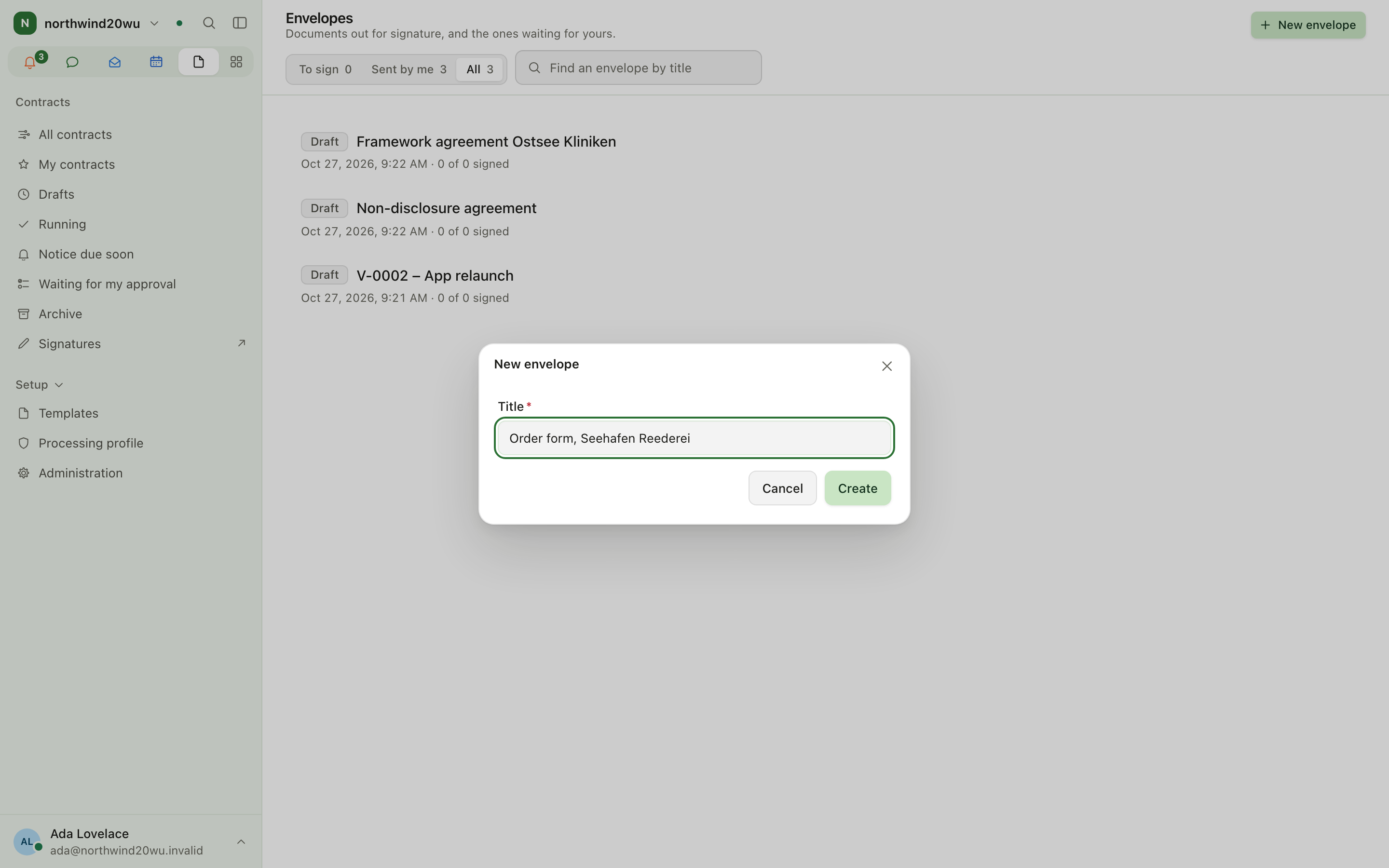
/signpress New envelope (shown when you may send), enter a title and press Create. - Started from a contract, customer or contact, the envelope is linked to it and the contact is already a recipient.
- The envelope opens in Prepare the envelope.
Prepare and send
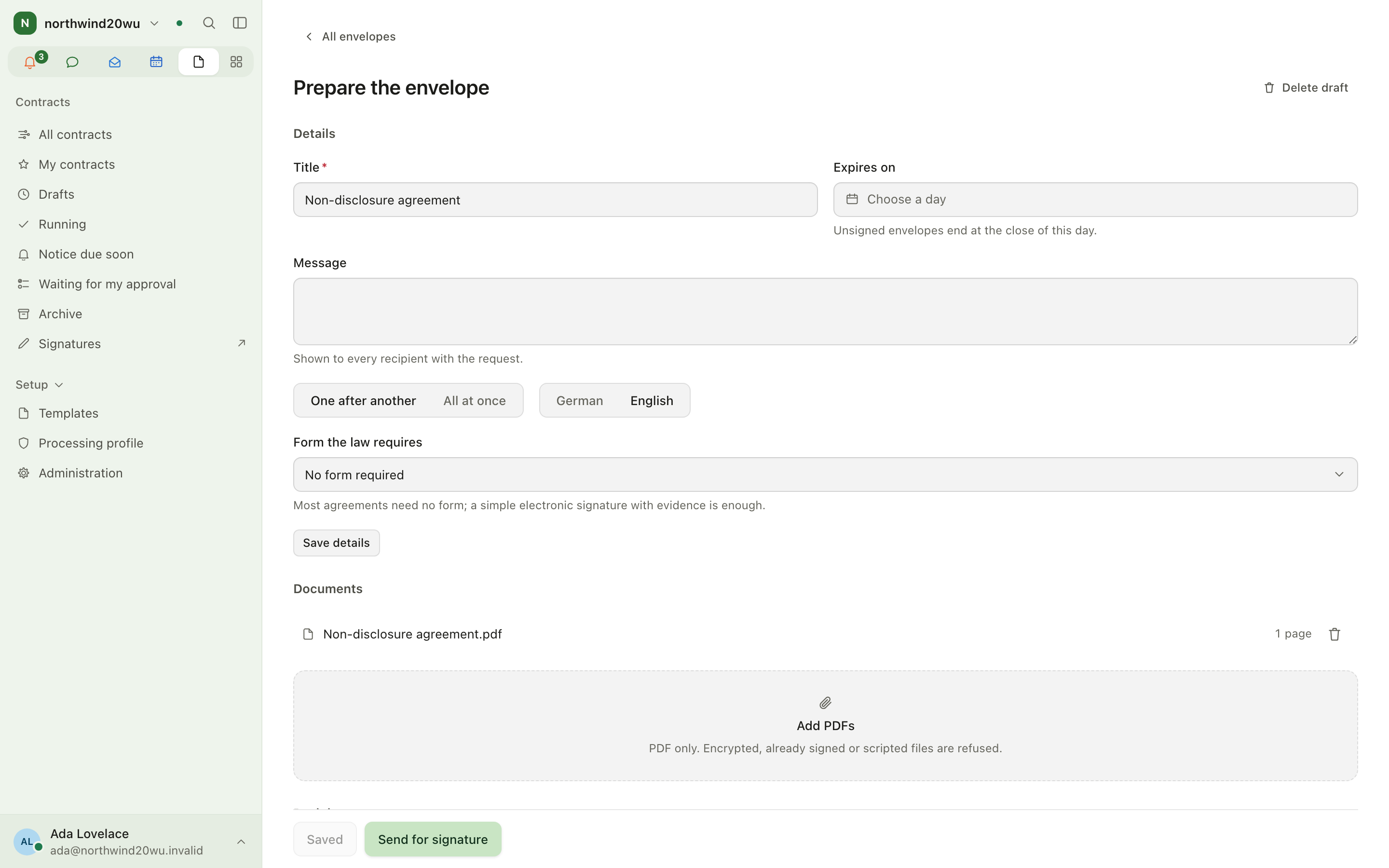
- Under Details set Title, Expires on, Message, Signing order ("One after another" or "All at once"), Language of the mails and Form the law requires. Press Save details.
- Under Documents press Add PDFs. Encrypted, already signed or scripted PDFs are refused.
- Under Recipients use Add a colleague or Add somebody by email (Name, Email address, Add). Set each signing position; equal positions are asked at the same time.
- Under Fields pick a recipient in Fields for, then drag a field type onto a page: Signature, Initials, Text, Date, Number, Checkbox or Choice. Every recipient needs at least one signature field.
- Press Save recipients and fields, then Send for signature and confirm. After sending, documents, recipients and fields can no longer be changed.
An envelope set to "Written form (§ 126 BGB)" cannot be sent; "Written form, electronic form excluded" has to be signed on paper.
Sign as a colleague
- Open the envelope from the notification, the email, or To sign on
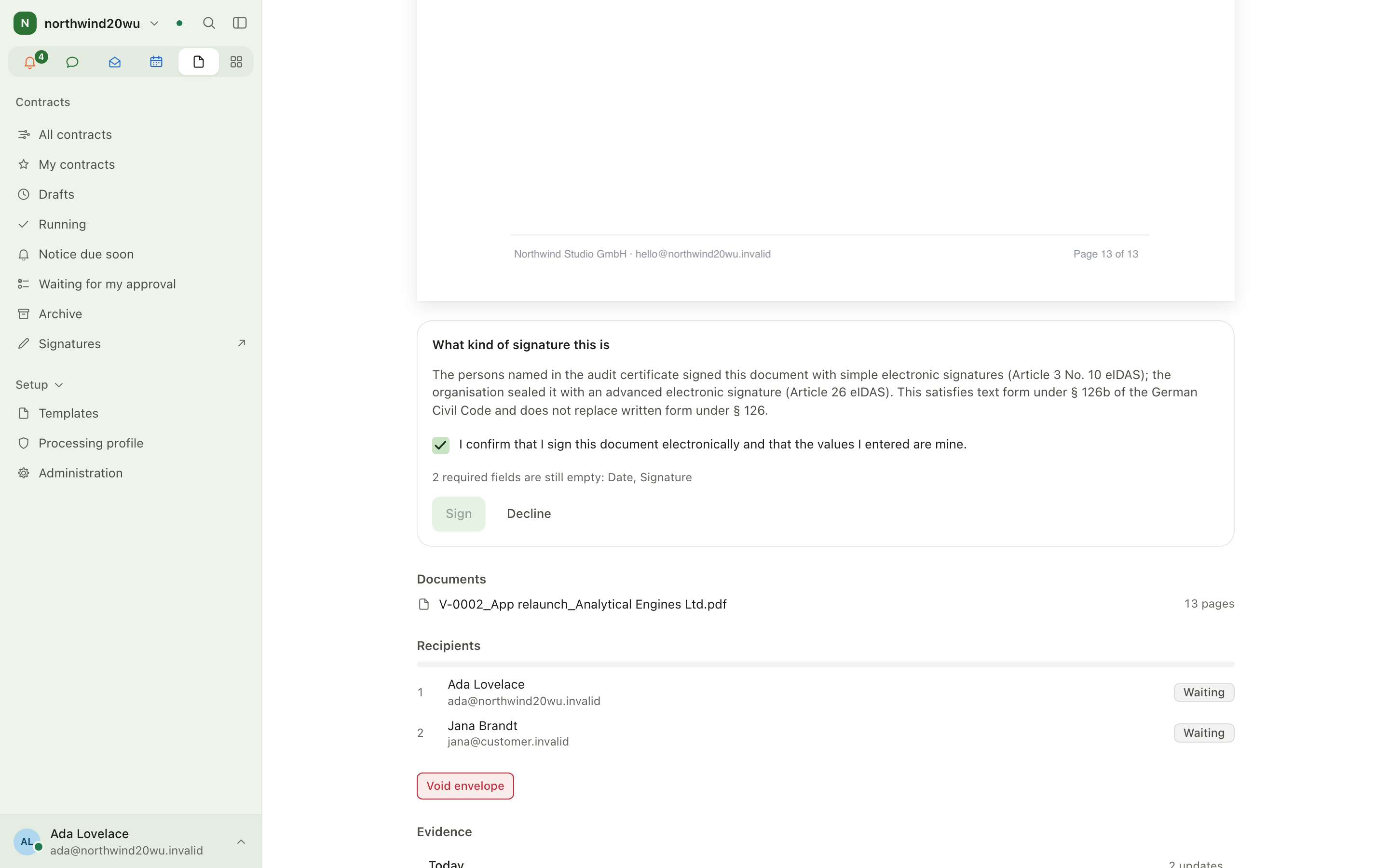
/sign. - Under Your signature is requested, fill every required field. Use this applies a value and fills the other empty fields of the same kind.
- Tick the consent statement and press Sign. If you signed in at your organisation's identity provider or confirmed your second factor within the last five minutes, the signature is placed straight away. Otherwise Confirm it is you asks for your current password.
- Or press Decline and give a reason. Declining ends the envelope for everybody.
Sign as a customer or external recipient
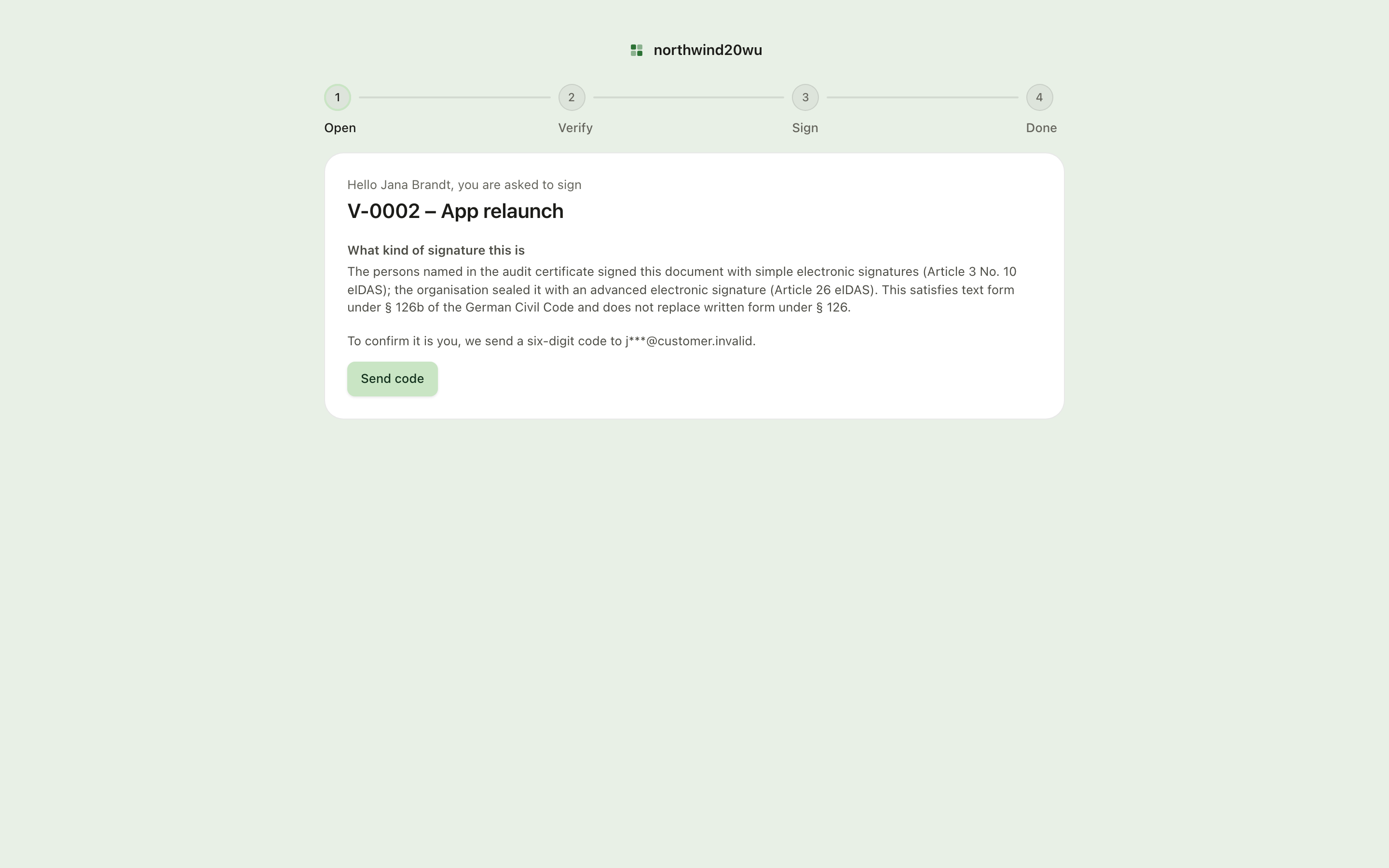
- Open the link from the email. The page greets you by name.
- Press Send code, enter the six-digit code sent to your address and press Confirm.
- Fill the fields, tick the consent statement and press Sign — or Decline.
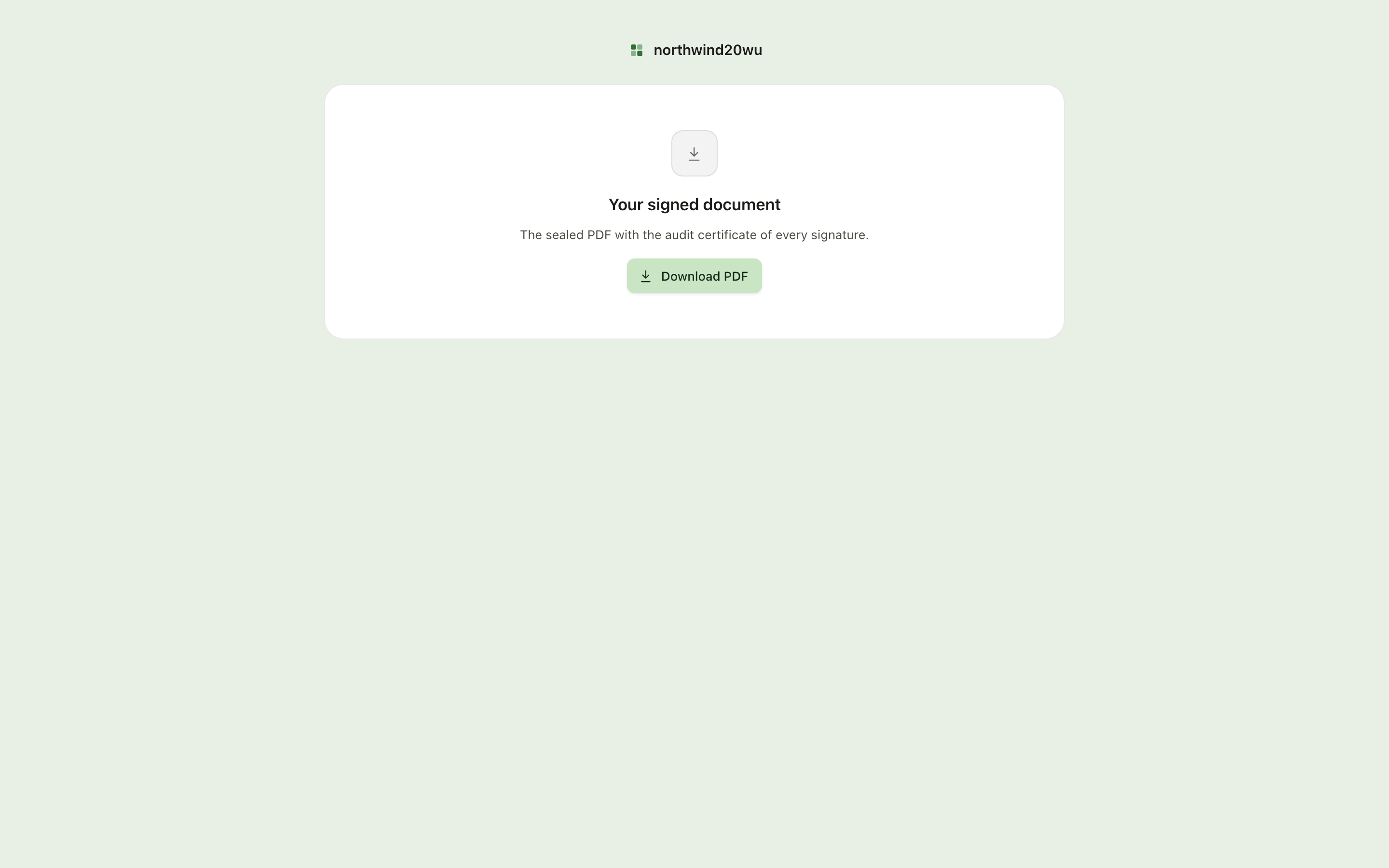
- When everybody has signed you receive an email with a link to the sealed document; on
/signing/copypress Download PDF. The copy can be downloaded for thirty days after the last signature.
Track, download or void
- On
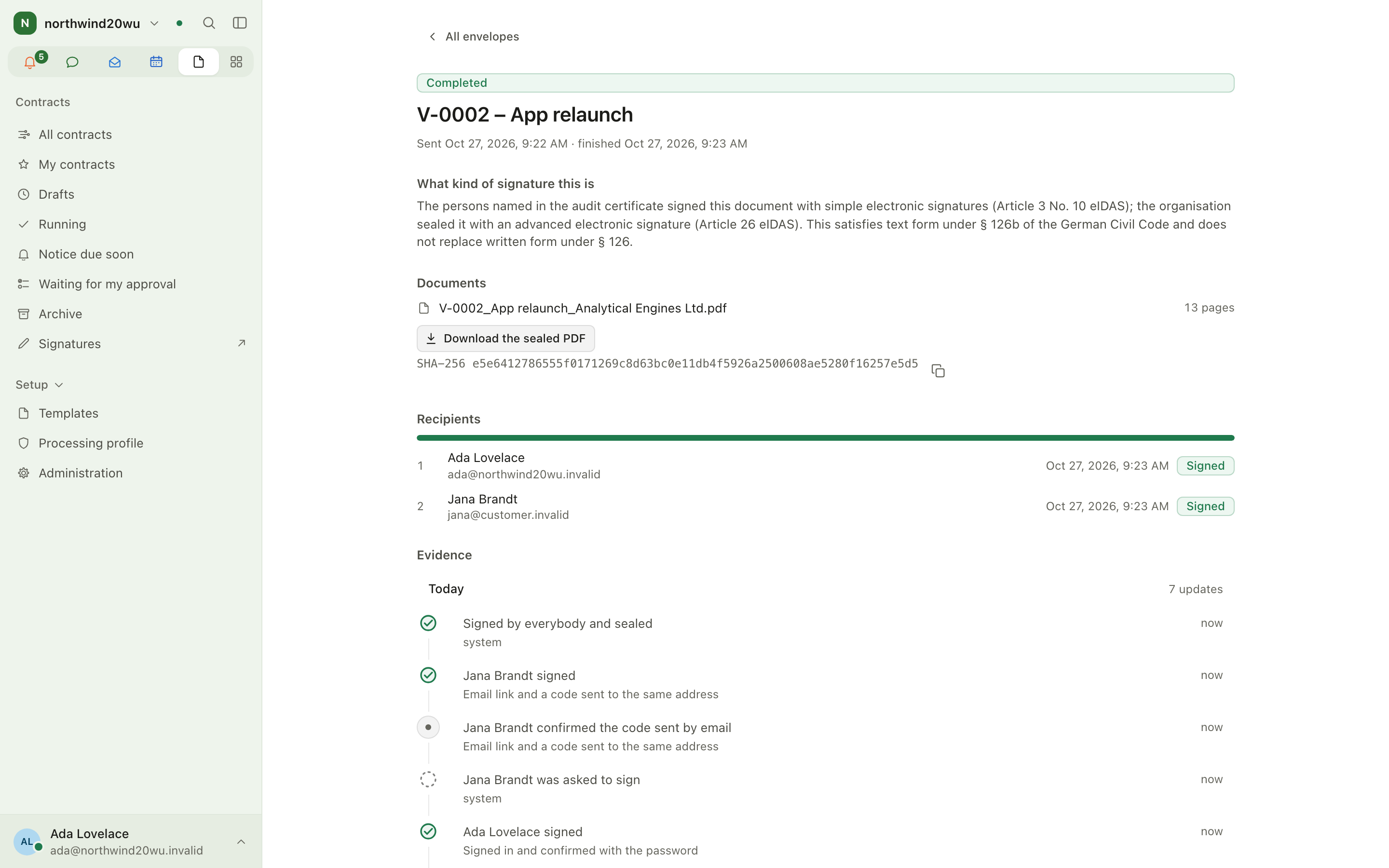
/signfilter by To sign, Sent by me or All. The list opens on To sign, or on Sent by me when nothing waits for your signature. Each row shows how many have signed. Type part of a title into Find an envelope by title to narrow the list; when nothing matches, Clear filters empties the search. - Open an envelope to see Recipients, the Signatures progress and the Evidence trail.
- When it is Completed, press Download the sealed PDF.
- To stop an envelope, press Void envelope and give a reason. Every open link stops working and the recipients are told why.
Have a contract countersigned
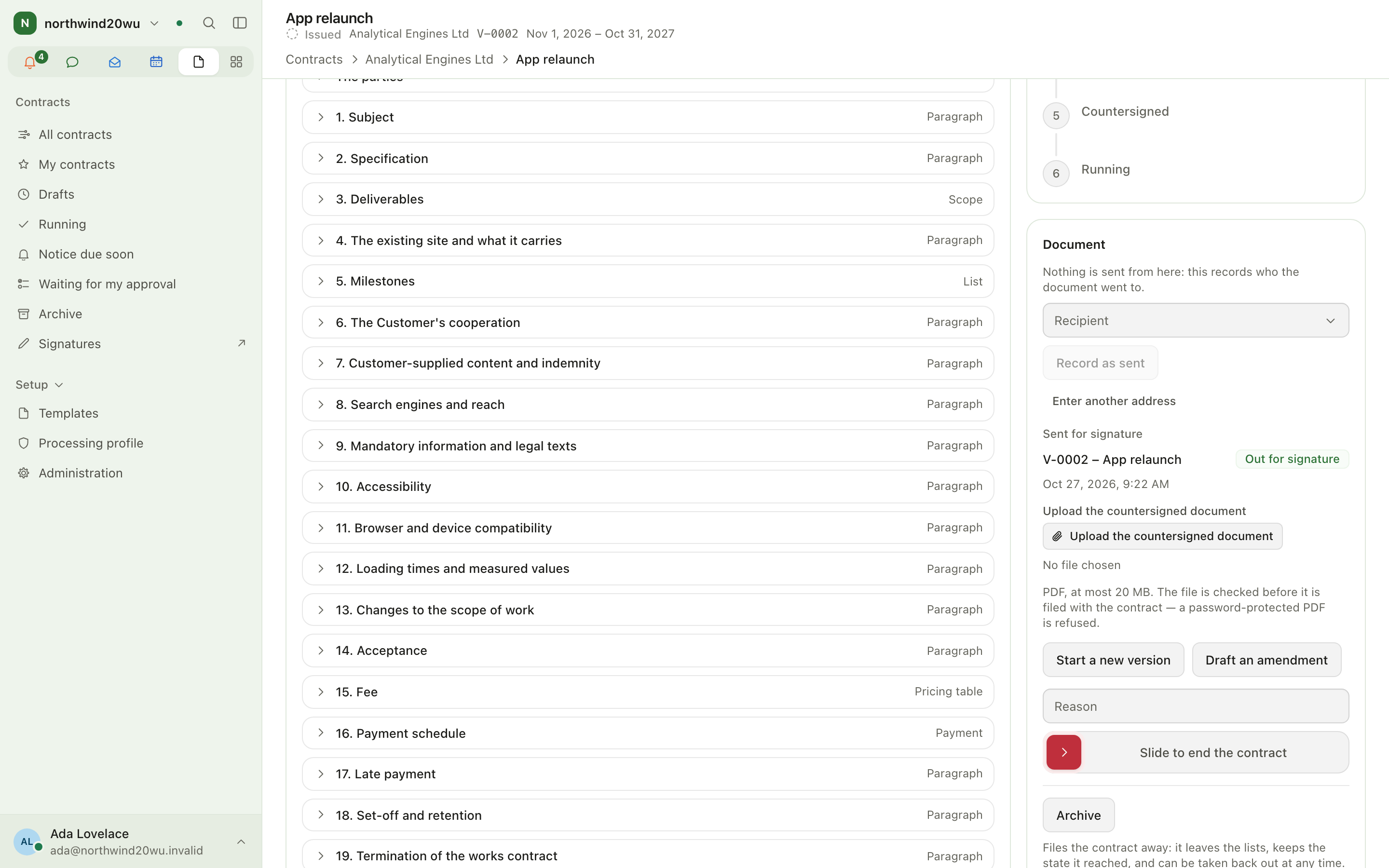
- On an issued contract press Send for signature (needs
contract.issueandcontract.create). - The envelope holds a fresh rendering of the issued contract; the contract's contact is the first recipient. Place the fields and send.
- When the customer's contact signs, the sealed result is filed as the contract's Countersigned document automatically.
- Only one envelope per contract can be out at a time: while one is, Send for signature is not offered. Void it to start again.
Roles and permissions
Signing uses the Contracts permissions.
| Permission | Unlocks |
|---|---|
| (membership only) | Reading and signing what you were sent |
contract.create | Preparing, sending and voiding your own envelopes; Send for signature on customers and contacts |
contract.create + contract.issue | Send for signature on an issued contract |
contract.admin | Seeing and voiding every envelope in the organisation |
External recipients need no account; they see only their own envelope, through their link.
Administration and settings
- Contracts' module setting "Documents may be sent for signature" is on by default. Switched off, the Signatures entry and every Send for signature button disappear and open signing links stop working; envelopes are kept until it is switched on again.
- The module setting "Timestamps come from" names an RFC 3161 timestamp service; without one, seals carry no timestamp.
- Envelopes are sealed with the organisation's certificate, stored under Contracts Setup › Administration › Signing certificate.
Tips
- Set Expires on; unsigned envelopes end at the close of that day.
- Use "One after another" when the order of signatures matters; lower positions sign first.
- Statuses: Draft, Out for signature, Completed, Declined, Voided, Expired.
- Ask the sender for a new link if a recipient sees "This link no longer works".
Related
Contracts
Contracts holds what has been agreed with each customer and the document that says so. A contract starts as a draft from a template, is reviewed (and, if your organisation requires it, approved), then issued: the number is allocated, the PDF is rendered and sealed with the organisation's certificate, and nothing can change afterwards except through a new version or an amendment. In the commerce journey it sits between the quotation in Finance and the customer's signature in Signing. Contracts needs Customers: every contract names a customer.
Customer Center
The Customer Center gives the people at your customers a place to sign in: they work through an onboarding, read and sign the documents you hand them, book appointments and see their invoices. Your colleagues use the staff side to give someone access, send document packets, build journeys and track where every customer has got to. In the commerce journey (customer → quotation → contract → signature → invoice), the Customer Center is the customer's side of it. They acknowledge or accept a quotation there, sign the documents you send them, and see the invoices Finance issued. The module needs Customers installed. Contracts, Bookings and Finance each add a part when installed.