Calls
Audio and video calls with screen sharing, a waiting room, and guests without an account. A call keeps running while you move around the app; minimise it and keep working.
Where: the Calls app (/calls) in the sidebar, or ⌘K and calls. A call can also be
started from any room.
The Calls sidebar
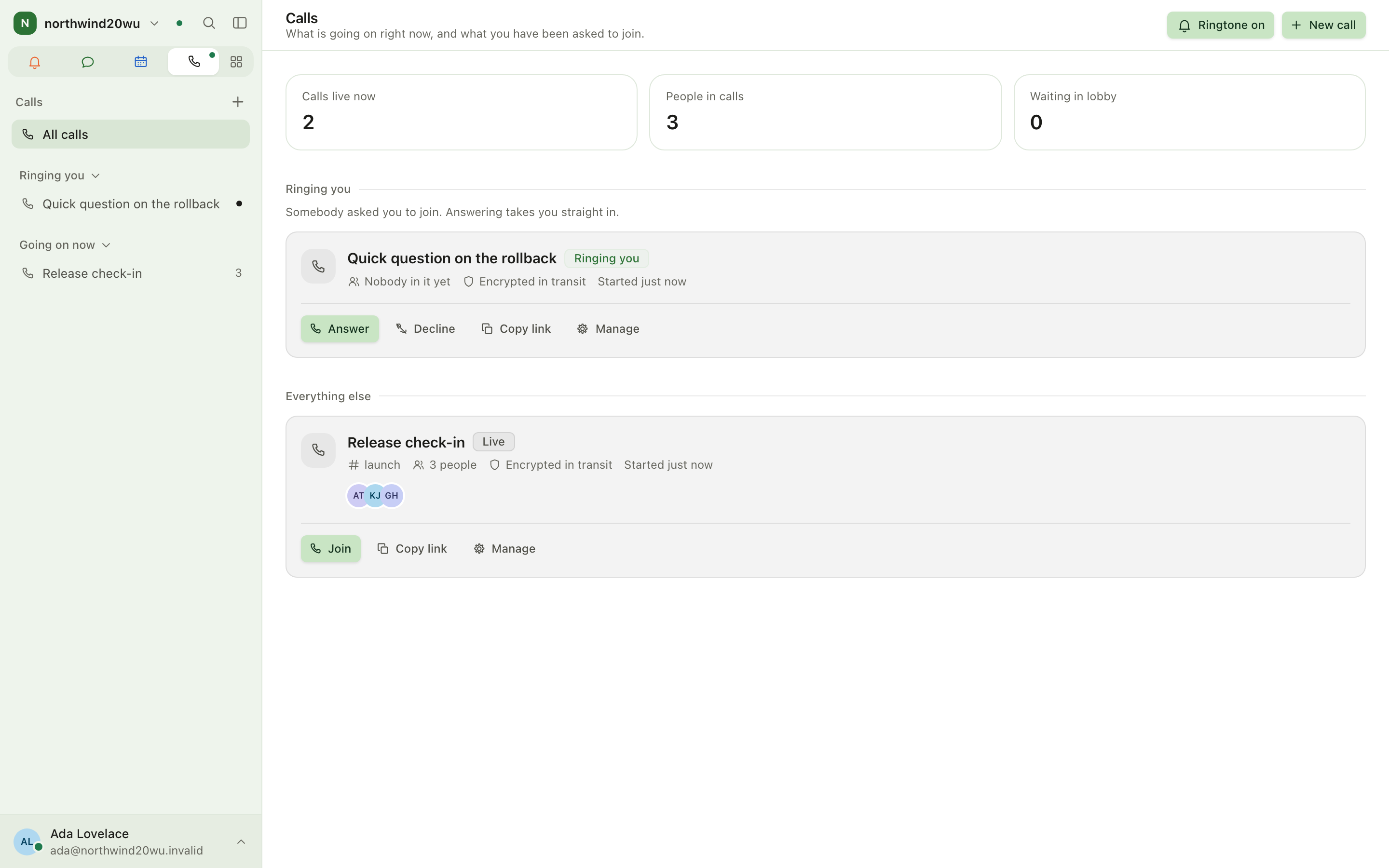
The sidebar lists every call you can walk into while it runs, grouped as Ringing you, You are in, Waiting to be let in and Going on now. Choose one to get back into it. All calls opens the Calls page, and + starts a new call. A call that has ended is not listed.
Main workflows
Start a call
In a room: use the phone icon in the room header (Start a call in this room), or type
/call. Everybody who can open the room may join, and a bar in the room offers Join while the
call runs.
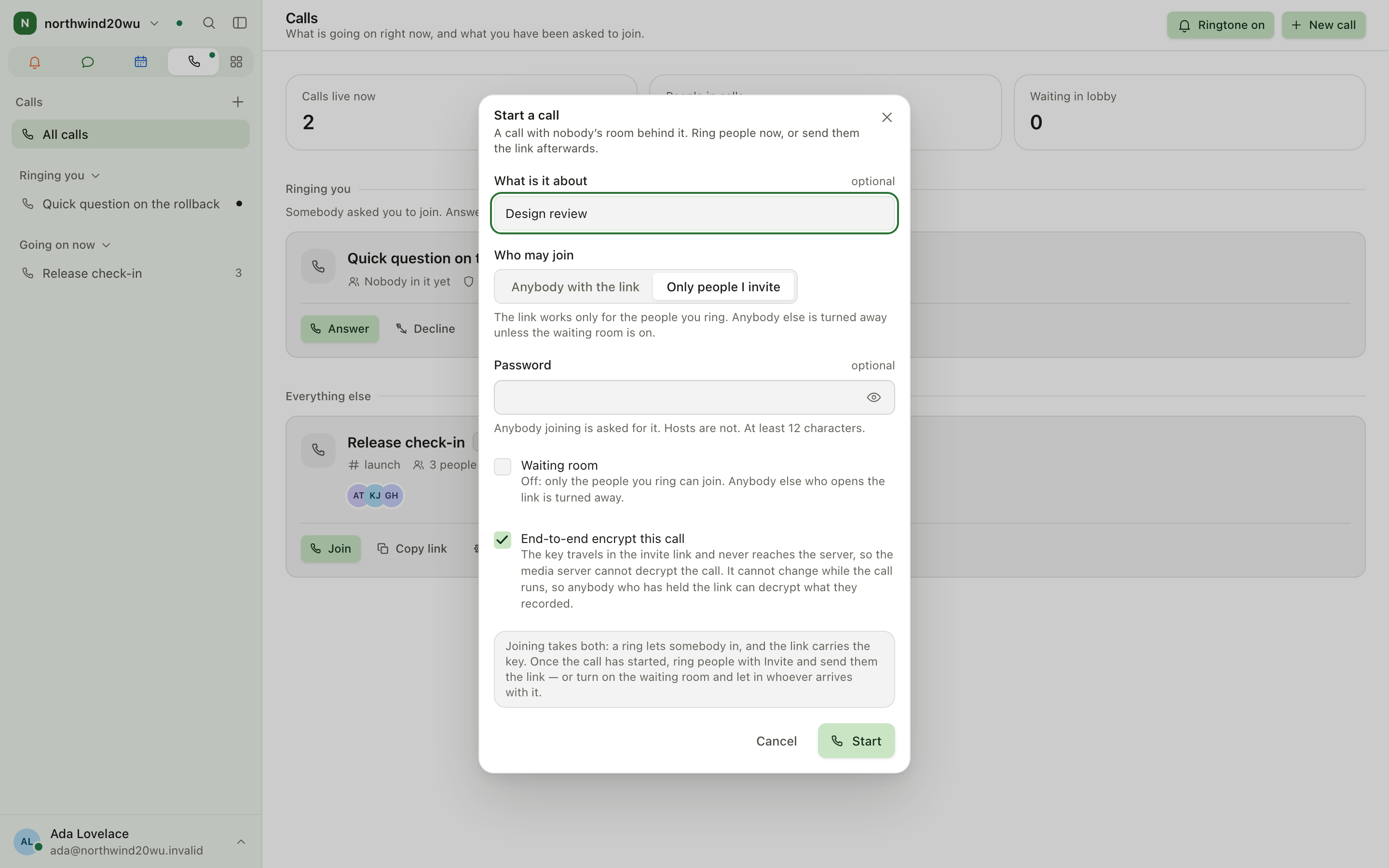
On its own: open Calls and choose New call (top right, or + in the sidebar).
- Optionally name it under What is it about.
- Choose Who may join:
- Anybody with the link — everybody signed in to this server who opens the link.
- Only people I invite — the link works only for the people you ring. With the Waiting room on, anybody else who opens it can ask to join instead.
- Optionally set a Password (at least 12 characters) and turn on the Waiting room.
- End-to-end encrypt this call is on by default. The key travels in the call's link, so you invite people by sending them the link from inside the call; ringing would not give them the key. With Only people I invite and no waiting room they need both: ring them with Invite and send them the link. Turn encryption off to pick people to ring right here.
- Start. Anybody you picked is rung.
Answer, join and leave
- An incoming call rings on every screen: ↵ answers, Esc declines. The bell on the Calls page silences the ringtone on this device.
- The Calls page lists what is going on now and what you were asked to join: Answer or Decline a ring, Join a running call, or Back to the call for the one you are in. Each card also offers Copy link, Manage, and for hosts Invite and End for everybody.
- A link to a call (
/calls/<id>) opens a join screen. A call with a password asks for it, and a call with a waiting room shows Ask to join. If the call is over or not open to you, the screen says so and offers Go to Calls. - Leave hangs up for you alone; the call goes on for the others.
During the call
- Mute, camera, Share your screen, raise hand, reactions and the call chat sit in the bottom bar. The call chat disappears when the call ends. Share your screen from a browser: the desktop app does not offer screen sharing yet, so it shows no share button.
- Minimise (the × at the top right, or Esc) keeps the call running in a small voice dock while you work elsewhere: in the Chat sidebar, or floating over other apps. Open the call brings it back.
- People shows who is in the call and who is waiting; hosts admit, remove or bar people there.
- Call settings: your name in this call, devices, noise suppression, the link, who may join, waiting room, lock the call, password, what attendees may do, and the call's recordings.
- Soundboard plays a short sound to everybody in the call, when your organisation runs it; see Soundboard.
- Record this call shows when the installation can record and the call is not end-to-end encrypted. Everybody in the call sees the Recording badge.
Invite guests without an account
- In the call open People, or Manage on the call's card in Calls, and under Guests without an account choose Copy guest link.
- The guest opens the link, types a name and chooses Ask to join. A host admits or turns them away under People.
- Revoke guest link stops the link working; copying again makes a new one.
Roles and permissions
- Anyone with an account can start and join calls the link allows them into.
- Hosts (whoever started the call, and people they make host or co-host) admit and remove people, lock the call, and change its settings.
- Guests in the organisation see only the calls they are invited to.
If the installation has no media server, the Calls page says "Calls are not available here".
Calls keeps no history of past calls: a call that ended disappears from every list, and its link says That call is over. A call's recordings are listed under Call settings → Recordings while it runs; open or save one before the call ends.
Settings
- Ringtone: the bell on the Calls page (per device).
- Devices, noise suppression, your name in the call: Call settings inside a call.
- Notification sounds and do-not-disturb: Your account → Notifications and Availability.
Tips
- ⌥⌘M mutes and unmutes from the desktop app's menu bar, even with the window hidden.
- A call in an end-to-end encrypted room is end-to-end encrypted too; the header says so.
/call-sheetlinks belong to Studio — they are a shoot's call sheet, not a phone call.
Chat
Chat is where teams talk: channels for topics, direct messages between people, threads for side conversations. It also holds your drafts, saved messages and scheduled messages, and the Activity feed of everything that is waiting for you.
Your account and settings
Everything that belongs to you rather than to a room or a module: profile, sign-in security, devices, notifications, availability, your sidebar, access tokens and your data.