Integrations: GitHub, GitLab & Forgejo, MCP
Three modules connect Enclessa to tools outside it:
- GitHub mirrors a repository's issues and pull requests, or a Projects v2 project, onto a board, and can push a moved card back.
- GitLab & Forgejo does the same for a GitLab, Forgejo or Gitea repository's issues and merge requests.
- MCP lets an AI agent you run (Claude Desktop, an IDE, a hosted assistant) connect to Enclessa and use the same tools as the companion, as you.
Each is installed and configured by an administrator in the marketplace. Pointing a board at a repository is a team decision made on the board.
Where to find it
| What | Where |
|---|---|
| GitHub connection (credential, installation, webhook) | System console → Marketplace → GitHub (/admin/marketplace/github) |
| GitLab & Forgejo connection (host, token, webhook) | System console → Marketplace → GitLab & Forgejo (/admin/marketplace/forge) |
| Link a board to a repository | On the board: board configuration dialog, GitHub or GitLab & Forgejo tab |
| What connected agents may do (organisation) | System console → Marketplace → MCP (/admin/marketplace/mcp) |
| Your connected agents and your own limits | Your account (bottom of the sidebar) → Connected apps |
Administrators can also press ⌘K and type github, gitlab, forgejo or mcp to open the
connection page directly.
GitHub
Connect GitHub (administrator)
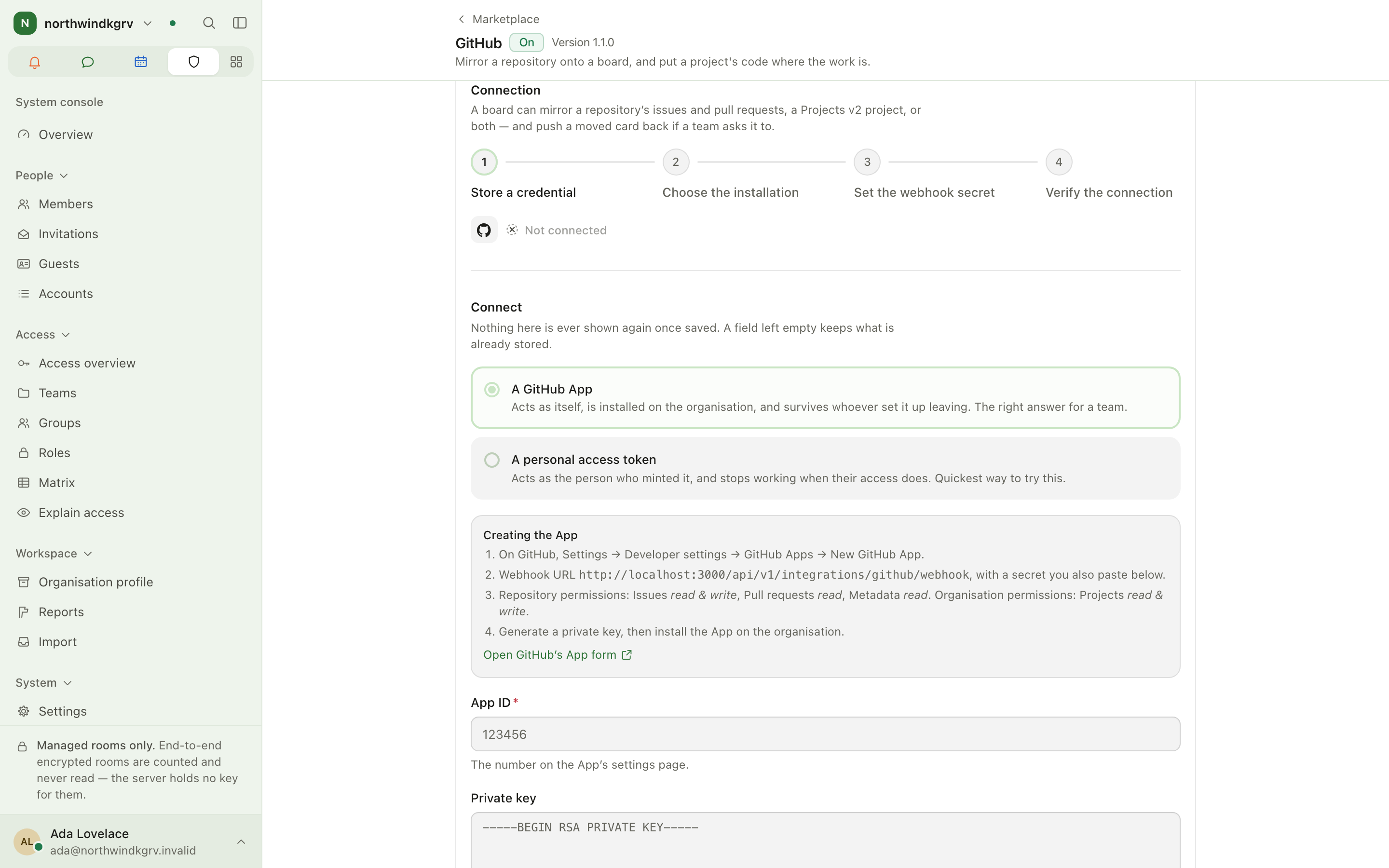
- Open System console → Marketplace → GitHub and switch the module on. Boards must be on too.
- Under Connect, choose how this organisation authenticates:
- A GitHub App — acts as itself and survives whoever set it up leaving. Recommended for a team. Follow Creating the App: set the webhook URL shown, give Issues read & write, Pull requests read, Metadata read and (for projects) Projects read & write, generate a private key and install the App on your GitHub organisation. Paste the App ID, private key and webhook secret.
- A personal access token — the quickest way to try it; it stops working when its owner's access does.
- Select Connect and test. If the App is installed in several places, choose the Installation.
- Under Webhook, copy the address into GitHub with content type
application/jsonand the same secret, and subscribe to issues, issue comments, pull requests, pull request reviews, projects v2 items and check suites. Recent deliveries shows whether GitHub reaches you.
The setup progress shows four steps: credential stored, installation chosen, webhook secret set, connection verified. For GitHub Enterprise Server, set the API and web address.
Credentials are encrypted at rest. If the panel says the installation cannot store credentials,
the operator has to set ENCLESSA_SECRET_KEY and restart the API.
Link a board
- Open the board and its configuration dialog, then the GitHub tab. You need manage boards in the board's team.
- Choose a repository, a Projects v2 project, or both. A repository brings issues and pull requests; a project brings everything on it, including drafts.
- Importing closed items is off by default, so a first sync of an old repository is not mostly history.
Linked items show their GitHub state on the card (open, draft, merged, review needed, checks). Without a webhook, boards change only when somebody selects Sync now.
Disconnecting GitHub unlinks every board; the items they imported stay.
GitLab & Forgejo
Connect a forge (administrator)
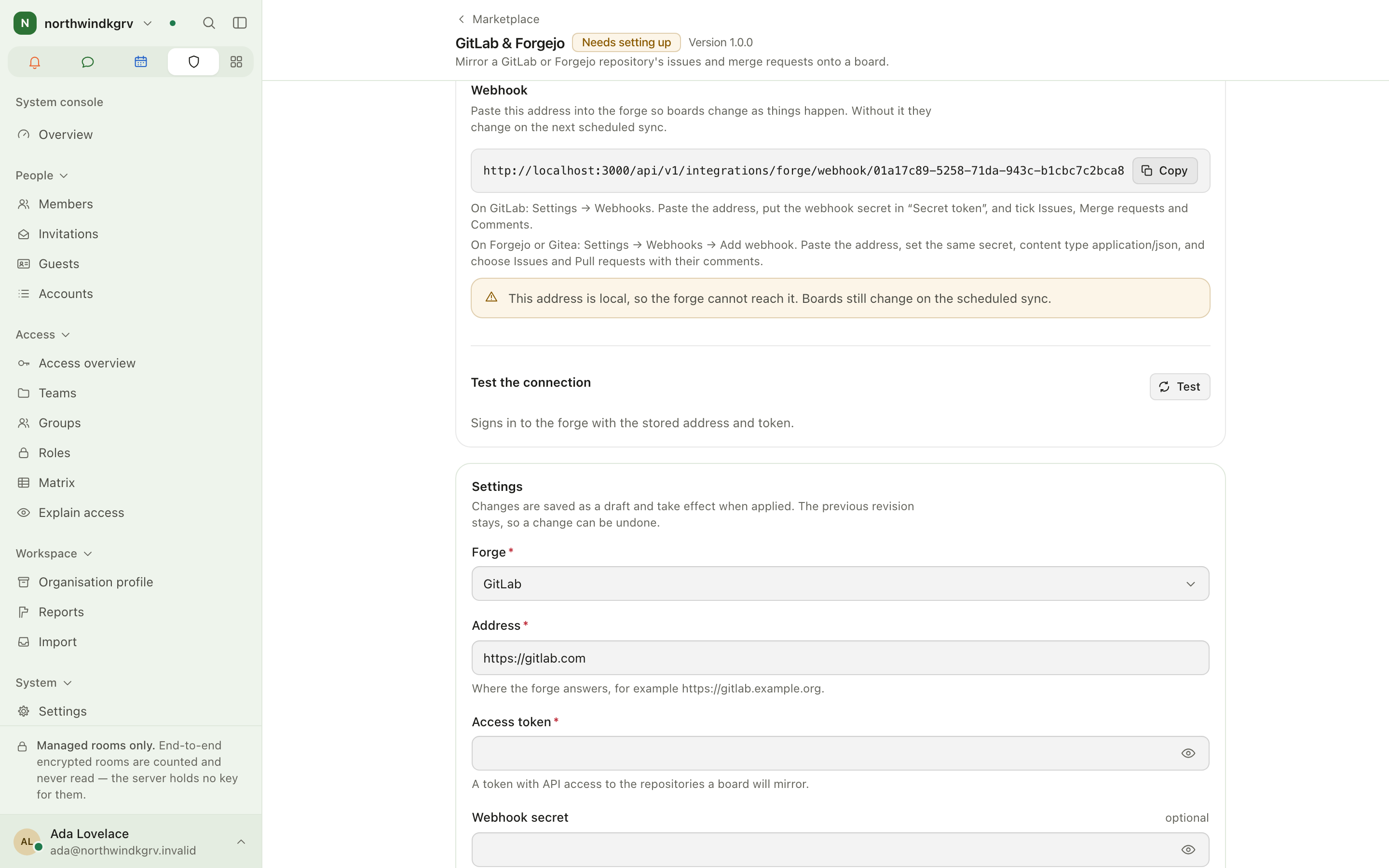
- Open System console → Marketplace → GitLab & Forgejo, switch it on, and enter the host address and an access token in the module's settings.
- Under Test the connection, select Test; it reports which account the token signs in as.
- Copy the webhook address shown:
- GitLab: Settings → Webhooks. Paste the address, put the webhook secret in Secret token, and tick Issues, Merge requests and Comments.
- Forgejo or Gitea: Settings → Webhooks → Add webhook. Paste the address, set the same
secret, content type
application/json, and choose Issues and Pull requests with their comments.
Without a webhook, boards change on the next scheduled sync.
Mirror a repository on a board
- Open the board's configuration dialog, GitLab & Forgejo tab, Mirror a repository.
- Enter the repository (
group/projecton GitLab,owner/repoon Forgejo) and choose the direction: Read only, Write only or Both ways. - Choose what to import (issues, merge/pull requests, closed ones too), whether new cards are filed as issues, and where open items land. Select Link this board; the first sync starts.
- Under Columns, mark which columns mean open and which mean closed. Moving a card into a closed column closes what it mirrors.
- Sync now runs a sync at once; Unlink stops following the repository and keeps the imported items.
MCP (connected AI agents)
Connect an agent (any user)
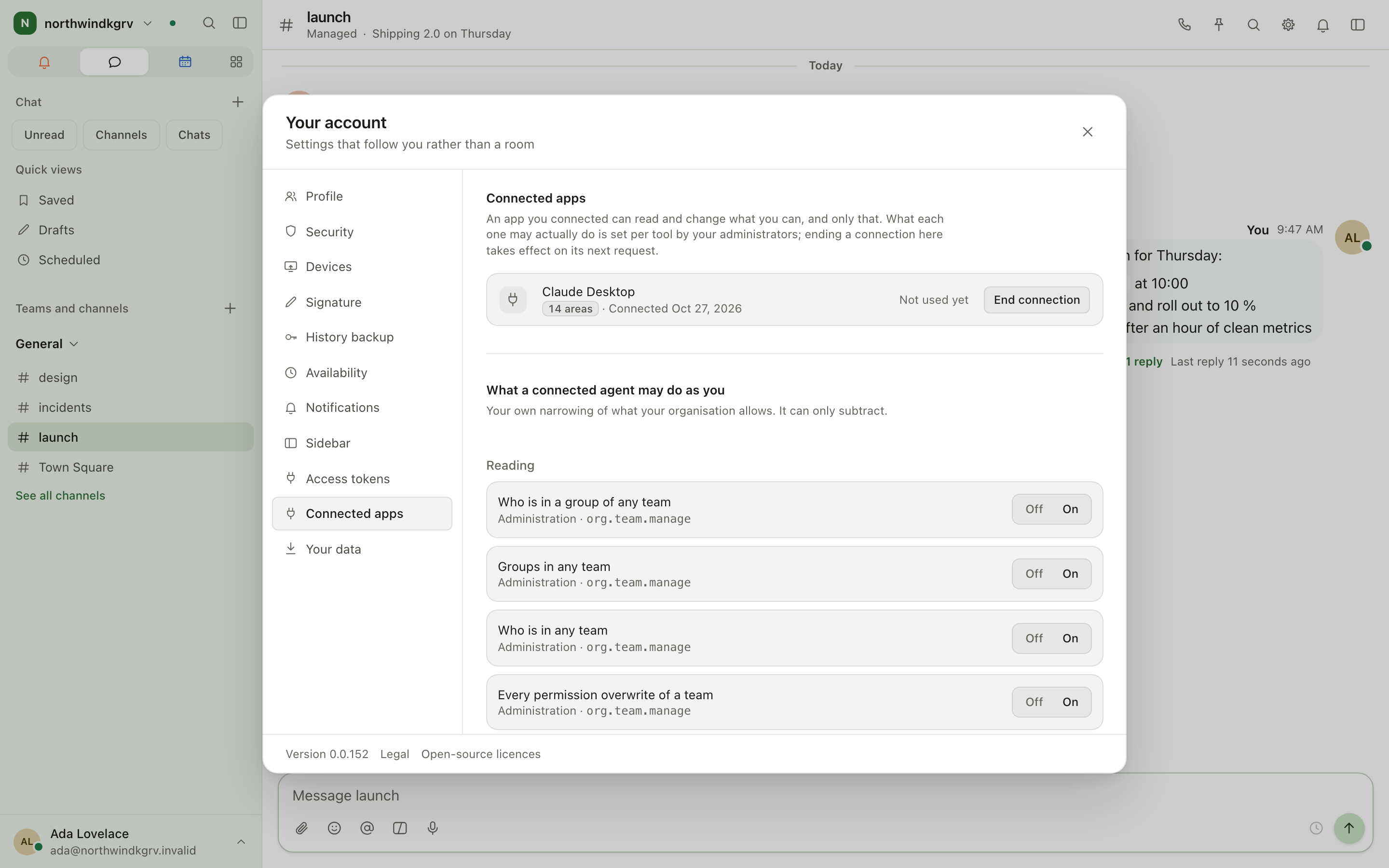
- In your agent, add an MCP server with your Enclessa installation's address followed by
/mcp(for examplehttps://enclessa.example.com/mcp). - The agent opens your browser; sign in and approve the connection. The agent now acts as you and can only do what you can do.
- Changes it asks to make wait under Your account → Connected apps until you approve them, unless the tool is allowed to act without asking.
- End connection there disconnects an agent at once.
Under the same pane, What a connected agent may do as you narrows the organisation's settings for your own agents. It can only subtract. Access tokens for scripts are next to it.
Set what agents may do (administrator)
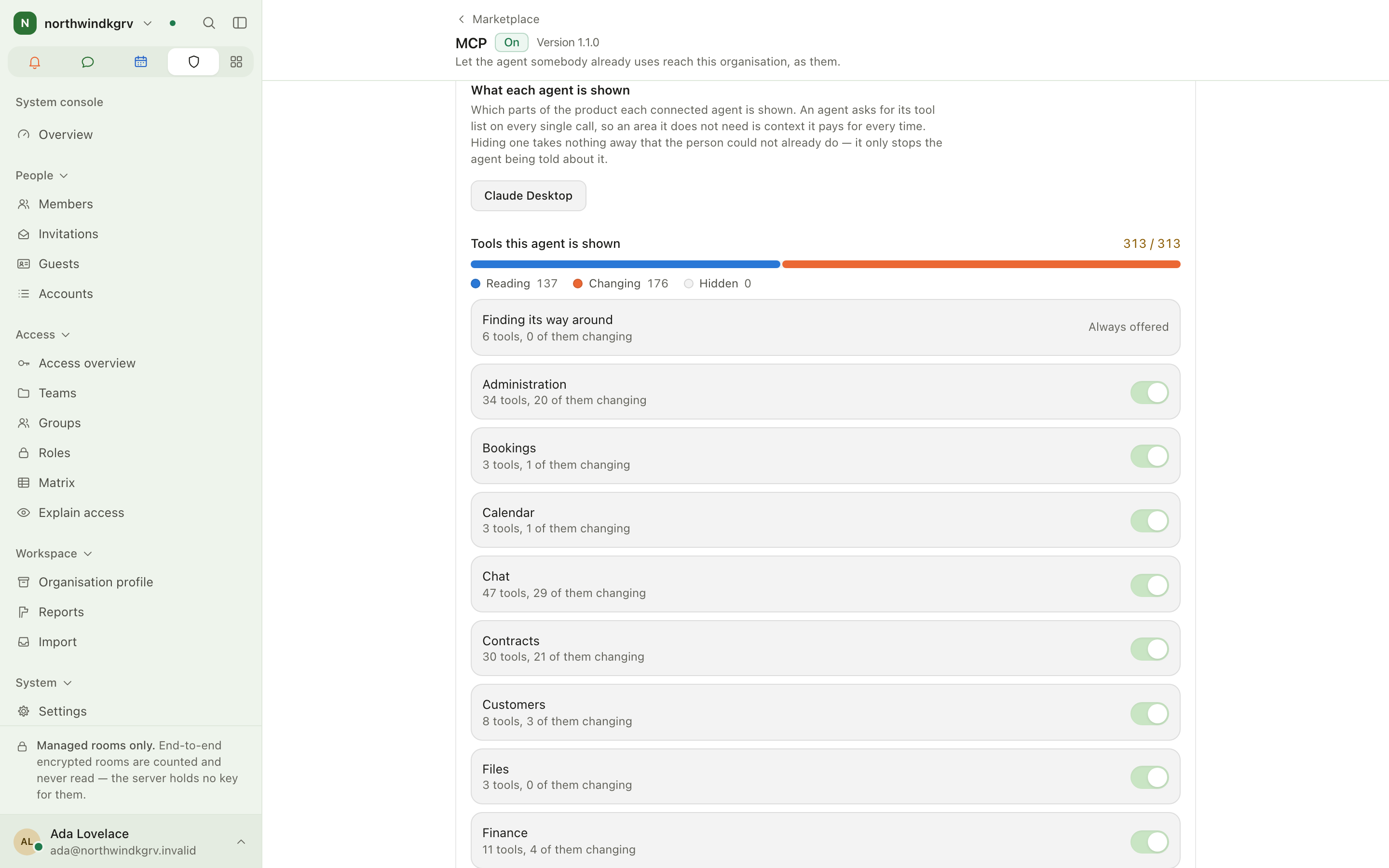
Open System console → Marketplace → MCP:
- What a connected agent may do — one row per tool, each set to Off (absent from the agent's list), Ask first or Without asking. Reading tools are On or Off. This can only narrow what the person could already do.
- What each agent is shown — per connected agent, which areas of the product it is offered. Hiding an area takes nothing away from the person; it only keeps the agent's tool list short.
Every agent action is audited under the person who connected it, marked as coming from MCP.
Roles and permissions
- Connecting GitHub or a forge and setting MCP policy needs a system administrator's console access.
- Linking a board needs manage boards in that board's team.
- Connecting an agent needs only an account; what the agent can do is bounded by your own permissions, the organisation's MCP policy and your personal narrowing.
Tips
- Prefer a GitHub App over a personal token for anything beyond a trial.
- If GitHub boards are not updating, open Recent deliveries: an empty list usually means the webhook address or secret is wrong.
- A webhook address on
localhostcannot be reached by a hosted forge; use Sync now or a tunnel during development.
Spaces
Spaces is the knowledge base: a wiki of spaces, each holding a tree of pages and a file library. Pages are written in Markdown, link to each other and to records elsewhere in the product, and can be restricted to named people or teams.
Administration (system console)
The system console is where an organisation is run: its people, who may do what, its settings, installed modules, integrations, the audit trail and billing. It belongs to one organisation and shows nothing of any other. Encrypted rooms are absent from every list on purpose: the server cannot read them, so the console cannot show them.