Customers
Customers is the organisation's shared record of the companies and people it works with: who runs each relationship, who to talk to there, what has been said, and what is owed back. It is also the starting point of the commerce journey — from a customer you draft a quotation in Finance, create a contract, send it for signature and, finally, invoice. Every other module that names a customer (Projects, Contracts, Finance, Bookings, the Customer Center) shows up as a tab on that customer's page.
Where to find it
Open Customers from the sidebar's app row or All apps. The module's sidebar then shows:
| Entry | Route | Shown when |
|---|---|---|
| All customers | /customers | always |
| My accounts | /customers/mine | always; shows a count of accounts you run |
| Prospects | /customers/prospects | always |
| Follow-ups | /customers/follow-ups | always |
| By customer ↗ | /projects | only where Projects is installed; leaves the module |
| Administration | /customers/admin | only with customer.admin |
The foot of the sidebar shows the number of Overdue follow-ups at all times.
If Customers is not installed you see "Customers is not installed here"; if it is installed but you hold no role in it you see "You do not have access to Customers".
Main workflows
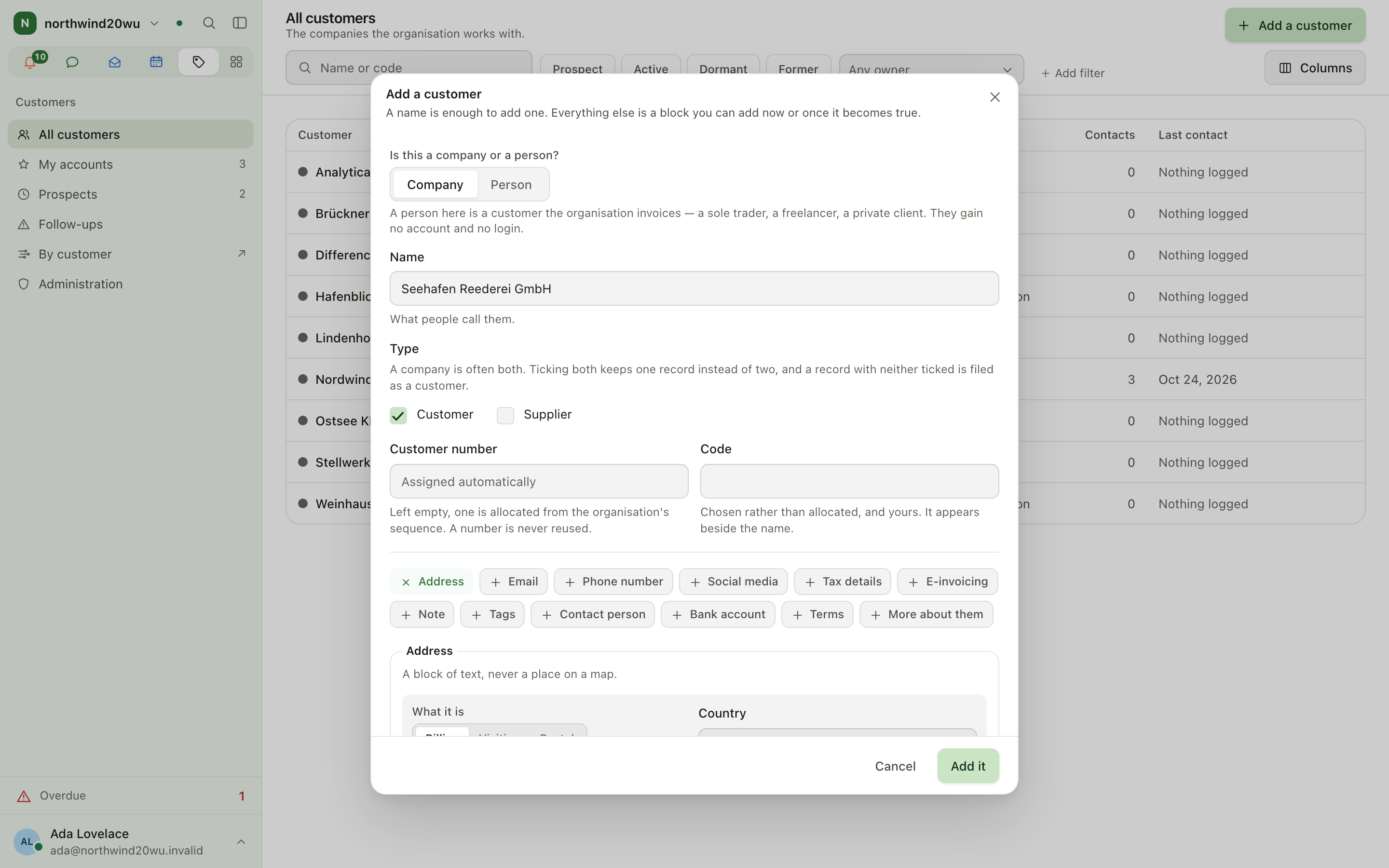
Add a customer
- Open All customers and press Add a customer (needs
customer.create). - Answer Is this a company or a person? and enter a Name. A name is enough to save.
- Optionally add blocks: Address, Email, Phone number, Social media, Tax details, E-invoicing, Note, Tags, Contact person, Bank account, Terms and More about them (status, account manager, colour, language, legal name, tier).
- Leave the number empty to have one allocated from the organisation's sequence.
- Save. The customer opens with the breadcrumb Customers › <name>.
Find and filter customers
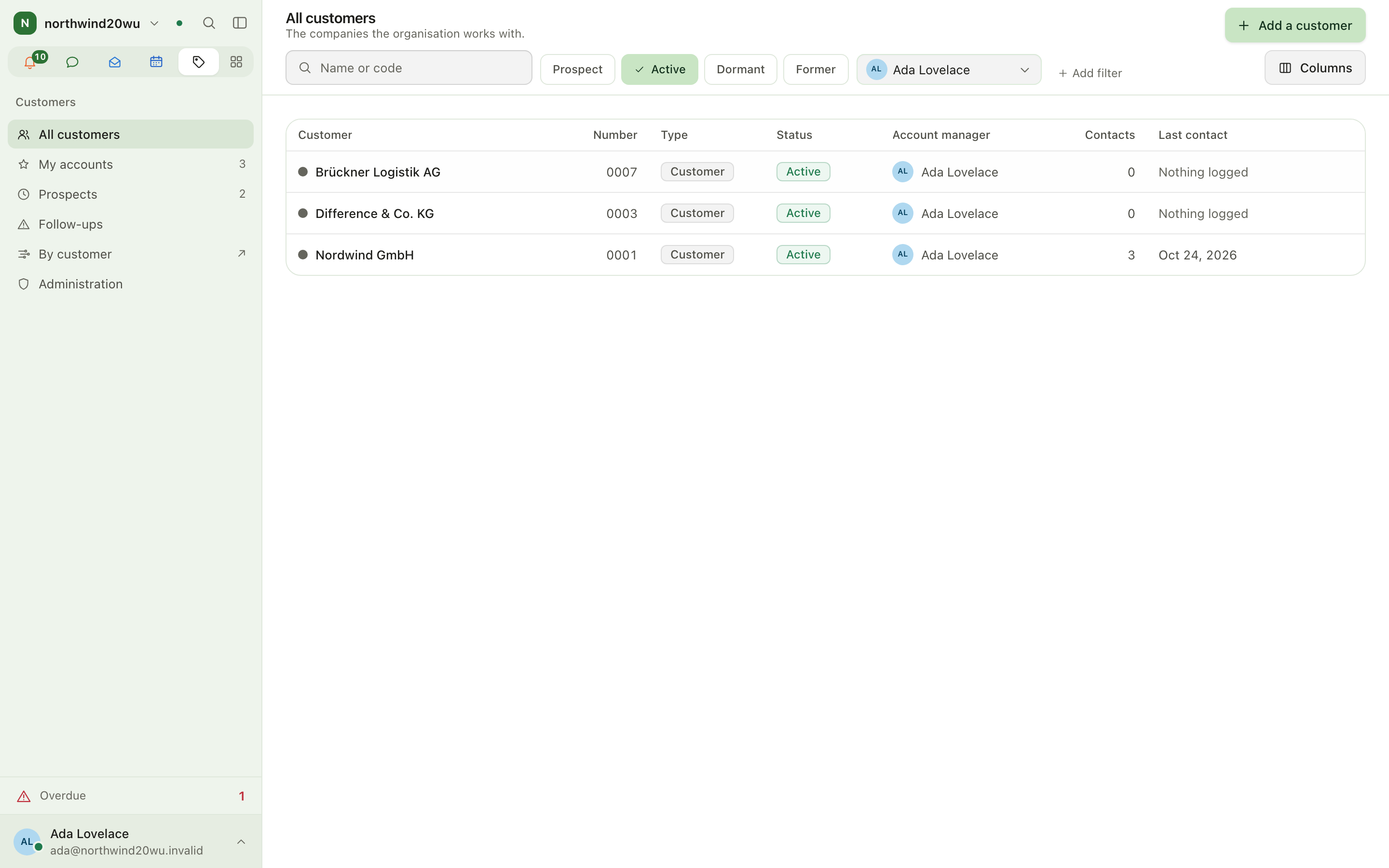
- Use All customers, My accounts or Prospects in the sidebar.
- Search by name or code, pick one or more statuses, choose an owner, or use Add filter for Tier or Tag.
- Remove a filter chip, or press Clear all. When nothing matches, the list says "No customer matches" and Clear filters resets the search and every filter at once.
Work with one customer
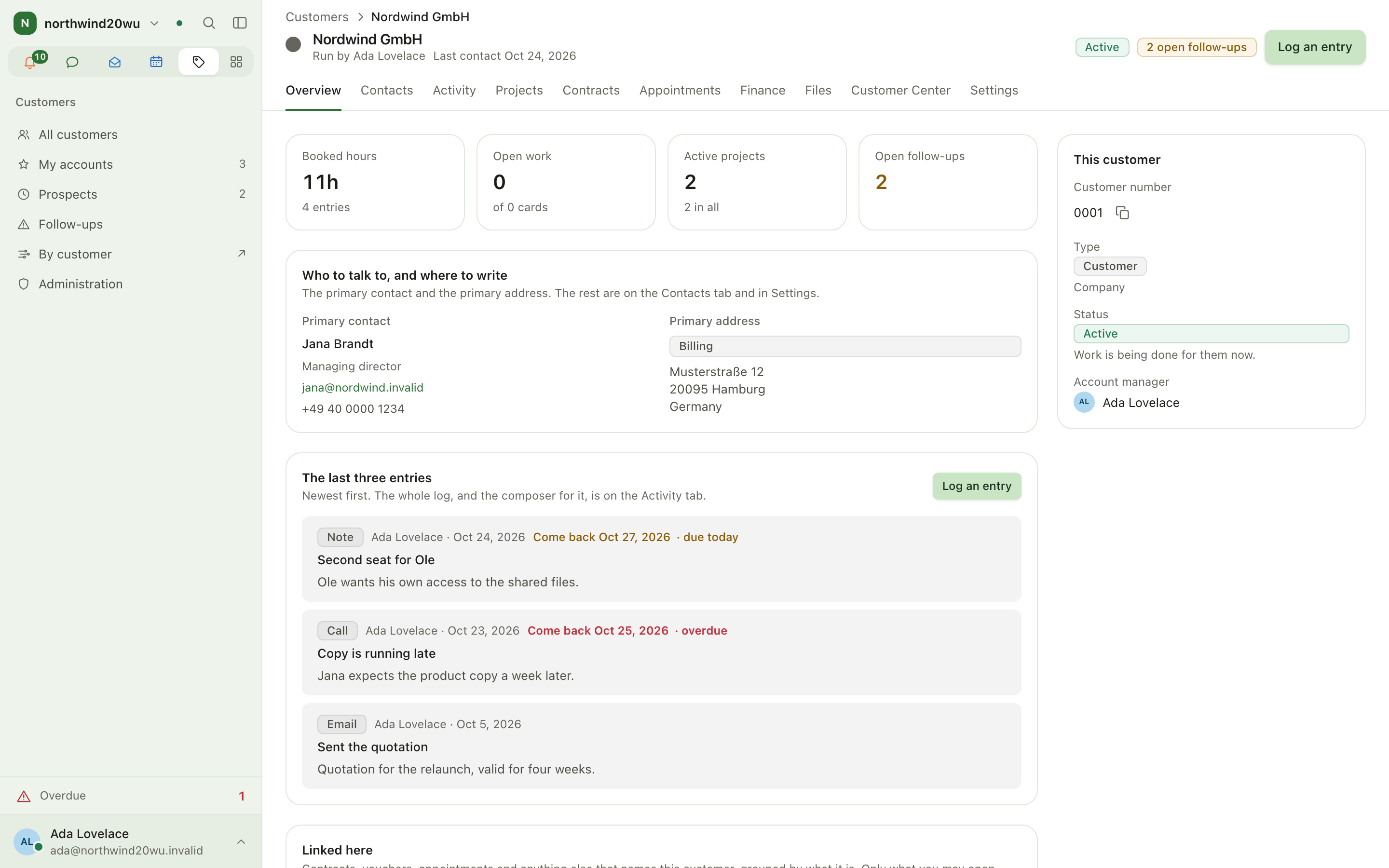
- Open a customer. The header shows status, tier, owner, last contact and open follow-ups.
- Switch between the tabs. A tab exists only when its module is installed or you may use it:
- Overview, Contacts, Activity, Files — always.
- Projects (Projects installed), Contracts (Contracts installed), Appointments (Bookings installed), Finance (Finance installed), Customer Center (Customer Center installed).
- Settings — only with
customer.manage.
- The selected tab is kept in the address, so a link you send opens on the same tab.
Log what happened and set a follow-up
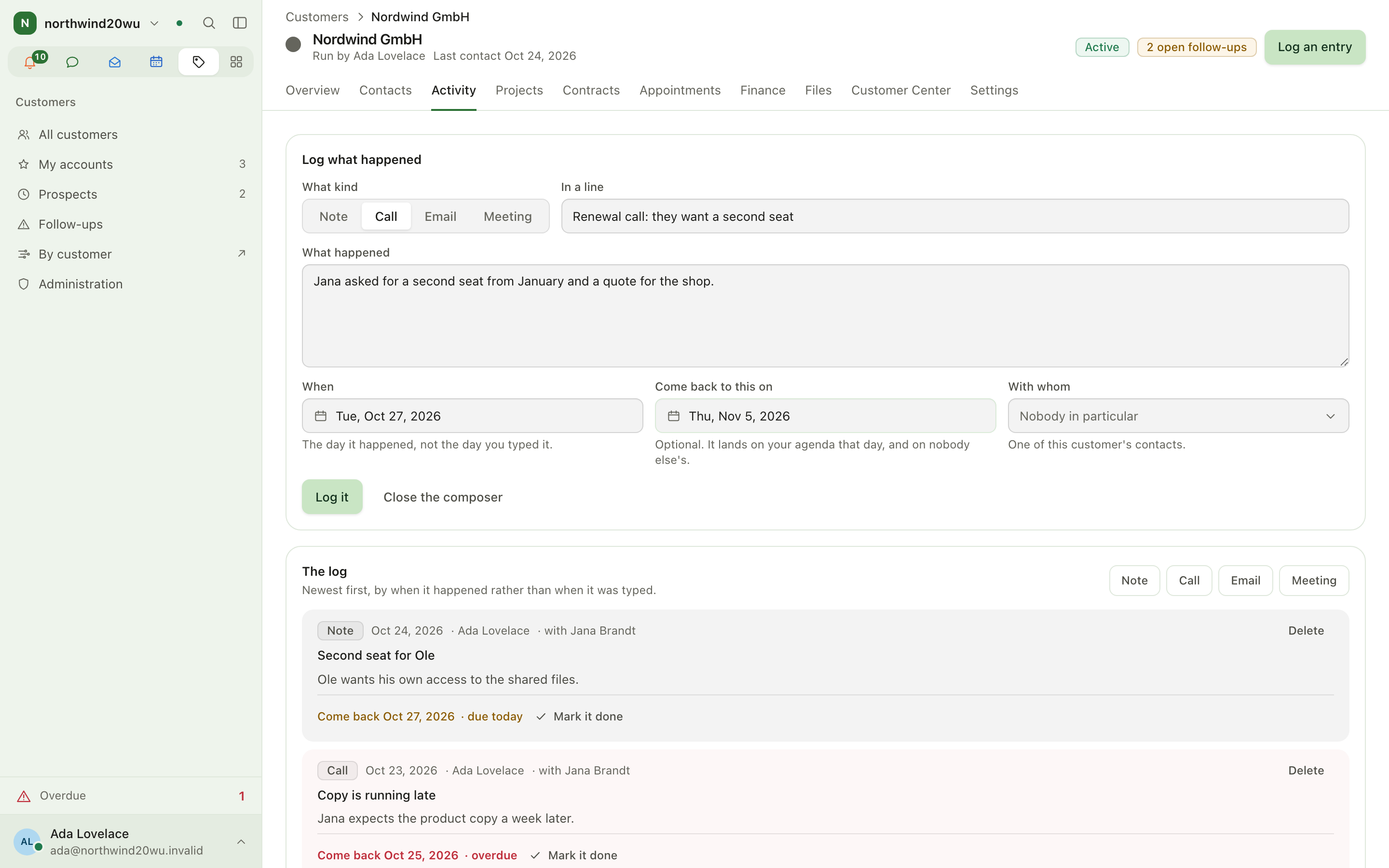
- On a customer, press Log an entry (needs
customer.note.write). - Choose What kind (Note, Call, Email, Meeting), fill in In a line, What happened and When.
- Optionally pick With whom (one of the customer's contacts) and Come back to this on.
- Press Log it. A follow-up date lands on your own agenda that day.
- Close it later with Mark it done on the Activity tab or on the Follow-ups screen.
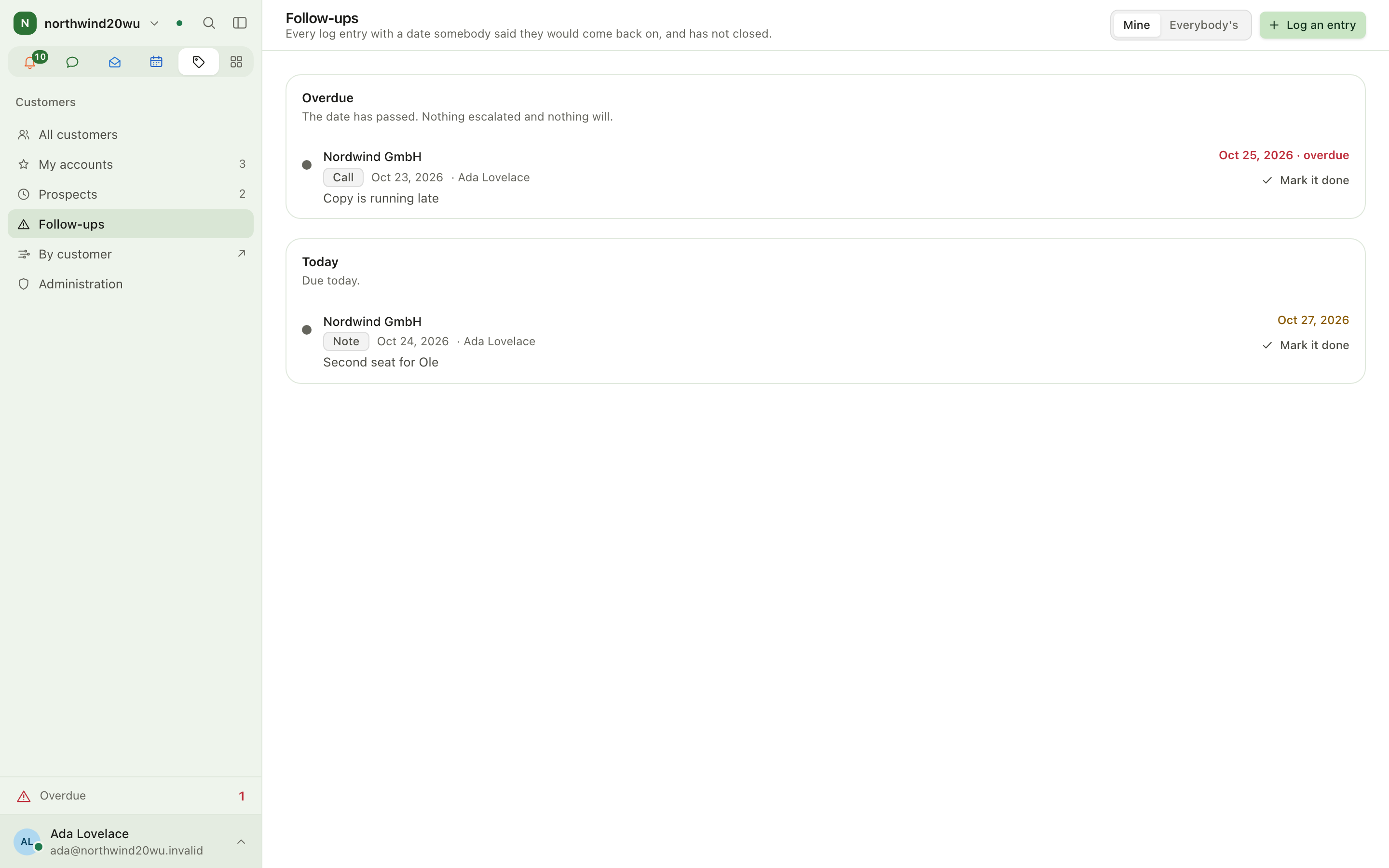
Work through follow-ups
- Open Follow-ups in the sidebar and choose Mine or Everybody's.
- Entries are grouped as Overdue, Today, This week and Later.
- Press Mark it done once you have come back to them, or Log an entry to record a new one.
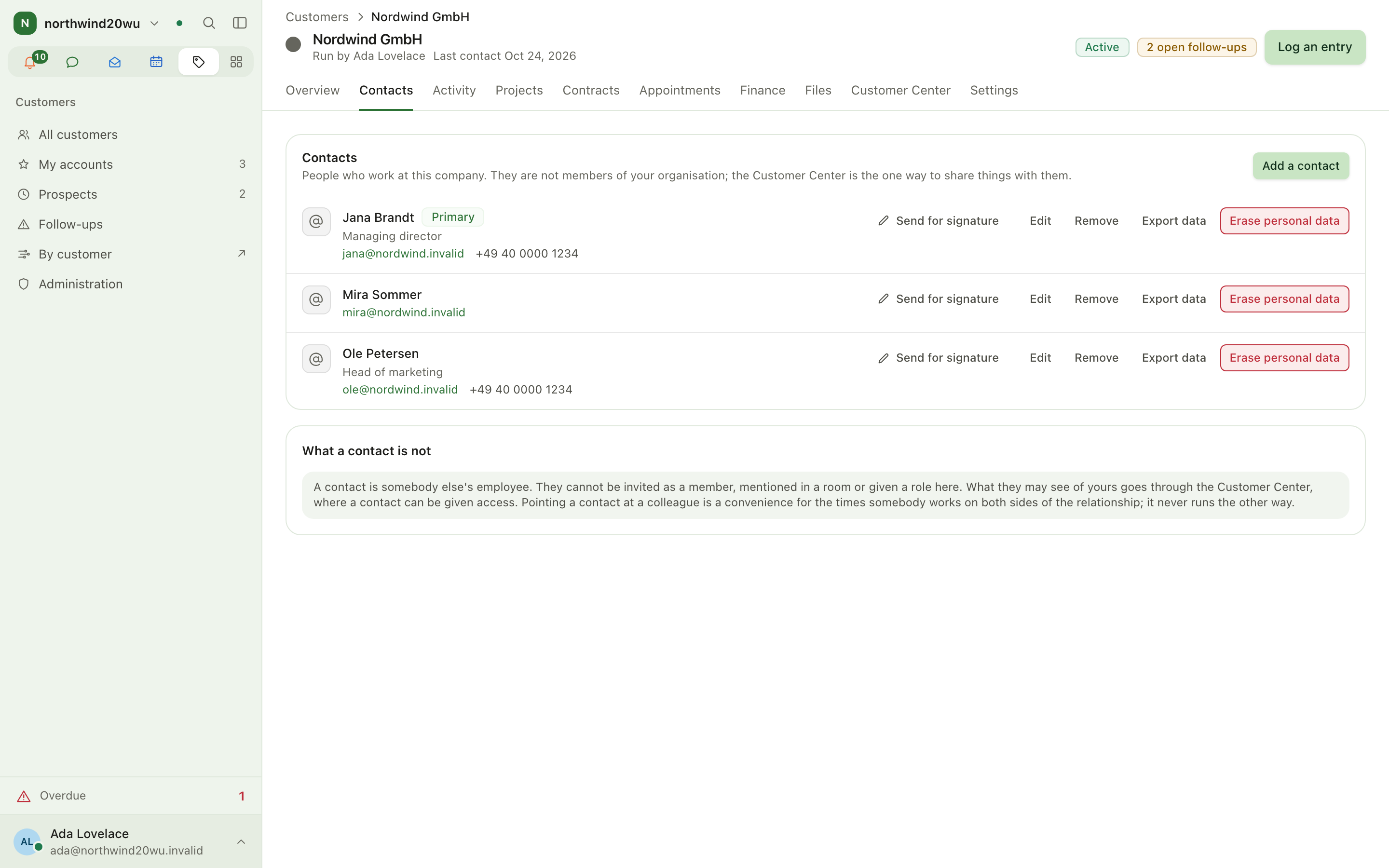
Manage contacts
- Open the Contacts tab and press Add a contact (needs
customer.contact.manage). - Enter name, role, email and phone; tick the primary option for the one to ask first.
- A contact never gets an account. Also a colleague only links a contact who already works here.
- Send for signature next to a contact with an email address starts an envelope for them (see Signing).
- For data-protection requests use Export data or Erase personal data.
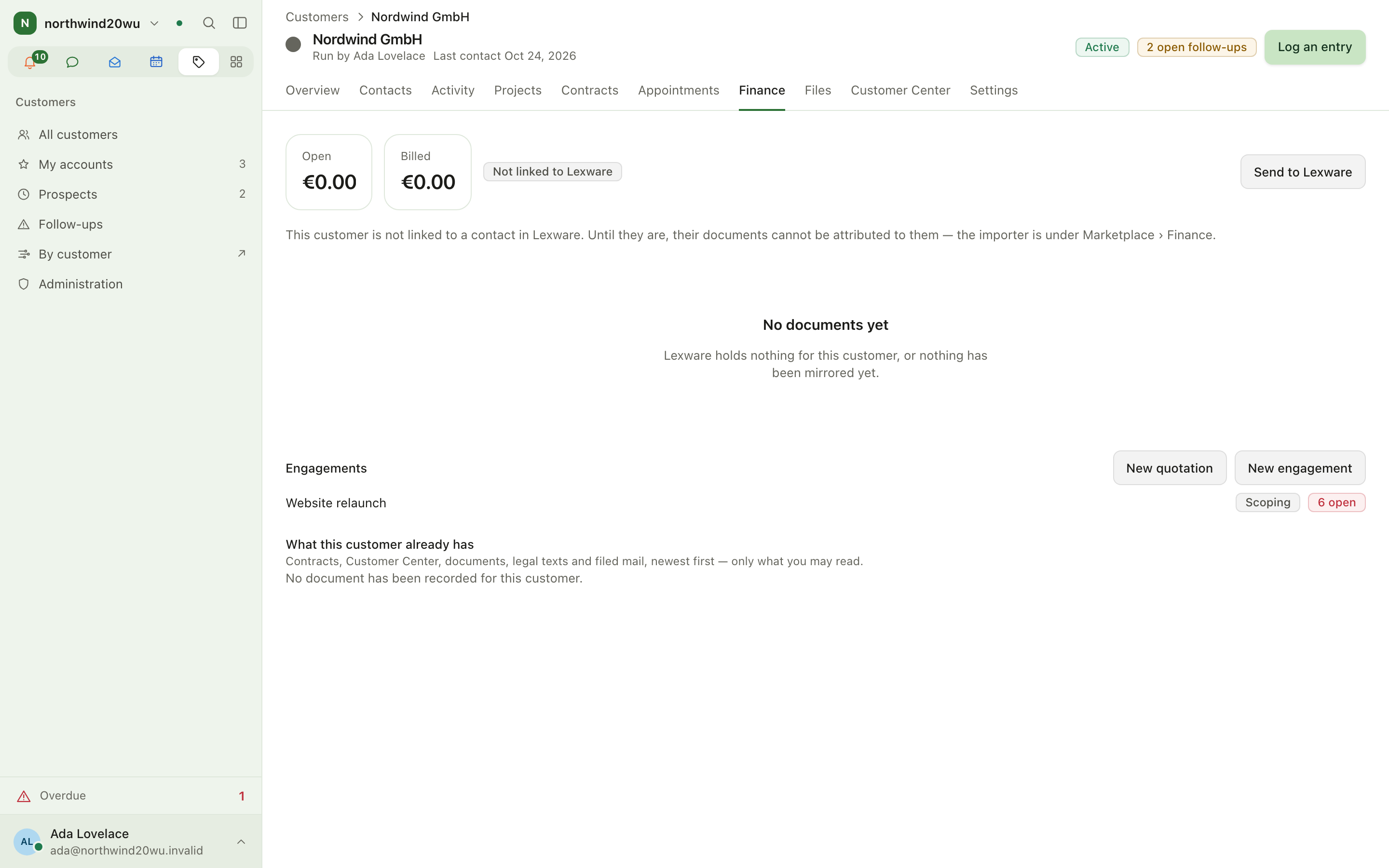
Start the commerce journey from a customer
- Quotation — on the Finance tab press New quotation. A draft quotation for this
customer is created and the quotation editor opens at
/finance/offers/<id>. New engagement beside it starts an engagement instead. See Finance. - Contract — once the quotation is accepted, press Draft a contract on the quotation's page;
the contract is filed under this customer. Without a quotation, press New contract on
the Contracts tab (needs
contract.create). See Contracts. - Signature — on the issued contract press Send for signature; the signed result is filed as its countersignature. Send for signature on the Contracts tab starts an envelope for any other document. See Signing.
- Onboarding — on the Customer Center tab press Assign an onboarding (needs
portal.manage). See Customer Center. - Invoice — hours booked in Time become invoice drafts under Finance › Billing; the Finance tab lists this customer's documents and what they owe.
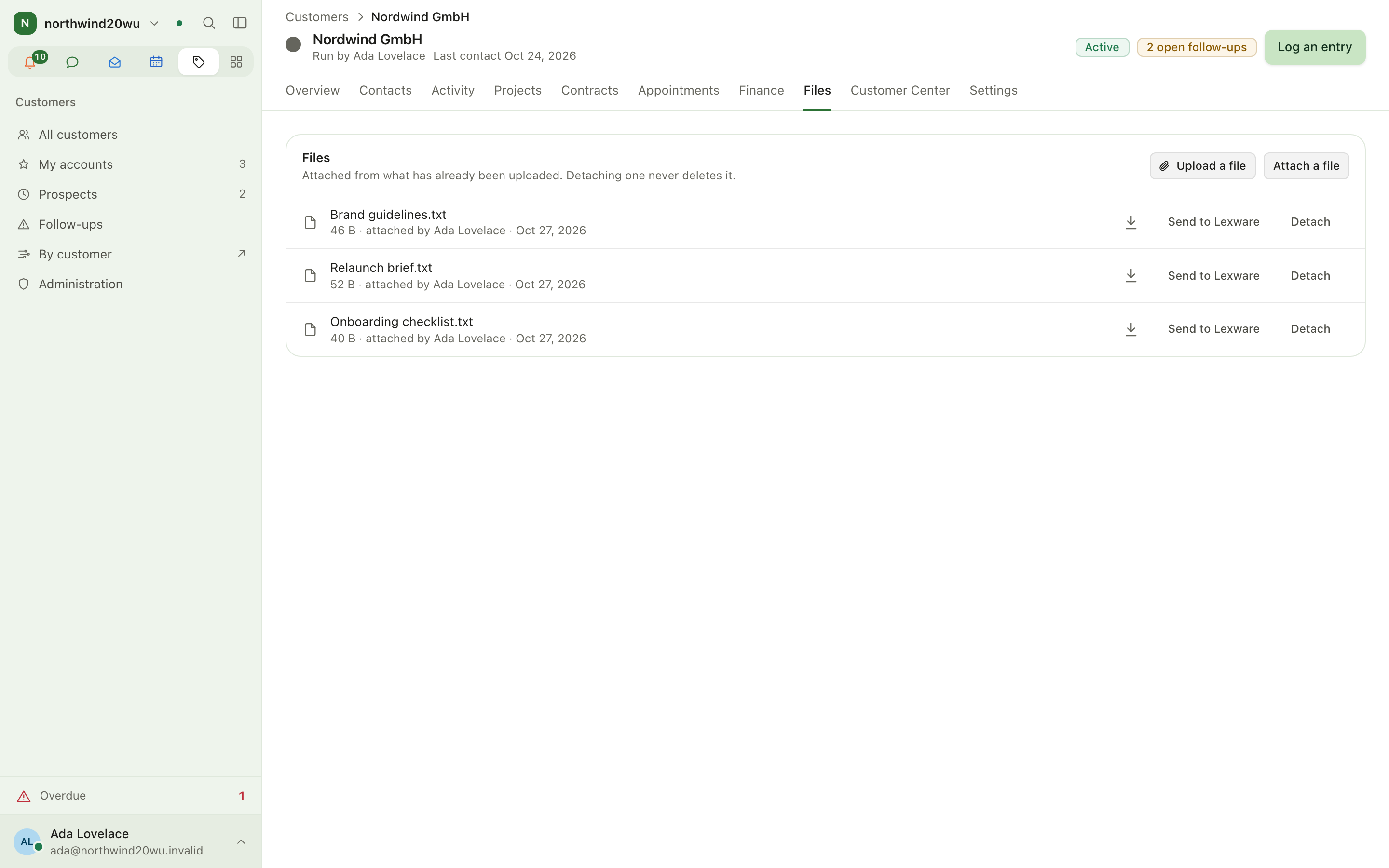
Attach files
- Open the Files tab and press Upload a file or Attach a file (needs
customer.file.manage). - From chat, mail, Projects, Contracts or Finance documents you can also use File with customer.
- Detach removes the link only; the file itself is never deleted.
Roles and permissions
Roles are granted per organisation and apply to every customer; there is no per-customer membership. Nobody can read customers until they hold a role.
| Permission | Unlocks |
|---|---|
customer.read | Seeing customers and their pages |
customer.create | Add a customer |
customer.manage | The Settings tab and editing the record |
customer.archive | Archive this customer / Put them back |
customer.contact.manage | Adding, editing and removing contacts and addresses |
customer.note.write | Log an entry, Log it, closing follow-ups |
customer.file.manage | Upload a file, Attach a file, Detach |
customer.channel.manage | Linking or making the customer's Room |
customer.financial.read | Seeing VAT identifier, payment terms and billing address |
customer.financial.manage | Editing How they are invoiced |
customer.admin | The Administration entry and Customer numbers |
| Role | Holds |
|---|---|
| Viewer | read |
| Member | read, note.write, file.manage |
| Manager | everything except admin |
| Administrator | everything |
Delete for good is not a grantable permission: only the organisation owner may delete a customer, and only while no project, contract, rate or appointment names it. Erasing a contact's personal data also needs the organisation-wide permission to erase people.
Administration and settings
- Roles are managed with every other module's roles at
/admin/access/roles(the Open roles link on the Administration screen). - Who can read customers on the Administration screen repeats the rule above: nobody reads customers by default; grant Viewer to let somebody read them.
- Customer numbers (Administration,
customer.admin): Prefix, Next value and Padding; the preview shows the next number. A number is never reused. - Per customer, the Settings tab holds The record, How they are invoiced, Addresses, Room, Archive and Delete for good.
Tips
- Archive rather than delete: everything pointing at an archived customer keeps working, and Put them back restores it.
- Set a status deliberately — Prospect, Active, Dormant, Former — nothing changes it on its own.
- Mark one contact and one address per kind as primary; the Overview tab shows those.
- Fields you may not see (for example payment terms without
customer.financial.read) are left out, not blanked. - ⌘K finds any customer by name — type two letters of it. The same palette opens My accounts,
Prospects and Follow-ups (type
follow).
Related
Incidents
Incidents turns alerts from Prometheus Alertmanager or Grafana into incidents, posts them into a team room and pages whoever is on call. If nobody acknowledges in time, the page escalates to the next person. When the alert clears, the incident resolves itself.
Contracts
Contracts holds what has been agreed with each customer and the document that says so. A contract starts as a draft from a template, is reviewed (and, if your organisation requires it, approved), then issued: the number is allocated, the PDF is rendered and sealed with the organisation's certificate, and nothing can change afterwards except through a new version or an amendment. In the commerce journey it sits between the quotation in Finance and the customer's signature in Signing. Contracts needs Customers: every contract names a customer.