Marketplace
The marketplace is where an organisation turns optional modules on and off, decides who gets each module, configures it and watches its health. Mail, Projects, Contracts, Time, People and the other modules are all installed from here. Partner apps by other publishers are also listed here: they run elsewhere and reach your organisation only through the scopes and events you consent to.
Where to find it
- Console sidebar → System → Marketplace (
/admin/marketplace), or ⌘K andmarketplace. - A module's own page:
/admin/marketplace/{module}, for example/admin/marketplace/mail. The GitHub, GitLab & Forgejo and MCP pages are also in the ⌘K palette (github,gitlab,mcp). - Modules that have their own administration screen (mailboxes, card permissions, project
pipelines, and so on) also appear under Settings → Features and under Module settings on
the console overview (
/admin).
The catalogue
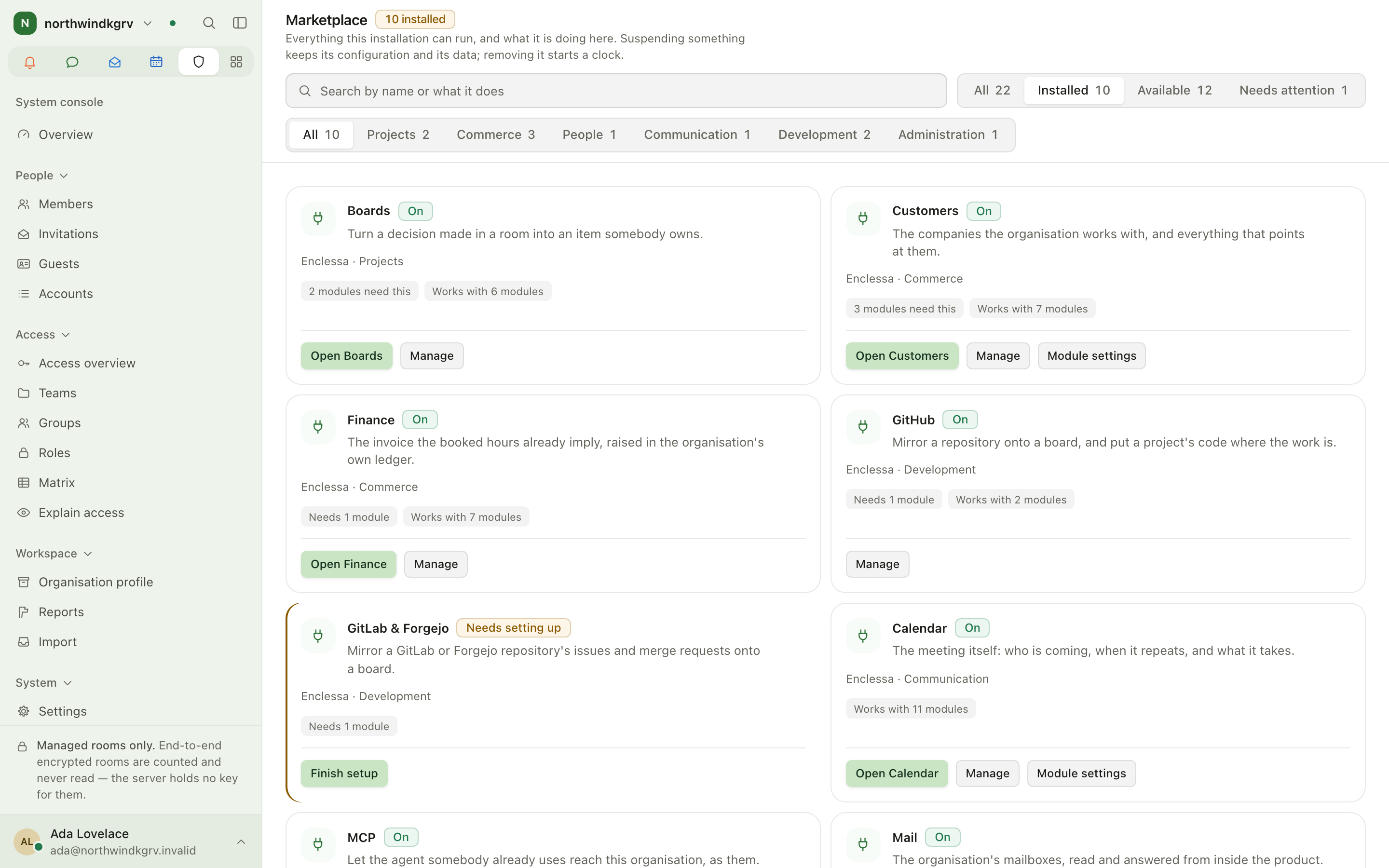
- Search by name. Filter by All, Installed, Available or Needs attention. Browse by category.
- Each card shows the module's state: On, Needs setting up, Not installed, Suspended or Removed. A card for a module that is running but unhealthy is marked at its edge, and the overview's Needs attention list names it too.
- Card buttons depend on the state:
- Install for modules you can switch on in one click, or Install through the module's page for modules that need setting up first.
- Finish setup for a module that is installed but not configured yet.
- Open {module}, Manage and Module settings for a running module. Module settings opens the module's own administration screen.
- See plans when the module is not part of your plan. Only the owner sees this button, because only the owner may open Billing; everybody else sees Not in this plan.
- Bundles install the modules an organisation of one kind usually starts with, plus whatever they need.
- Requests lists modules that members have asked for. You decide on each one.
Main workflows
Install a module
- Open the module's card and choose Install, or open its page and choose Install there.
- If it needs other modules, they are listed under What it needs and installed with it.
- If it needs configuration, it shows Needs setting up. Fill in Settings on its page and apply them.
Decide who gets a module
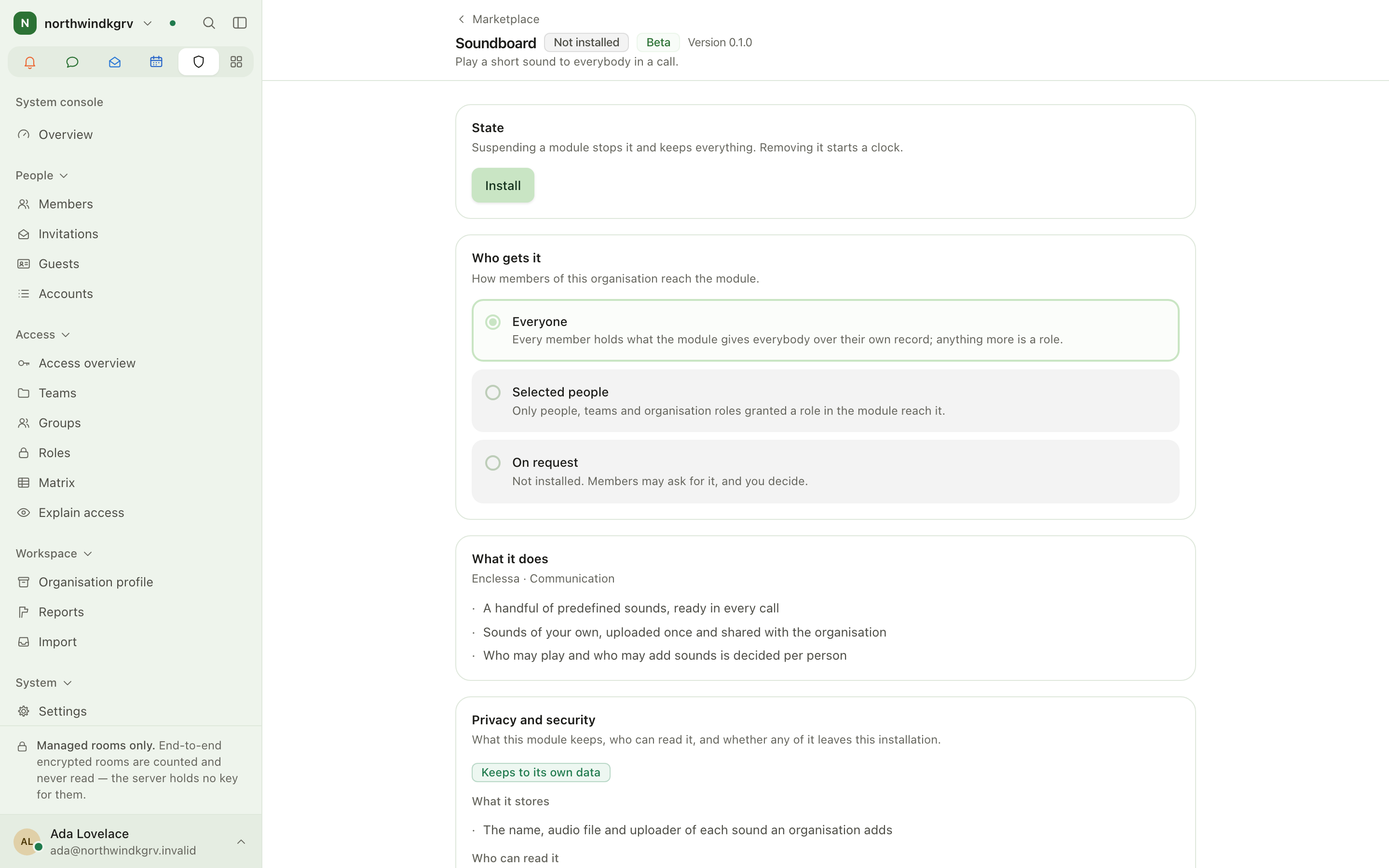
On the module's page, under Who gets it, choose one of:
- Everyone: every member gets what the module gives everybody over their own record. Anything more needs a role.
- Selected people: only the people, teams and organisation roles granted a role in the module can reach it. You grant those roles under Access → Roles → Modules.
- On request: the module is not installed. Members can ask for it, and you decide. Offered only while the module is not installed.
Configure a module
- Open the module's page and go to Settings.
- Your changes are saved as a draft and take effect when you apply them. Every applied configuration is kept under History, so you can undo a change.
- If the module has its own administration screen, use Module settings at the top of the page. It sits next to Open {module}.
Suspend, remove and restore
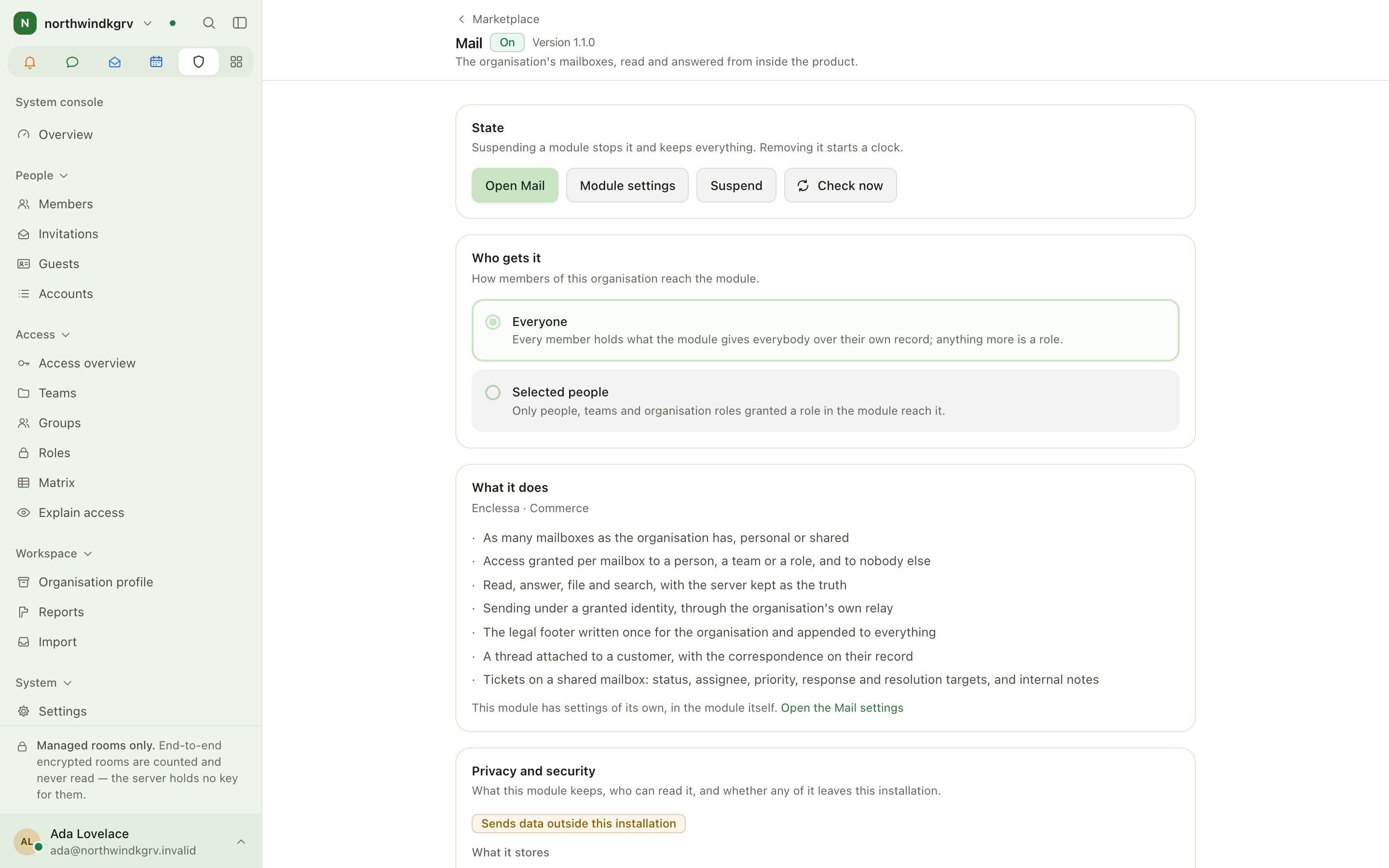
- Suspend stops the module and keeps its configuration and data.
- Remove (in the danger zone) stops it now and starts a countdown. The configuration is kept for the module's retention window and then deleted. Before anything happens, the page shows what will happen to the data the module stored.
- Resume restores a suspended or removed module while its countdown is still running.
Other things on a module's page
- Privacy and security: what the module keeps, who can read it, and whether any of it leaves the installation.
- Usage: figures for the whole organisation, never for one person. Small numbers are withheld, so nobody can be picked out.
- Events: what the module can send to an outgoing webhook (System → Webhooks). Only identifiers and metadata are sent, never content.
- Export: the module's data as JSON Lines in a zip, with a manifest. Files are not included.
Partner apps
The Partner apps section lists apps reviewed by the operator of this installation. Installing
one asks for your consent to the scopes and events it requests. A new version that asks for more
waits until an administrator consents again. When a person connects an app or an AI agent to
their own account, they see the consent screen at /oauth/authorize. It shows exactly what will
be granted before it is granted.
Roles and permissions needed
| Task | Permission |
|---|---|
| See the catalogue and module pages | org.view_console |
| Install, configure, suspend or remove modules; decide requests; manage webhooks | org.manage_modules |
| Use a module's own administration screen | That module's own administering permission or role |
| See plans and buy a module | Owner (org.manage_billing) |
Tips
- If you cannot find where a module is configured, open Settings → Features.
- Suspending is safe and can be undone. Removing starts a countdown, so use it only when you mean it.
Access and roles
The Access area of the system console is where you decide who may do what: teams, groups and the roles at every level, a matrix of roles against permissions, and an explanation of why a person may or may not do something. People themselves are listed once, on Members (see administration.md). A person's own access page opens from there.
Billing
Billing shows what plan this organisation is on and what it is using. It is also where you add a payment method, keep the invoice recipient up to date, download invoices and cancel the subscription.