Boards
Boards track the work a team has agreed to do. Every board belongs to one team, has columns you name, fields you choose, and shows the same items as a board, a table or a roadmap.
Use a board for shared team work. For your own private to-dos use Reminders; for a larger piece of work with an owner, milestones and a budget use Projects, which can name one or more boards as its work.
Where to find it
- Open Boards from the sidebar's app row or All apps (
/tasks). - The sidebar lists All boards and then every board you can reach, grouped under its team. A team heading folds away; the number beside a board is how many of its items are still open. With more than six boards, Filter boards appears above the list and narrows it by board or team name.
Roles and permissions
| What | Who |
|---|---|
| Open Boards at all | Somebody with a Boards role (Viewer or Administrator), granted at System console → Access → Roles |
| See a board | Members of the team that owns it |
| Add and edit items | Members of the owning team |
| Configure a board (columns, fields, tags) | Members of the owning team |
If Boards is not installed, the page says so instead of showing an empty board. An administrator installs it at System console → Marketplace.
Main workflows
Find a board
- Open Boards (
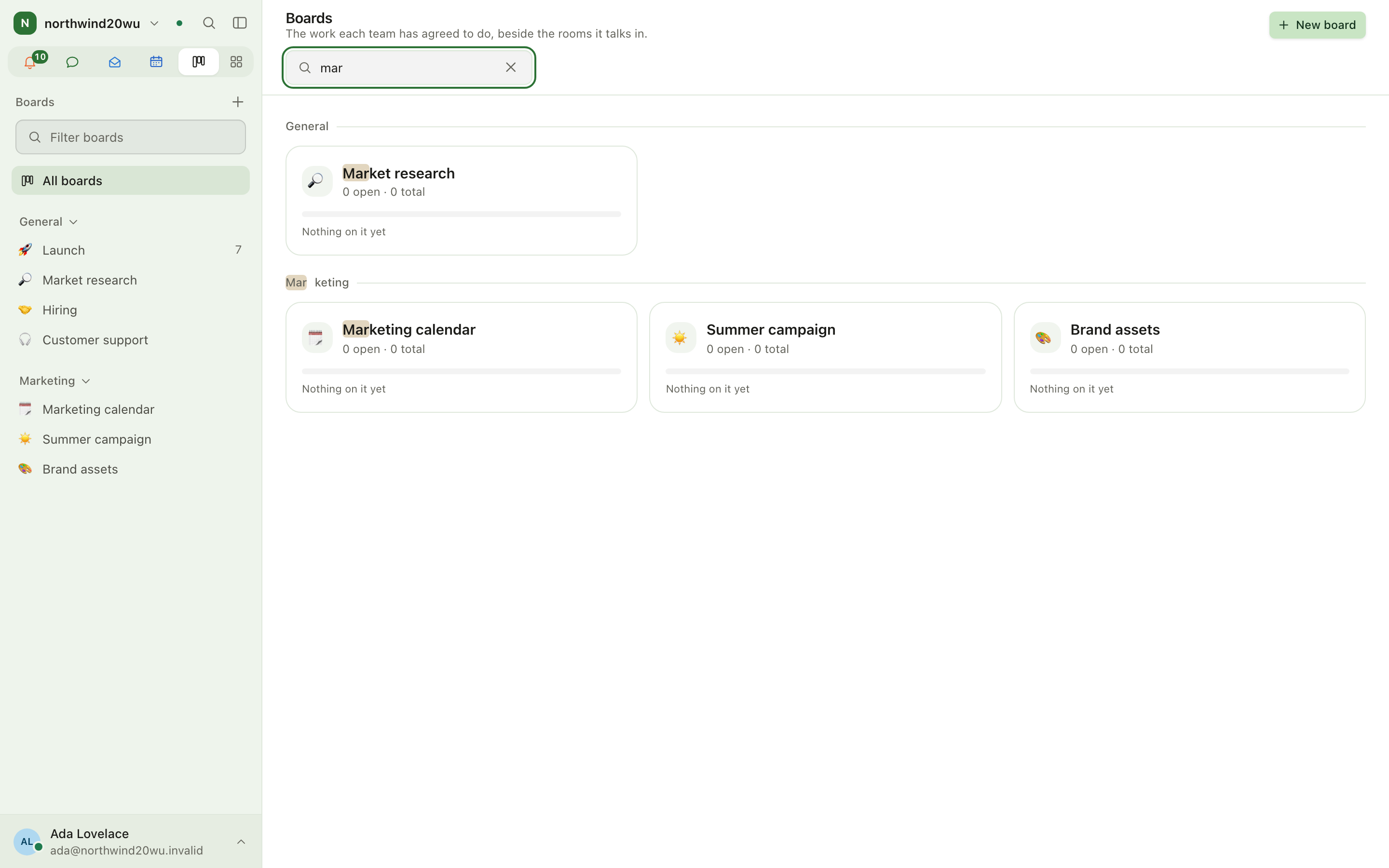
/tasks). - Type into Find a board above the cards. It matches the board name and the team name, and highlights the part that matched.
- Press Escape or Clear search to see every board again.
Each card shows how many items are open and how much of the board is finished.
Create a board
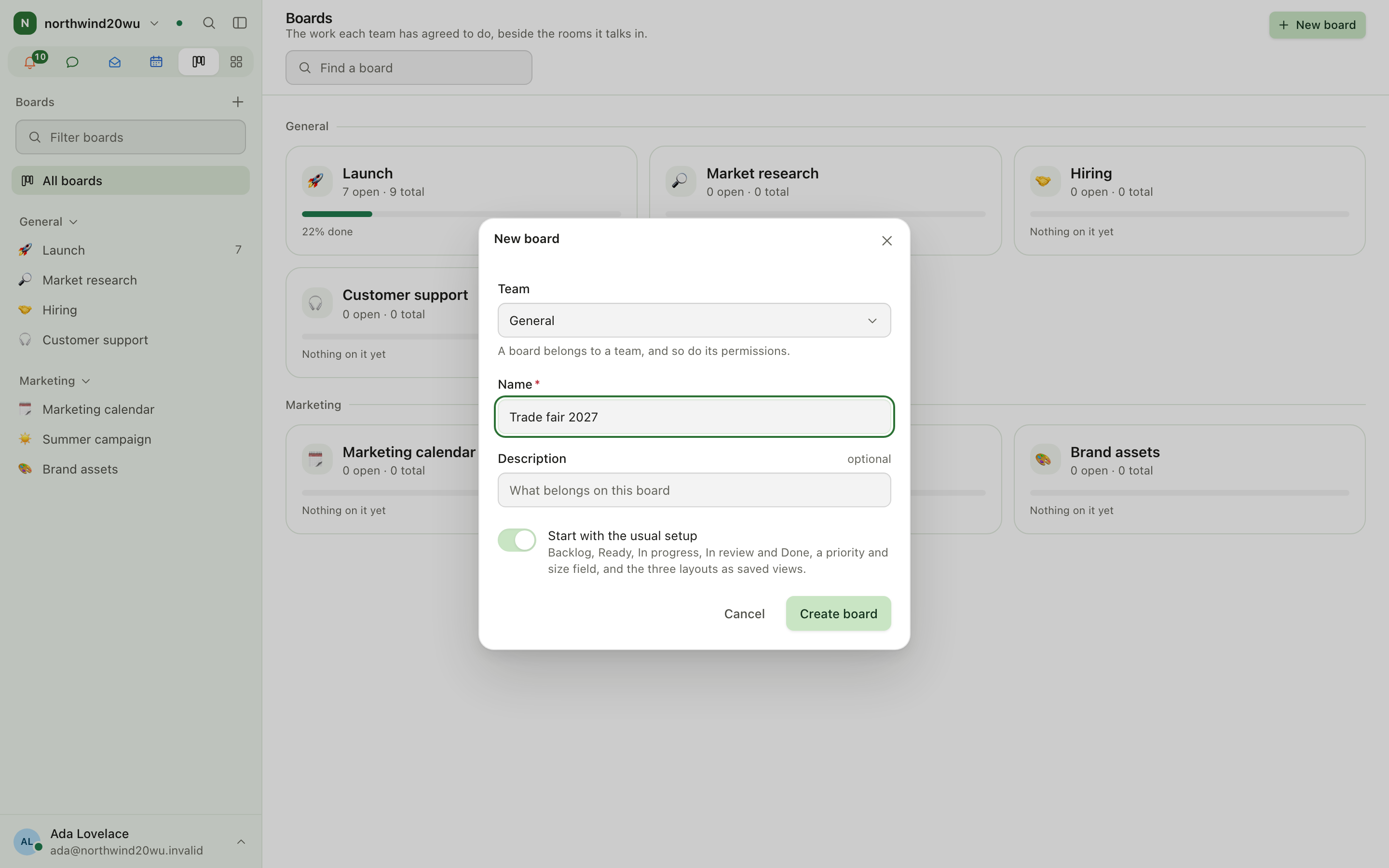
- Press New board on the index, or + at the top of the sidebar.
- Pick the Team that owns it (the board's permissions follow the team), give it a name and an optional description.
- Leave Start with the usual setup ticked to get Backlog, Ready, In progress, In review and Done, a priority and size field, and the three layouts as saved views. Change any of it later under Configure this board.
Add and edit items
- On a board, press New item, type what has to happen and press Enter. Escape closes the field.
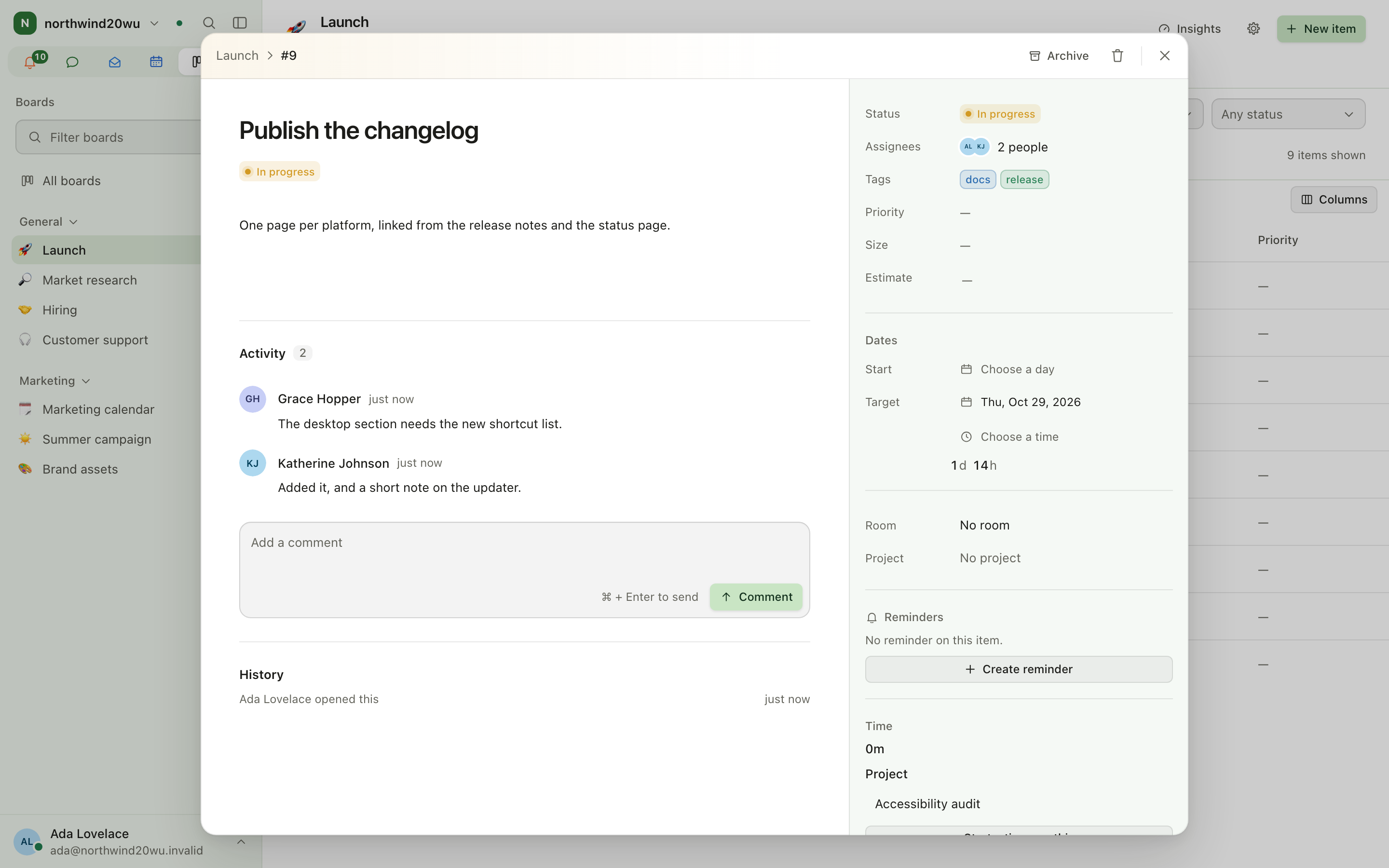
- Click an item to open it: assignees, tags, project, start and target date, custom fields, comments and attachments.
- Drag a card to another column to change its status.
You can also turn a chat message into an item: open the message's menu and choose to create a task from it. The item links back to the message.
Switch views, filter and group
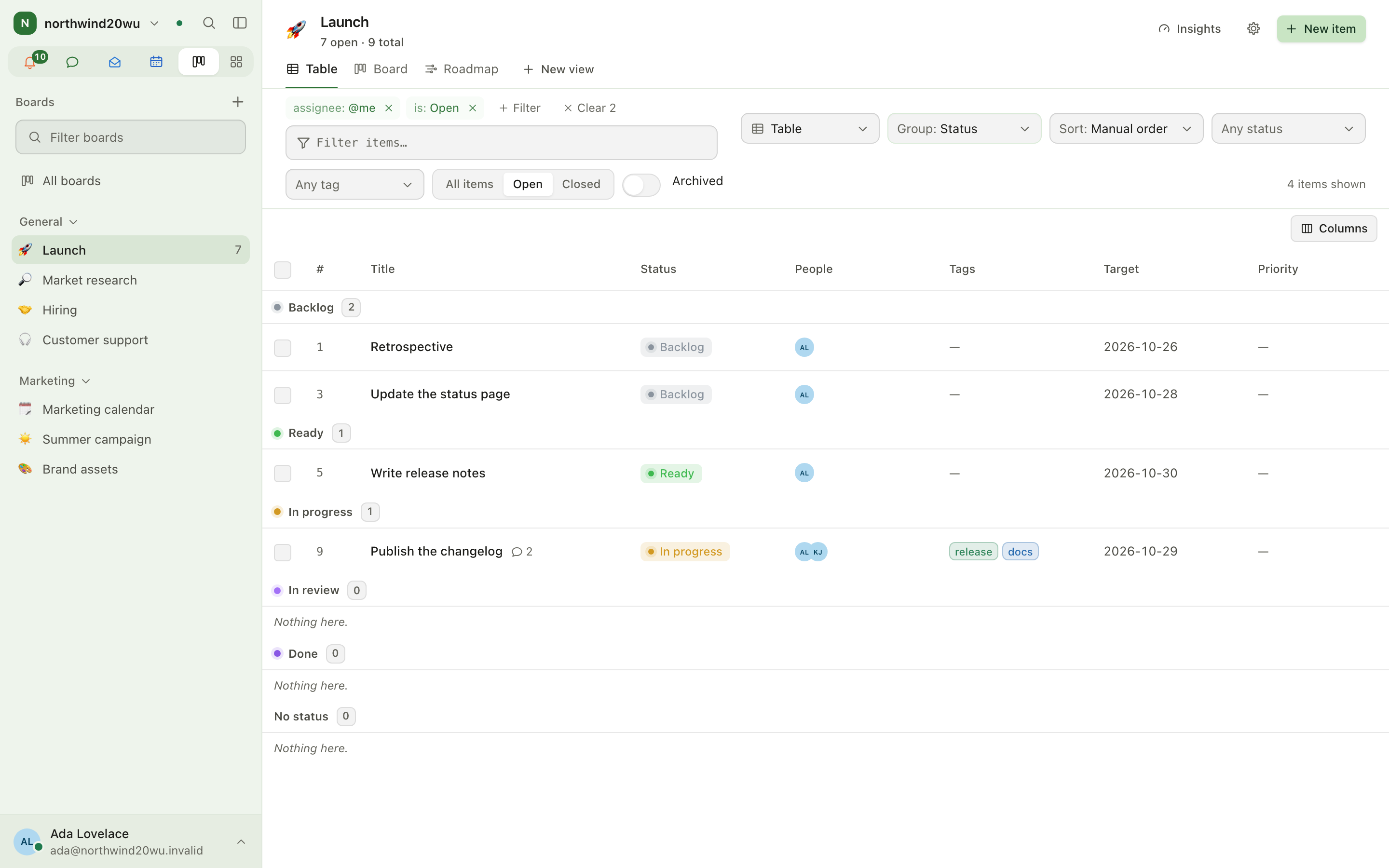
- Use the view tabs at the top of the board. New view adds one; every board keeps at least one view.
- Pick the Layout: Board, Table or Roadmap.
- Use Group by (status, assignee, tag, project, working group) and Sort by.
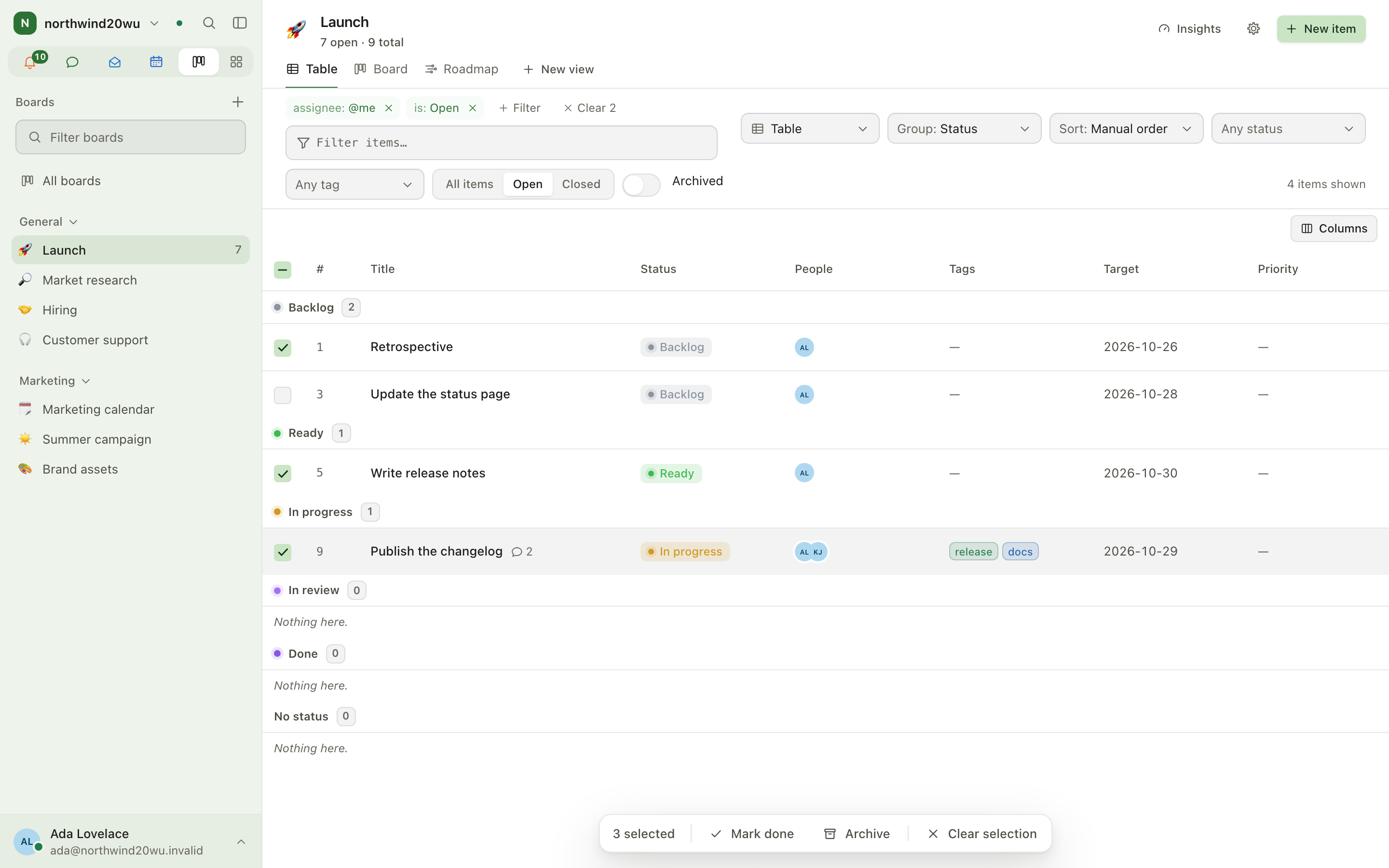
- Type into Filter items…. Filters read like
status:Done,assignee:@me,is:open,no:assignee; a minus excludes (-status:Done). The Filter menu offers presets: open items only, assigned to me, unassigned, show archived. Active filters show as chips above the field; click into the field to edit them as text. - When the filters leave nothing, the board says Nothing matches those filters and offers Clear filters.
Bulk-manage items
- In the table layout, tick the items you want.
- The Selected items bar offers Mark done and Archive.
- Clear selection ends the selection.
Private reminders on an item
Open an item and add a reminder: a moment and a note only you see. When it fires it links to the item. If you have lost access to the item by then, the link lands on a page that shows your own note and lets you delete the reminder, without revealing the item.
Insights
Insights on a board shows the status share, open items over the last 30 days, and items closed per day.
Settings and admin
- Configure this board (on the board header): tabs Columns, Fields, Tags and Board (name, emoji, description, archive). A GitHub or forge connection is also configured here when the integration is installed.
- Who may use Boards at all: System console → Access → Roles.
- Installing or switching the module off: System console → Marketplace → Boards.
How Boards relates to other modules
| You want to… | Do it in |
|---|---|
| See board items that are due on your day | Today and the Calendar (read-only overlay) |
| Count a board's items against a project | Project → Settings → Boards in Projects |
| Book time against an item's project | Time → Project time |
| Keep a private to-do list | Reminders |
Tips
assignee:@me is:openis the fastest "what is mine" view; save it as its own view.- Archived items are hidden by default; use the Show archived preset to see them.
- To jump straight to an item, press ⌘K and type two or more letters of its title; items appear under the records.
- A board link that no longer opens (deleted, or owned by a team you are not in) offers All boards to get back.
The desktop and phone apps
Enclessa runs in any browser. The desktop app and the phone app use the same account and show the same organisation. On top of the browser they add their own windows, notifications that arrive while the app is closed, and a lock.
Projects
A project is something the organisation is working on: a name, one accountable owner, the dates it runs between, a budget, and everything that belongs to it — boards, milestones, risks, updates, people, files, a chat room and, when Time is installed, the hours booked against it.