Administration (system console)
The system console is where an organisation is run: its people, who may do what, its settings, installed modules, integrations, the audit trail and billing. It belongs to one organisation and shows nothing of any other. Encrypted rooms are absent from every list on purpose: the server cannot read them, so the console cannot show them.
The console is separate from the operator control plane at /platform, which runs the whole
installation — see platform-operators.md.
Where to find it
- Open System console from your pinned apps or All apps (group Organisation). It opens
/admin. - Or press ⌘K and type the page you want:
members,invitations,roles,audit,marketplace. The palette offers only the console pages your role opens. - The console has its own sidebar, grouped into People, Access, Workspace and System. Each group can be folded. Hover over a row to see what it is for.
- You only see the rows you may open. A role that carries only
org.moderate, for example, sees Reports and nothing else. A group you cannot open any row of is not shown at all.
The overview
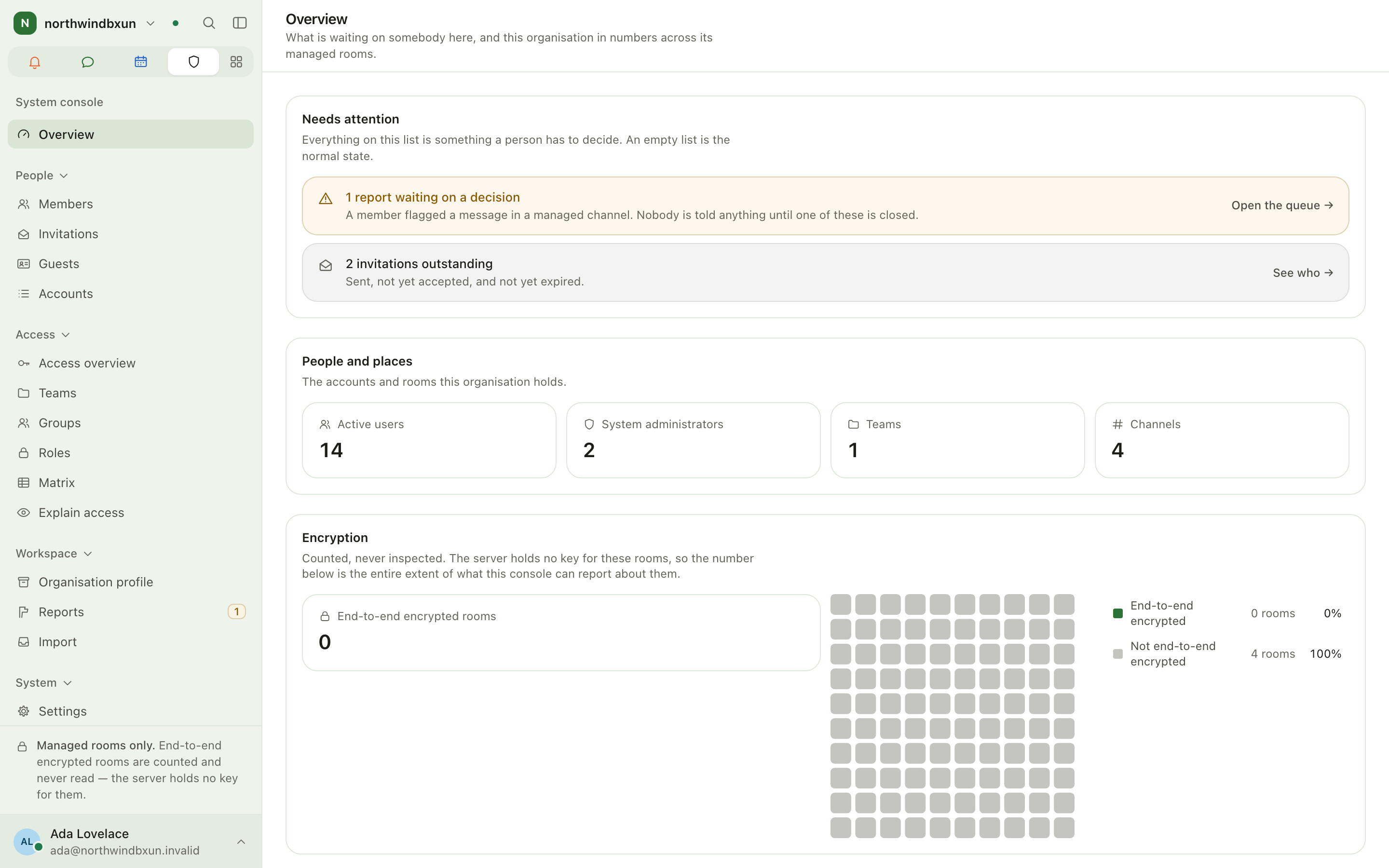
/admin answers two questions: what is waiting, and where everything is.
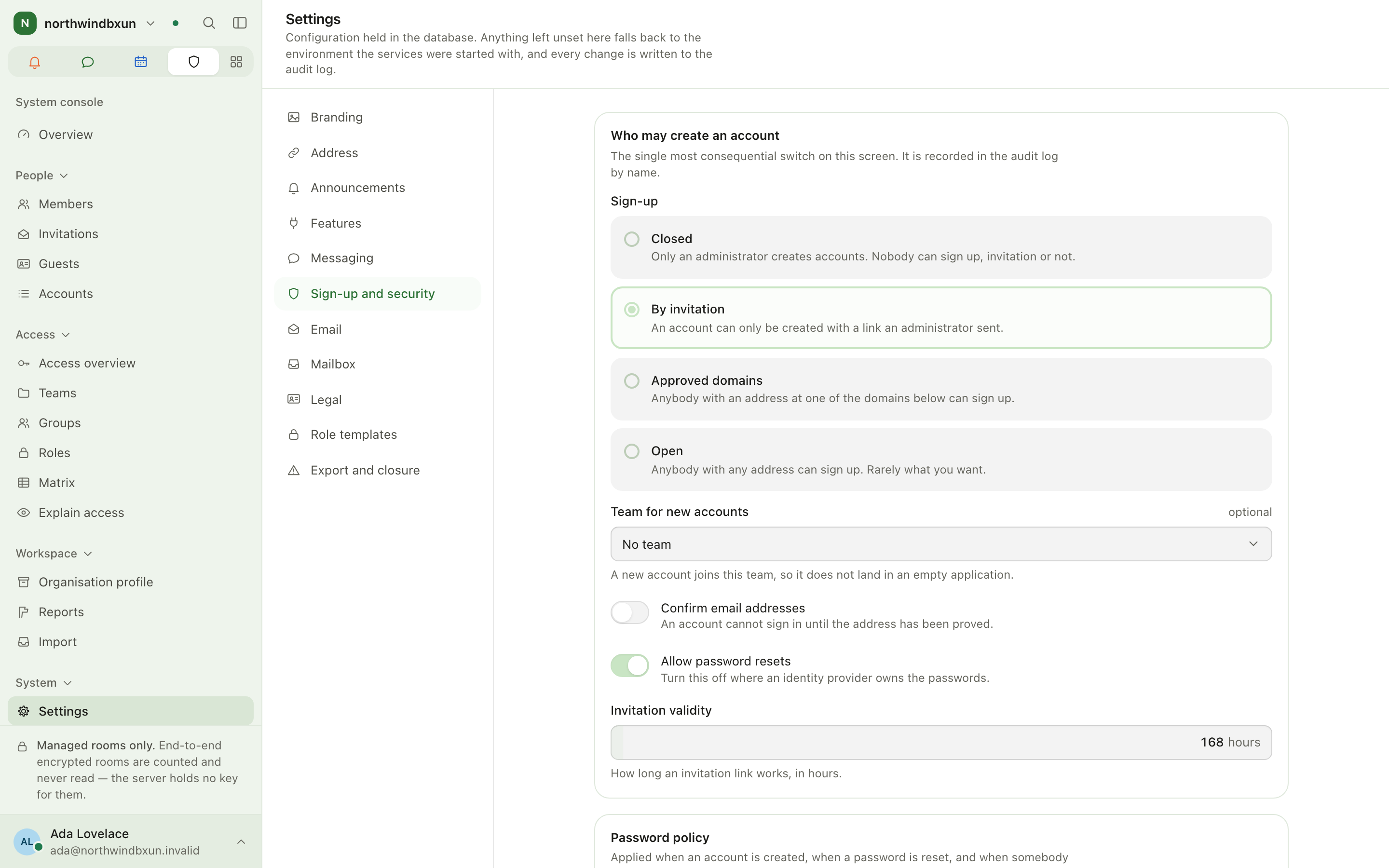
- Needs attention lists open reports, modules that are unhealthy, open sign-up and pending invitations. Each row links to the screen that resolves it. For example, the open sign-up warning opens the Sign-up and security pane of Settings.
- People and places shows active accounts, administrators, teams and channels. A counter with a screen behind it links there.
- Encryption shows how many rooms are end-to-end encrypted.
- Everything in the console lists every destination grouped the same way as the sidebar, with a sentence about each one.
- Module settings lists every enabled module that has its own administration screen (mailboxes, card permissions, project pipelines, time tracking people, and so on), so you do not have to open the module first. The same list is the Features pane of Settings. Only organisation administrators see it; somebody with a role in one module reaches its settings from that module's sidebar.
People
Members — the roster
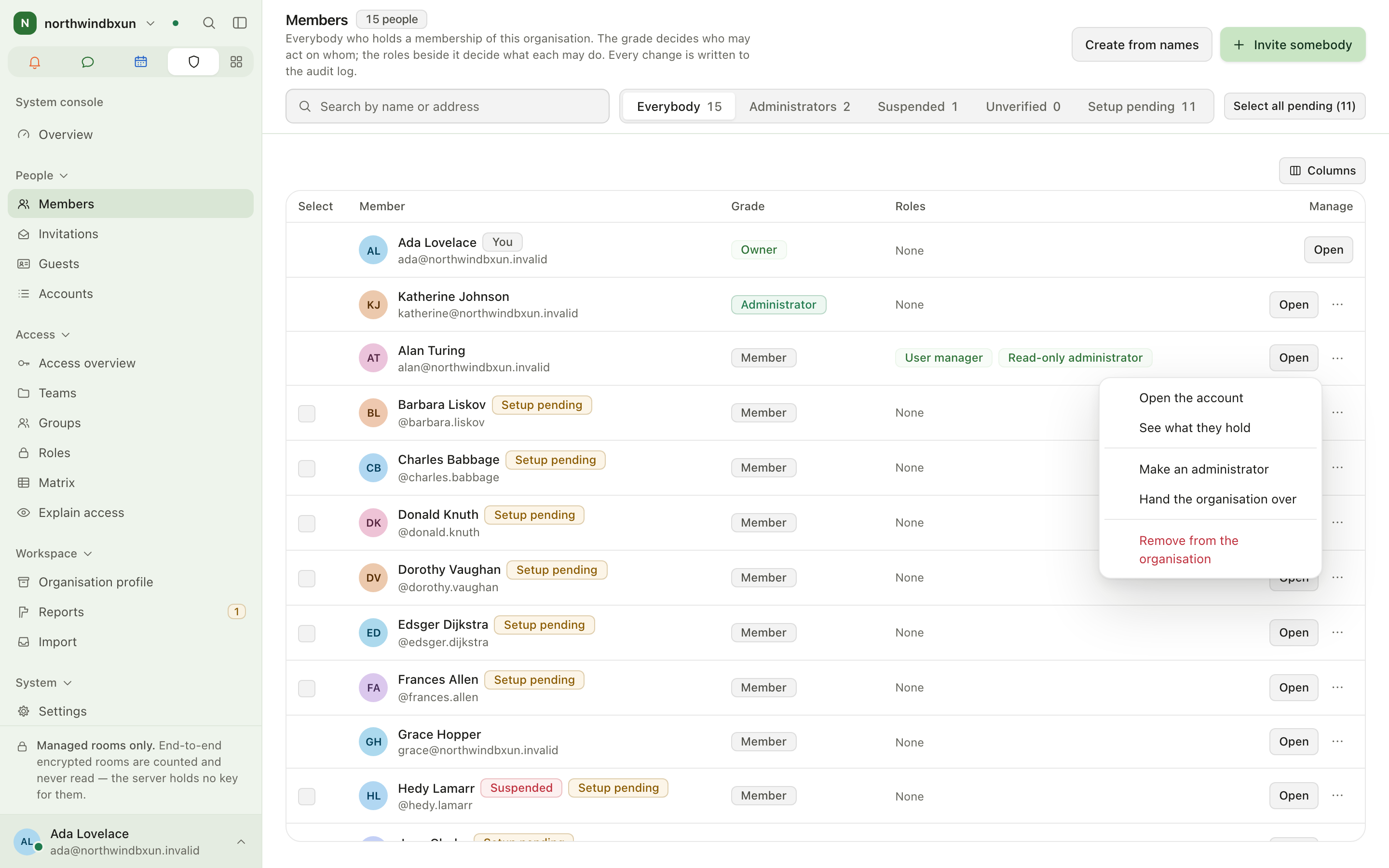
/admin/members is the one list of everybody who holds a membership. You can search it, and the
search runs on the server, so it finds people on pages that have not loaded yet. Filters: Everybody,
Administrators, Suspended and Unverified, plus Setup pending while somebody's setup is unfinished.
- Add somebody. Invite somebody at the top of the page sends an invitation by email (see Invitations below); it is not offered while sign-up is closed. For people without a work mailbox, use Create from names.
- Open a member. Click a row to open their page at
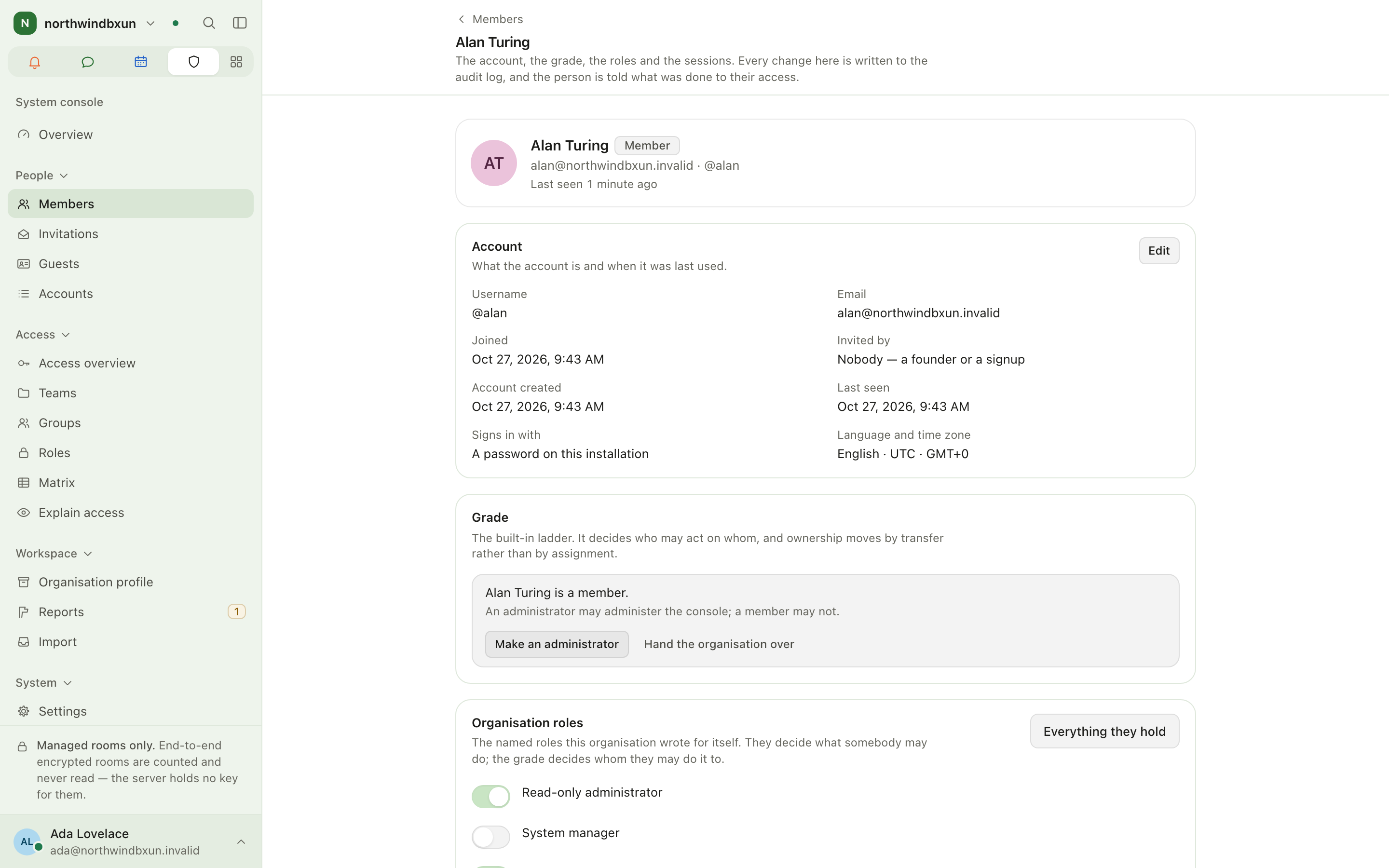
/admin/members/{id}. It shows the account, grade, organisation roles, sessions, personal data, employment, activity and the danger zone. - See what they hold. From the row menu (⋯ → See what they hold), or from the member page
(Everything they hold), open
/admin/access/people/{id}. It shows every role, team, group, module role and project the person reaches, and how each one reaches them. - Change the grade. From the row menu or the member page, choose Make an administrator or Demote to member. Only the owner can Hand the organisation over, and the confirmation is deliberately heavy.
- Give an organisation role. On the member page, turn the role's switch on or off. The change saves automatically.
- Suspend, sign out everywhere, send a recovery link, reset the second factor. These are on the member page. A recovery link always goes to the address on the account and is never shown to you.
- Remove from the organisation. Use the row menu or the danger zone. The person leaves every room, team and group. Their account row stays, so history still names them.
- Create accounts from names. Create from names (
/admin/members/generate) is for people without a work mailbox. Each person gets a username and a temporary password on a printable sheet. To print new sheets for several accounts that are not set up yet, tick them in the roster and choose Print new passwords.
Invitations
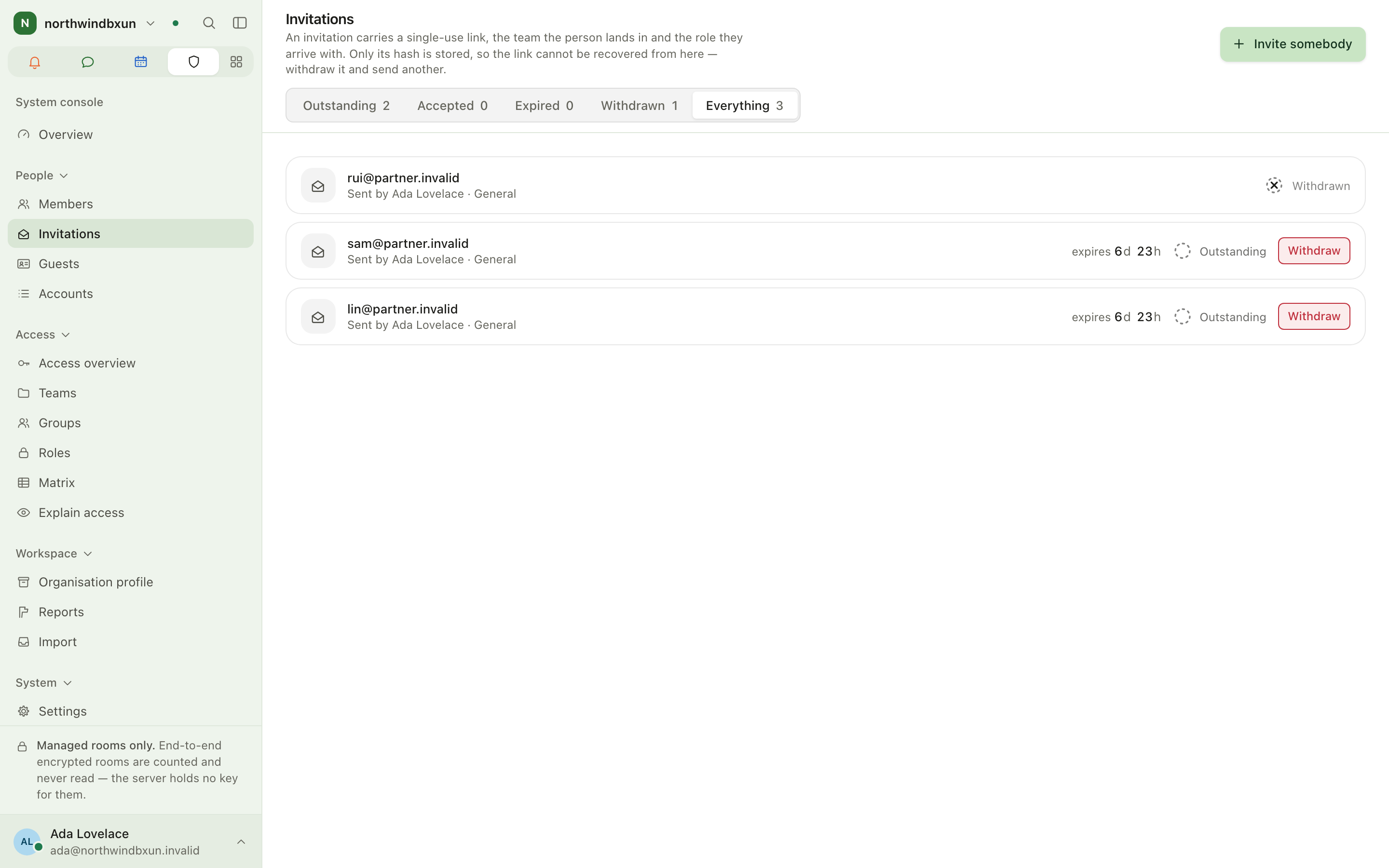
/admin/invites holds the invitation links. Invite somebody is here and on Members. Each link is single-use and carries the team the
person lands in and the role they arrive with. Only a hash of the link is stored, so a lost link
cannot be shown again: withdraw it and send a new one. If sign-up is closed, a notice links
straight to the Sign-up and security pane of Settings.
Guests
/admin/guests lists people from outside who were invited into individual private rooms. Guests
take no seat on the plan and see only their rooms. If guests are turned off, the notice links to
the Messaging pane of Settings, where you can turn them on.
Accounts
/admin/users lists every account in the organisation, including bots and removed people,
together with its status. You cannot change grades or roles here; those live on Members, and each
row links to the member page. The owner can correct a person's name or sign-in address from this
screen.
Workspace
- Organisation profile (
/admin/organisation) shows this organisation's name, address slug, accounts and teams, and lets you rename it. It is not the Spaces knowledge base; that is administered under Spaces → Spaces and access. The old address/admin/spacesredirects here. - Reports (
/admin/reports) is the moderation queue. When reports are waiting, the sidebar shows how many. Each entry keeps a snapshot of what the member saw. Closing an entry does not delete the message. - Import (
/admin/import) brings channel history over from a Slack workspace export or a Mattermost bulk export.
System
- Settings (
/admin/settings) is split into panes: Branding, Address, Announcements, Features, Messaging, Sign-up and security, Email, Mailbox, Legal, Role templates, and Export and closure. Each pane saves on its own. The open pane is part of the address, so you can link straight to one, for example/admin/settings?pane=authentication. Features lists the settings screen of every installed module that has one and links to the marketplace. - Marketplace (
/admin/marketplace) installs and configures modules. See marketplace.md. - Billing (
/admin/billing) is for the owner only. See billing.md. - Bots (
/admin/bots) are accounts that programs hold. A bot signs in with a token instead of a password, carries only the scopes you give that token and reaches only the rooms somebody has added it to. The token is shown once. - Webhooks (
/admin/webhooks) send events from installed modules to a URL you run. Every delivery is signed and retried, and kept in a log for thirty days. - Audit log (
/admin/audit) records who changed what, in plain language. You read it one time window at a time. - Compliance (
/admin/compliance) holds the retention policy for each team and room, the compliance export of the managed rooms, and the audit log as a file.
Roles and permissions
To get into the console at all, you need org.view_console. Each row of the sidebar then needs
the organisation permission its screen reads with:
| Destination | Permission |
|---|---|
| Overview, Access overview, Teams, Roles, Matrix, Marketplace | org.view_console |
| Members, Invitations, Guests, Accounts, Bots, Explain access, a person's access page | org.manage_members |
| Groups, Import | org.manage_teams |
| Organisation profile | org.manage_settings |
| Settings | org.view_settings |
| Reports | org.moderate |
| Audit log, Compliance | org.view_audit |
| Webhooks | org.manage_modules |
| Billing | org.manage_billing (owner only) |
Seeing a screen does not mean you can change everything on it. A button you may not use is left out, or the server refuses it. The owner holds every permission. An administrator holds every permission except billing.
Tips
- Moved addresses keep working.
/admin/rolesand/admin/teamsgo to the Access area, and/admin/access/peoplegoes to Members. - If a module's settings are hard to find, open Settings → Features, or look under Module settings on the console overview.
- Every change made in the console is written to the audit log.
Integrations: GitHub, GitLab & Forgejo, MCP
Three modules connect Enclessa to tools outside it:
Access and roles
The Access area of the system console is where you decide who may do what: teams, groups and the roles at every level, a matrix of roles against permissions, and an explanation of why a person may or may not do something. People themselves are listed once, on Members (see administration.md). A person's own access page opens from there.