Spaces
Spaces is the knowledge base: a wiki of spaces, each holding a tree of pages and a file library. Pages are written in Markdown, link to each other and to records elsewhere in the product, and can be restricted to named people or teams.
Where to find it
Open Spaces from the sidebar's app row or All apps. Its sidebar has:
- Overview (
/spaces) — your spaces and the pages changed lately, each named with its space. - Search (
/spaces/search) — full-text search across the pages you may open. - The map (
/spaces/graph) — a graph of pages, files and linked records. - Your spaces, one per row. The open space unfolds into its page tree. A filter appears once you hold more than six spaces.
- Spaces and access (
/spaces/admin) — create spaces, grant access, archive and export.
A page's address is /spaces/<space address>/<page path>.
Workflows
Create a space
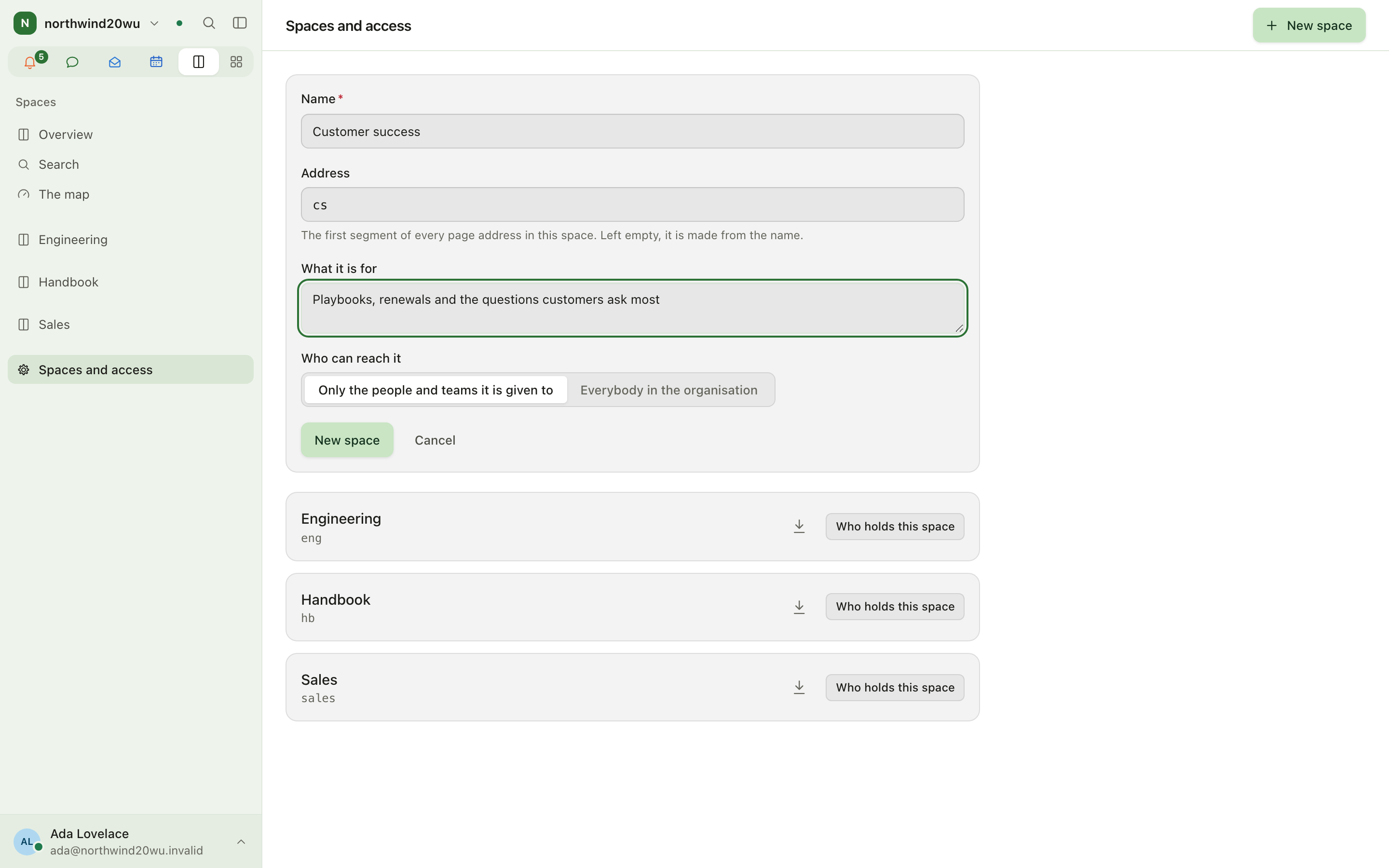
- Select New space on the overview; the form opens at once. (Or open Spaces and access in the sidebar and select New space there.) The button is there only if you may create spaces; otherwise an empty overview says that nobody has given you a space yet.
- Enter a name, optionally an address (the first segment of every page URL; left empty it is made from the name) and a description.
- Choose who it is open to: only people it is given to, or everybody in the organisation.
- Select New space. The new space opens, and you hold Manage on it.
Write and organise pages
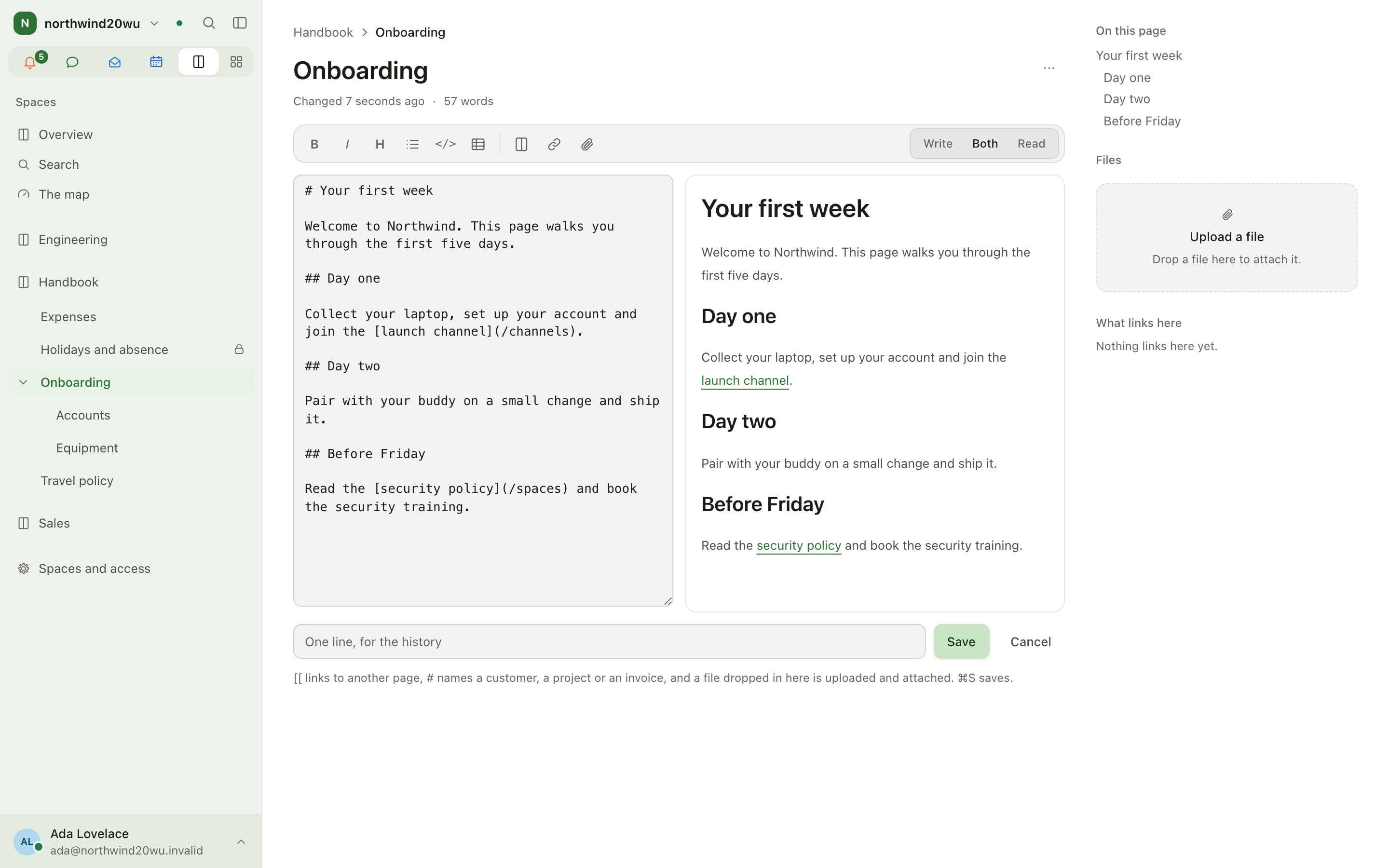
- Hover a space in the sidebar and select + to add a page, or use Add a page under this one on an existing page. The first page of a space becomes its front page.
- Write in the editor. If somebody else saves the same page while you write, your save is refused with a message; copy your text out and reload.
- Move a page to another place in the tree from the page's actions. Deleting a page removes it and everything under it from the tree; its history is kept and it can be restored.
- Attach files to a page with Attach a file; files kept for the whole space are in the space's file library.
Find something
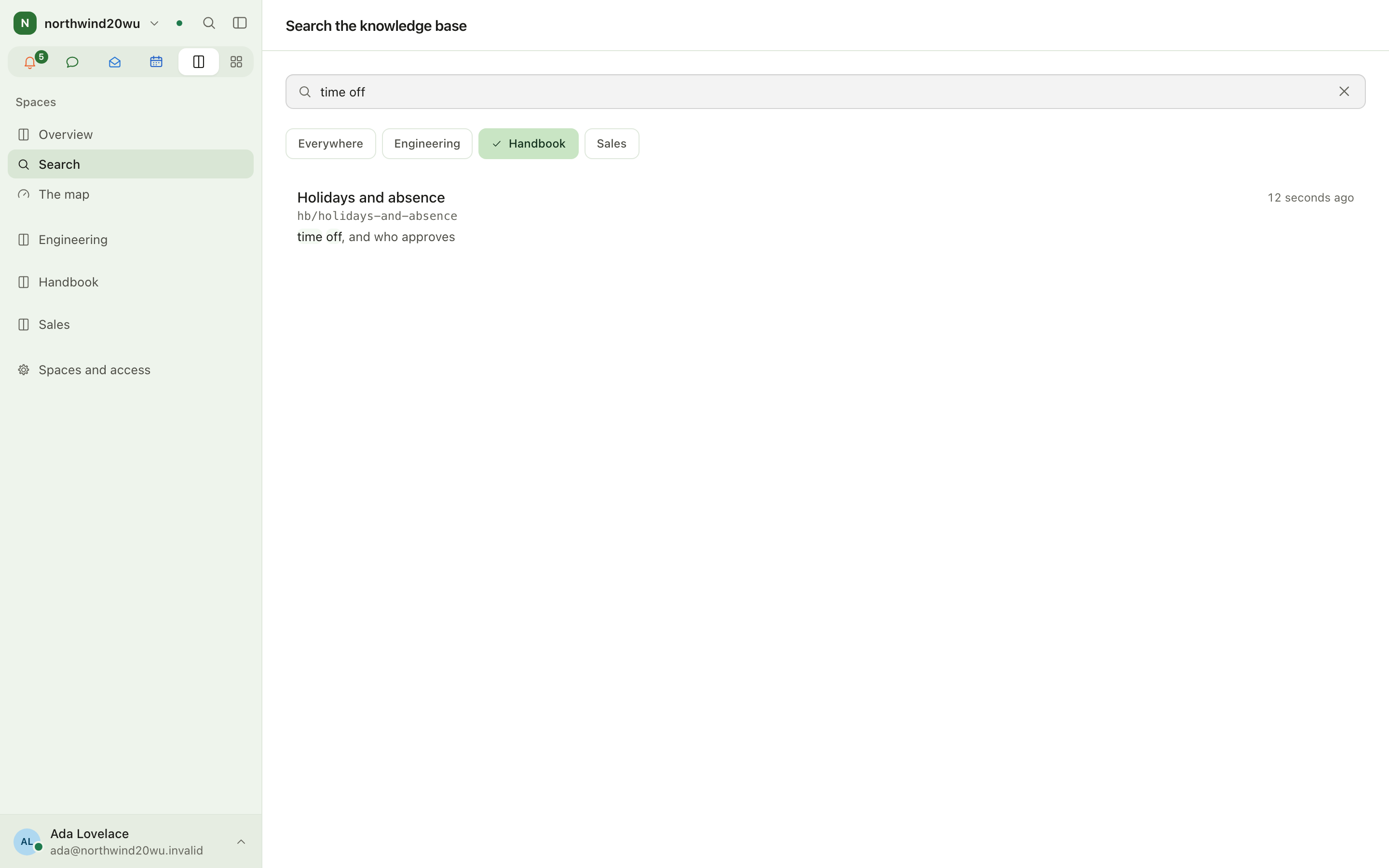
Open Search, type words from a title or page, and optionally limit the search to one space. Search matches whole words: "onboard" does not find "Onboarding". Pages you may not open never appear. When a search limited to one space finds nothing, Clear filters searches every space again. What links here on a page lists its backlinks.
Restrict a page
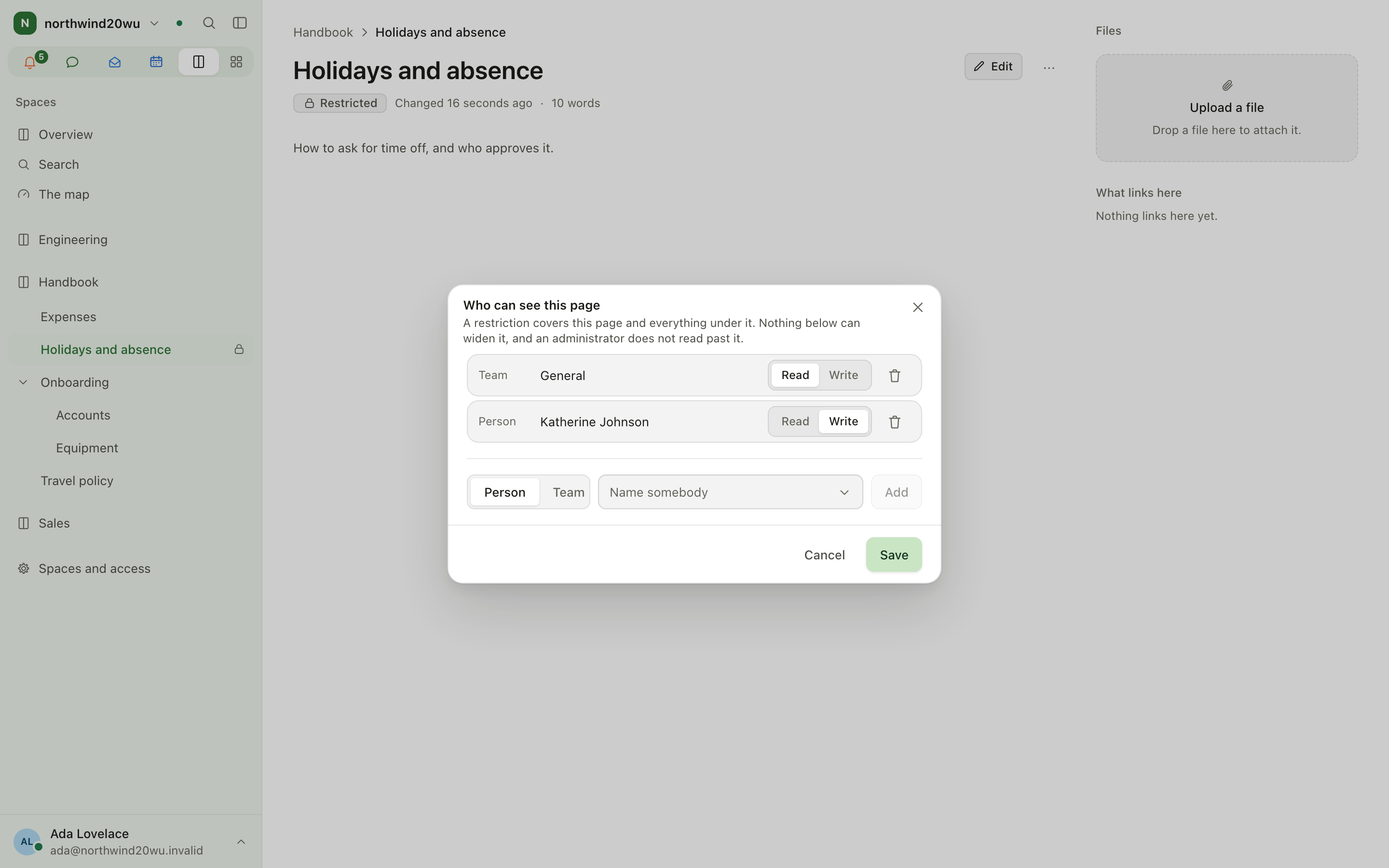
On a page, open Who can see this page and name people or teams. A restriction covers the page and everything under it; nothing below can widen it, and administrators do not read past it. The dialog stops you from saving a list that locks yourself out.
Manage access to a space
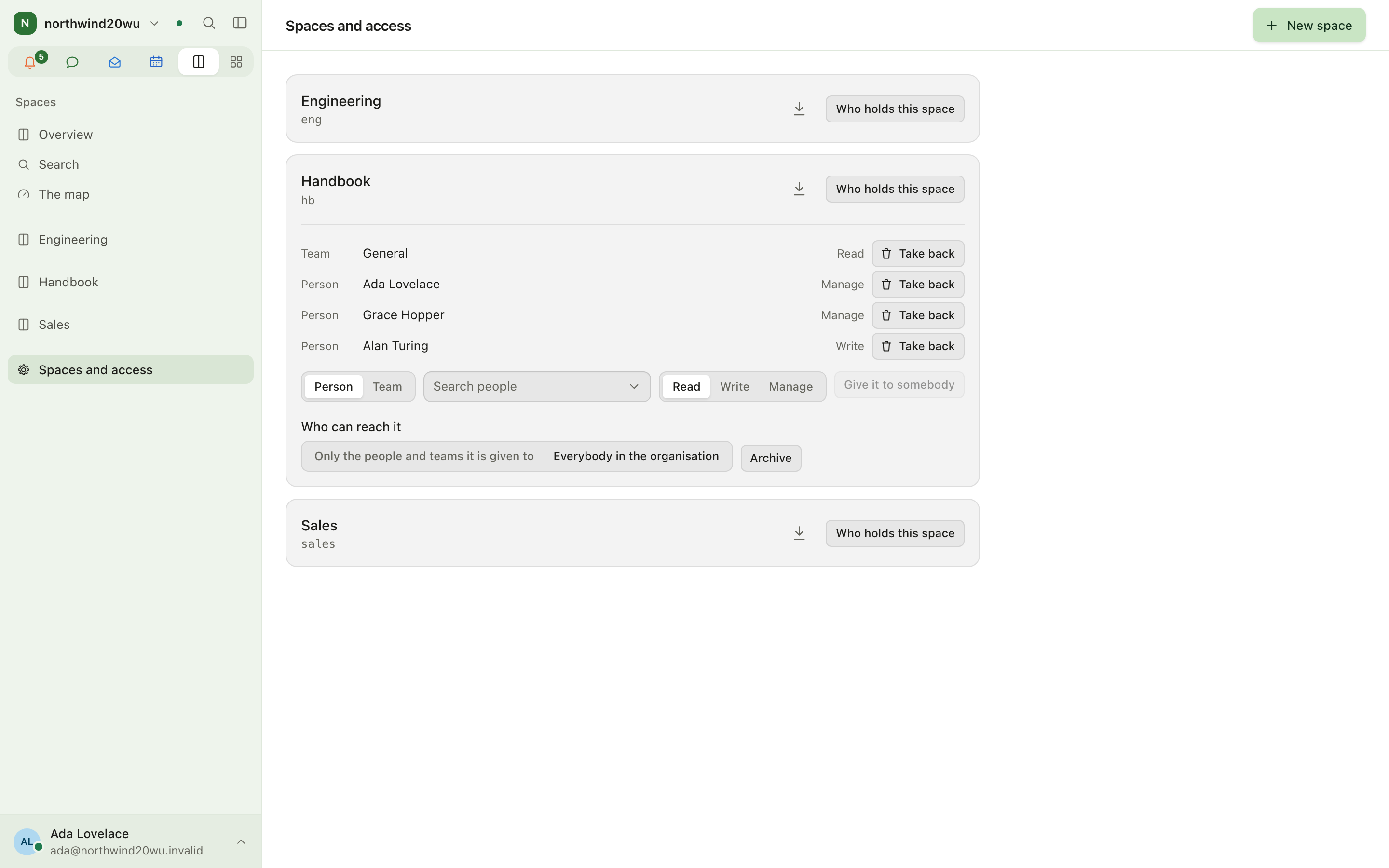
- Open the space and select Spaces and access in its header; its grants open directly. Or open Spaces and access in the sidebar (use the filter when there are many spaces) and select Who holds this space on a space you manage.
- Give it to somebody: search for a person or team and choose Read, Write or Manage. Take back removes a grant.
- Change the visibility, Archive or bring back the space here. A space under legal hold cannot be archived.
- Export as Markdown downloads the space.
Roles and permissions
- Creating a space needs the organisation's manage spaces permission (granted in System console → Access → Roles).
- Inside a space, each person or team holds Read, Write or Manage. Write adds and edits pages; Manage also controls grants, visibility and archiving.
- Page restrictions narrow further for a page and its subtree.
The module is switched on in System console → Marketplace → Spaces, which links to Spaces and access.
Tips
- Link pages to each other; The map then shows how your knowledge hangs together, and bigger nodes are the pages more depends on.
- Keep the space address short (
handbook,it): it is part of every link. - Use the overview's recent list to pick up where colleagues left off.
Cards
Cards gives every person on the payroll a digital business card. A card is never typed in: every line is read from the person's People record and their profile each time it is opened, so it is always current. Cards can be shared by link or QR code, added to Apple Wallet or Google Wallet, and printed.
Integrations: GitHub, GitLab & Forgejo, MCP
Three modules connect Enclessa to tools outside it: