People
People is the HR module: personnel records, the organisation structure, HR documents, change requests, onboarding and offboarding, and HR reports. It owns who somebody is and how they are employed. Absences, vacation, sickness and time balances belong to Time; People shows what Time knows on each record but does not keep a second copy.
Where to find it
Open People from your pinned apps or All apps, or press ⌘K and type the page you want
(employees, onboarding, people requests). The People sidebar has four groups. You only see the entries
your role reaches; a group with nothing you may open is not shown.
| Group | Entry | What it is |
|---|---|---|
| — | Me (/people) | Your own record, what is waiting on you, and your documents |
| Records | Employees (/people/employees) | The personnel directory |
| Records | Organisation (/people/organization) | Units, positions, locations, cost centres, org chart |
| Records | Documents (/people/documents) | Every HR document you may see, with expiry tracking |
| In progress | Onboarding (/people/onboarding) | Running and finished onboarding workflows |
| In progress | Requests (/people/requests) | Change requests waiting for your decision |
| In progress | Offboarding (/people/offboarding) | Running and finished offboarding workflows |
| The organisation | Reports (/people/reports) | Headcount, joiners and leavers, and the other HR reports |
| The organisation | Administration (/people/admin) | Custom fields, workflow templates and legal holds |
The counts on the sidebar are things waiting on you: your inbox on Me, expiring documents, open onboarding and offboarding, and pending requests. The head count and FTE at the bottom of the sidebar link to Reports.
The employee lifecycle
A record moves through these states: draft → preboarding → active → (leave of absence) → offboarding → inactive → archived. The order of the In progress group follows the same path: onboarding, then requests during employment, then offboarding.
1. Hire somebody and start their onboarding
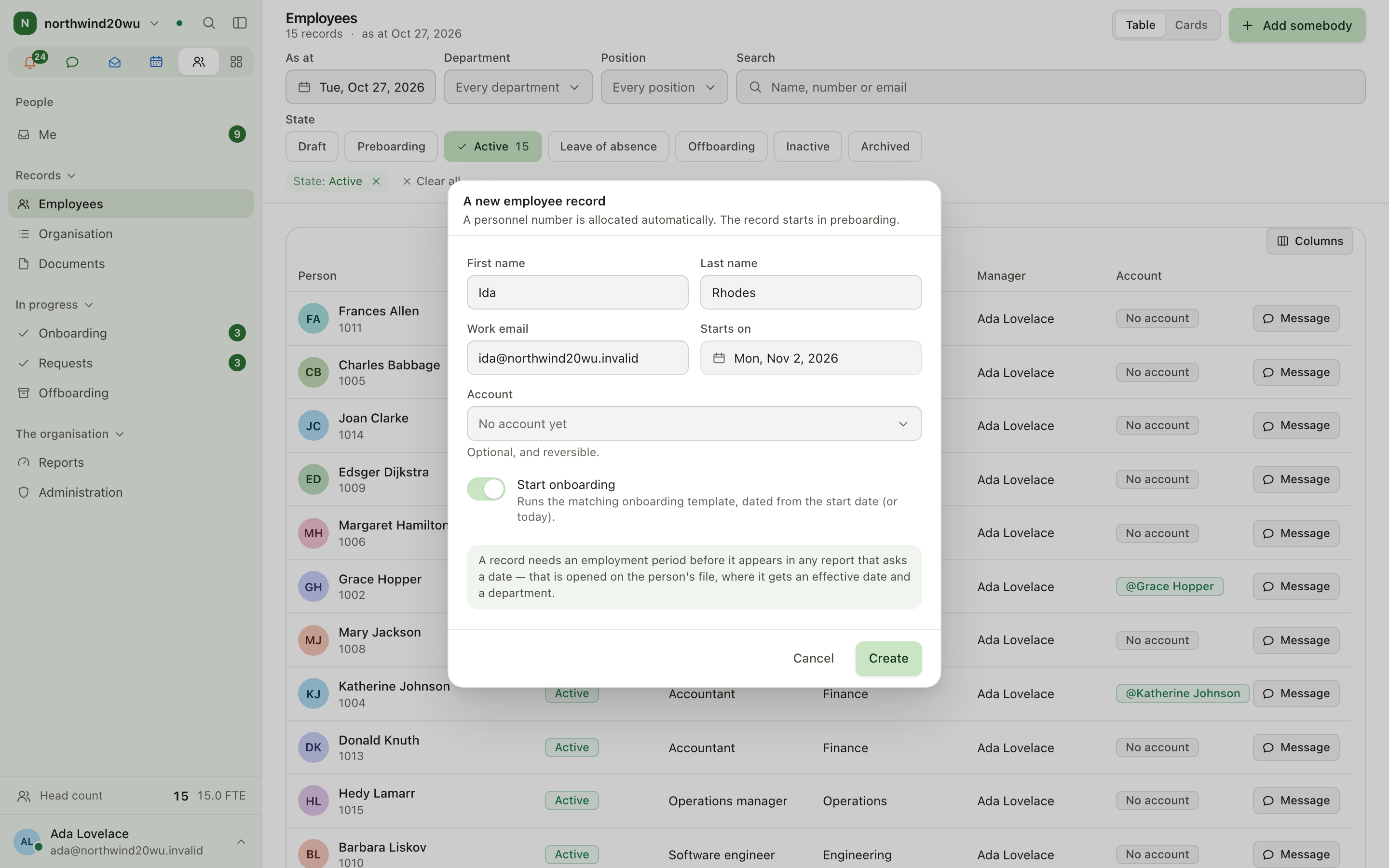
- Go to People → Employees and select Add somebody.
- Enter first and last name. Work email, start date and a linked account are optional; the personnel number is allocated automatically. The record starts in preboarding.
- Leave Start onboarding on (shown only if you may manage onboarding). The matching onboarding template runs, dated from the start date, or from today if no start date is set.
- Select Create. The new record opens so you can add the employment period (department, position, hours) on the Employment tab.
If onboarding cannot be started, the record is still created and a message tells you to start the workflow from the record.
2. Start a workflow from the board
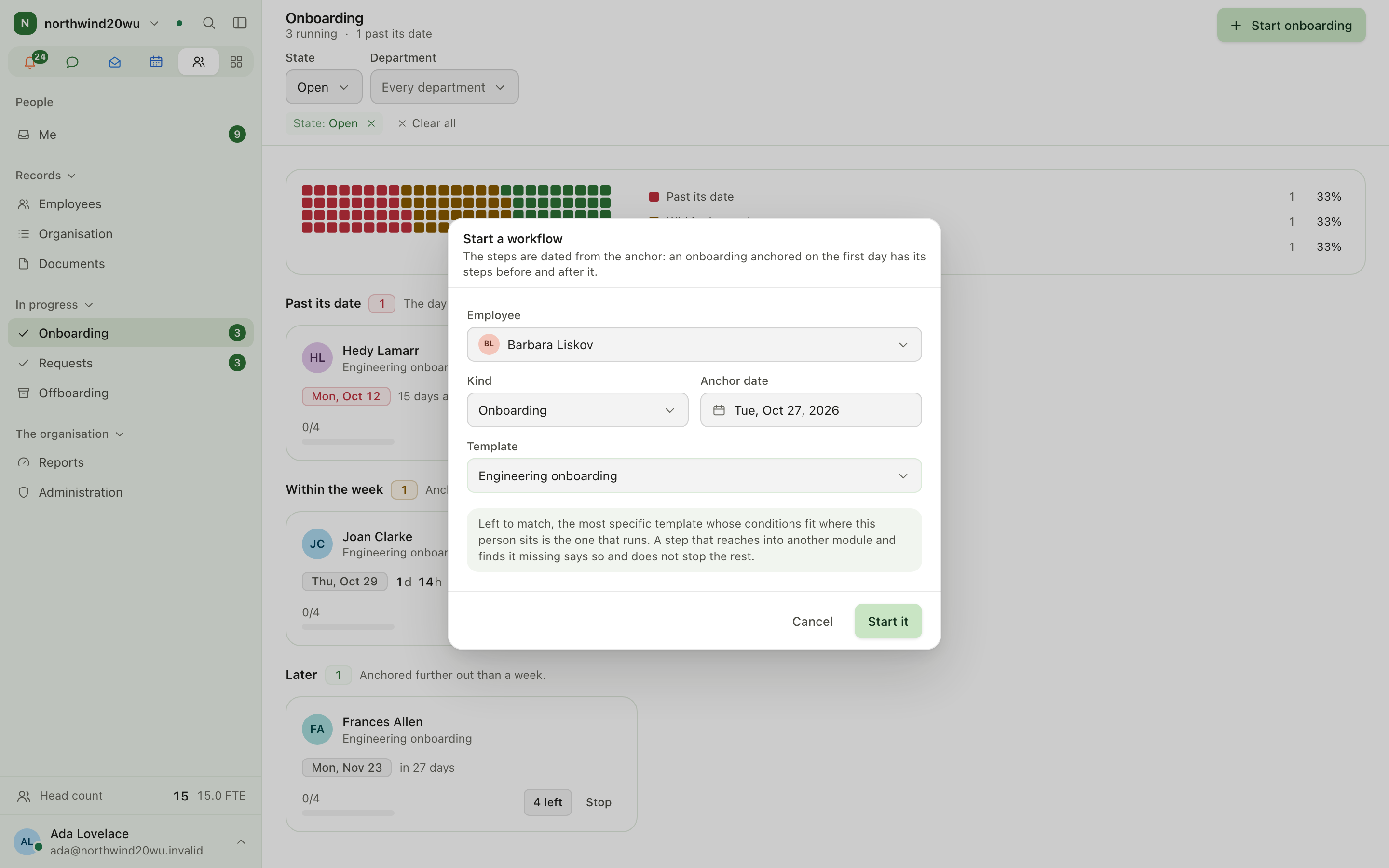
- Go to People → Onboarding (or Offboarding) and select Start onboarding (or Start offboarding) in the header. The same button appears on an empty board.
- Choose the employee, the kind, the anchor date (the day the steps are dated from) and optionally a template. Without a template, the most specific template whose conditions fit the person's department and position runs.
- Select Start it.
You can also start any workflow (onboarding, offboarding, transfer, probation) from a person's record with Start a workflow in the record header.
3. Work through onboarding and offboarding
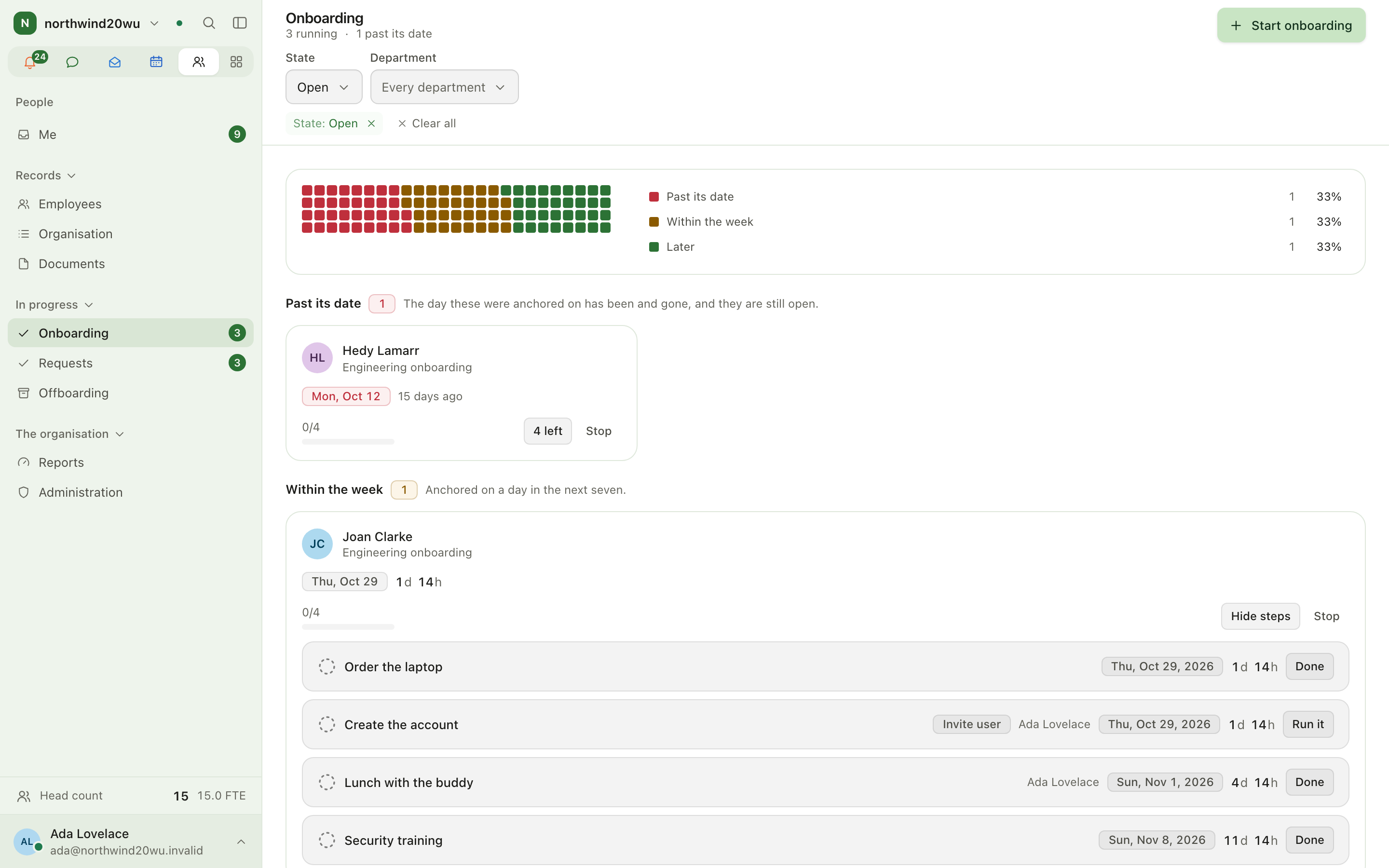
The board groups workflows by their anchor date: Past its date, Within the week, Later and Finished. Filter by state and department in the toolbar. Open a card to see its steps. Steps can reach into other modules — invite an account, add somebody to a team, open a board item, set a working week in Time — and each step links to what it touched. A failed step says why and does not stop the others; fix the cause and run it again, or skip it.
4. Handle change requests
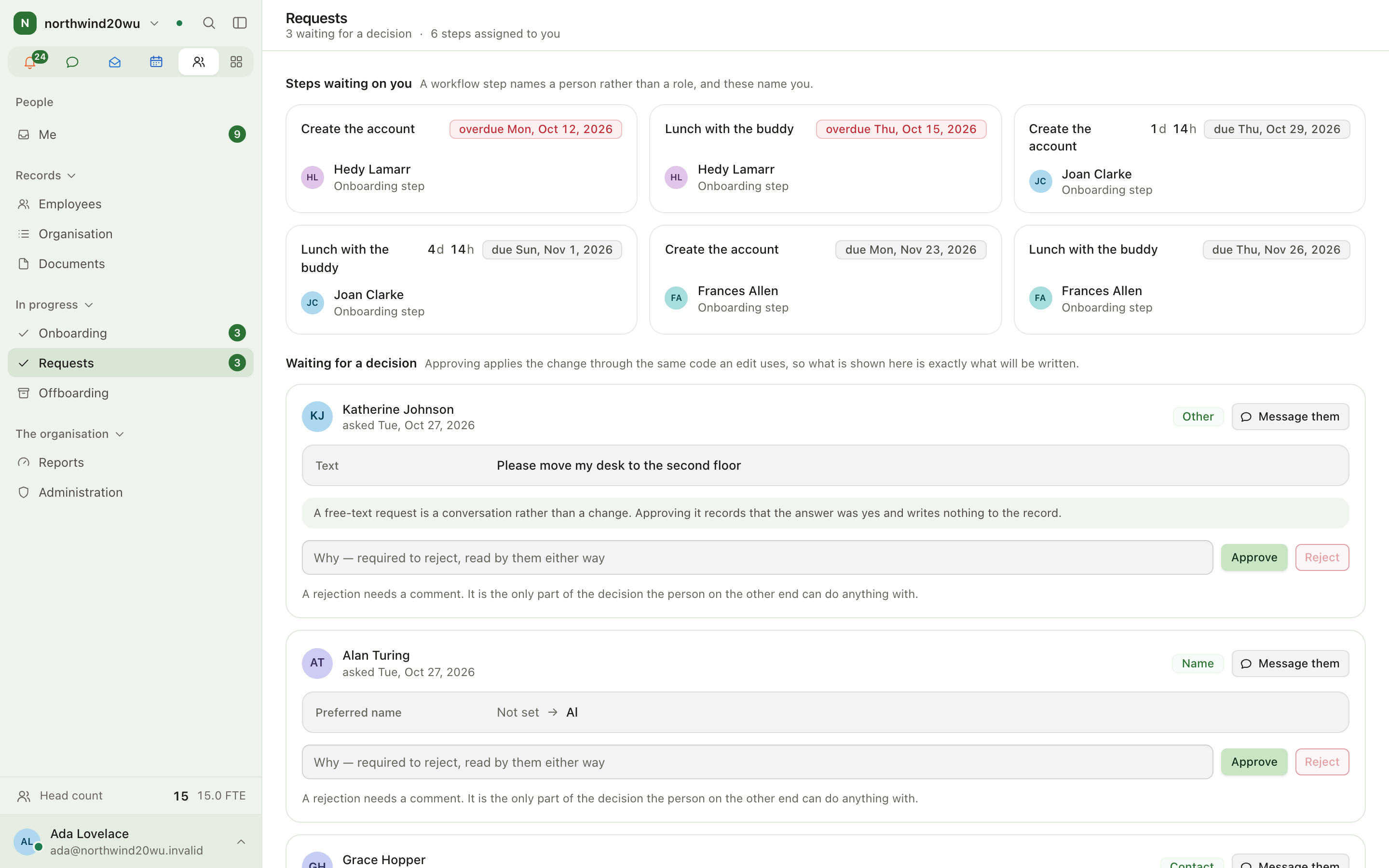
Employees ask for changes from Me → Ask for a change (contact details or name). The button
is there only when your role lets you ask (hr.self.change.request). A request goes to the
person's manager first, and to HR when there is no manager of record. Nothing changes until
somebody approves it.
Approvers open People → Requests, read the proposed change against what the record says now, and approve or reject with a comment. Decided requests stay listed under Decided.
Leave, vacation and sickness are not People requests: they are requested and approved in Time. The Time panel on a record shows the person's availability and balances and links to Time: the approval badges open Approvals narrowed to that person, and your own record's unsubmitted-entries badge opens Project time.
5. Record a leaving date and offboard
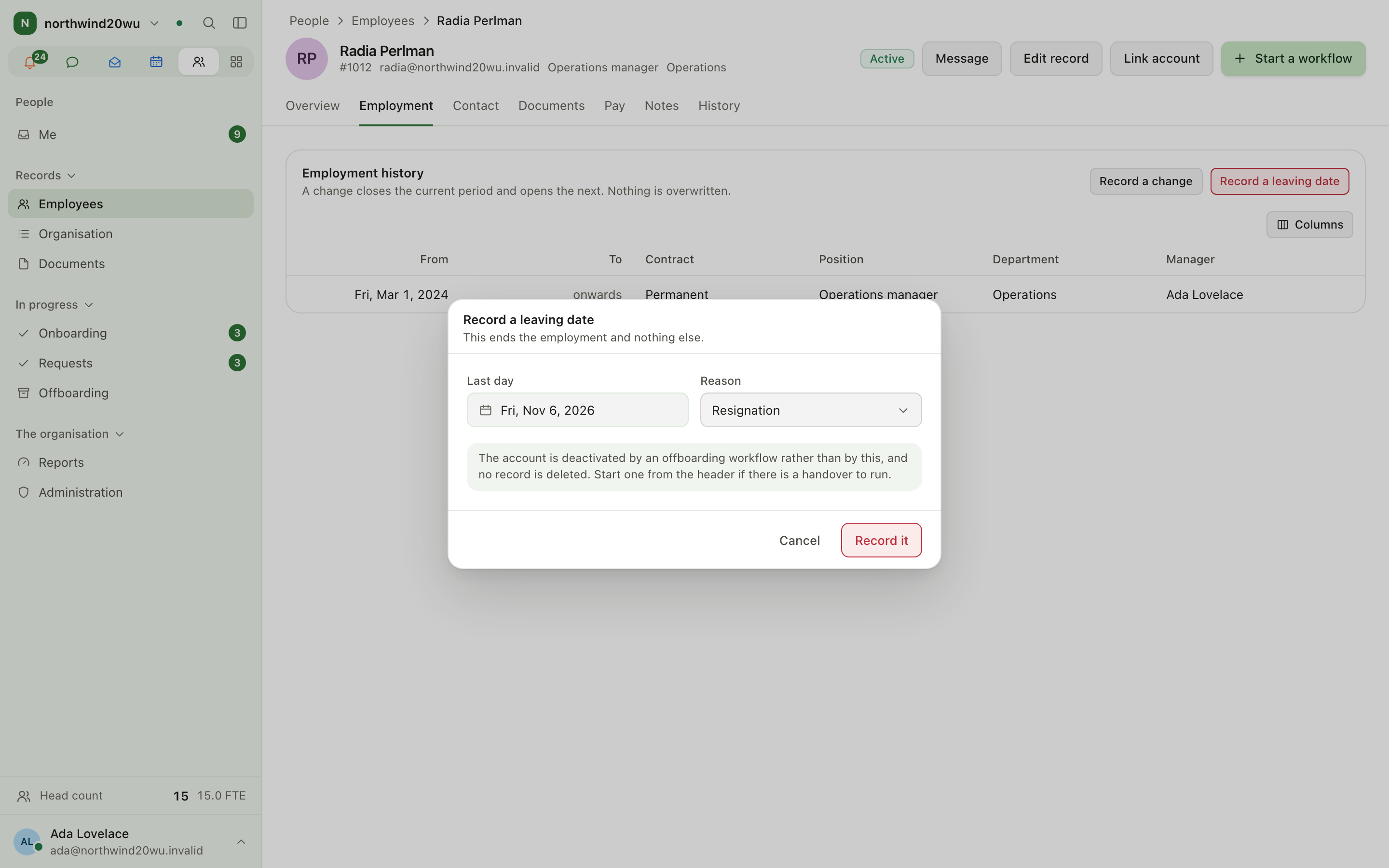
- Open the person's record, Employment tab, and record the leaving date and reason. This ends the employment and nothing else; no record is deleted.
- Start an offboarding workflow (from the record header or People → Offboarding) for the handover. Deactivating the account is a step of the offboarding workflow.
- Move the record's state (to inactive, later archived) with Move this record when the handover is complete. Archiving is blocked while a legal hold covers the record.
Finding and managing records
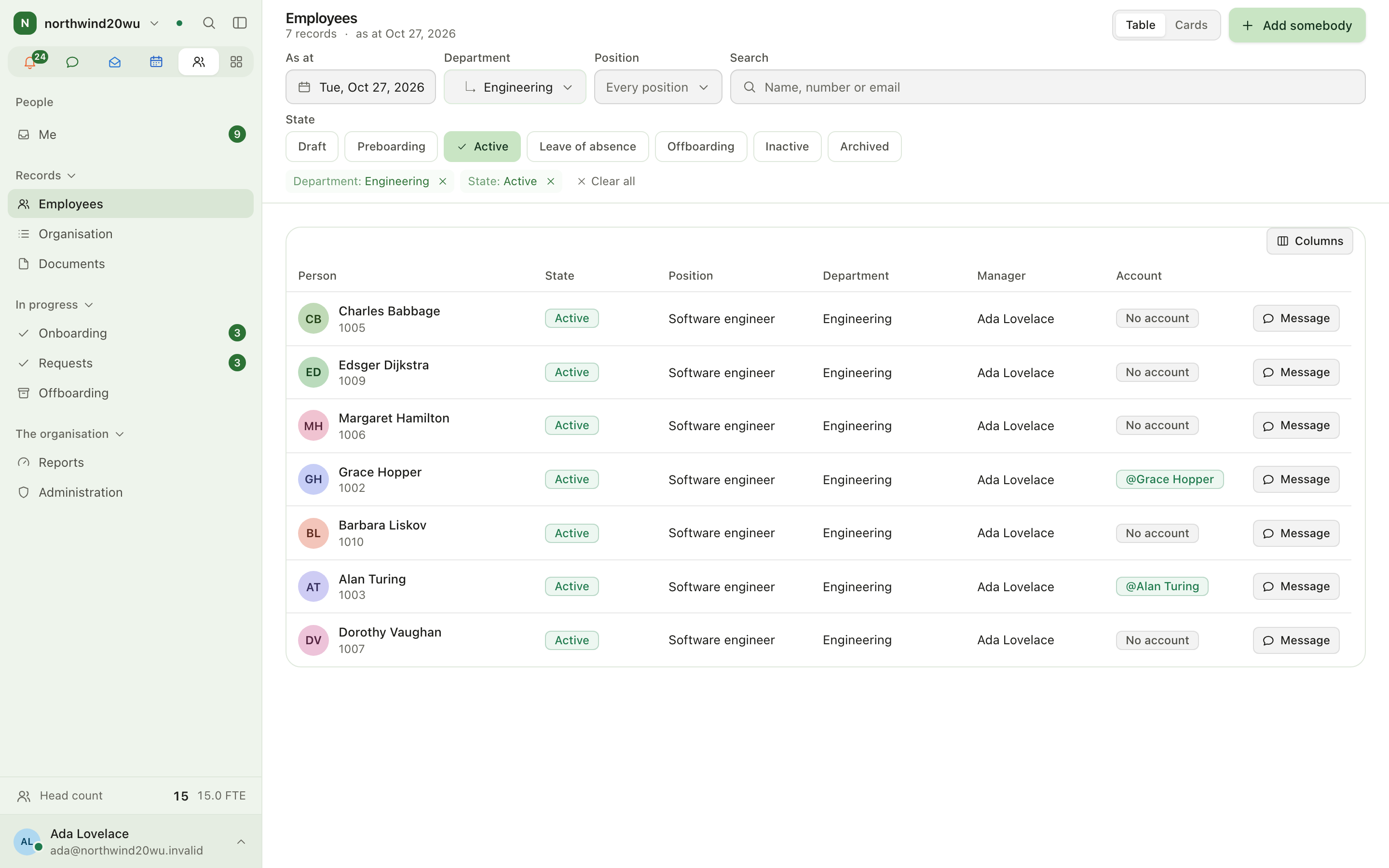
- Employees searches by name, personnel number and work email on the server, and filters by state, department, position and an "as at" date. Switch between table and cards in the header.
- Documents searches title, category, person and file name, and filters by category, person, state and expiry (expired, expiring within 30 days).
- When a search or filter leaves either list empty, Clear filters in the empty list resets them all at once.
- A record has tabs for Overview, Employment, Contact, Documents, Pay, Notes and History. Pay and notes appear only for roles that may read them.
- Every date in People — start, probation end, leaving date, employment periods, document issue
and expiry, workflow steps and legal holds — is written in your language, not as
2026-08-17.
Organisation
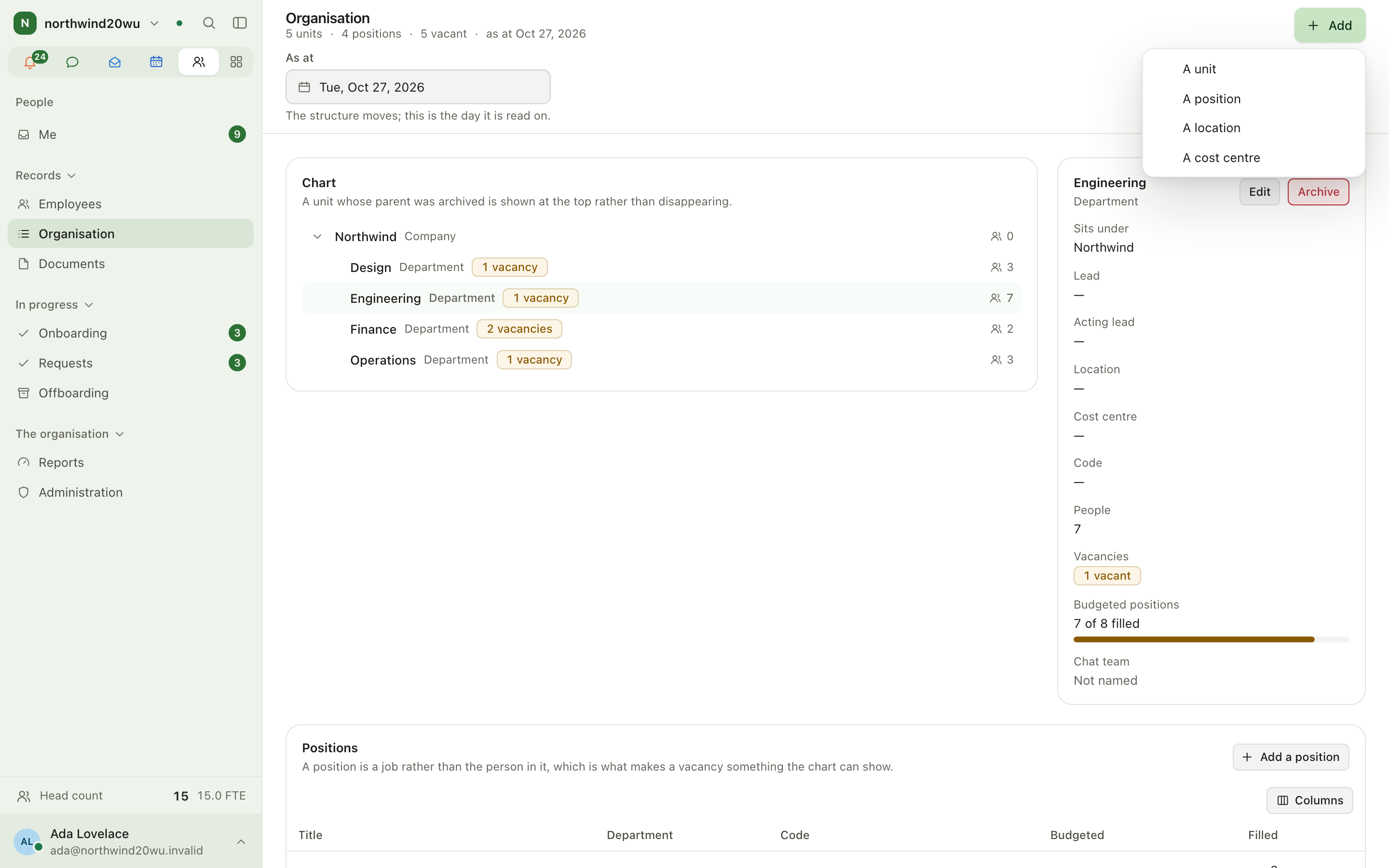
People → Organisation holds the structure: units (company, division, department, team, group), positions, locations with their time zone, and cost centres. Use Add to the organisation to create one. Archived items stay on file and can be restored.
Reports
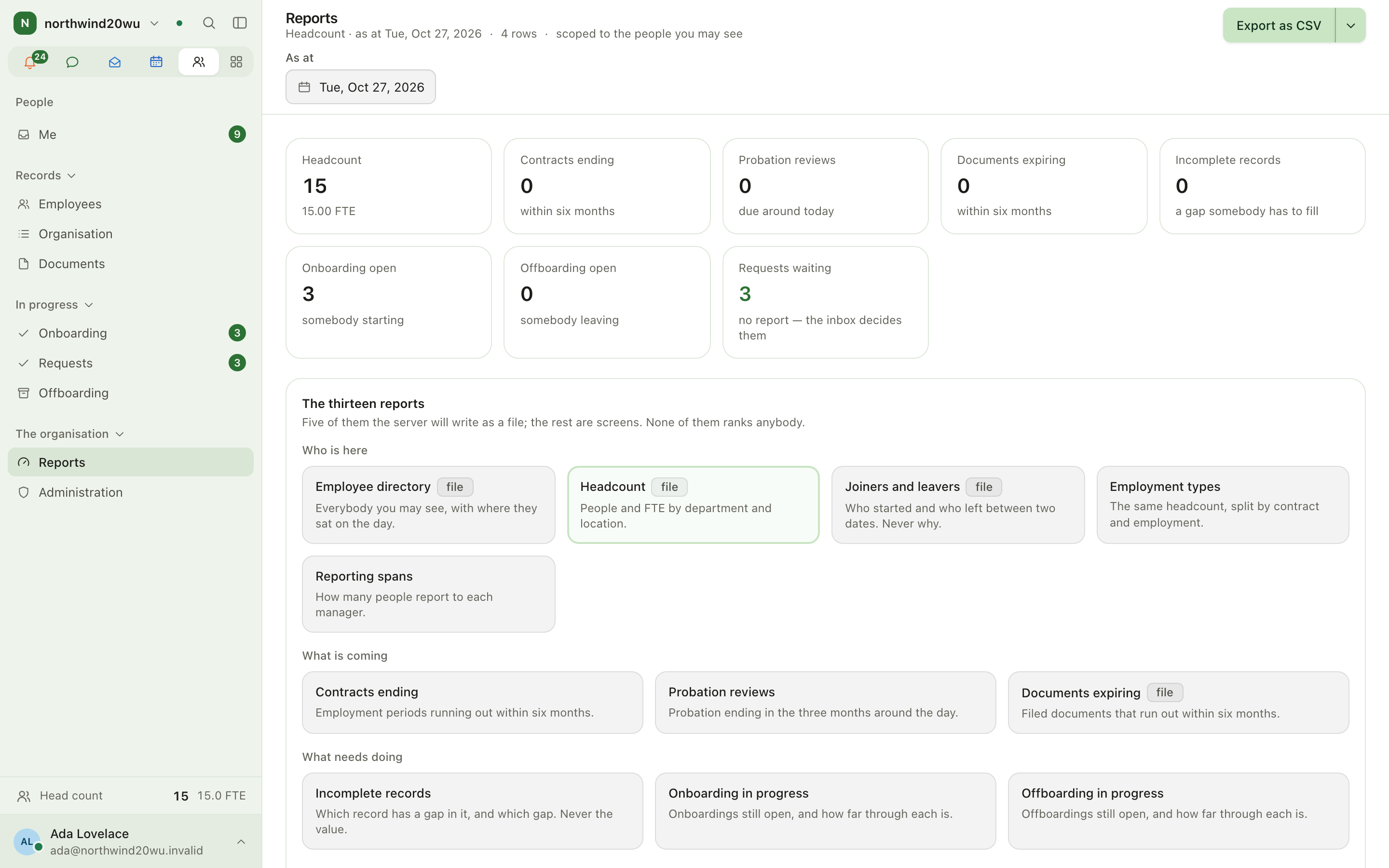
People → Reports has thirteen reports in four groups: Who is here, What is coming, What needs doing and How it is put together. Five of them (directory, headcount, joiners and leavers, documents, org chart) can be exported as a file; the rest are screens. Overview tiles link to the open onboarding, offboarding and requests.
Roles and permissions
Permissions are granted on the console's roles screen, System console → Access → Roles
(/admin/access/roles, tier Modules), not inside People. The People sidebar shows an entry
only when you hold one of the permissions it needs:
| Area | Permissions |
|---|---|
| Employees | hr.employee.read, hr.team.directory.read, hr.document.read |
| Organisation | hr.team.organization.read, hr.employee.read, hr.self.read |
| Documents | hr.document.manage, hr.document.read, hr.team.document.metadata.read |
| Onboarding | hr.onboarding.manage, hr.team.onboarding.manage |
| Offboarding | hr.offboarding.manage, hr.team.offboarding.manage |
| Requests | hr.approval.manage, hr.team.change.approve |
| Reports | hr.report.organization, hr.employee.read, hr.team.directory.read |
| Administration | hr.config.manage, hr.role.manage, hr.template.manage, hr.custom_field.manage, hr.retention.manage, hr.organization.manage |
hr.team.* permissions cover a manager's own reports; the others cover the whole organisation.
Everybody sees Me; it never shows pay, private notes or termination details about yourself.
Administration
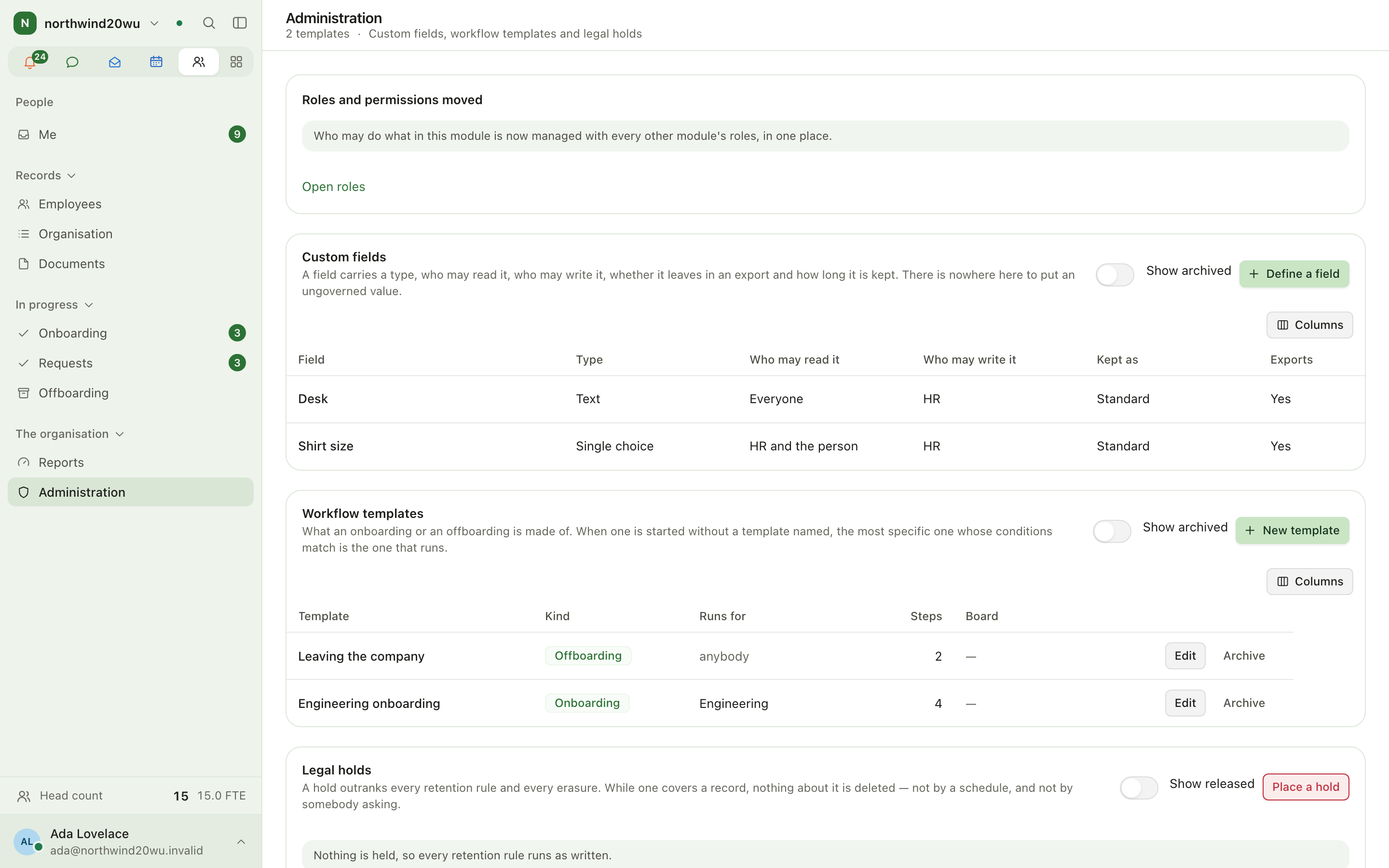
People → Administration (/people/admin) holds:
- Custom fields — extra fields on the record, each with a type, a visibility (HR only, employee and HR, manager and HR, everyone, sensitive, health and HR) and a retention rule.
- Workflow templates — the steps of an onboarding or offboarding, and the department, position and contract type they match.
- Legal holds — a hold outranks every retention rule and erasure for the records it covers.
The old address /people/admin/permissions redirects here. The module itself is installed and
switched on in System console → Marketplace → People.
Tips
- Create the record, start onboarding and fill in the employment period in one sitting: the new record opens right after creation.
- Filter the onboarding board by department to see one team's new starters.
- A department filter on a board reads the first 200 people of that department; a note appears when the department is larger.
- Use Reports to export the directory or headcount rather than copying tables.
Finance
Finance connects Enclessa to your Lexware Office account. It is where you write quotations, run an engagement from the first question to the archive, turn booked hours into invoice drafts, and see what is owed, paid and overdue. Lexware remains the ledger. It assigns every number, renders every PDF and e-invoice, and keeps the archive. Enclessa prepares drafts and mirrors back what Lexware holds. Finance never finalises or sends a document by itself. A person always does that in Lexware.
Cards
Cards gives every person on the payroll a digital business card. A card is never typed in: every line is read from the person's People record and their profile each time it is opened, so it is always current. Cards can be shared by link or QR code, added to Apple Wallet or Google Wallet, and printed.