Projects
A project is something the organisation is working on: a name, one accountable owner, the dates it runs between, a budget, and everything that belongs to it — boards, milestones, risks, updates, people, files, a chat room and, when Time is installed, the hours booked against it.
Projects is the hub. The work itself lives on Boards, the hours in Time, the dates on the Calendar; a project points at them rather than copying them.
Where to find it
Open Projects from the sidebar's app row or All apps (/projects). Its sidebar:
| Entry | Route | What it shows |
|---|---|---|
| All projects | /projects | Every project you may see |
| My projects | /projects/mine | The ones you own (the badge counts them) |
| Portfolio | /projects/portfolio | The same list grouped by health, worst first |
| Milestones | /projects/milestones | What is due across every project (badge: due soon) |
| Customers ↗ | /customers | Leaves to the Customers module, when installed |
| Administration | /projects/admin | Only for module administrators |
The foot of the sidebar shows how many projects are at risk; select it to open the Portfolio, grouped by health with the worst first.
Old links of the form /time/projects/{id} and /time/projects?project={id} redirect to
/projects/{id}.
Roles and permissions
Roles are Viewer, Member, Manager and Administrator, granted at System console → Access → Roles. Everybody in the organisation can read projects with organisation visibility; a project set to its members is visible only to its members, its teams' members and its owner. Starting a project and adding milestones needs a managing role on the project or the module.
Main workflows
Find a project
- Open All projects, My projects or Portfolio.
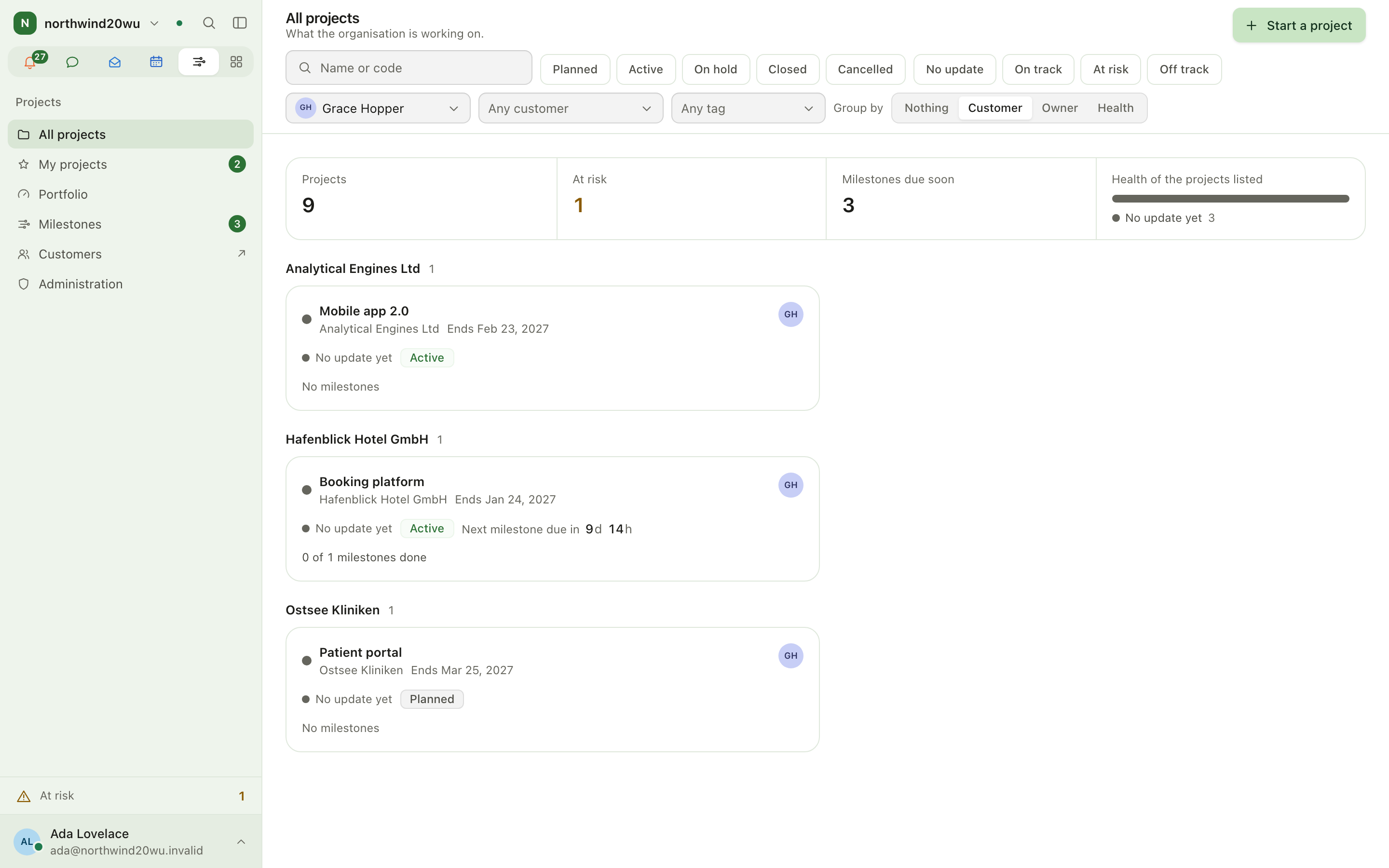
- Search by name or code, and filter by State, Health, Owner, Customer or Tag.
- Group by customer, owner or health.
- When nothing matches, Clear filters resets the search and every filter at once.
Start a project
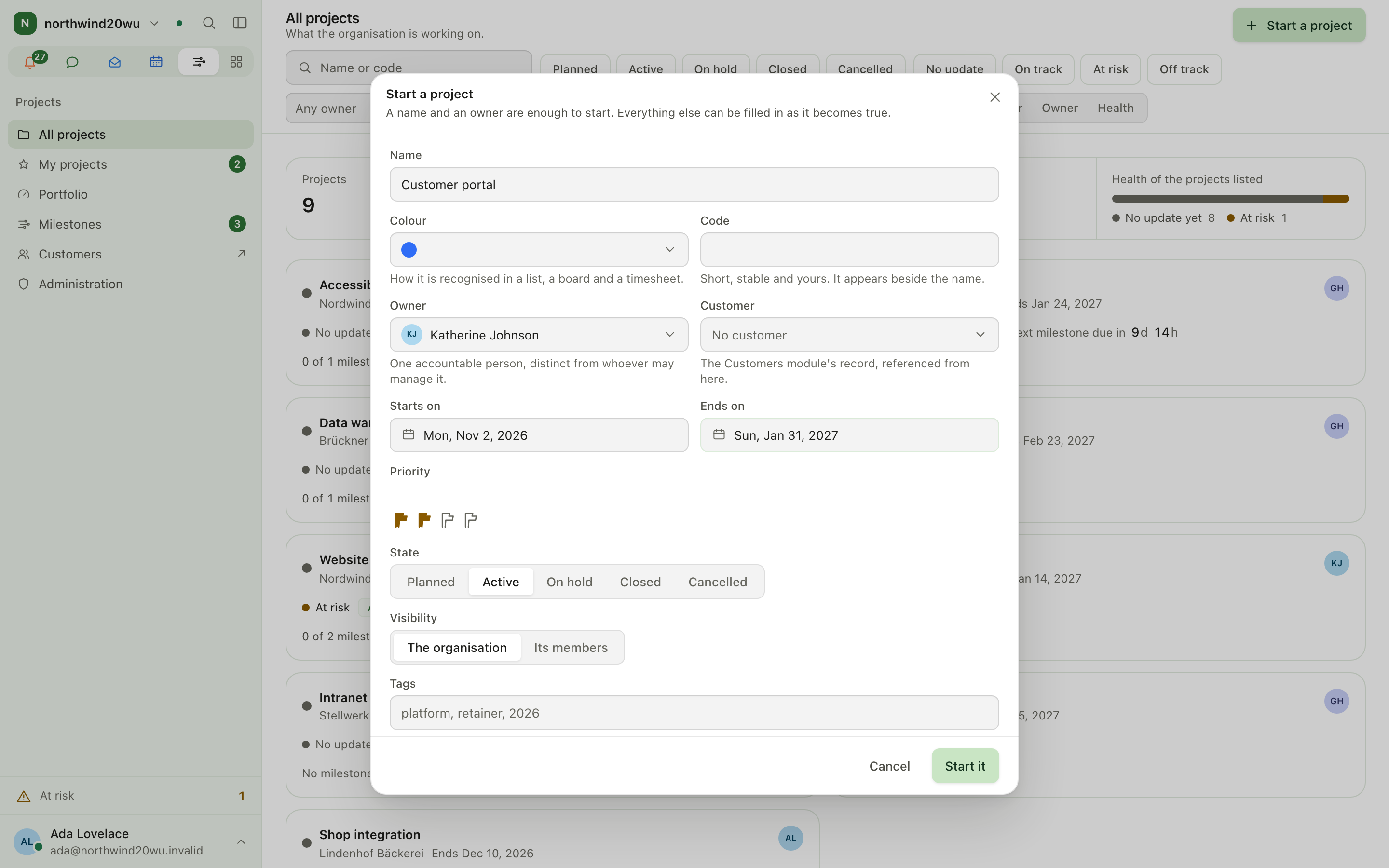
- Press Start a project on any list.
- Fill in the record: name, code, owner, customer, start and end date, budget (money or hours), priority, tags, visibility and whether time is tracked on it.
- Open the new project and add boards, people and milestones from its tabs.
Work inside a project
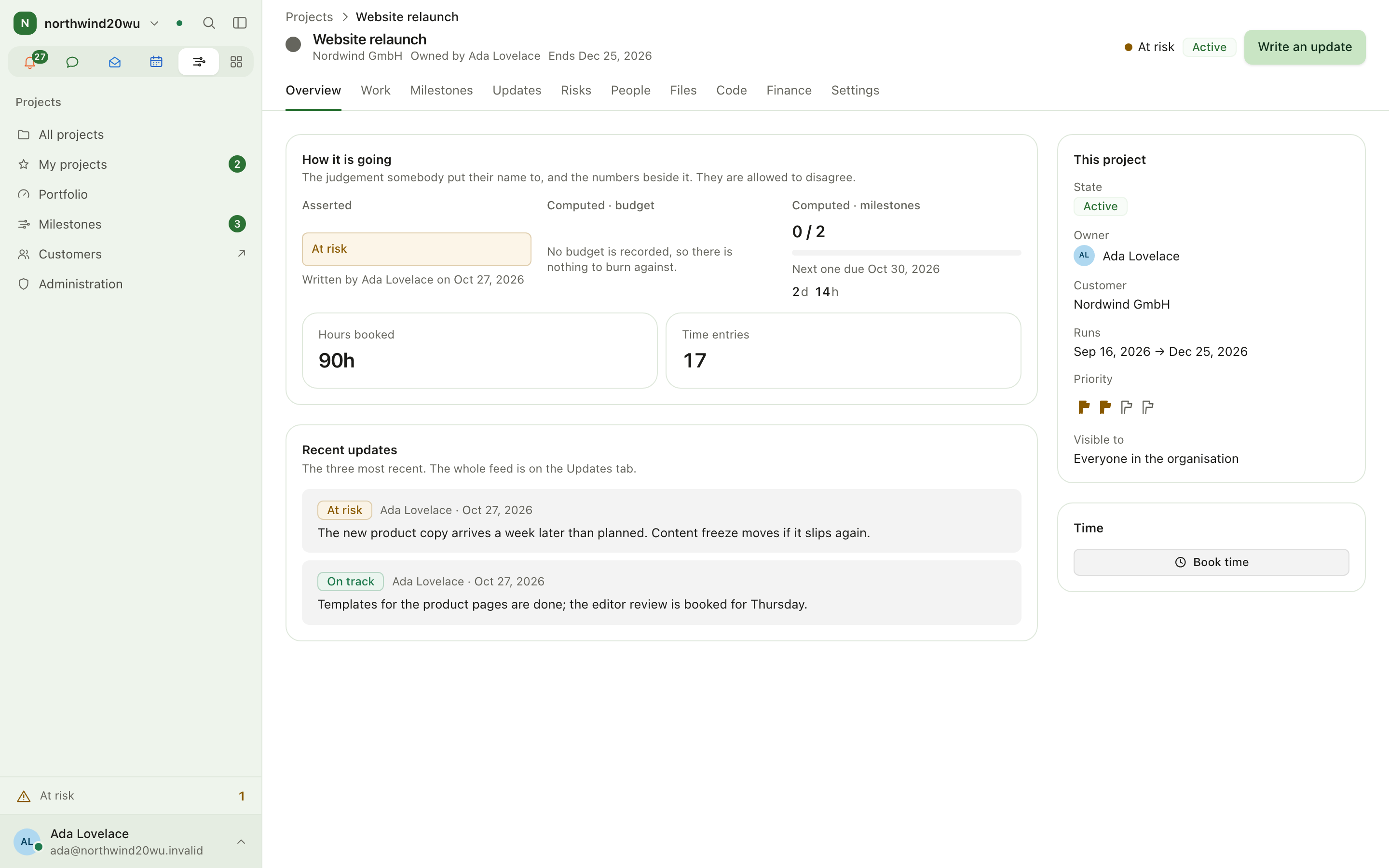
A project page has tabs: Overview, Work, Milestones, Updates, Risks, People, Files, Code, Finance (when Finance is installed) and Settings.
- Overview — dates, next milestone, booked hours (when time tracking is on), latest updates.
- Work — items from the boards the project names, with links to each item.
- Updates — a written status with a health (on track, at risk, off track). The portfolio and the at-risk count read these, never a calculation.
- Risks — the risk register.
Track milestones across projects
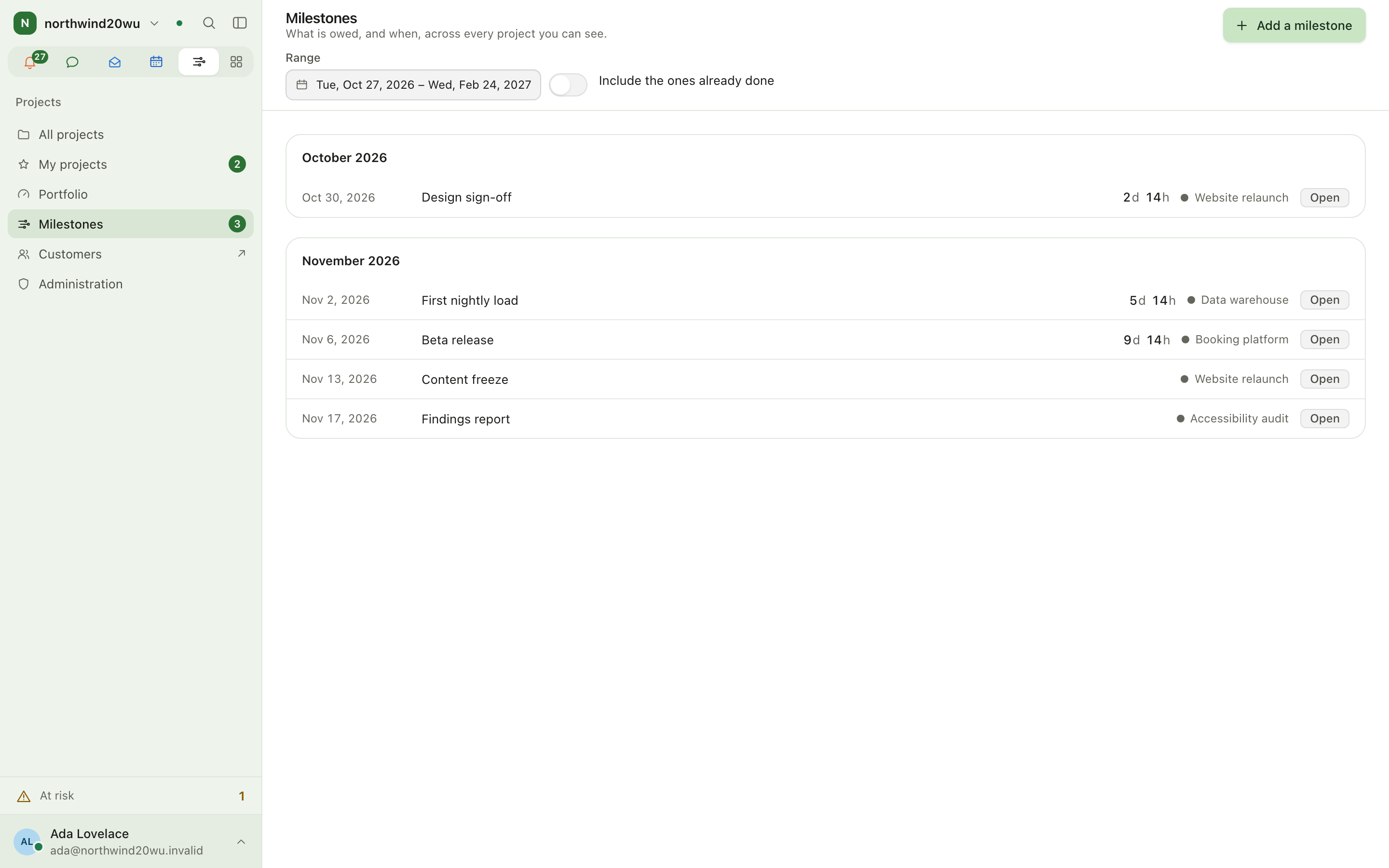
- Open Milestones in the sidebar.
- Choose a range (e.g. Next 30 days) or set From/To; tick Include the ones already done to see history.
- Open milestones whose date has passed before the range starts stay on top under Overdue and still open, so the badge in the sidebar and the page always agree.
- Add a milestone to any project you manage.
Archive a project
Project → Settings → Archive. A project is never deleted, because hours, appointments and messages name it. Put it back restores it.
Settings and admin
Per project (Settings tab):
- The record — name, colour, owner, dates, budget, tags.
- Track time on this project — off means the project does not appear in Time.
- Visibility — the organisation, or its members only.
- Room — link or make the chat channel where the project is discussed.
- Boards — which boards count as the project's work; the Primary one is what a timer started on this project defaults to.
Module-wide:
- Roles: System console → Access → Roles (the Administration page in the sidebar links there for whoever may open the console).
- Module settings and installation: System console → Marketplace → Projects.
How Projects relates to other modules
| You want to… | Do it in |
|---|---|
| Track the project's tasks | Boards, then name the board under Settings → Boards |
| Book hours on it | Book time on the overview, or Time → Project time |
| See its dates in a calendar | Calendar (read-only overlay) |
| Plan its social content | Studio campaigns can name a project |
Tips
- Write an update whenever health changes; the portfolio only knows what owners write.
- Use My projects as your start page if you own several.
Boards
Boards track the work a team has agreed to do. Every board belongs to one team, has columns you name, fields you choose, and shows the same items as a board, a table or a roadmap.
Time
Time records when you work and what you work on — separately. Clocking in and out measures attendance; booking hours against projects and activities measures work. Your working week sets what each day is expected to be worth, and the difference builds up as your balance. Periods are submitted, approved and eventually locked. Holiday comes out of an entitlement; sickness is reported, never with a diagnosis.