Billing
Billing shows what plan this organisation is on and what it is using. It is also where you add a payment method, keep the invoice recipient up to date, download invoices and cancel the subscription.
Where to find it
- Console sidebar → System → Billing (
/admin/billing). - The See plans buttons in the marketplace lead here, for modules that are not part of your plan. The owner is the only one who sees them.
Only the owner sees Billing. It needs org.manage_billing, which administrators do not hold.
Nobody else sees the sidebar row or finds it in the ⌘K palette ("Billing and plan").
What the page shows
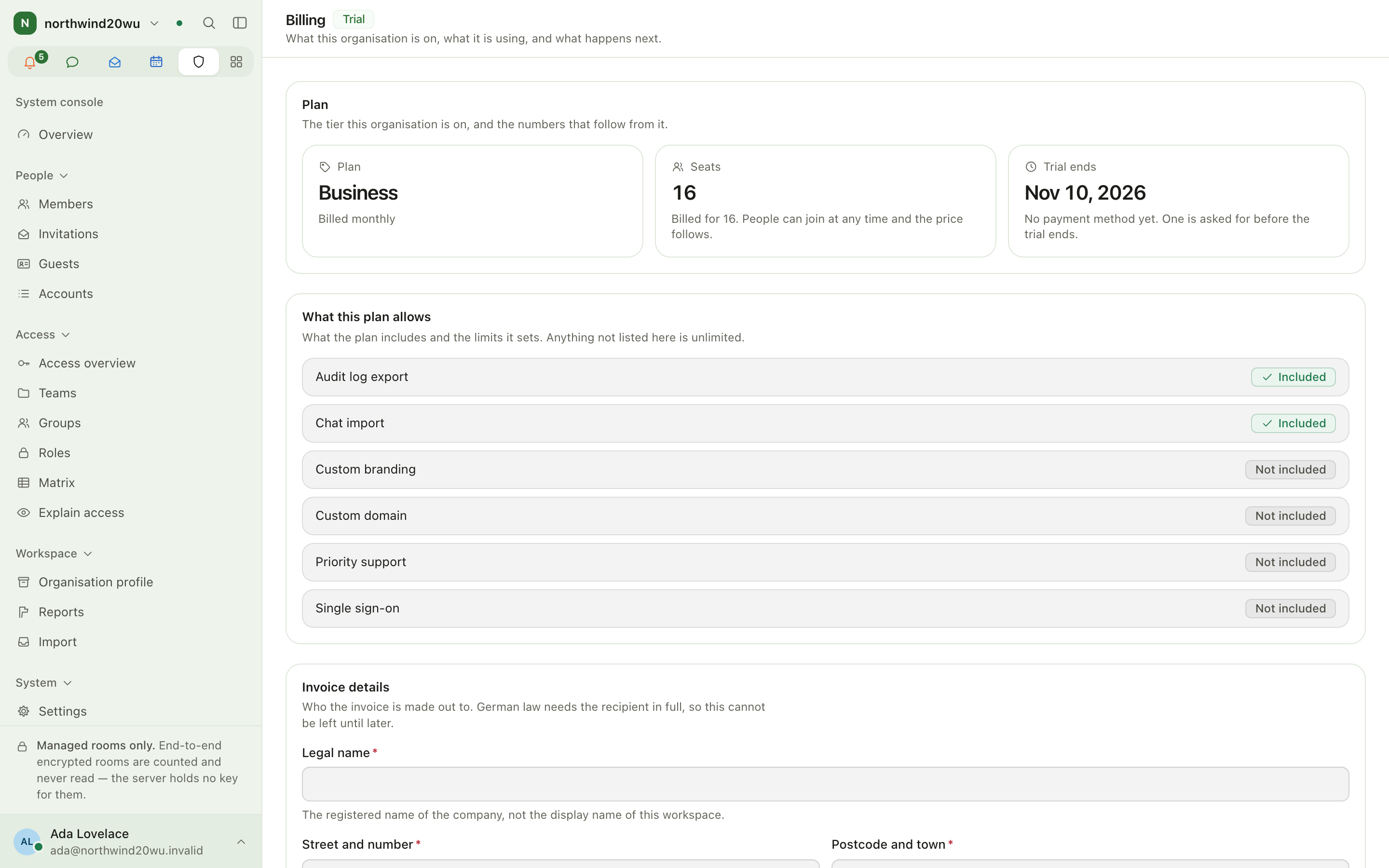
- Plan: the tier this organisation is on, its status and billing interval.
- Seats: how many seats are in use.
- Next charge (or Trial ends during a trial).
- Limits: what the plan includes and the limits it sets. Anything not listed is unlimited.
- If billing needs your attention, for example a failed payment, the page says so at the top.
There are two other states the page can be in:
- No subscription: the organisation is not on a plan, nothing is limited and nothing is charged. An operator puts it on a plan when the time comes.
- Billing is not available here: the installation does not sell plans, or the subscription could not be read. Try again shortly.
Main workflows
Add a payment method
Add a payment method appears only inside the notice at the top of the page, and only when there is something to pay and no payment method on file yet: on a paid plan without one, in the last seven days of a trial, after a trial has ended, after a failed payment and once the workspace is read-only. Earlier in a trial, and on a plan that is charged nothing, the page does not offer it.
- Choose Add a payment method.
- You are taken to the payment provider's own pages. Enter the card or account there. This application never sees your card details.
- When you come back, the page shows the amount as the server quoted it. That amount depends on the seats in use, any committed minimum, any running discount and your tax position.
Keep the invoice recipient up to date
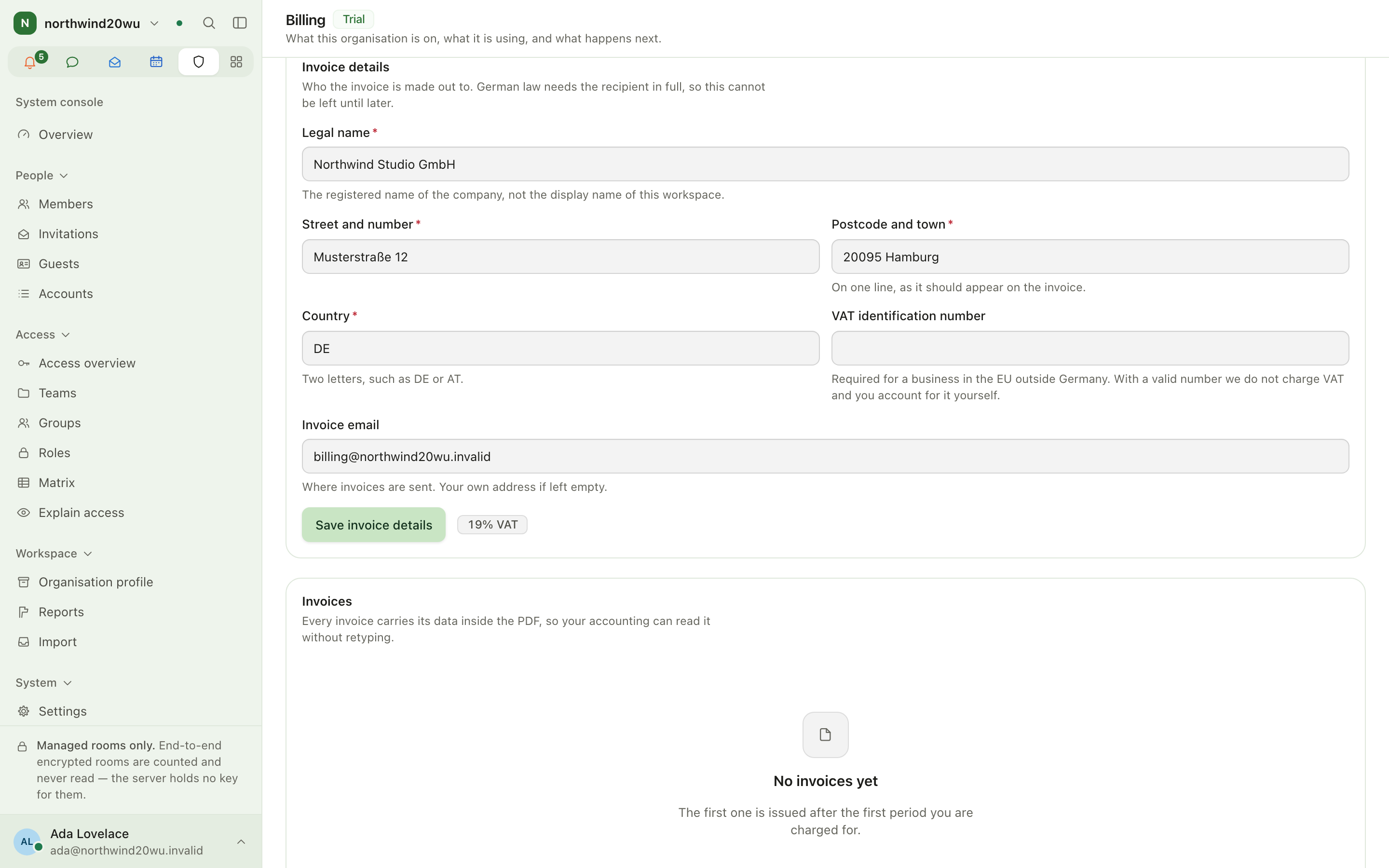
Under Details, enter who the invoice is made out to. German law requires the recipient in full, so fill this in before the first invoice.
Download invoices
Invoices lists every invoice with its total. Every PDF carries its data inside the file, so your accounting software can read it without anybody retyping it.
Cancel, and withdraw a cancellation
Cancel the subscription appears only on a paid plan that is running and has a payment method on file. During a trial, after a failed payment and on a plan that is charged nothing there is nothing to cancel, so the section is not shown.
- Under Cancel the subscription, choose Cancel subscription and confirm.
- The subscription runs until the end of the period you have already paid for and is not renewed. Nothing is charged after that, and nothing changes until then.
- After that date the workspace becomes read-only.
- If you change your mind before the date, choose Withdraw cancellation in the same place.
Roles and permissions needed
| Task | Who |
|---|---|
| Everything on this page | The owner (org.manage_billing) |
| Create plans and prices, put an organisation on a plan | An operator, in the control plane (see platform-operators.md) |
Tips
- To see whether a module is part of your plan, check its card in the marketplace. A module outside the plan shows See plans.
- To move billing to another person, the owner hands the organisation over under Members → ⋯ → Hand the organisation over.
Marketplace
The marketplace is where an organisation turns optional modules on and off, decides who gets each module, configures it and watches its health. Mail, Projects, Contracts, Time, People and the other modules are all installed from here. Partner apps by other publishers are also listed here: they run elsewhere and reach your organisation only through the scopes and events you consent to.
Platform operators (control plane)
The control plane at /platform is where the people who run an Enclessa installation look after every organisation on it: organisations and their state, plans, partner apps, account recovery, final deletion and the operators themselves. It is not the same as an organisation's system console at /admin (see administration.md).