Contracts
Contracts holds what has been agreed with each customer and the document that says so. A contract starts as a draft from a template, is reviewed (and, if your organisation requires it, approved), then issued: the number is allocated, the PDF is rendered and sealed with the organisation's certificate, and nothing can change afterwards except through a new version or an amendment. In the commerce journey it sits between the quotation in Finance and the customer's signature in Signing. Contracts needs Customers: every contract names a customer.
Where to find it
Open Contracts from the sidebar's app row or All apps (shown when Contracts is installed and you hold a role in it). The sidebar has a top list and a foldable Setup group.
| Entry | Route | Shown when |
|---|---|---|
| All contracts | /contracts | always |
| My contracts | /contracts?filter=mine | always |
| Drafts | /contracts?filter=drafts | always |
| Running | /contracts?filter=running | always |
| Notice due soon | /contracts?filter=notice | always |
| Waiting for my approval | /contracts?filter=approvals | only with contract.issue |
| Archive | /contracts?filter=archived | always |
| Signatures ↗ | /sign | only when signatures are switched on; leaves to Signing |
| Setup › Templates | /contracts/templates | only with contract.template.manage |
| Setup › Processing profile | /contracts/dpa | always |
| Setup › Administration | /contracts/admin | only with contract.admin |
A customer's Contracts tab (/customers/<id>?tab=contracts) lists the contracts for that
customer and offers New contract.
Main workflows
Create a contract
- Press New contract on the index or on a customer's Contracts tab (needs
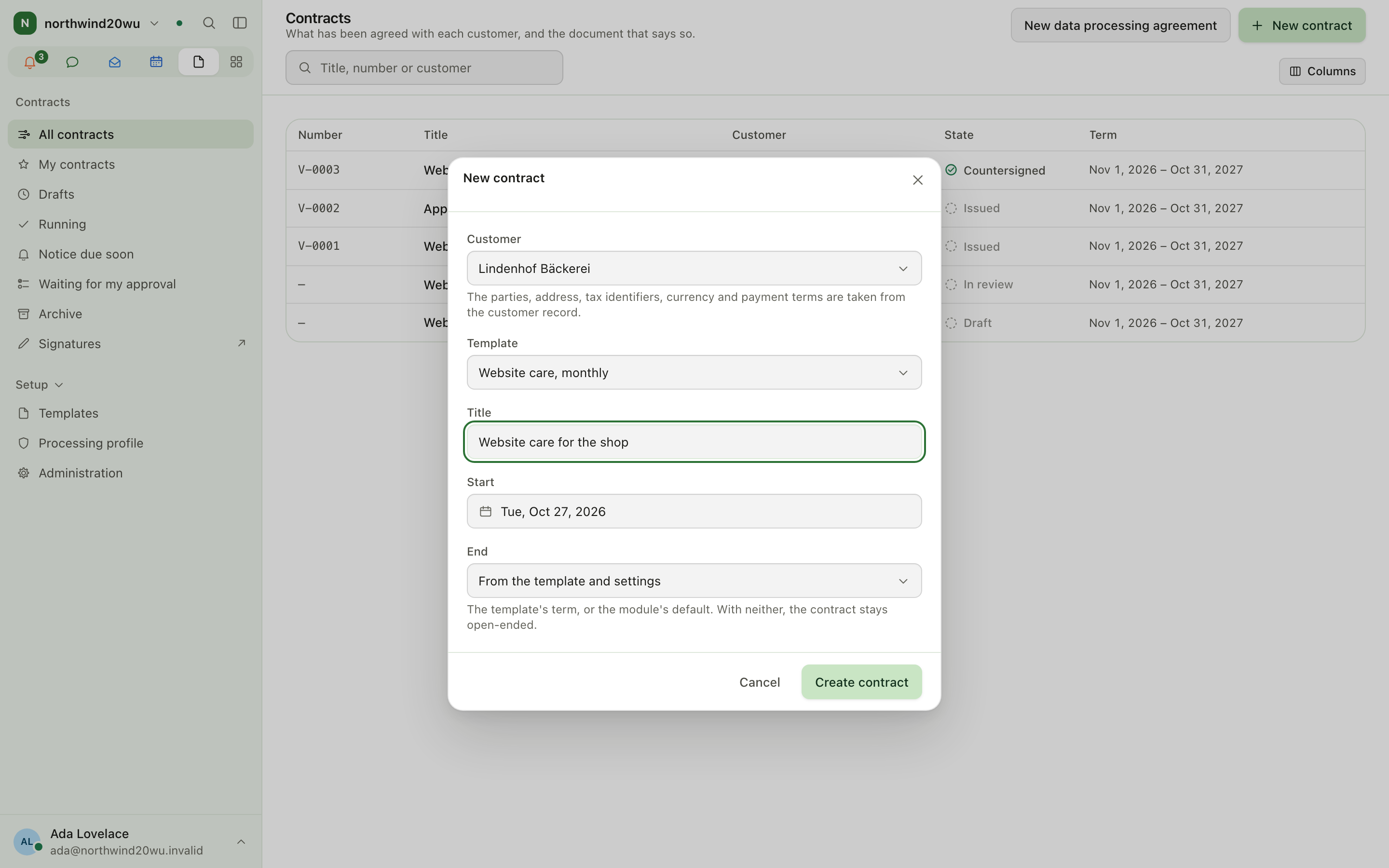
contract.create). - Choose the Customer, a Template (or "No template (empty document)"), a Title and the Start.
- Choose how it Ends: "From the template and settings", "A fixed date" or "No fixed end".
- Press Create contract. Parties, address, tax identifiers, currency and payment terms come from the customer record.
Edit a draft
- Open the draft. The breadcrumb leads back to Contracts and the customer. Changes save themselves once you stop typing; Save writes them at once.
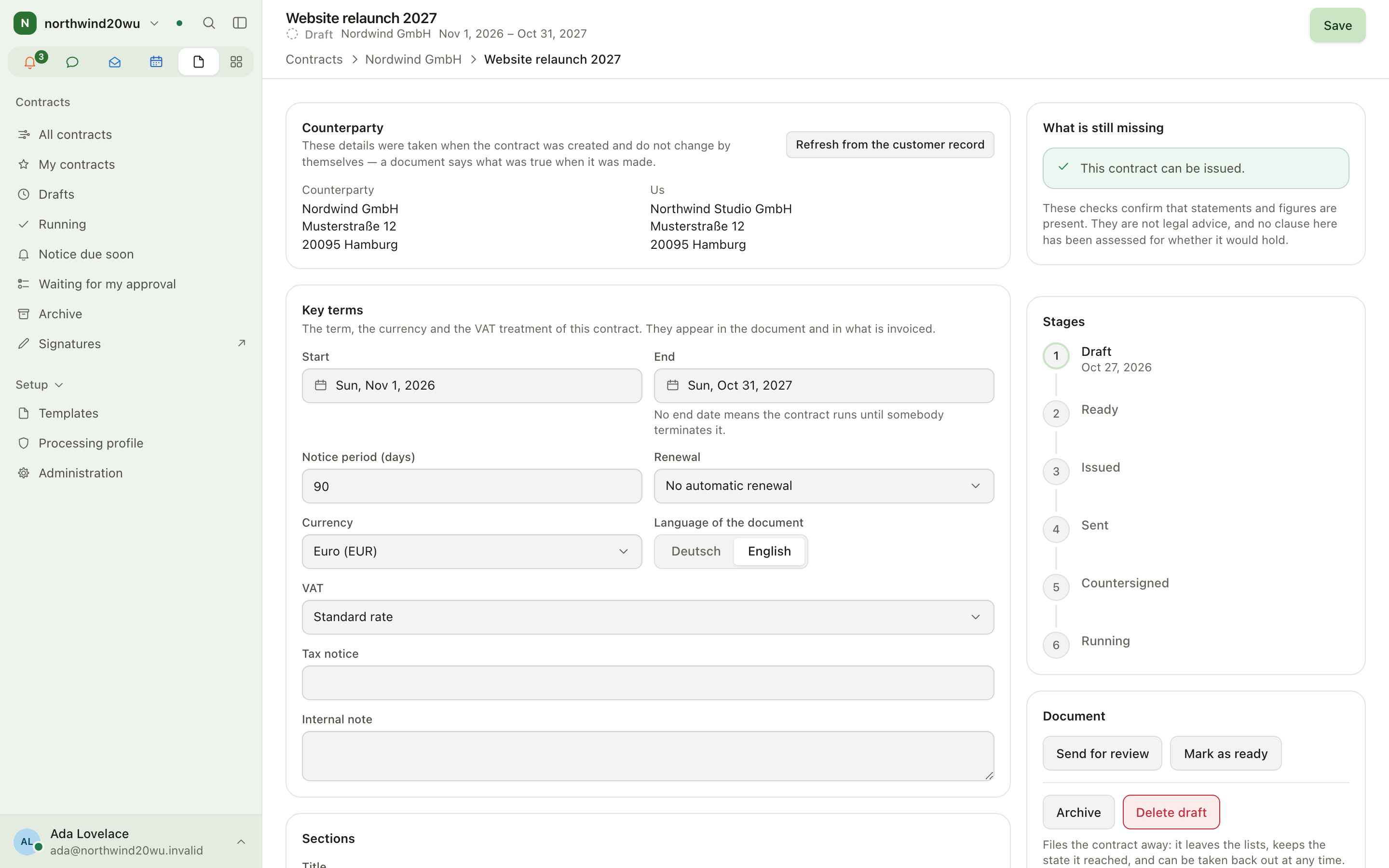
- Counterparty shows the customer's and your details as taken at creation; use Refresh from the customer record if the customer's details changed.
- Set the Key terms: Start, End, Notice period (days), Renewal, Currency, Language of the document, VAT, Tax notice and an Internal note.
- Write the document under Sections: its Title, then Add a section for each part. Below follow Positions (the fees), Project, Documents and History.
- On the right, read What is still missing: "Must be fixed" items block issuing, "Worth checking" items do not. Stages shows where the contract stands.
- The Document card holds the next steps, and Take back to the template if the template has a newer version. At the foot, Preview is the real PDF with a draft stamp; Render again after changes.
Review and issue
- On a draft press Send for review, then Mark as ready (needs
contract.manage). Back to draft reopens it. - A person with
contract.issueuses Slide to issue and sign. This allocates the number, freezes the contract, renders the PDF and signs it. - With approval switched on the steps differ:
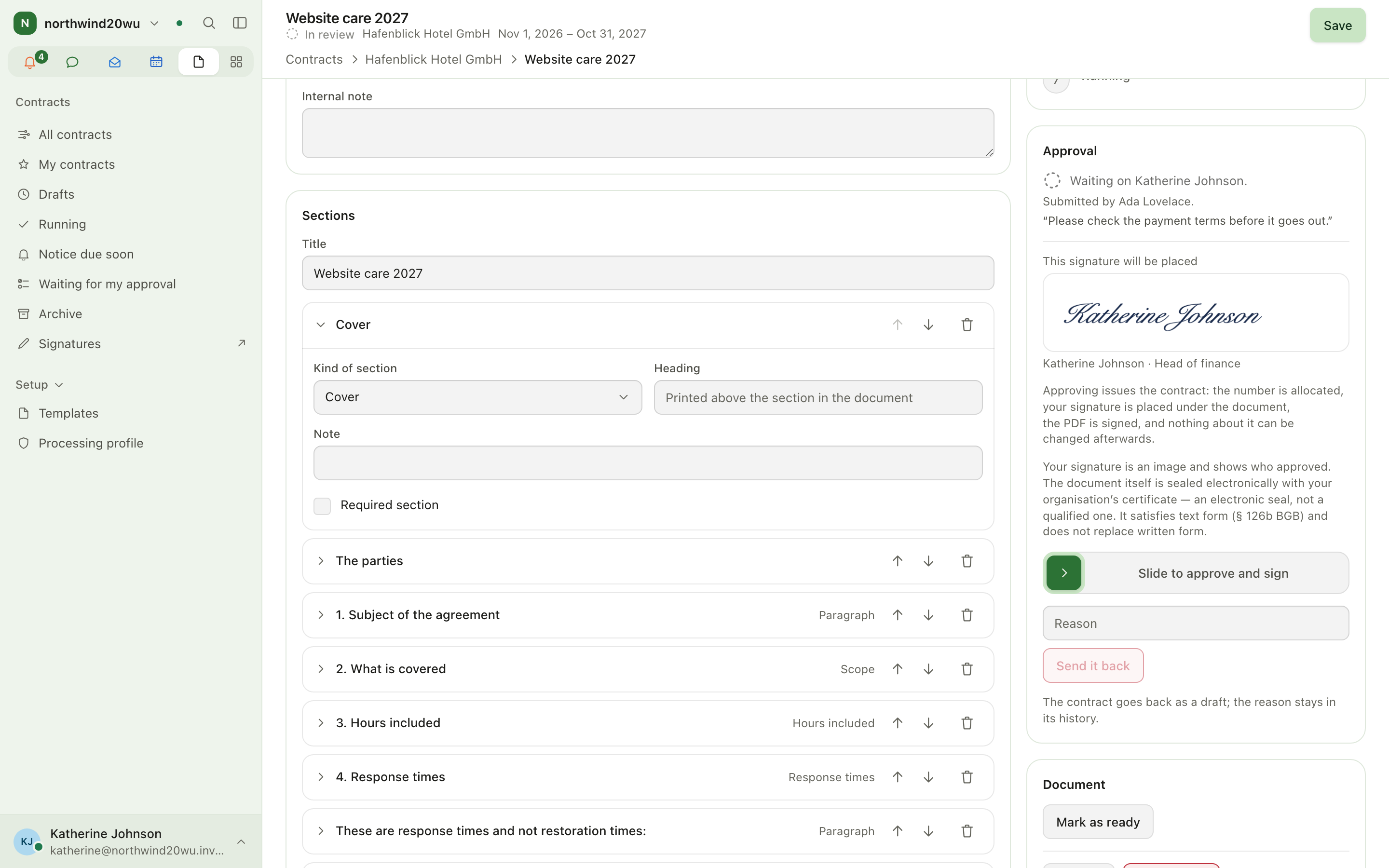
- Press Submit for approval, choose Who should approve this?, add a Note.
- The approver finds it under Waiting for my approval, then uses Slide to approve and sign or Send it back with a reason.
- The approver needs a recorded signature first (Record a signature opens account settings › Signature).
Get the customer's countersignature
Once a contract is Issued or Sent (all need contract.issue). These steps come first on the
contract's actions card; Start a new version, Draft an amendment and ending it follow below
them:
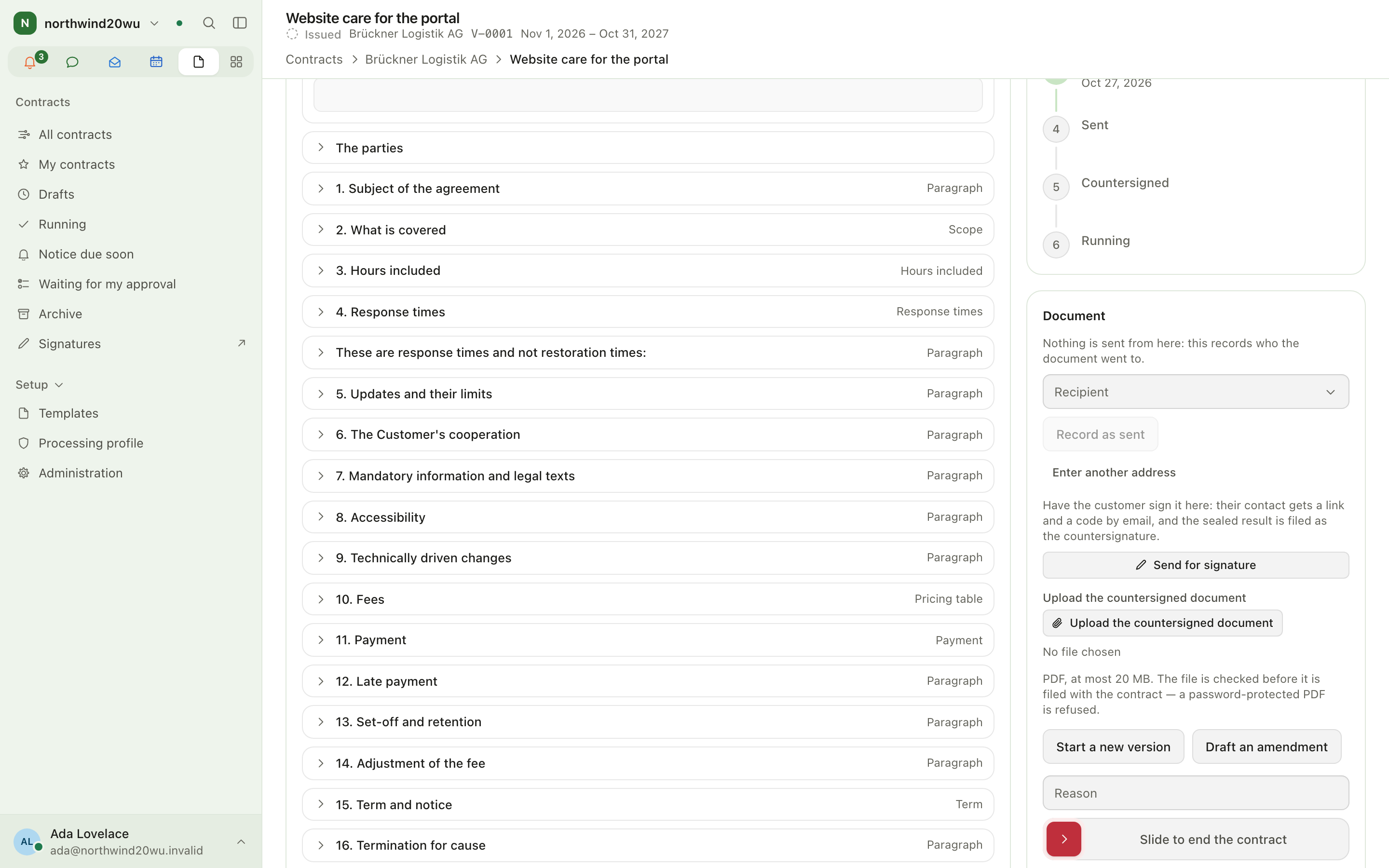
- Choose a Recipient and press Record as sent — this only records who it went to.
- Either press Send for signature to have the customer sign online (also needs
contract.createand signatures switched on). The contact receives a link and a code by email; the sealed result is filed as the countersignature. See Signing. - Or upload a signed scan with Upload the countersigned document (PDF only).
- The Documents card lists the issued and countersigned PDFs; Replace the scan keeps the old one as "Replaced".
Contracts can also be published to and signed in the Customer Center, unless the template requires written form.
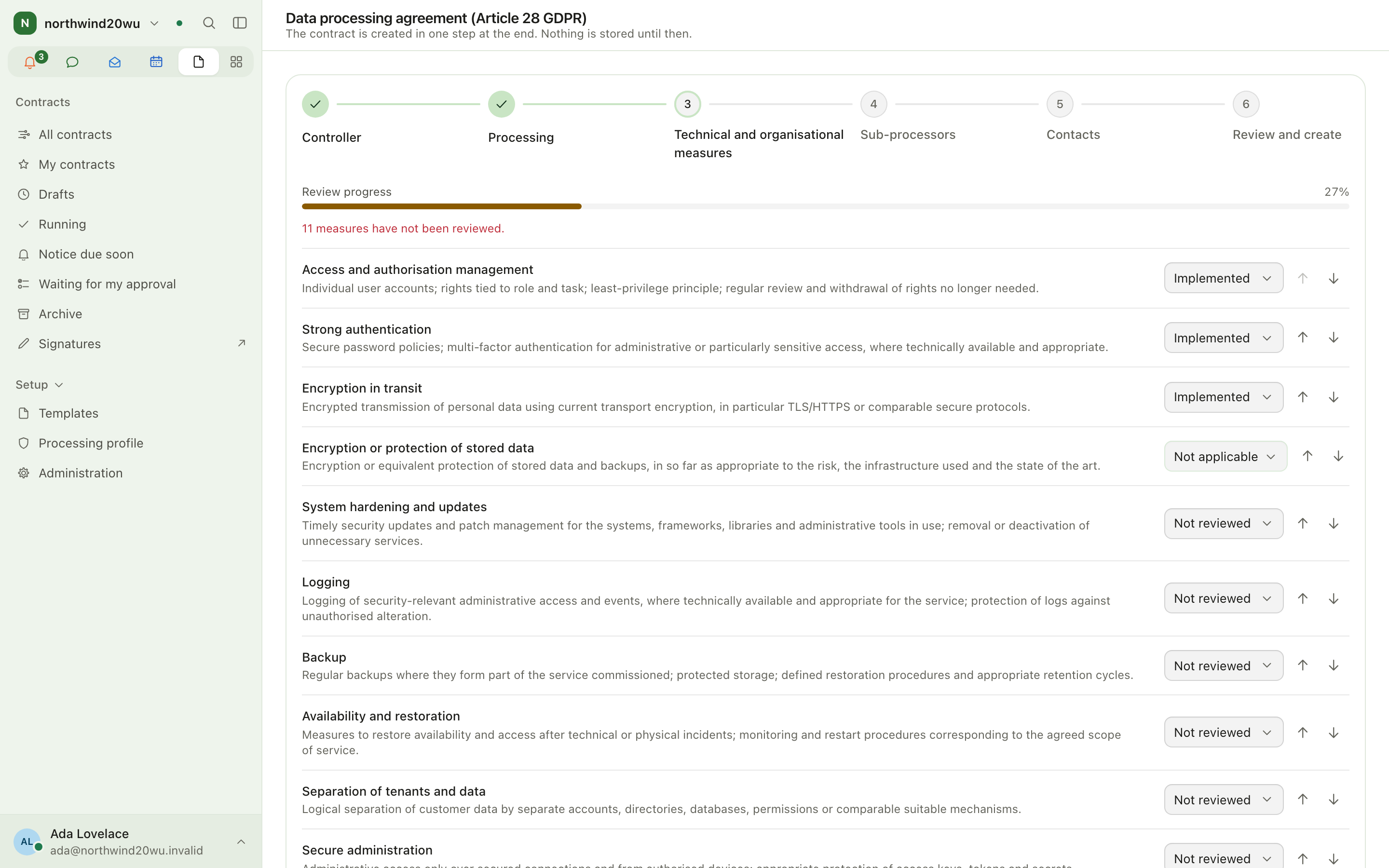
Draft a data processing agreement (AVV/DPA)
- Press New data processing agreement on the index, or Draft one for this customer on a
Finance engagement (opens
/contracts/new/avvwith the customer fixed). Needscontract.create. - Step through Controller, Processor, Processing, Technical and organisational measures, Sub-processors, Contacts and Review and create.
- Every measure must be marked implemented or not applicable before you can continue.
- Press Create the contract, then Open the draft that was created and issue it as usual.
Change, end or file away a contract
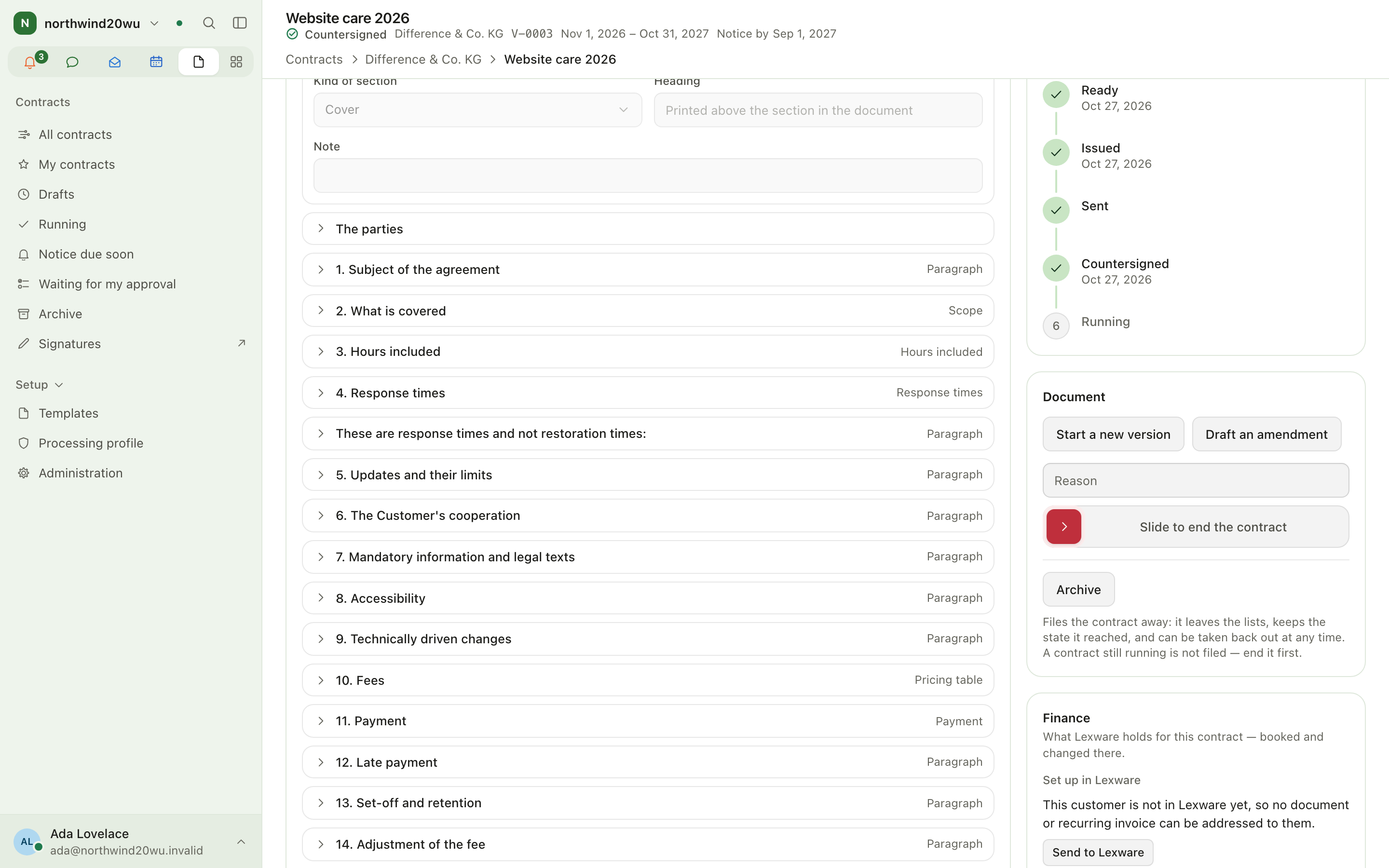
- Start a new version copies number and content into a new draft; the current one becomes Superseded.
- Draft an amendment creates a separate document naming this contract.
- Slide to end the contract with a Reason terminates it (needs
contract.issue). - Archive files a contract that is not running; Take out of the archive restores it.
Delete draft removes a draft for good (
contract.manage).
Maintain templates
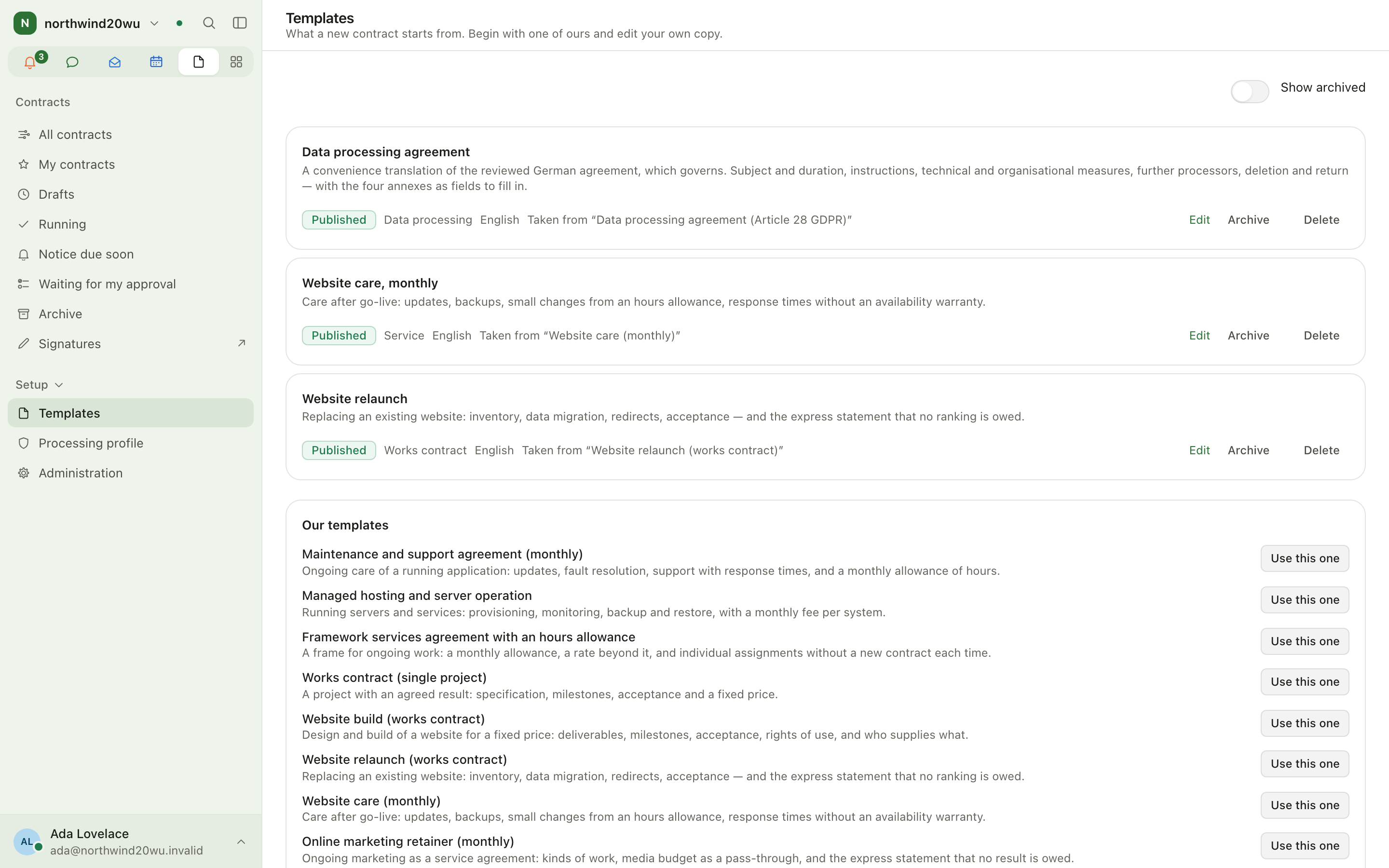
- Open Setup › Templates (needs
contract.template.manage). - Under Our templates press Use this one to take your own copy, or start an Empty template.
- Set Form required by law. With written form the contract cannot be signed electronically.
- Archive or Delete templates you no longer use.
Roles and permissions
Permissions apply to every contract in the organisation.
| Permission | Unlocks |
|---|---|
contract.read | Seeing contracts |
contract.create | New contract, the DPA wizard, new versions and amendments, starting envelopes |
contract.manage | Editing drafts, review steps, submitting for approval, archive, delete draft |
contract.template.manage | Templates and editing the Processing profile |
contract.issue | Issuing, approving, Record as sent, countersigning, ending, the approval queue |
contract.sign.manage | The signing certificate |
contract.financial.read | Seeing the figures (fees, monthly amount) |
contract.admin | Administration; seeing and voiding every envelope |
| Role | Holds |
|---|---|
| Viewer | read — sees that a contract exists, not what it costs |
| Member | read, create, manage, financial.read |
| Manager | member plus template.manage and issue |
| Administrator | everything |
Administration and settings
- Setup › Administration (
contract.admin):- Approval before issue — "Contracts have to be approved" and a Default approver.
- Contract numbers — Prefix, Next number, Digits.
- Signing certificate — store a PKCS#12 file; without one no contract can be issued.
- Roles live at
/admin/access/roles(Open roles).
- Setup › Processing profile — your data-protection contact, place of processing and sub-processors, copied into every new DPA.
- Module settings: default term, notice period, VAT rate, currency, language, the notice warning, whether drafts may be downloaded, whether documents may be sent for signature, and the timestamp service.
- Your organisation's legal name, address and VAT identifier come from Settings → Legal.
Tips
- Keep Notice due soon in view; it is the list of contracts whose notice date is close.
- ⌘K jumps straight to the lists you use most: type
draftsfor Contract drafts,noticefor Contracts with notice due soon,approvalfor Contracts waiting for my approval (offered to whoever may issue) andsignaturesfor the envelope list. - Searched or filtered to nothing, the list offers Clear filters, which also returns you to All contracts.
- Readiness checks confirm that statements and figures are present; they are not legal advice.
- Only one envelope per contract can be out at a time.
- The electronic seal satisfies text form, not written form.
Related
Customers
Customers is the organisation's shared record of the companies and people it works with: who runs each relationship, who to talk to there, what has been said, and what is owed back. It is also the starting point of the commerce journey — from a customer you draft a quotation in Finance, create a contract, send it for signature and, finally, invoice. Every other module that names a customer (Projects, Contracts, Finance, Bookings, the Customer Center) shows up as a tab on that customer's page.
Signing
Signing sends PDFs for electronic signature in an envelope: you add documents, name who should sign, place the fields each person fills in, and send. Colleagues sign inside the app; customers and anybody else sign through a link sent by email, confirmed with a code. When everybody has signed, the result is sealed and can be downloaded with its evidence. Signing is part of Contracts: in the commerce journey it is the step after a contract is issued, and a completed envelope for a contract is filed as that contract's countersignature. The signatures produced are simple electronic signatures with evidence; they satisfy text form, not written form.