Incidents
Incidents turns alerts from Prometheus Alertmanager or Grafana into incidents, posts them into a team room and pages whoever is on call. If nobody acknowledges in time, the page escalates to the next person. When the alert clears, the incident resolves itself.
Where to find it
Open Incidents from the sidebar's app row or All apps (/incidents). Its sidebar:
| Entry | Route | What it shows |
|---|---|---|
| Incidents | /incidents | Every incident, with filters and response-time medians |
| Rotations and endpoints | /incidents/settings | On-call rotations and alert endpoints |
An incident opens at /incidents/<id>; its breadcrumb leads back to the list. The settings page has
the same breadcrumb. In the search palette (⌘K) the settings page is called Incident rotations
and endpoints.
Roles and permissions
Roles: Responder, Manager, Administrator, granted at System console → Access → Roles. Responders see, acknowledge and resolve incidents. Creating and changing rotations and endpoints needs the permission to manage incidents; everybody else sees the settings page read-only, and the page says so.
Main workflows
Respond to a page
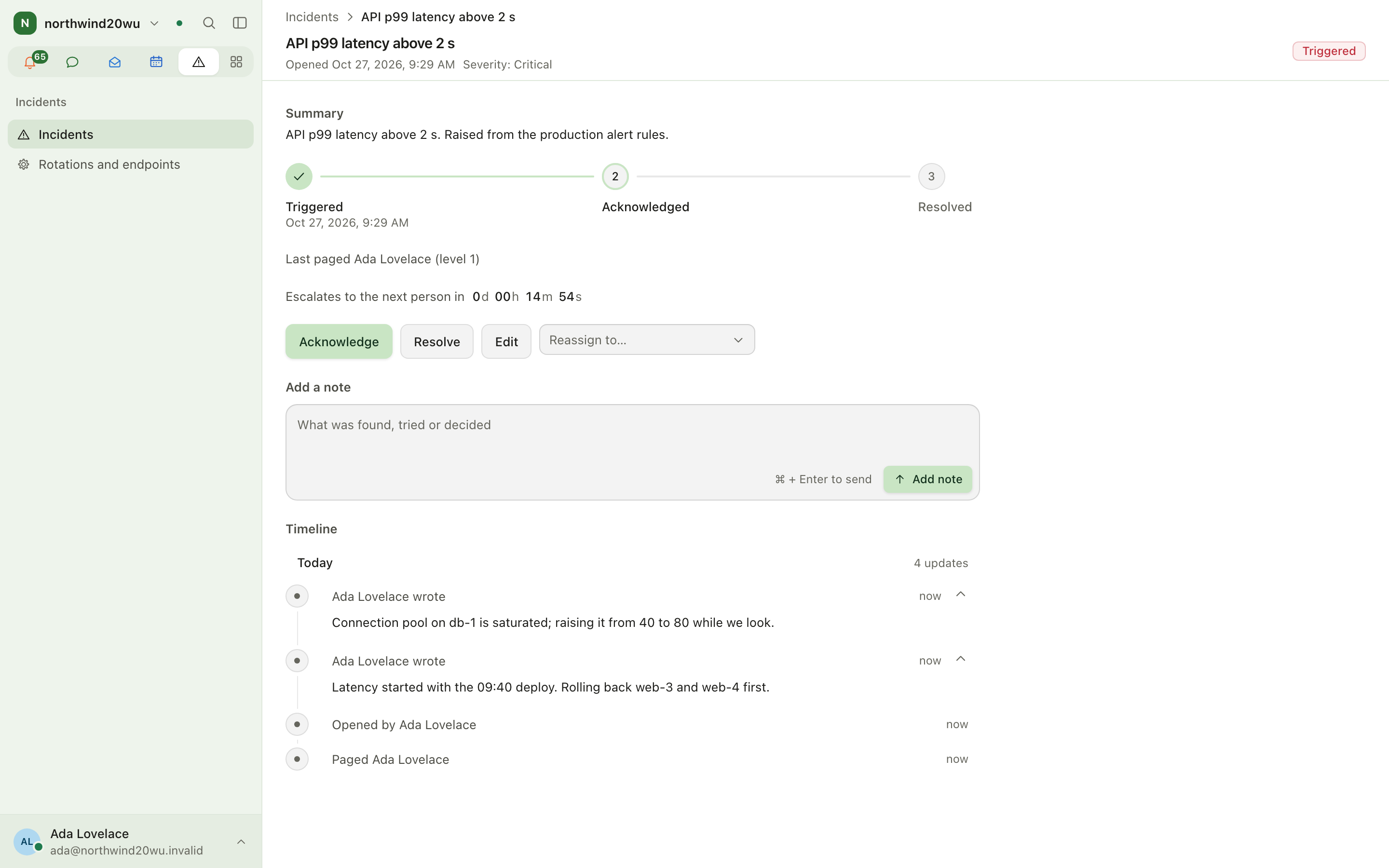
- The page arrives as a time-sensitive notification and as a post in the endpoint's room.
- Open the incident and press Acknowledge — this stops the escalation.
- Add a note with what was found, tried or decided.
- Press Resolve when it is fixed (or let it resolve when the alert clears).
- Reassign to… hands it to a colleague.
- When the endpoint has a Follow-up board, resolving the incident leaves an item on that board; the incident then shows it under Follow-up.
Find an incident
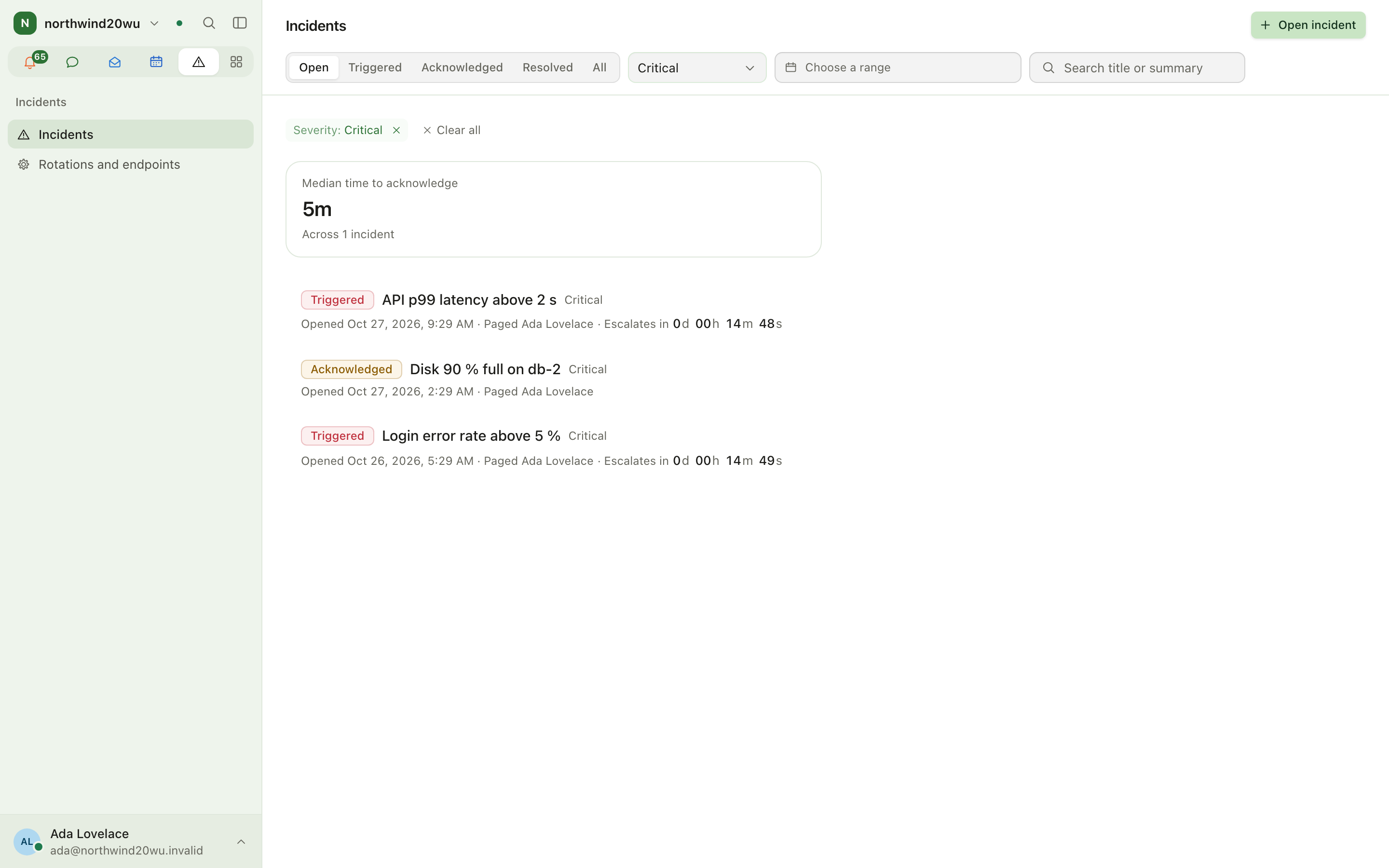
- Open Incidents.
- Which incidents: Open, Triggered, Acknowledged, Resolved or All; pick a Severity; search title or summary; limit Opened between (today, last 7 days, last 30 days).
- The header shows the Median time to acknowledge for what is listed; Median time to resolve joins it once the list holds resolved incidents (Resolved or All). Neither appears while more incidents are still to load.
- When nothing matches, Clear filters goes back to the open incidents. For whoever may manage incidents, a list with no incidents at all links to Rotations and endpoints, where alerts are wired up.
Open an incident by hand
For something no alert caught: Open incident on the list, choose the endpoint (it decides the room and the rotation), give it a title and Open and page.
Set up on-call
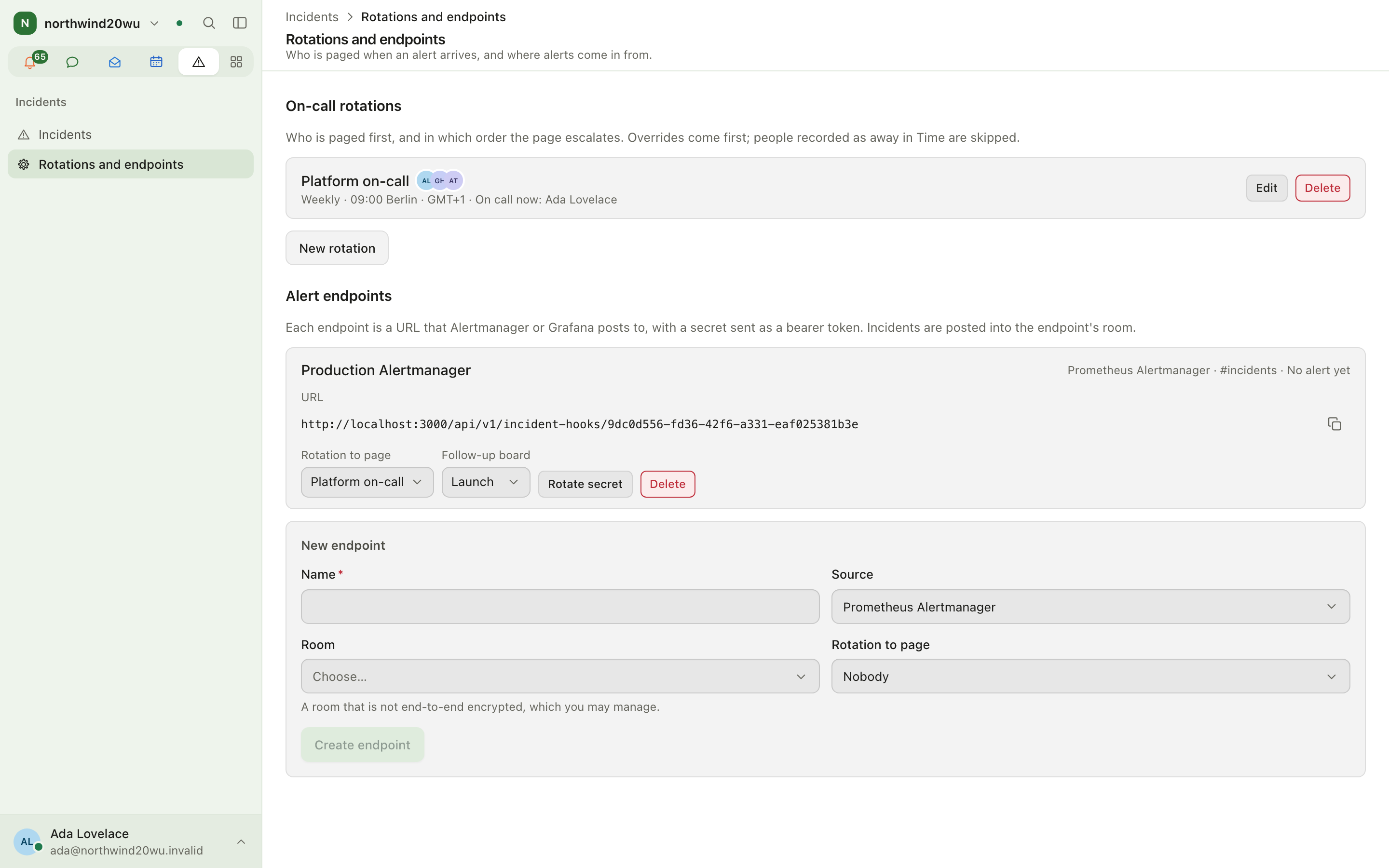
- Open Rotations and endpoints.
- New rotation: name, daily or weekly handover, first day, handover time and time zone, how many minutes to wait before escalating, and the people in order.
- When somebody swaps a shift, press Edit on the rotation and, under Overrides, pick the Person, From and Until, then Add override. The overrides are listed there, not on the rotation itself. People with an approved absence in Time are skipped automatically.
Connect an alert source
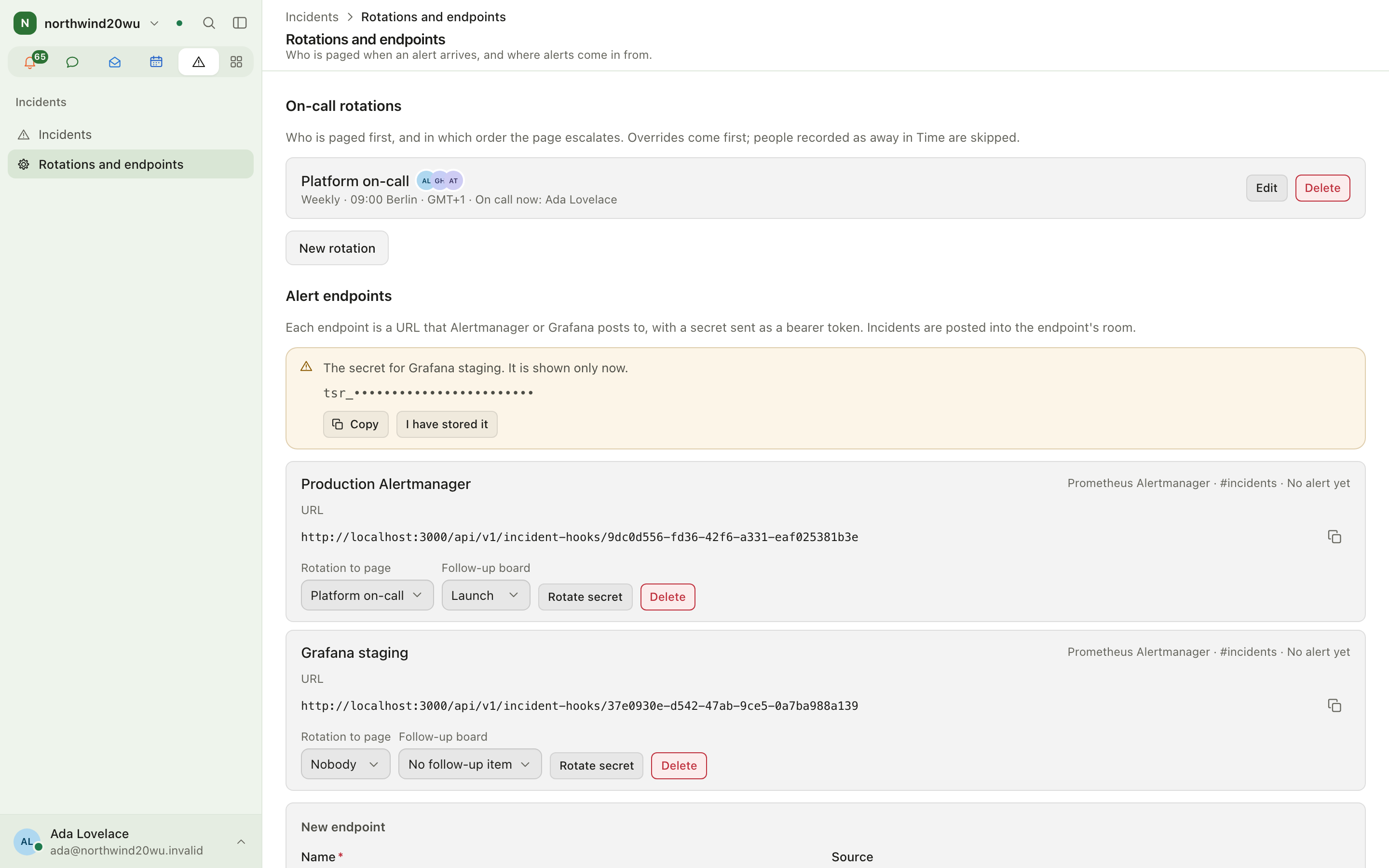
- New endpoint: name, source (Prometheus Alertmanager or Grafana), the room to post in (not end-to-end encrypted) and the rotation to page, then Create endpoint. Its Follow-up board, set on the endpoint in the list, is optional.
- Copy the URL and the secret — the secret is shown only once — into the alert source. The
operator runbook
docs/runbooks/wiring-alertmanager-and-grafana-to-incidents.mdhas the exact configuration. - Rotate secret replaces it; the old one stops working at once.
Settings and admin
- Rotations and endpoints (
/incidents/settings). - Installing the module: System console → Marketplace → Incidents.
- Roles: System console → Access → Roles.
Tips
- Keep the escalation delay short for production alerts and longer for business-hours services.
- Deleting an endpoint deletes its incidents; prefer rotating its secret if it leaked.
Studio
Studio plans social content and the shoots that produce it. A post (picture, carousel, video, reel, story or text) for Instagram, Facebook, LinkedIn, YouTube or TikTok moves from idea through planned, in production, in review, approved and scheduled to published. Shoots plan the day, the shots, the people, the kit and the call sheet. Campaigns group posts and shoots over a date range.
Customers
Customers is the organisation's shared record of the companies and people it works with: who runs each relationship, who to talk to there, what has been said, and what is owed back. It is also the starting point of the commerce journey — from a customer you draft a quotation in Finance, create a contract, send it for signature and, finally, invoice. Every other module that names a customer (Projects, Contracts, Finance, Bookings, the Customer Center) shows up as a tab on that customer's page.