Cards
Cards gives every person on the payroll a digital business card. A card is never typed in: every line is read from the person's People record and their profile each time it is opened, so it is always current. Cards can be shared by link or QR code, added to Apple Wallet or Google Wallet, and printed.
Cards needs People installed. Without People, the Cards entry is not shown.
Where to find it
- Your own card: Your account (bottom of the sidebar) → Your card, or press ⌘K and
type
card. Every employee with a card finds it there, not in the Cards module. - The Cards module: Cards in your pinned apps or under All apps. Its sidebar has:
- Directory (
/cards/directory) — the cards you may see, for managers and HR. - Administration (
/cards/admin) — issuing cards, the field policy, themes and templates.
- Directory (
An employee without either standing sees a page with Open your card, which opens their own card in Your account.
Workflows
Look at your own card, share it, add it to a wallet
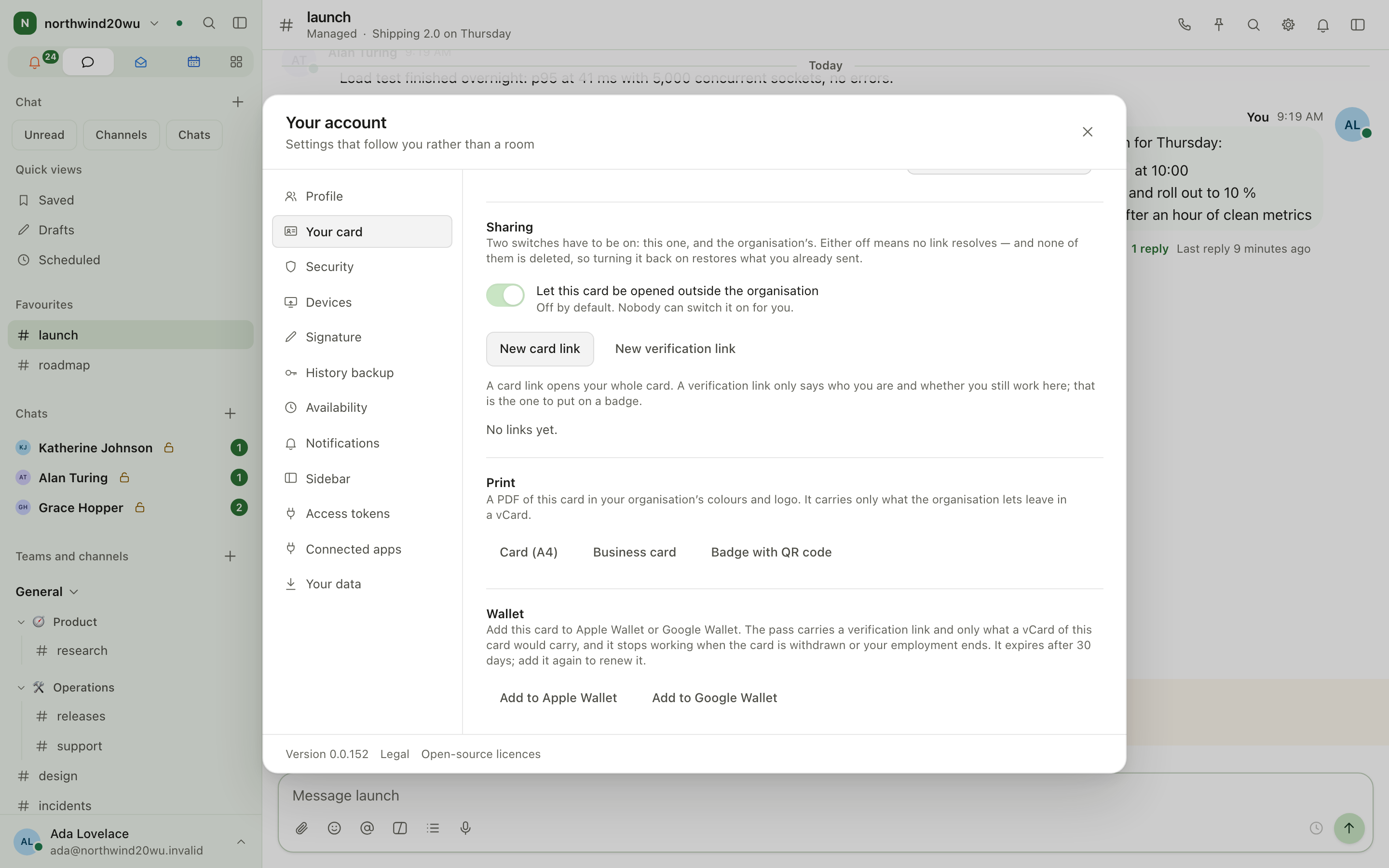
- Open Your account → Your card.
- What this card says lists where each line comes from. Your headline, pronouns, published phone number, website and links come from Your account → Profile; change them there. Your name, position and the rest of your employment record change in People, not here.
- Share it by link or QR code, add it to Apple Wallet or Google Wallet (the pass expires after 30 days; add it again to renew it), or print it as a card, business card or badge PDF.
Find somebody's card
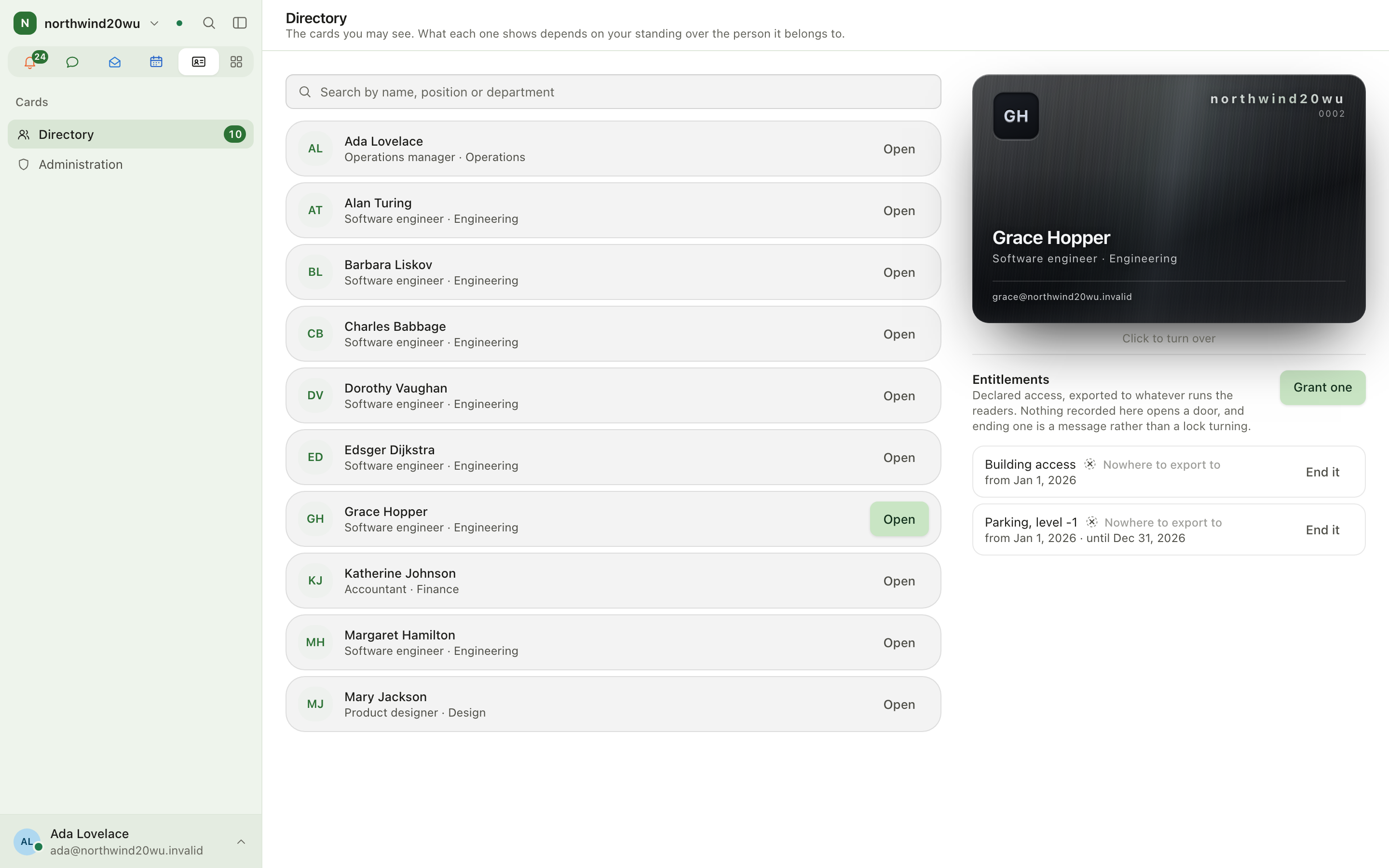
- Open Cards → Directory.
- Search by name. Select Open on a row to see the card and the person's entitlements beside it.
Who appears is decided by People: a manager sees their reports, HR sees everybody.
Issue, withdraw or bring back a card
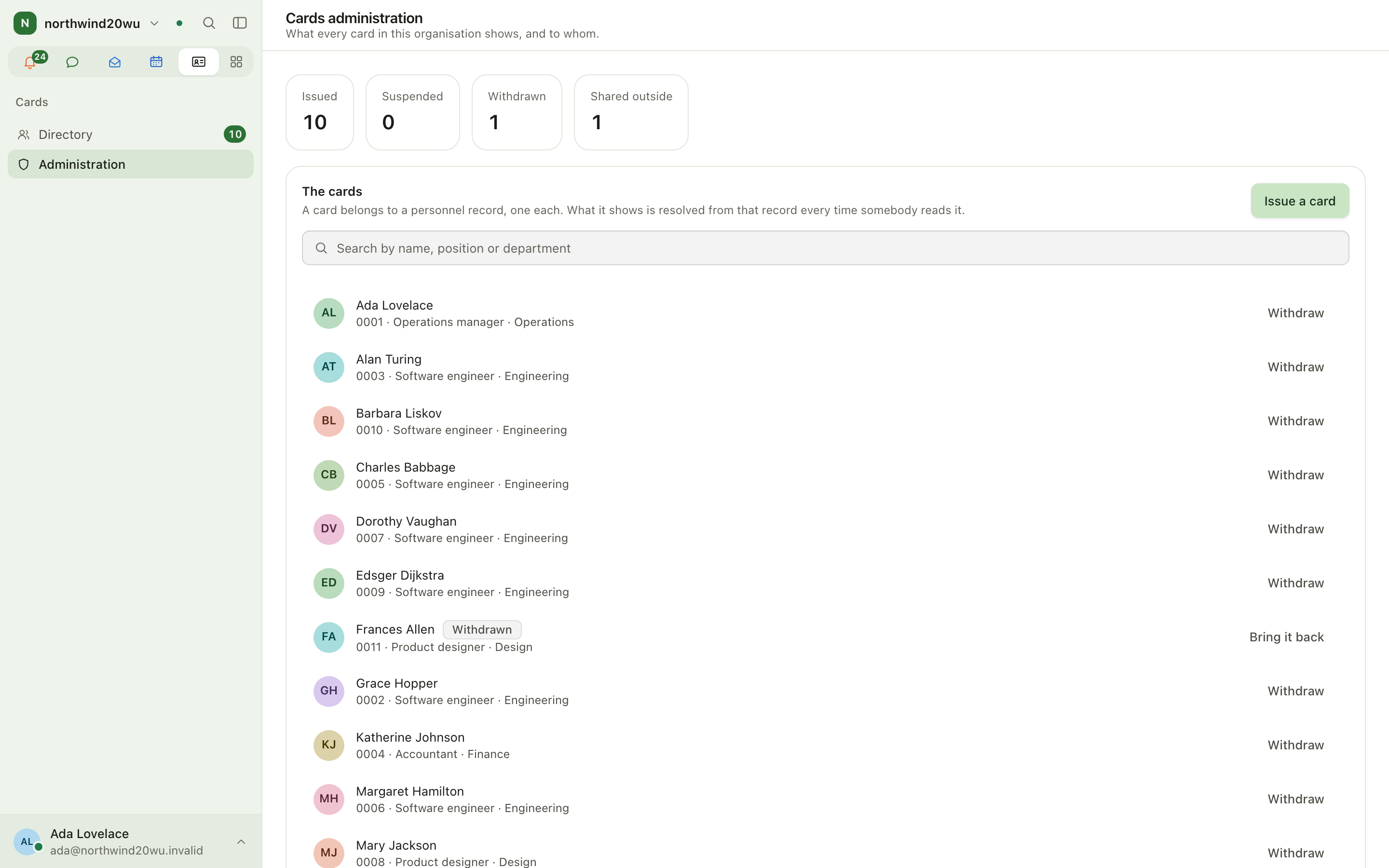
- Open Cards → Administration.
- Under The cards, select Issue a card and choose the person. A record still in draft cannot hold a card.
- Once the list is longer than ten, search it by name, position or department.
- Use Withdraw to stop a card working, and Bring it back to restore it. A card also stops working when the person's employment ends.
Set what cards show
Under The field policy, each field has a band that decides who sees it besides the person themselves. Themes and Templates set the card's look and layout for the organisation.
Roles and permissions
| Task | Permission |
|---|---|
| See the directory | The People directory standing (manager or HR) |
| Issue and withdraw cards | cards.issue (People roles grant it to HR manager and above) |
| Field policy, themes, templates | cards.policy.manage (HR administrator and owner) |
Permissions are granted in System console → Access → Roles. The module is installed and switched on in System console → Marketplace → Cards, which links to Cards → Administration.
Tips
- If a line on a card is wrong, fix it at the source: the People record (position, department) or your profile (headline, links). The card follows on its next opening.
- The headcount of cards issued, suspended, withdrawn and shared outside is at the top of Administration.
People
People is the HR module: personnel records, the organisation structure, HR documents, change requests, onboarding and offboarding, and HR reports. It owns who somebody is and how they are employed. Absences, vacation, sickness and time balances belong to Time; People shows what Time knows on each record but does not keep a second copy.
Spaces
Spaces is the knowledge base: a wiki of spaces, each holding a tree of pages and a file library. Pages are written in Markdown, link to each other and to records elsewhere in the product, and can be restricted to named people or teams.