Access and roles
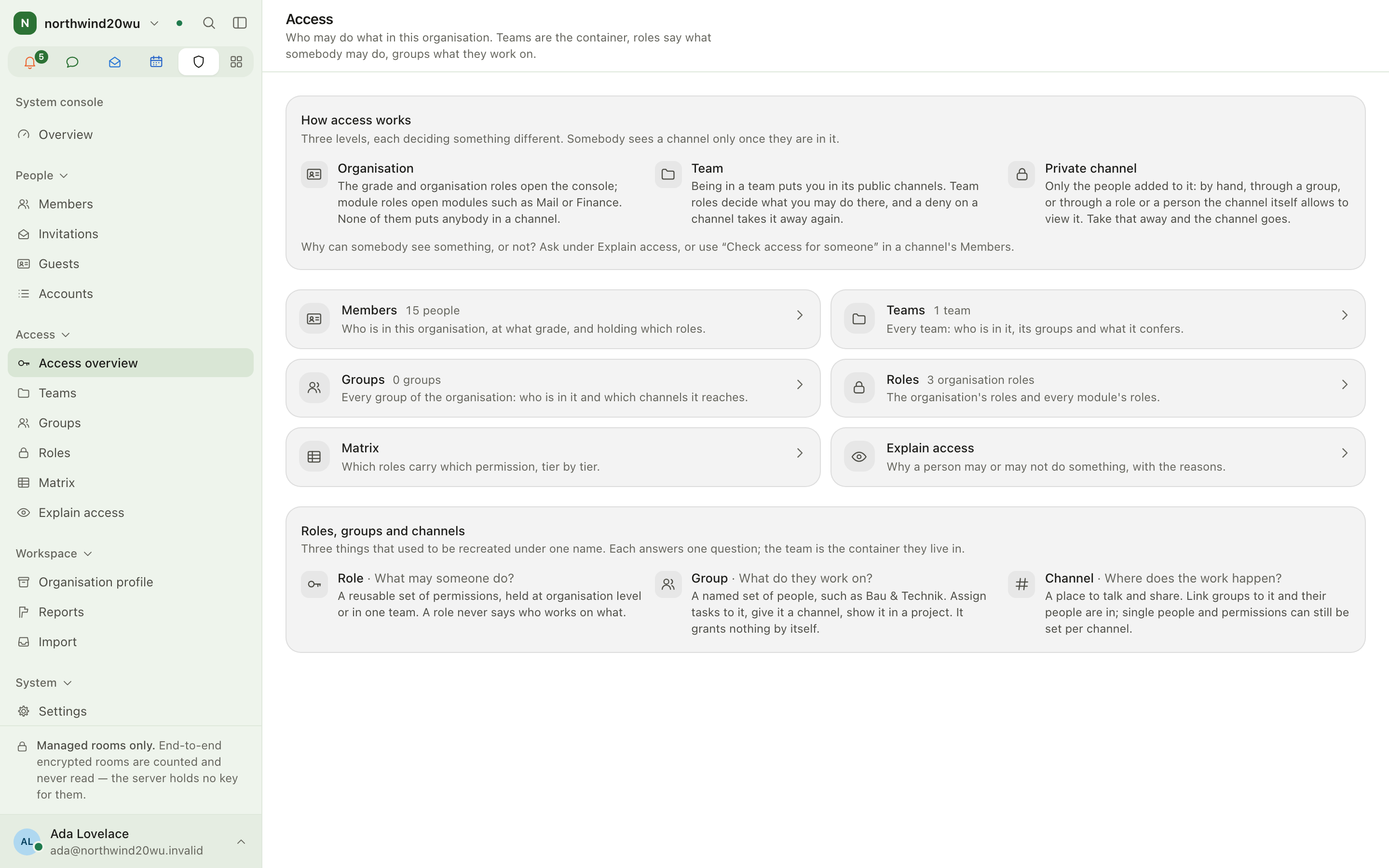
The Access area of the system console is where you decide who may do what: teams, groups and the roles at every level, a matrix of roles against permissions, and an explanation of why a person may or may not do something. People themselves are listed once, on Members (see administration.md). A person's own access page opens from there.
Where to find it
- Console sidebar → Access. The group contains Access overview, Teams, Groups, Roles, Matrix
and Explain access. Each is also in the ⌘K palette: type
teams,roles,matrixorexplain. /admin/accessis the area's front page. It has one tile per screen with a count, and a short explanation of how access works.- What one person holds: Members → ⋯ → See what they hold, or Everything they hold on a
member's page (
/admin/access/people/{id}).
How access works
There are three levels, and each one decides something different:
- Organisation. The grade (owner, administrator, member) and the organisation roles open the console. Module roles open modules such as Mail or Finance. None of them puts anybody in a channel.
- Team. Being in a team puts you in its public channels. Team roles decide what you may do there, and a deny on a channel takes that away again.
- Private channel. A private channel has only the people added to it: by hand, through a group, or through a role or a person the channel itself allows. Take that away and the channel is gone for them.
A team is the container, a role says what somebody may do, and a group says what they work on.
Main workflows
Run a team without joining it
- Open Access → Teams (
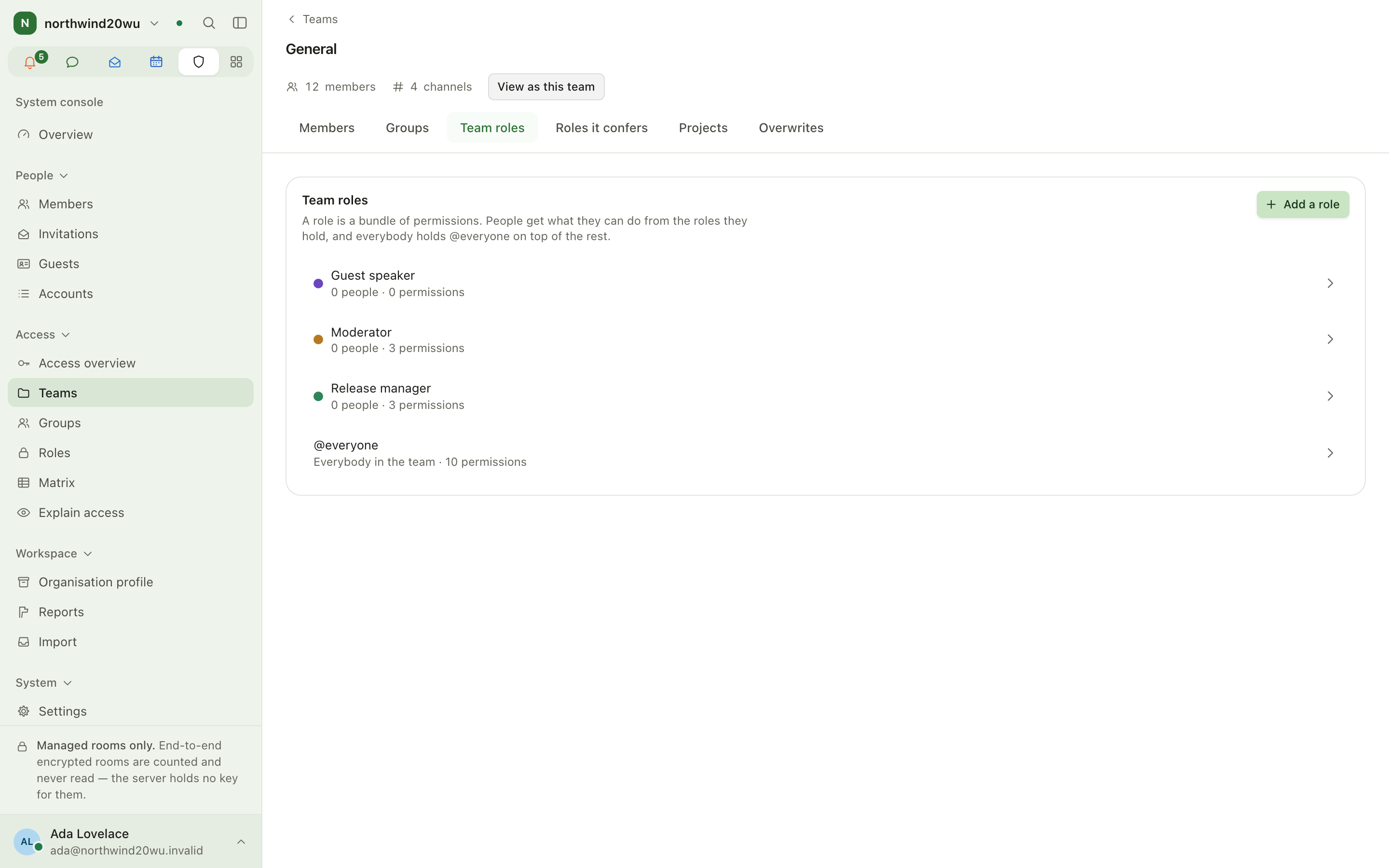
/admin/access/teams). Search by name or slug. - Open a team. Its page has the sections Members, Groups, Team roles,
Roles it confers, Projects and Overwrites. The open section is part of the address
(
?section=), so you can link straight to it. - Add or remove members, create and staff groups, and edit the team's roles. You are never seated in the team yourself, so you do not appear in its roster, rooms or mentions.
- Create a team with New team. A new team starts from the role templates in Settings → Role templates. The Role templates button on the Teams page opens that pane directly.
Manage groups
Access → Groups (/admin/access/groups) lists every team's working groups. A group belongs to
exactly one team, and only that team's members can be in it. Open a group to rename it, delete it
or change who is in it.
Edit roles
Access → Roles (/admin/access/roles) has four tiers. You switch between them at the top:
- Organisation: the organisation's own roles and the console permissions each one carries.
- Teams: every team's roles, for when you need to compare them.
- Modules: every module's roles on one screen. A person holds at most one role per module per scope, so choosing another role replaces the first.
- Schemes: named sets of team roles that teams stay bound to. A change to a scheme is written through to every bound team.
You can link to the open tier and role, for example ?tier=organization&role={id}.
See and change permissions in one grid
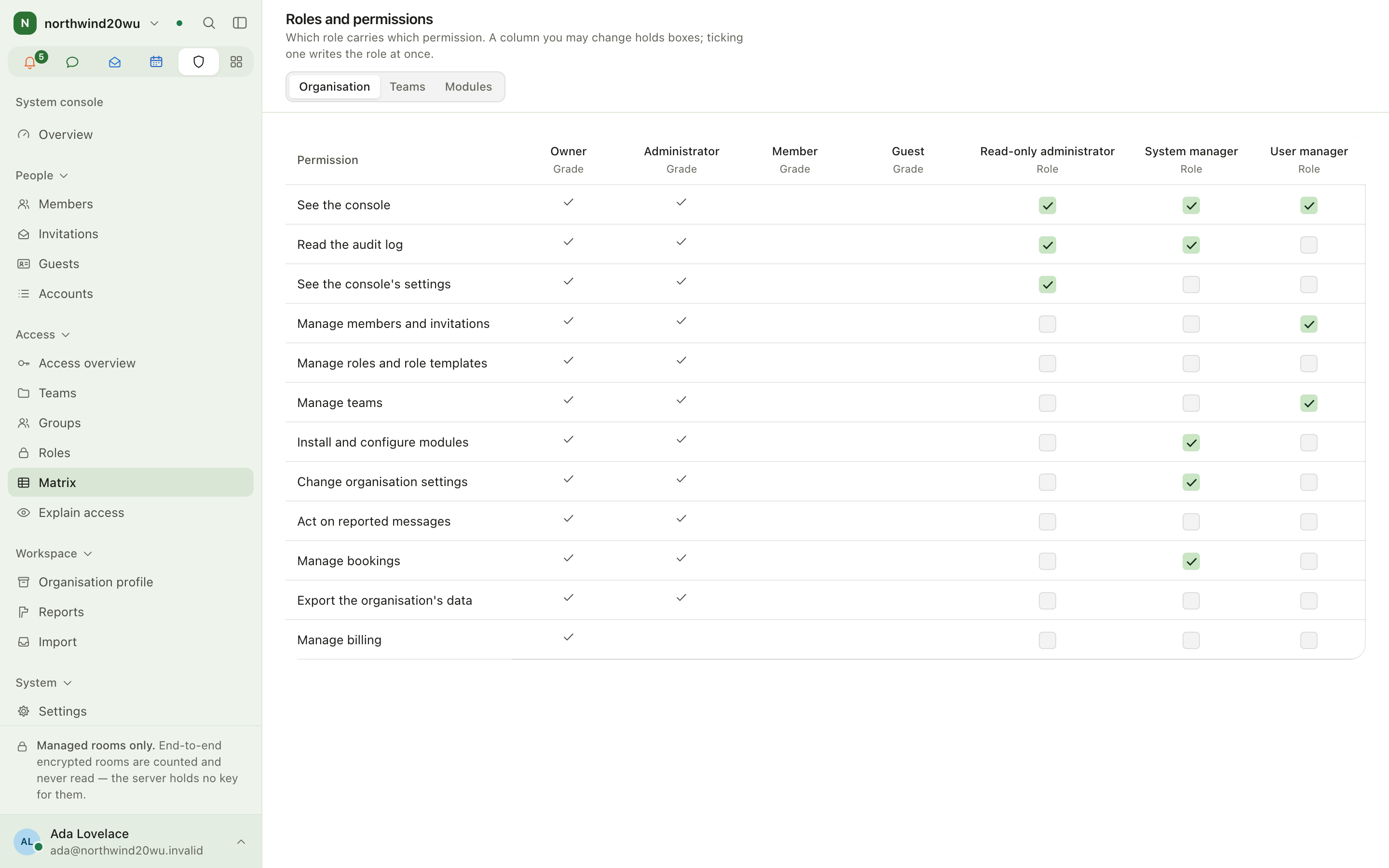
Access → Matrix (/admin/access/matrix) shows which role carries which permission, level by
level. Where you may change a column, it holds tick boxes, and ticking one saves the role at once.
Find out why somebody can or cannot do something
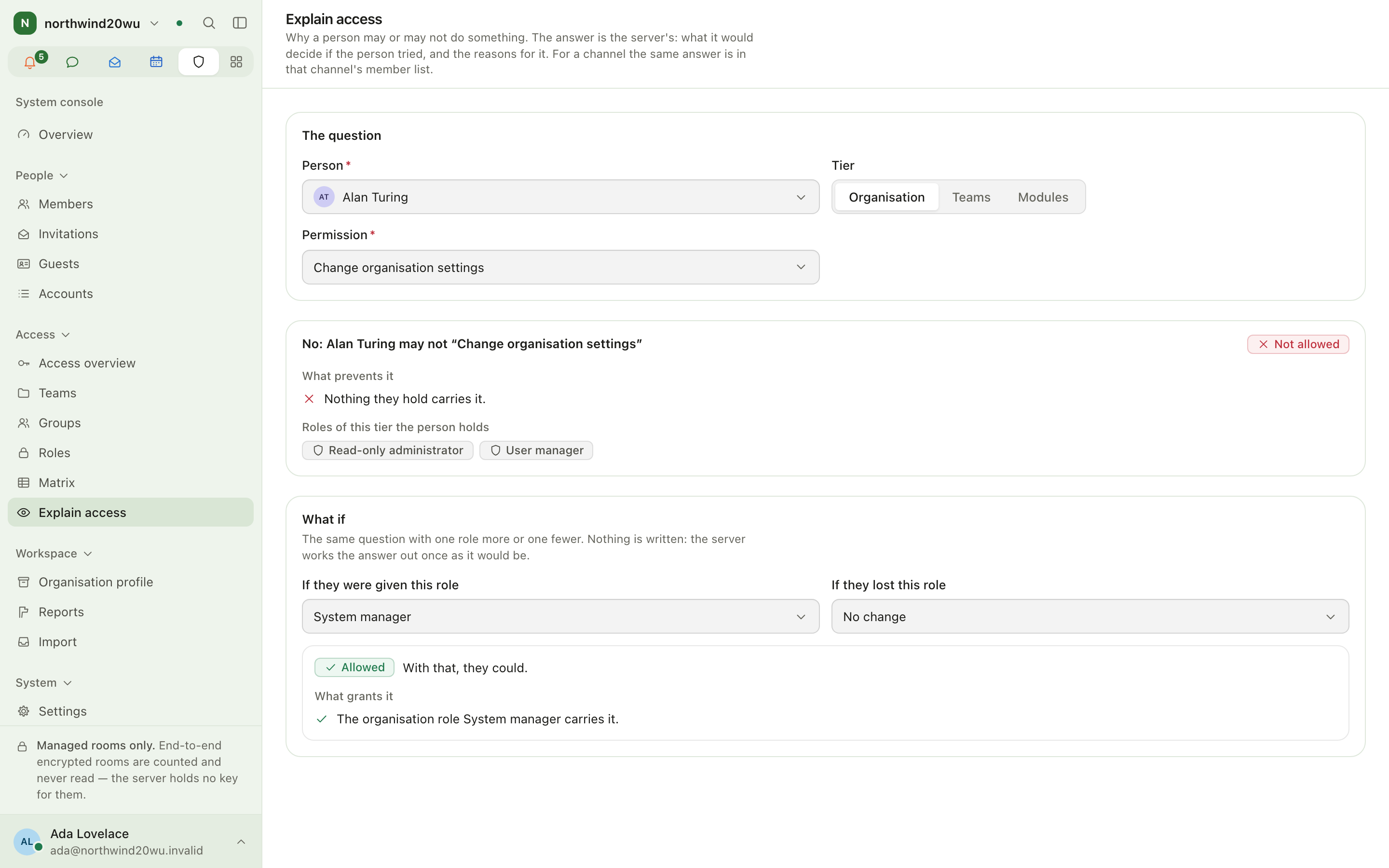
- Open Access → Explain access (
/admin/access/explain). From a person's access page, use Why may they do that? to open it with that person already chosen. - Choose the person and the thing they tried to do. The answer comes from the server: it tells you what the server would decide and why.
- Use the what-if to add or remove one role and see the answer again. Nothing is saved.
For a channel, the same answer is in that channel's member list, under Check access for someone.
See everything one person holds
Open /admin/access/people/{id} from Members. The page lists the person's organisation roles,
each team with its grade, roles and groups, each module role, and their projects. Beside each one,
it says whether it was given to the person directly or reaches them through a team or another
role, with links to that team or role. Open the account goes back to the member page.
Roles and permissions needed
| Task | Permission |
|---|---|
| Open the Access overview, Teams, Roles and Matrix (read) | org.view_console |
| Open a team, create a team, manage groups | org.manage_teams |
| Edit a team's roles from the console | org.manage_teams and org.manage_roles |
| Edit organisation roles | org.manage_roles |
| Edit a module's roles | That module's own administering permission |
| A person's access page, Explain access | org.manage_members |
No permission manages everything in this area. Nobody can write a role that carries a sensitive permission they do not hold themselves.
Tips
- Old links still work:
/admin/roles,/admin/teamsand/admin/teams/{id}redirect here, and/admin/access/peopleredirects to Members. - A team's owner who has no access to the console still runs the team from its own settings in the chat, using the same editors.
Administration (system console)
The system console is where an organisation is run: its people, who may do what, its settings, installed modules, integrations, the audit trail and billing. It belongs to one organisation and shows nothing of any other. Encrypted rooms are absent from every list on purpose: the server cannot read them, so the console cannot show them.
Marketplace
The marketplace is where an organisation turns optional modules on and off, decides who gets each module, configures it and watches its health. Mail, Projects, Contracts, Time, People and the other modules are all installed from here. Partner apps by other publishers are also listed here: they run elsewhere and reach your organisation only through the scopes and events you consent to.