The desktop and phone apps
Enclessa runs in any browser. The desktop app and the phone app use the same account and show the same organisation. On top of the browser they add their own windows, notifications that arrive while the app is closed, and a lock.
The desktop app (macOS and Windows)
The desktop app shows your organisation's own Enclessa in a native window. Everything inside the window is the web client, so every other guide applies to it too. The pictures and shortcuts here are the Mac's; Windows is different in a few places.
Install and connect
- Download the installer: a
.dmgfor the Mac (enclessa.app/download/macos) or a setup program for Windows (enclessa.app/download/windows). On the Mac, drag Enclessa into Applications. - Open it. Connect to Enclessa asks for the address of your team's server, for example
chat.example.com. Ask whoever set it up if you are not sure. Press Connect. - Sign in on your organisation's sign-in page, as in Getting started. A passkey opens your browser and hands you back to the app.
Quitting the app does not sign you out. Your session is kept in the Mac's Keychain (on Windows, the Credential Manager), one per account.
To add another account, on another server or a second one on the same server, open Settings → Accounts → Add an account. The account you are signed in to stays signed in. ⌃⌘1 – ⌃⌘9 switch between the first nine accounts. You can also switch from the Accounts menu or the menu bar.
Settings (⌘, or Enclessa → Settings…) also holds Startup (Open at login, Keep in the menu bar only), Interface zoom and Software update. A release build looks for a newer version by itself and offers Install and restart.
When somebody calls: the ring
An incoming call opens a small window above every other application and on every desktop, with Decline and Answer. The Dock icon bounces until you answer or decline. A ring always sounds, even when you have paused notifications.
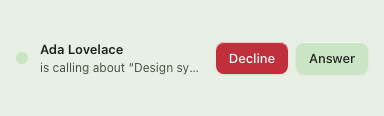
While you are in a call, a Call menu appears in the menu bar, and ⌥⌘M mutes and unmutes from anywhere, even with the window hidden. The desktop app does not share your screen yet. Use a browser for that (Calls).
The menu bar glance
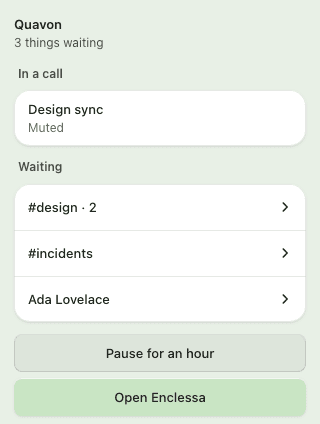
The Enclessa item in the menu bar shows how many things are waiting. Click it for the glance: the count, what is waiting, the call you are in, and Pause for an hour. You don't need to open the app. The item's menu lists the same things, with Settings… and Check for Updates….
Notifications and quiet
Notifications come from macOS. Clicking one opens the room it is about. A call notification has Answer and Decline. You can reply to a message straight from the banner or send a 👍.
- Pause for an hour, from the glance or Settings → Notifications → Pause notifications, gives you an hour of quiet. Nothing is lost, and the count keeps counting.
- Show what was said: with it off, a notification names the room and the person and quotes nothing.
- Play a sound, and Stay quiet during a call.
A ring ignores all three switches. Your quiet hours and do-not-disturb belong to your account and apply here too (Your account → Availability, see Your account).
Lock it with Touch ID
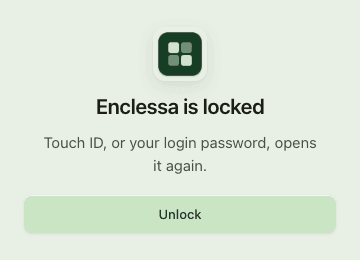
Turn on Settings → Security → Ask for Touch ID. Enclessa then locks itself after five minutes away, and ⌃⌘L (or Enclessa → Lock Enclessa) locks it at once. Touch ID, or your Mac login password, opens it again. Signing out asks for Touch ID too.
While the app is locked, no window opens: the shortcut, the Dock, links and the menu all lead to the lock screen. The glance stays shut, and the menu bar shows no mentions, accounts or call title. A ring says only that somebody is calling, and answering it asks for Touch ID first.
Shortcuts
Settings → Keyboard lists them all.
| Shortcut | Does |
|---|---|
| ⌥⌘T | Show and hide Enclessa from anywhere |
| ⌥⌘K | Search from anywhere |
| ⌥⌘M | Mute the call from anywhere |
| ⌘1 – ⌘5 | Chat, Activity, Saved, Boards, Calls (the Go menu) |
| ⌃⌘1 – ⌃⌘9 | Your first nine accounts |
| ⌃⌘L | Lock Enclessa |
| ⌘K | Search |
| ⌘B | Show and hide the sidebar |
| ⌘N | A new window: two rooms side by side |
| ⌘[ and ⌘] | Back and forward |
| ⌘+ ⌘− ⌘0 | Zoom in, out, actual size (remembered) |
| ⌘R | Reload |
| ⌘, | Settings |
Links that start with enclessa:// open the app at that page. Links to anywhere else open in your
browser.
On Windows
- The window is not locked: there is no Touch ID on Windows, and the switch stays off.
- Notifications arrive only while the app is running. A call notification has Answer and Decline, but you can't reply from a notification.
- The unread count is a red badge on the taskbar button. The glance opens from the tray icon, and its menu carries Settings and Quit.
- The shortcuts from anywhere are Ctrl+Shift+Alt+T, +K and +M. Ctrl+, opens Settings.
The phone app
The phone app is built for chat, calls and what is waiting for you. The iPhone app is in beta through TestFlight. An Android app has not been published yet.
Sign in
- Your Enclessa server asks for the address you would type into a browser.
https://is assumed. Press Continue. - Choose Login, then sign in with Sign in with a passkey or with your email address or username and password. Then enter the code from your authenticator, if you set one up. Register creates an account; a server that is not open for sign-up says that you need an invitation.
- Forgotten your password? Reset it on the web. opens the reset page in your browser.
- Use a different server points the app at another installation.
The tabs
| Tab | What it holds |
|---|---|
| Chat | Your rooms and direct messages, drafts, saved and scheduled messages |
| Activity | Mentions and notices waiting for you |
| Search | Channels, messages and files, plus every other app your organisation runs. Guests don't have this tab. |
| Settings | Your account, notifications, this device, the connection |
A call you are in shows as a bar above the tabs. Back to it returns to the call.
Activity
Activity shows All, or only Mentions or Notifications. Tapping a row opens what it names and marks it read. Clear notifications empties the list. The app icon's badge counts unread mentions plus unread Activity notices.
Notifications
The app asks once, after you sign in, whether it may send notifications. If you refused, turn them on later under Settings → Notifications. It offers Open Settings for the phone's own settings.
A chat notification has Reply, 👍, Mark as read and Mute for an hour. Tapping it opens the room at the message, in the organisation it was sent to.
Under Settings → Notifications:
- Show previews: Name and message, Name only or Nothing. This sets how much of a notification appears on the lock screen.
- Quiet hours and Priority people. Priority people's notifications arrive even during do-not-disturb.
- Alerts: how much each app may interrupt you. You can turn an app down as a whole and turn one thing inside it back up.
Notification choices that follow your account apply on the web and every other device too. The others are for this phone only. Each screen says which.
Change your password and lock the app
Settings → Security → Password: enter the current password and the new one, then press Change password. Every other device is signed out, and your access tokens and connected apps stop working. The phone stays signed in. The second factor is set up on the same screen.
Settings → This device turns on the biometric lock (Face ID, Touch ID or the phone's own). Enclessa then locks whenever it goes into the background, and opens again with that lock.
Tips
- On the Mac, Keep in the menu bar only hides the Dock icon. ⌥⌘T still brings the window back.
- The phone app talks only to your organisation's server. There is no Enclessa account above it.
Soundboard
Play a short sound to everybody in a call: a chime when the build is green, a drum roll before the demo. A handful of sounds come with Enclessa, and your organisation can add its own.
Boards
Boards track the work a team has agreed to do. Every board belongs to one team, has columns you name, fields you choose, and shows the same items as a board, a table or a roadmap.