Studio
Studio plans social content and the shoots that produce it. A post (picture, carousel, video, reel, story or text) for Instagram, Facebook, LinkedIn, YouTube or TikTok moves from idea through planned, in production, in review, approved and scheduled to published. Shoots plan the day, the shots, the people, the kit and the call sheet. Campaigns group posts and shoots over a date range.
Studio's calendar is the content calendar — when posts go out. Meetings and rooms live in the Calendar module.
Where to find it
Open Studio from the sidebar's app row or All apps (/studio). Its sidebar:
| Entry | Route | What it shows |
|---|---|---|
| Home | /studio | This week: due, waiting for review, next shoot, ideas |
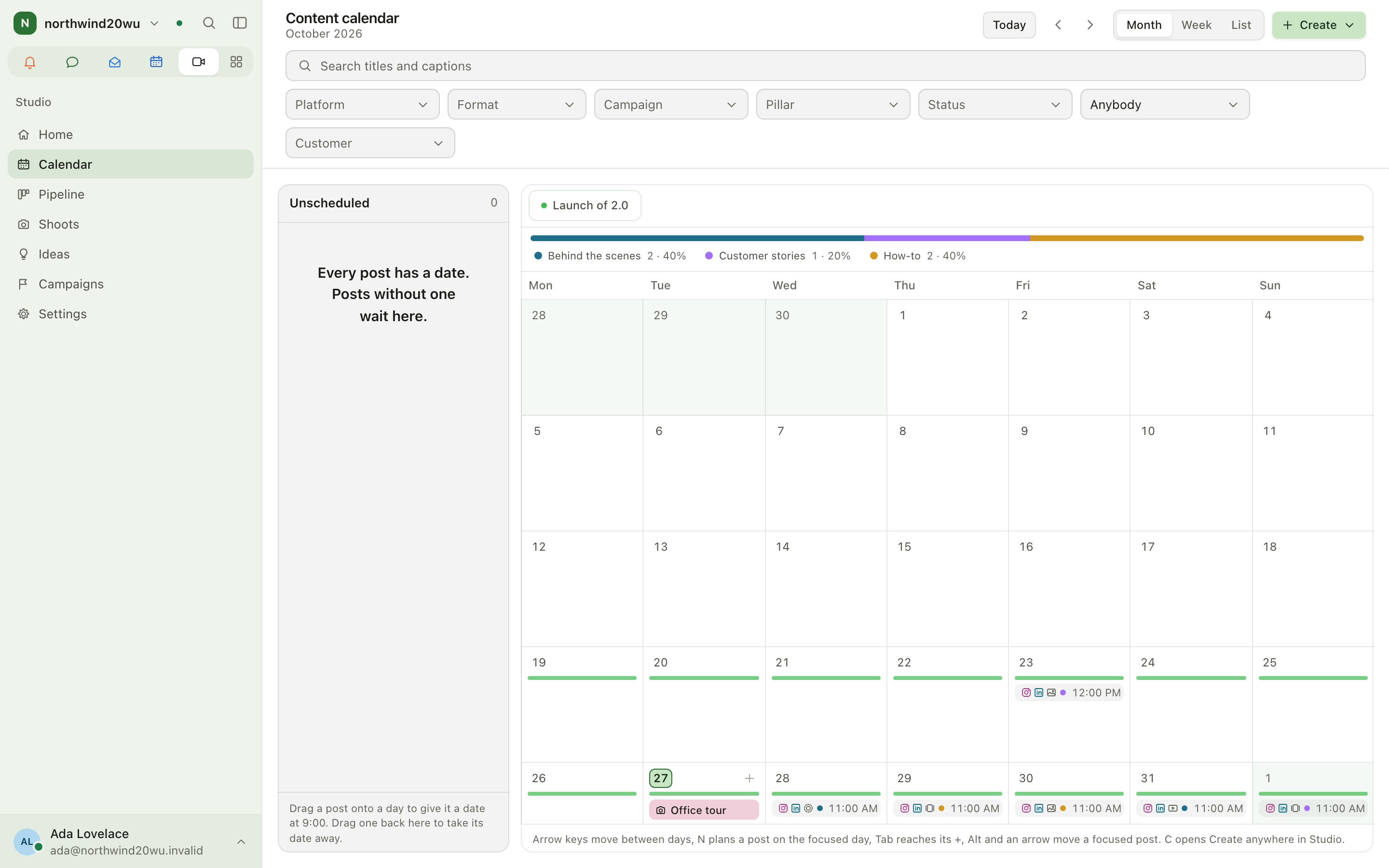
| Calendar | /studio/calendar | Month, week or list of posts and shoots (?view=week|month|list) |
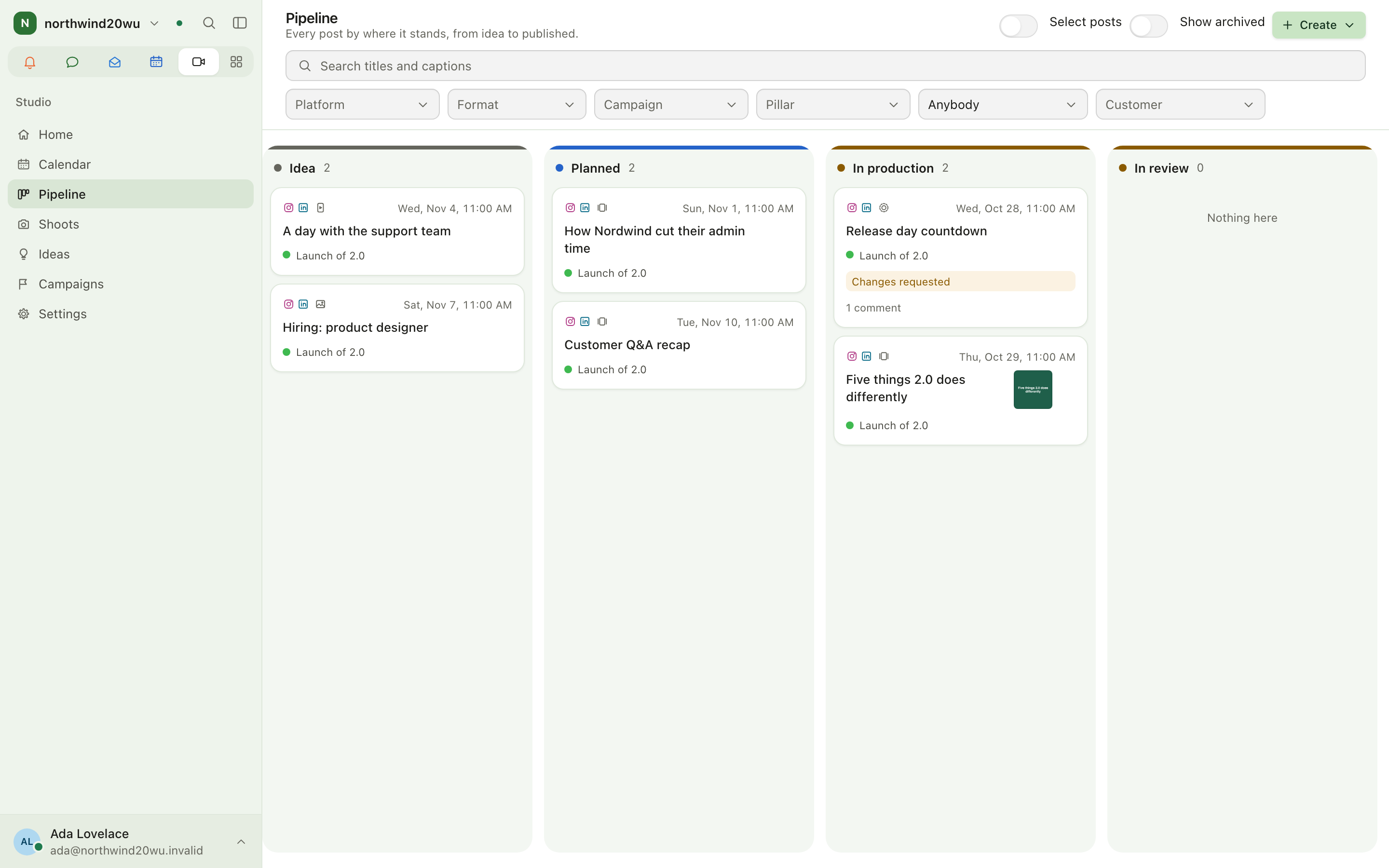
| Pipeline | /studio/pipeline | One column per status (badge: posts waiting for your review) |
| Shoots | /studio/shoots | Upcoming and past shoots |
| Ideas | /studio/ideas | Post and shot ideas |
| Campaigns | /studio/campaigns | Campaigns and their progress |
| Settings | /studio/settings | Content pillars, posting slots, approval rule, your roles |
Roles and permissions
| Role | May |
|---|---|
| Viewer | See the calendar, pipeline, shoots and call sheets |
| Planner | Everything a viewer may, plus create and edit posts, shoots, ideas, campaigns, pillars and slots |
| Approver | Everything a planner may, plus approve, schedule and request changes |
| Administrator | Everything, plus the module's roles |
Roles are granted at System console → Access → Roles (Settings → Open roles links there).
Main workflows
Create anything
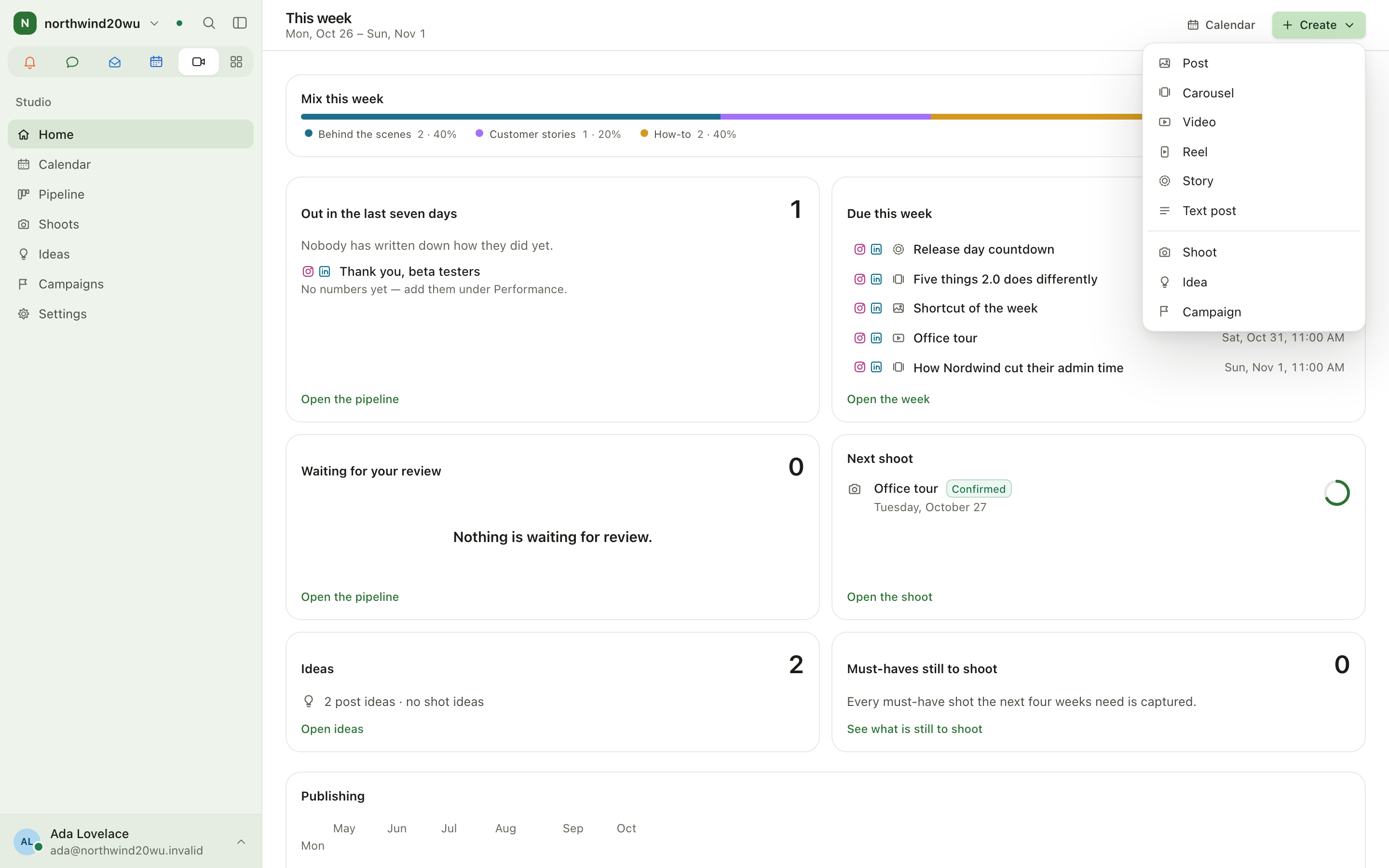
Press Create in any page header, or C anywhere in Studio. Choose post, carousel, video, reel, story, text post, shoot, idea or campaign. Starting from a calendar day, a campaign or a shoot fills in the date, campaign or shots for you. New posts start from a template for their format.
Write a post
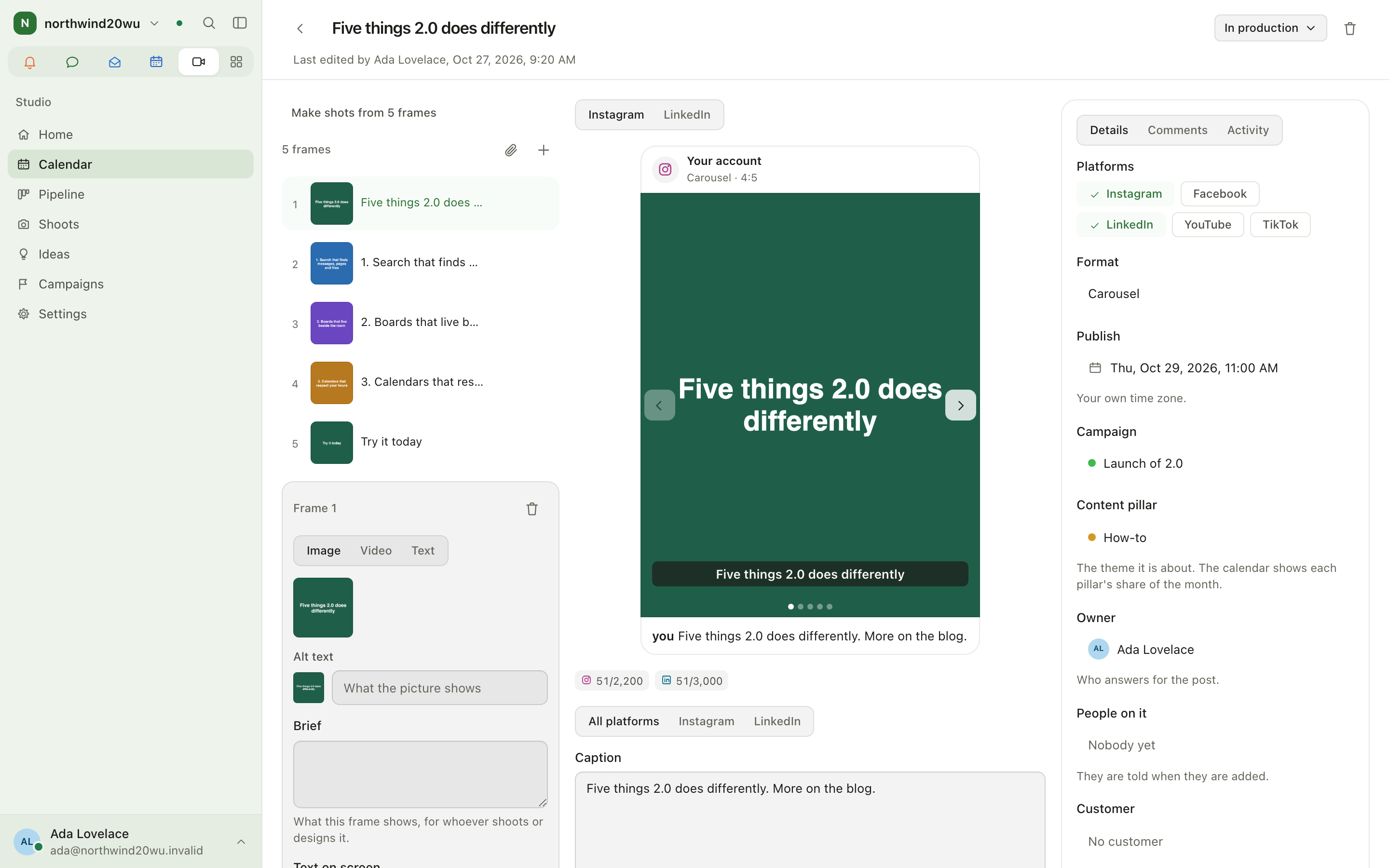
- Open the post (from the calendar, pipeline or home).
- Build the frames on the strip: reorder, drop files, link a shot.
- Write the caption; a tab per network writes that network's variant. The preview shows how each platform truncates it.
- Fill Details: pillar, owner, assignees, brief, cover, publish time.
- It saves automatically once it has a title.
Review and approve
- Move the post to In review (drag on the pipeline).
- An approver opens it, then Approve (optional note) or Request changes (reason required).
- A request for changes is pinned on the post until resolved. Editing an approved post's caption or frames sends it back to review while approval is required.
Plan the calendar
- Open Calendar. Drag a post to another day to reschedule it (time of day is kept).
- Dashed places are posting slots nobody filled yet; choose one to plan a post there.
- Filter by network, format, campaign, pillar, status or person; search titles and captions. In the list view, a month your filters empty says Nothing matches and offers Clear filters.
Collect and promote ideas
- Open Ideas. Choose Post or Shot, type the idea into the box and press Enter (or Keep). The box stays ready for the next one.
- Plan as post moves a post idea to planned; Add to shoot puts a shot idea on an upcoming shoot. Neither copies anything: the same post or shot moves on.
- Once more than a few ideas wait, Find an idea above the lists narrows both by title. When nothing matches, Clear filters brings every idea back.
Planners capture and promote ideas; everybody else sees them.
Plan a shoot
- Create → Shoot, or on the pipeline Select posts → plan a shoot for them.
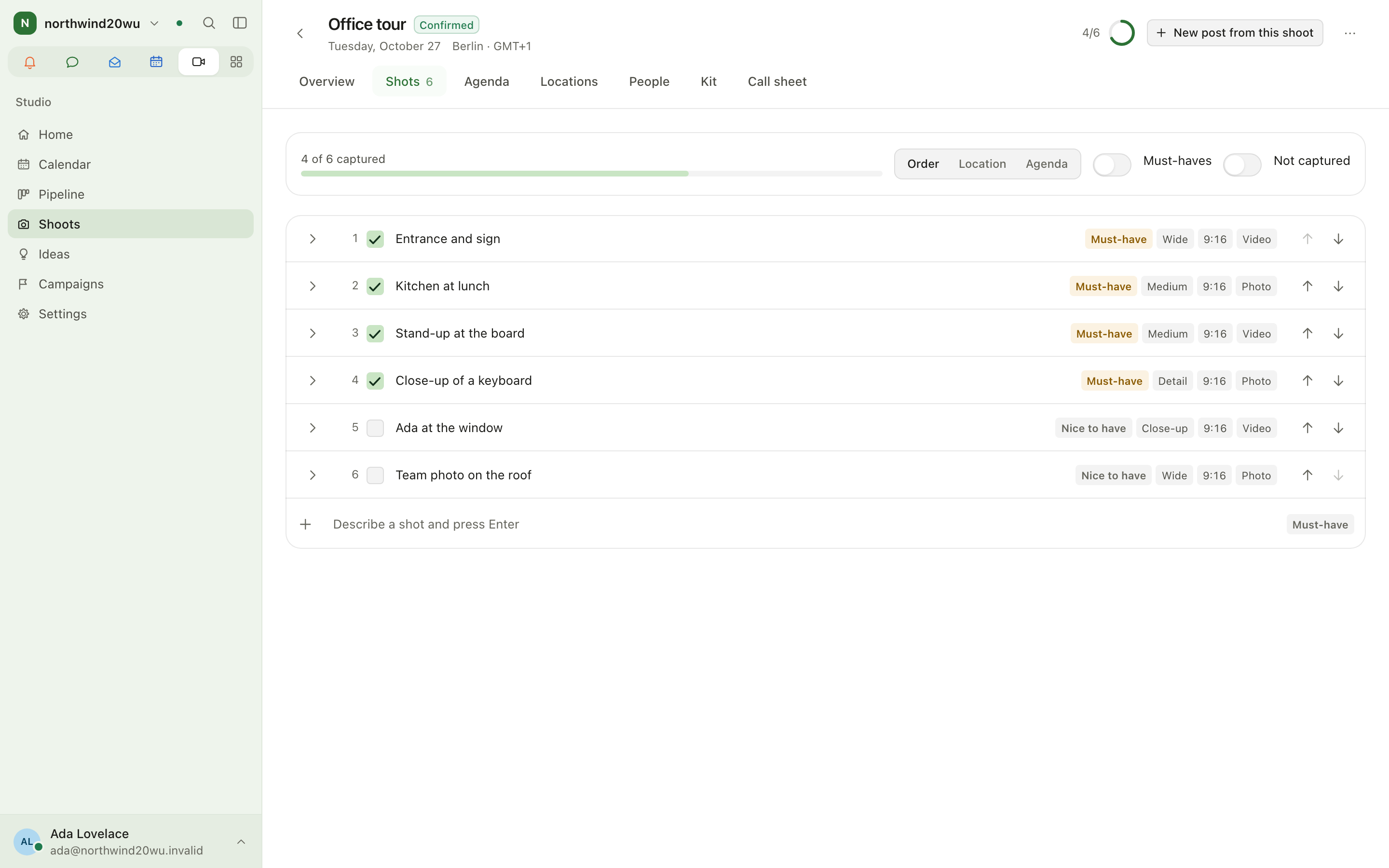
- Fill the tabs: Overview, Shots, Agenda, Locations, People, Kit.
- Call sheet prints to one page and shares a link per person (no login needed).
Settings and admin
Settings (/studio/settings):
- Content pillars — the few themes your posts are about (planners edit).
- Posting slots — recurring weekly places to fill (planners edit).
- This installation — approval rule, call sheet link lifetime, map, public holidays. Changed by an administrator under System console → Marketplace → Studio.
- What you may do — your own roles.
How Studio relates to other modules
| You want to… | Do it in |
|---|---|
| Link a campaign to a project | Campaign details → project (Projects) |
| Book a meeting room for the shoot | Calendar |
Tips
- The pipeline badge is your review queue if you are an approver.
- Show older on the Published column reaches further back in 90-day steps.
Bookings
Bookings lets people outside the organisation ask for an appointment — a first consultation, a viewing, a call — and lets somebody inside answer. Visitors book through your own website (the public booking API) or through a booking link the product hosts at <your-org>.enclessa.app/booking/<code>.
Incidents
Incidents turns alerts from Prometheus Alertmanager or Grafana into incidents, posts them into a team room and pages whoever is on call. If nobody acknowledges in time, the page escalates to the next person. When the alert clears, the incident resolves itself.