Guide for every member
Your first day, everyday chat and Activity, Today, reminders, your account and the apps
Everything in this guide is open to every member of an organisation. Other apps — Time, Boards, Customers and the rest — appear in your sidebar once your organisation installed them and somebody gave you a role in them.
Your role
As a member, you can:
- Sign in, chat, call and use Today
- Join the public channels of your teams and write in the rooms you are in
- Keep your own reminders, and manage your own account, devices and notifications
- Use any other app your organisation installed and gave you a role in
A guest sees only the chat rooms and calls they were invited to — no Today, no other apps.
Your first day
Accept the invitation. Open the link in the invitation email. It opens Create your … account with your address already filled in. Choose a name, username and password, accept the terms and Create account. Already have an account from another organisation? Choose Accept with an existing account instead. See Accept an invitation.
Set your profile. Bottom of the sidebar → Your account → Profile: photo, display name, title.
Secure your account. Your account → Security: add a passkey and a second factor. See Turn on a passkey and a second factor.
Choose your notifications. Your account → Notifications. See Choose your notifications.
Pin your apps. Open All apps (the grid icon at the end of the app row) and pin the ones you use. Drag them in the row to change the order. See Pin, unpin and reorder apps.
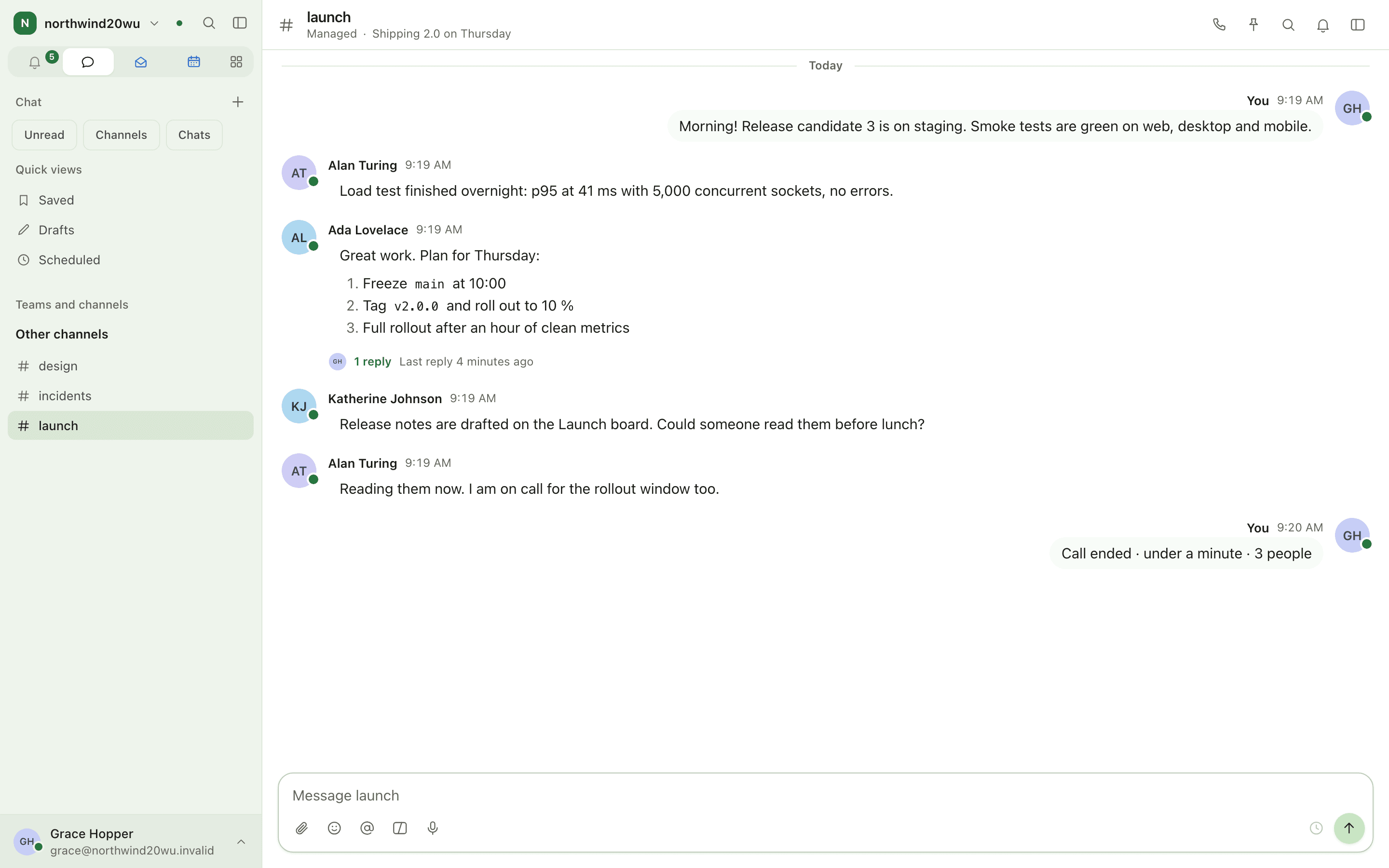
Say hello. Open Chat, pick a channel and write. See Chat.
Press ⌘K (Ctrl+K) anywhere to jump to an app, a page or a setting, or to search records and
messages. Every word you type has to match, in any order: notif opens your notification
settings, password opens Security.
Every day
See what is waiting: Activity
Activity in the app row lists mentions until you read the channel they are in, and notices from other modules — an approval, a task assigned to you — until you open them.
See Activity.
Chat
Join a channel. In the Chat sidebar choose Add a channel (or + → New channel), pick the team and choose a channel to join it. See Join or create a channel.
Write. Type in the composer and press ↵; Shift+↵ adds a line. @name mentions somebody, and
Send later beside the send button schedules the message.
Reply in a thread. Hover a message and choose Reply in thread to keep a side conversation out of the room. See Threads.
Write to one person. + → New direct message, or /msg @name in any room. Turn on
End to end encrypted if only the two of you should be able to read it. See
Direct messages.
Find it again. Text you started is under Drafts, messages you saved under Saved, and messages queued with Send later under Scheduled. See Drafts, saved and scheduled.
Messages in end-to-end encrypted rooms are searched on this device only. Encrypted rooms carry a lock and "Encrypted" in their header; managed rooms say "Managed".
Calls
Start a call from a room with the phone icon in the room header (Start a call in this room) or
by typing /call. On its own, open Calls and choose New call. An incoming call rings on
every screen: ↵ answers, Esc declines. Leave hangs up for you alone; the call goes on for the
others. See Calls.
Your day: Today
What appears depends on what you may see in each module: a module you have no role in contributes nothing. See Today.
Your own to-dos: Reminders
A list is private until you share it with List options → Share list. Due reminders also appear on Today and on the Calendar. See Reminders.
Your own time
If your organisation uses Time, every member can record their own time without a special role: Clock in and Clock out on Time's Today page, book hours under Project time, and Ask to be away or Report sickness under Absence. See Time.
Your account and security
Everything that belongs to you is under Your account at the bottom of the sidebar.
Change your password. Your account → Security → under Password, enter your Current password, then the New password twice, and press Change password. See Change your password.
Check your devices. Your account → Devices lists every device signed in to your account. Remove one to sign it out and take it out of your encrypted rooms.
Back up your history keys. Your account → History backup keeps the keys that let a new device read your encrypted history.
Take your data with you. Your account → Your data → Download my data.
Changing your password signs out every other device, and your access tokens and connected apps stop working. The device you are on stays signed in. Think somebody else is in your account? Changing the password signs them out at once.
Forgot your password? On the sign-in page choose Forgotten your password?. The link that arrives by email works once and expires after two hours. See Forgot your password.
Notifications
See Choose your notifications.
The desktop and phone apps
The desktop app (macOS) and the phone app (iOS and Android) use the same account as the web. Passkeys work there too.
- Desktop: an incoming call opens a window above every application, with Decline and Answer. The menu bar item shows what is waiting without opening the app, and can pause notifications for an hour. ⌥⌘M mutes and unmutes a call from anywhere. After five minutes away the app locks and asks for Touch ID.
- More than one account: in the desktop app, account row → Switch account…. In a browser, sign out and sign in with the other account. To switch organisation, select the organisation name at the top of the sidebar. See Switch organisation or account.
- Passkeys in the desktop app are added in your web browser; the browser hands you back to the app.
- Phone: Forgotten your password? opens the reset page in your browser.
Keep one account for every organisation you work with: the same sign-in reaches all of them.
Who can do what
| You are… | You can… |
|---|---|
| Member | Read and write in the rooms you are in, join public rooms in your teams, call, use Today and Reminders |
| Channel admin | Manage one room and who is in it, from the gear in the room header |
| Team owner | Manage the team, its categories and commands, from the team menu → Team settings |
| Guest | Only the rooms and calls you were invited to |
Anything more comes from a role in a module. If a page says no role gives you access to it, ask whoever administers that module.