Guide for team leads
Approve time and absence, run boards and projects, plan the calendar and bookings, decide people requests
Team leads approve what their team records, keep the team's work in view and plan its dates. What you see here depends on the roles you hold in each module; entries you cannot use are hidden.
Your role
As a team lead, you typically:
- Approve or send back your team's timesheets, absences and corrections in Time
- Run the team's Boards and own Projects
- Plan meetings, rooms and appointments in Calendar and Bookings
- Decide your reports' change requests in People
Approve time and absence
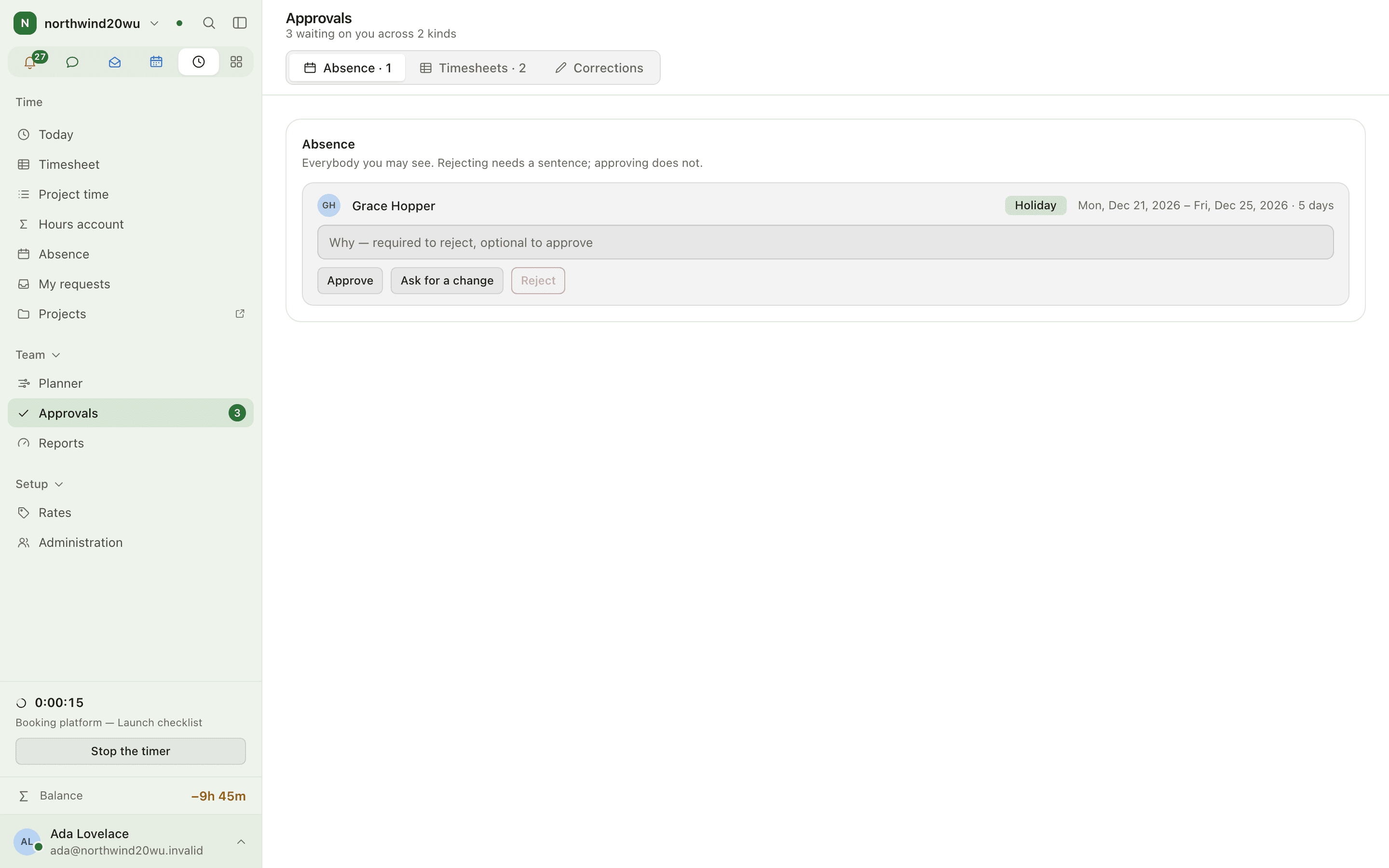
Open Time → Approvals (/time/approvals). The badge counts what waits. It opens on the first of
Absence, Timesheets and Corrections that has something waiting.
Approve, or send back with a reason. A sent-back period shows the reason to the person, who fixes it and chooses Submit again.
To look at one person, open their record in People: the badges on its Time panel open Approvals narrowed to that person. Remove the Person chip to see everybody again.
Check who is away with the Planner — bars over a month, quarter or year — or Who is away on the Absence page.
Open Reports, choose a range and group by project, activity, person, link or day. Export writes a file; large exports run in the background.
Going away yourself? An approver can delegate approvals to a colleague for a stretch of days under Time's Administration → Approval delegations.
Narrowing Approvals to one person only works when that person is in your queue; otherwise the whole queue shows.
See Approve (team leads) and Report and export.
Boards and projects
Set up and run a board
Press New board on the Boards index, or + at the top of the sidebar. Pick the Team that owns it — the board's permissions follow the team — and give it a name.
Leave Start with the usual setup ticked to get Backlog, Ready, In progress, In review and Done, a priority and size field, and the three layouts as saved views.
Change columns, fields and tags later under Configure this board.
Use the view tabs to switch Layout between Board, Table and Roadmap, and Group by status, assignee, tag, project or working group.
Filter with Filter items…: assignee:@me is:open, no:assignee, -status:Done. In the table
layout, tick items for Mark done or Archive in bulk.
See Boards.
Run a project
Press Start a project on any project list. Fill in name, code, owner, customer, dates, budget (money or hours), visibility and whether time is tracked on it.
Under the project's Settings → Boards, name the boards that count as its work. The Primary one is what a timer started on this project defaults to.
Add milestones from the project's tabs. Milestones in the sidebar shows what is due across every project.
Write an Update with a health — on track, at risk, off track — whenever the picture changes.
The Portfolio and the at-risk count read the updates owners write, never a calculation. They only know what owners write.
See Projects.
Calendar and bookings
Plan a meeting and share a calendar
In Calendar, press New event, double-click a slot, or type into
Write an event in a line (for example Lunch with Max Thursday 12–13) and press Enter.
Add attendees, a room, a repeat rule and a reminder in the editor, and save. A room with auto-accept confirms at once.
To share a calendar, press Share beside it in the sidebar, Pick a colleague and choose Busy only, Can read, Can write or Can share it too.
Absences, board due dates, project milestones and reminders appear on the Calendar as read-only overlays under Elsewhere; they are still managed in their own modules. See Calendar.
Answer appointment requests
Open Bookings → Requests. Which appointments switches between Open, Requests only, Confirmed, Past and Everything.
Open a request's Details, then confirm or decline — Add a message, or answer Without a message.
After the appointment, mark it Kept or Not there.
To change what can be booked, open Types and hours: appointment types, opening hours and Booking links.
Declining or cancelling an appointment tells the visitor and cannot be undone.
See Bookings.
People requests
Employees ask for a change of contact details or name from Me → Ask for a change. The request goes to their manager first, and to HR when there is no manager of record.
Open People → Requests, read the proposed change against what the record says now, and approve or reject with a comment.
Decided requests stay listed under Decided.
Leave, holiday and sickness are not People requests: they are asked for and approved in Time.
If you may manage your team's onboarding, People → Onboarding shows your new starters; filter the board by department. See Handle change requests.
Who can do what
| Module | What a team lead needs |
|---|---|
| Time | The Team lead role approves for their team; Reports needs permission to read team, project or organisation time |
| Boards | A Boards role to open Boards; membership of the owning team to add, edit and configure a board |
| Projects | A managing role on the project or the module to start projects and add milestones |
| Calendar | Every member sees free/busy; reading a colleague's event titles needs a share or the right role |
| Bookings | Viewer answers requests and edits types, hours and links |
| People | hr.team.change.approve decides your reports' requests; hr.team.onboarding.manage runs their onboarding |
Roles are granted by an administrator under System console → Access → Roles.